
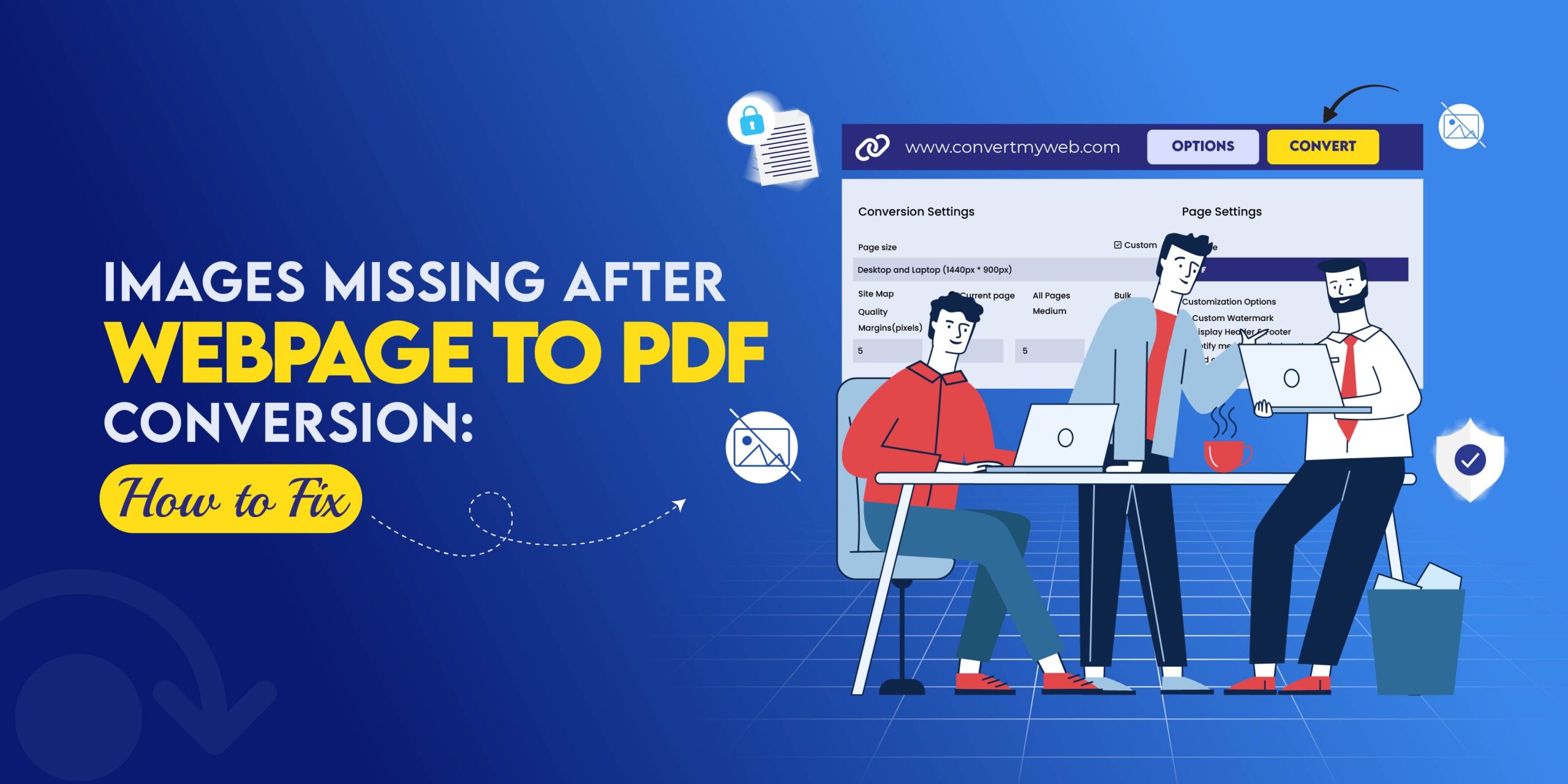
Saving webpages as PDFs is a common task for students, professionals, and businesses. However, a frustrating issue many users face is that images are missing after the webpage to PDF conversion. Your PDF may contain text and layout, but some images fail to appear.
This article explains why images disappear in PDFs and provides proven fixes to ensure your converted PDFs preserve all content accurately.
Why Images Go Missing in Webpage to PDF Conversion
1. Lazy Loading or Infinite Scroll
Many modern websites use lazy loading to optimize performance. Images are loaded only when they appear on your screen.
Problem: PDF converters capture the page before the images load, resulting in missing visuals.
2. JavaScript-Rendered Images
Dynamic websites often use JavaScript frameworks like React, Vue, or Angular. Images may only render after scripts execute.
Problem: Converters that do not support JavaScript fail to capture these images.
3. External Resource Restrictions
Images hosted on external domains may be blocked due to:
- CORS policies
- Firewalls or network restrictions
- Browser extensions like ad blockers
Result: PDF output is missing images entirely.
4. Browser Print to PDF Limitations
Using Chrome or other browsers’ “Print to PDF” options often leads to missing images.
Reason: Browser print tools are designed for static pages and often fail to process CSS background images, SVGs, or dynamically loaded media.
5. Large or High-Resolution Images
High-resolution images or long pages may not render fully if:
- The PDF tool has a file size limit
- Timeout occurs before images load
This is common for infographics, charts, or long-form content.
How to Fix Missing Images After Webpage to PDF Conversion
1. Use a JavaScript-Friendly Webpage to PDF Tool
Choose a tool like Webs2PDF that:
- Fully renders JavaScript
- Loads lazy images
- Supports dynamic content
This ensures that all text, images, and layouts appear correctly.
2. Ensure Full Page Load Before Conversion
Before converting:
- Wait for all images to load
- Scroll through the page to trigger lazy-loaded images
- Avoid converting partially loaded pages
3. Disable Ad Blockers and Script Blockers
Extensions may prevent images from loading. Temporarily disable:
- Ad blockers
- Privacy extensions
- Script blockers
This helps the converter capture every image on the page.
4. Use Publicly Accessible URLs
For pages with restricted access:
- Ensure images are publicly hosted
- Avoid session-based or login-protected images
Private images often fail to appear in PDFs.
5. Adjust Page Load Timeout or File Size Limits
Some PDF converters allow:
- Longer load times
- Higher file size limits
This helps when converting pages with large or high-resolution images.
6. Avoid Browser Print for Complex Pages
Chrome or Edge print tools:
- Often skip background images
- Fail on JavaScript-rendered content
- Can produce PDFs with missing visuals
Use a dedicated webpage to a PDF conversion tool for accurate output.
Quick Checklist to Prevent Missing Images
Before conversion, verify:
- All images are visible on the webpage
- No lazy-loaded or JavaScript-delayed content is missing
- Browser extensions that block images are disabled
- The page is fully accessible public
- You are using a JavaScript-enabled PDF converter
Common Scenarios for Missing Images
- Infinite Scroll Pages: Only the visible images load
- Web Apps and Dashboards: Images generated dynamically by scripts
- News Websites: CDN-hosted images may fail if blocked
- E-Commerce Pages: Product images behind scripts or login
Why a dedicated Webpage to PDF Tools Solves This Problem
Professional tools like WebstoPDF:
- Render images and scripts fully
- Preserve high-resolution quality
- Support lazy-loaded and dynamic content
- Convert long webpages without cropping
This ensures every image, chart, and visual element is captured in your PDF.
FAQs
Q: Why does my PDF show text but no images?
This is usually due to “Lazy Loading.” The converter doesn’t scroll down, so the website doesn’t “trigger” the images to load. Manually scrolling or using a tool like Webs2PDF that waits for all resources to fetch solves this.
Q: How do I include background images in a webpage PDF?
Browsers often hide background images for printing. In Chrome, go to More Settings and check “Background Graphics.” For a more reliable fix, use a professional API-based converter.
Q: Why are some images replaced by a “broken link” icon in PDF?
This happens when images are hosted on a different server (CDN) that blocks the PDF converter’s access due to security (CORS) or hotlinking protections.
Conclusion
Images missing after webpage to PDF conversion is a common but preventable issue. The main reasons include lazy loading, JavaScript rendering, restricted resources, and browser print limitations.
By using a JavaScript-enabled PDF tool, waiting for full page load, and disabling blockers, you can reliably convert any webpage into a complete, image-rich PDF.
For consistent results and professional-quality PDFs, always choose a tool built specifically for modern web rendering, like Webs2PDF.




3 Responses