
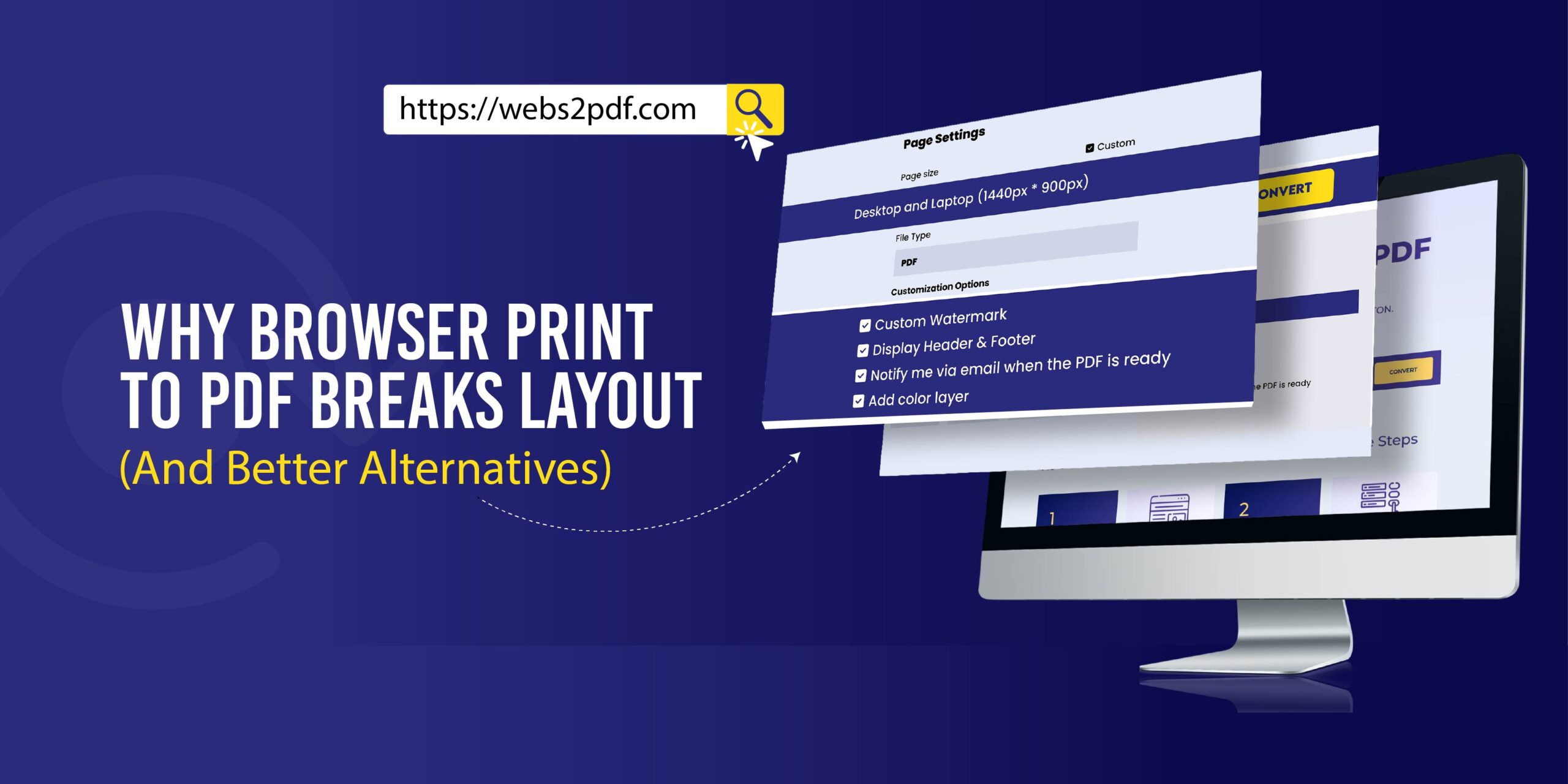
When users try to save a webpage using the browser’s Print to PDF option, the layout often breaks. Images disappear, text overlaps, and pages get cut off. This happens because browsers are not designed to handle modern, dynamic web layouts during PDF printing.
Whether you’re a student, professional, or researcher, a broken PDF can waste time, distort important information, and create unnecessary frustration. In this guide, we’ll explain why browser Print to PDF fails, the common issues, and better alternatives to save webpages accurately.
How Browser Print to PDF Works
Most modern browsers, like Chrome, Edge, or Firefox, include a built-in Print to PDF feature. It works by rendering the visible webpage into a static document, often using the @media print CSS rules if available.
While this works for simple pages, it struggles with modern web technologies like JavaScript frameworks, lazy-loaded content, and responsive designs. Browser printing is limited because it:
- Renders only the currently loaded elements
- Ignores dynamic content that loads asynchronously
- Doesn’t fully respect complex CSS or interactive elements
Common Layout Problems with Browser Print to PDF
Even simple webpages can break when printed as a PDF. Some of the most common problems include:
- Images Not Loading: Images loaded dynamically or via lazy-loading often do not appear.
- CSS Breakage: Styles designed for screens may not render properly for print.
- JavaScript Content Missing: Interactive elements, pop-ups, or dynamically fetched content are omitted.
- Cut-Off Sections: Long pages may get truncated or split incorrectly across pages.
- Page Scaling Issues: Text may overlap or appear too small/large due to improper scaling.
Why Modern Websites Break During Print to PDF
Modern websites are rarely static. Here’s why browser PDF printing struggles:
- JavaScript Frameworks (React, Vue, Angular): Content is rendered dynamically, and print functions capture only static HTML.
- Lazy-Loaded Images: Images load only when scrolled into view. Print to PDF usually captures only what is currently visible.
- Infinite Scroll Pages: Content that loads as you scroll may be missed entirely.
- Responsive Layouts: Mobile-first designs may break when forced into a static page layout for PDF.
Because of these challenges, relying solely on browser print often produces incomplete or messy PDFs.
Browser Print to PDF vs Online Webpage to PDF Tools
| Feature | Browser Print to PDF | Online Webpage to PDF Tool (e.g., Webs2PDF) |
|---|---|---|
| Layout Accuracy | Low | High |
| Image Handling | Often missing | Preserved |
| JavaScript Rendering | Not supported | Supported |
| Page Control | Limited | Full control (size, orientation, headers/footers) |
| Long Page Support | Partial | Full page capture, no cropping |
Online PDF converters are built specifically for saving entire webpages, handling JavaScript, CSS, images, and dynamic content. They ensure that your PDF matches the original layout perfectly.
Better Alternatives to Browser Print to PDF
If you want a reliable, accurate PDF, consider these methods:
1. Online Webpage to PDF Tools
Websites like Webs2PDF allow you to convert any URL to PDF with full content and layout preserved. Advantages:
- Supports dynamic pages
- Captures images and CSS correctly
- Allows advanced options like page size, orientation, and image quality
2. Headless Browser Conversion
Developer-friendly approach using tools like Puppeteer or Playwright:
- Renders pages exactly as seen in the browser
- Generates high-quality PDFs
- Useful for automated workflows
3. Dedicated PDF Software
Some PDF tools allow URL import and advanced rendering, ensuring complete capture. Examples include Adobe Acrobat’s “Create PDF from Web Page”.
When Should You Avoid Browser Print to PDF?
Browser printing works for simple, static pages, but avoid it for:
- Legal documents
- Official invoices or reports
- Research articles or reference materials
- Long or dynamic web pages
In these cases, online converters or automated PDF tools will save time and prevent layout issues.
FAQ
Q1. Why does Print to PDF remove images from webpages?
Images loaded dynamically or via lazy-loading are not captured by browser printing. Online converters render the page fully, including such images.
Q2. Is browser Print to PDF reliable for official documents?
No, browser print often breaks layout, truncates pages, and can miss critical content. Use professional PDF conversion tools for official documents.
Q3. What is the best alternative to browser Print to PDF?
Online webpage to PDF tools like Webs2PDF, or headless browser-based solutions, provide full content capture with proper formatting.
Q4. Does browser Print to PDF support JavaScript websites?
No, most JavaScript-generated content will not appear correctly. Specialized converters that render JavaScript fully are required.
Conclusion
Browser Print to PDF is convenient but limited. For accurate, complete, and professional PDFs, you need tools that handle modern web content properly. Using Webs2PDF or similar online converters ensures:
- Layout preservation
- Images and dynamic content included
- Better control over page size and format
Stop wasting time fixing broken browser PDFs and switch to specialized tools that guarantee results every time.

One Response