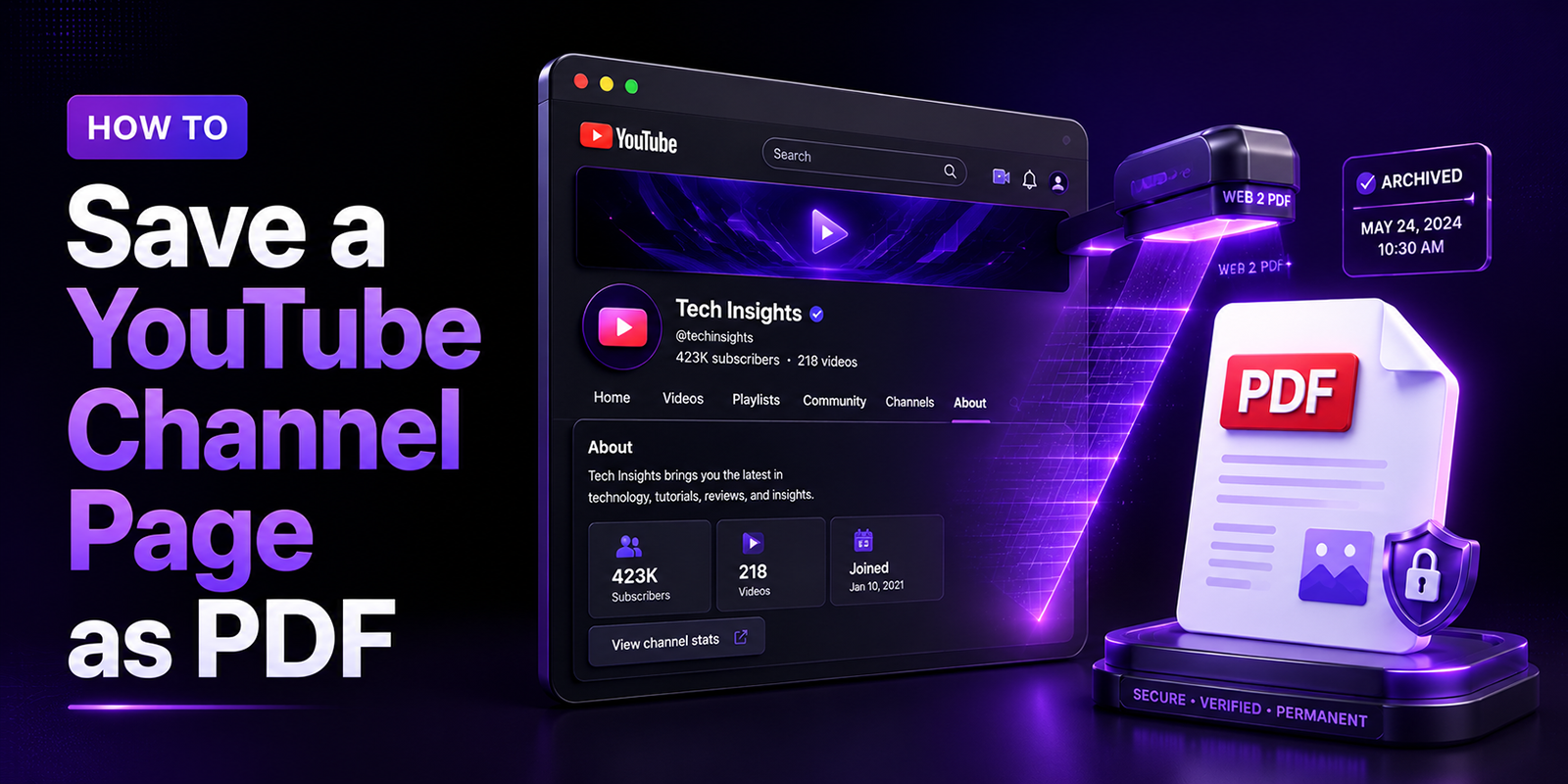
You are researching a competitor’s YouTube channel. Their About page has a detailed brand description, contact email, and links. Their most popular video has a description packed with timestamps, keywords, and external resources. Their channel banner and featured sections tell a clear story about their content strategy.
You want to save all of this for your analysis. Maybe you are a marketer benchmarking a competitor. Maybe you are a journalist researching a creator for an article. Maybe you are a student documenting sources for a research project. Maybe you are a creator archiving your own channel info as a professional record.
Whatever the reason, you need a permanent, portable, shareable copy of that YouTube page. Not a screenshot. Not a bookmark that breaks. A clean, complete PDF.
In this guide, we cover exactly how to convert any YouTube channel page, video description, playlist, or About section to PDF, using four practical methods, with honest notes on what works and what does not.
What YouTube Pages Can You Save as PDF?
YouTube is a web-based platform, which means every page on YouTube has a URL and can be captured as a PDF using a web-to-PDF tool. Here is a breakdown of the most useful YouTube page types to save, and what each one contains:
| YouTube page type | URL format | What the PDF captures |
| Channel About page | youtube.com/@channelname/about | Channel description, subscriber count, total views, join date, location, contact email, links |
| Channel home page | youtube.com/@channelname | Featured sections, latest uploads, playlists, channel art description, shorts, community tab |
| Channel Videos tab | youtube.com/@channelname/videos | Full video listing with thumbnails, titles, view counts, and upload dates |
| Channel Playlists tab | youtube.com/@channelname/playlists | All public playlists with titles and video counts |
| Individual video page | youtube.com/watch?v=XXXX | Video title, description, tags, chapter markers, creator notes, pinned comments |
| YouTube search results | youtube.com/results?search_query=X | Search result listings useful for keyword research documentation |
| YouTube handle / @page | youtube.com/@channelname | Merged channel identity page including all public channel info |
Method 1: Use Webs2PDF
Webs2pdf.com converts any public web page, including YouTube channel pages, into a clean, complete PDF by fully rendering the page before generating the output. This means you get all visible content: channel description, subscriber count, video listings, About information, and page structure exactly as it appears in the browser.
Step-by-step instructions
- Open the YouTube page you want to save in your browser. This can be a channel About page, a video page, a playlist, or any other public YouTube URL.
- Make sure the page is fully loaded. Scroll down if needed to trigger any lazy-loaded content, particularly video grids and playlist listings.
- Copy the full URL from your browser address bar. For example: https://www.youtube.com/@channelname/about
- Open webs2pdf.com in a new tab and paste the URL into the converter field.
- Click Convert to PDF and wait a few seconds for the page to render completely.
- Download your PDF. The complete page is captured, including all text, channel metadata, and visible content.
What webs2pdf.com captures on a YouTube channel page
Webs2PDF captures publicly visible channel information, including About details, subscriber counts, video listings, playlists, and other loaded page elements in a single PDF. This provides a highly detailed capture of the publicly visible content on the page without requiring access to the YouTube API.
Method 2: Browser Print to PDF (Free but Limited)
Every browser includes a built-in Print to PDF function. For YouTube pages, this method is quick and free, but it comes with some limitations you should know about before relying on it.
How to use browser print on a YouTube page
- Open the YouTube channel or video page in Chrome, Firefox, Edge, or Safari.
- Press Ctrl+P on Windows or Cmd+P on Mac to open the print dialog.
- Under Destination or Printer, select Save as PDF.
- Adjust the page size and margins if needed, then click Save.
Known limitations with browser print on YouTube
YouTube’s interface is heavily built on JavaScript and dynamic loading. Browser print-to-PDF frequently misses: video thumbnails that have not fully loaded, content below the initial viewport (video grids only show partially), YouTube’s navigation sidebar which appears in the output, and the channel banner image which often renders as a blank space. For research or archiving purposes, browser print works for capturing text-heavy pages like the About section, but is less reliable for full channel or video grid pages.
Method 3: Full-Page Screenshot Converted to PDF
For capturing the visual appearance of a YouTube page including the channel banner, profile image, and video thumbnails, a full-page screenshot tool can be more effective than a standard print-to-PDF. The screenshot can then be converted to PDF for a permanent, visual record.
How to do it
- Use a full-page screenshot browser extension (GoFullPage for Chrome, or the built-in screenshot tools in Firefox and Edge) to capture the complete page from top to bottom.
- Save the screenshot as a PNG or JPEG file.
- Convert the image to PDF using an image-to-PDF tool, or simply use your operating system’s print function to print the image as a PDF.
- The result is a visual PDF that preserves the full layout of the YouTube page, including banners and thumbnails.
Best for: Visual documentation where the look and layout of the channel matters, such as a competitive audit, a creator portfolio document, or a design reference. The trade-off is that text in a screenshot-based PDF is not searchable or selectable.
Method 4: Copy the Text Content and Export as PDF
For users who specifically need the text content of a YouTube page channel description, video description, chapter markers, or links rather than a full-page visual capture, the simplest approach is to copy the relevant text directly from the page and paste it into a document.
- Open the YouTube channel About page or video description.
- Click Show More to expand the full description or About text.
- Select and copy all the text content you need.
- Paste into Google Docs, Notion, or Microsoft Word.
- Add a header noting the channel name, URL, and date captured.
- Export the document as a PDF from the application’s File menu.
Best for: Researchers and journalists who need clean, editable text from video descriptions or channel About sections. This method gives you fully searchable, annotatable text content, but does not preserve the visual layout of the original YouTube page.
Which Method Is Right for You?
| Your goal | Best method |
| Archive a complete channel page for research or competitor analysis | Webs2PDF full render, all content captured |
| Save an About page with contact info and links | Webs2PDF or browser print text-heavy pages work well |
| Document the visual appearance of a channel (banner, thumbnails, layout) | Full-page screenshot converted to PDF |
| Save a video description with all timestamps and links | Webs2PDF or copy-paste into document then PDF |
| Archive a channel’s video list with titles and view counts | Webs2PDF most complete video grid capture |
| Create an editable, searchable text record of channel content | Copy-paste method into Google Docs, export as PDF |
| Quick capture of a single visible section of a page | Browser print is fast and requires no tools |
| Build a recurring archive of a channel’s growth over time | Webs2PDF on a scheduled basis using automation |
Who Saves YouTube Pages as PDF and Why
Content creators and personal branding
Creators save their own channel About page and top video descriptions as PDFs for several professional reasons: submitting channel information to brand partnerships, including in media kits sent to sponsors, documenting their channel’s milestones at key moments (100K subscribers, 1M views), and maintaining a personal archive of their content strategy as it evolves. A PDF of your channel at a significant milestone is a permanent professional record that your YouTube Studio analytics cannot fully replace.
Digital marketers and competitive intelligence
Marketing teams regularly audit competitor YouTube channels as part of brand strategy and content planning. Saving a competitor’s channel page, video listing, and About section as a PDF creates a documented baseline for comparison over time. When that competitor rebrands, changes their content strategy, or updates their messaging, you have a timestamped record of what they were doing before.
Journalists and researchers
Journalists frequently need to document YouTube channels as part of investigative research, source verification, or media analysis. A PDF of a channel page at a specific date provides verifiable, timestamped evidence of what was publicly visible. This is particularly important when covering content creators, viral videos, or platform policy stories where channel information may later be changed or removed.
Students and academic researchers
Students studying media, marketing, communication, or platform studies often cite YouTube channels as primary sources. A PDF capture of the channel page at the time of research creates a citable, persistent record, essential for academic integrity when the original page may be updated or removed before a paper is published.
Brand monitoring and PR teams
PR professionals and brand managers who monitor their brand’s presence on YouTube save channel pages and video descriptions as PDFs to document: brand mentions and collaborations, sponsored content declarations, creator partnership terms, and any content that involves their brand. These PDFs become part of the brand monitoring paper trail. When a dispute arises over sponsored content claims or brand representation, a timestamped PDF of what was publicly stated is far more useful than trying to recreate a live page after the fact.
Tips for Better YouTube-to-PDF Captures
- Use the About page URL for the cleanest capture. The About page (youtube.com/@channelname/about) contains the most structured text information: description, subscriber count, join date, location, and all public links. It is the easiest page to capture cleanly as a PDF.
- Expand all content before converting. Click Show More on descriptions and About sections before converting. Content that is collapsed by default may not appear in the PDF if it has not been loaded.
- Note the capture date in your filename. YouTube channel statistics change constantly. Always save your PDF with a date in the filename: ChannelName_About_2026-06-10.pdf. This makes the capture date unambiguous when you reference it later.
- For video descriptions, open the full description first. YouTube truncates video descriptions. Click Show More on the description before converting to ensure the full text is captured in the PDF.
- Scroll the full page before converting. YouTube uses lazy loading for video thumbnails and grid items. Scroll slowly to the bottom of the page before copying the URL and converting. This triggers all content to load, ensuring a more complete capture.
- For channel analytics, use YouTube Studio’s export instead. If you need subscriber counts, watch time, and engagement data in PDF format, YouTube Studio’s built-in analytics export is the more appropriate tool. Webs2pdf.com captures what is publicly visible on a channel page, not internal analytics data.
Frequently Asked Questions
Can I save a YouTube channel page as a PDF?
Yes. Any publicly accessible YouTube channel page, including the Home, Videos, Playlists, and About sections, can be saved as a PDF using a web-to-PDF converter, the browser’s print function, or a screenshot-based method.
How do I save a YouTube About page as a PDF?
Open the channel’s About page, ensure all information is visible, copy the URL, and use a tool like Webs2PDF to convert the page into a downloadable PDF. You can also use your browser’s Print to PDF feature.
Will a PDF include YouTube subscriber counts and channel details?
Yes. Publicly visible information such as subscriber counts, channel descriptions, join dates, website links, and other About page details can be included in the PDF at the time of capture.
Can I save a YouTube video description with timestamps and links?
Yes. Expand the full video description by clicking Show More before converting the page. This helps ensure that timestamps, chapter markers, and visible links are included in the PDF.
Why are some thumbnails or page elements missing from my PDF?
YouTube uses dynamic loading and lazy-loaded content. Scrolling through the page before converting it can help ensure that thumbnails, video grids, and other page elements are fully loaded and captured.
Can I automatically archive YouTube channel pages as PDFs?
Yes. If your PDF tool offers an API, you can connect it with automation platforms such as Zapier, Make, or n8n to create scheduled PDF snapshots of YouTube channel pages for research, monitoring, or record-keeping purposes.
Conclusion
Every YouTube channel page, video description, and About section is a publicly accessible web page with its own URL. That means it can be saved as a PDF using the same approach as any other web page, and it should be, whenever that information matters enough to keep permanently.
Channel descriptions get updated. Subscriber counts change. Videos get removed. Contact emails shift. A PDF captured today is a permanent record of exactly what was publicly visible at that moment. For competitive research, academic citation, journalism, or creator archiving, that permanent record has real value.
If you need a faster way to archive YouTube channel pages, playlists, or video descriptions, Webs2PDF can convert publicly accessible YouTube URLs into downloadable PDFs in just a few clicks.