You found the perfect product on Amazon. The price is right, the reviews are solid, and the specifications are exactly what you need. You want to save the listing, to share with a colleague, to compare against another supplier’s offering, to keep as a record of what you purchased and at what price, or simply to read offline before making the final decision.
You copy the URL and send it. Three days later, the price has changed. The seller updated the listing. One of the images is different. The stock count you noted is gone. The listing that existed when you made your decision no longer looks the same.
This is the nature of e-commerce in 2026. Product listings are living documents. Amazon sellers update their listings continuously, adjusting prices, revising descriptions, swapping images, and changing bullet points. Prices can update multiple times per day. A product that is available today may be out of stock by tomorrow. The listing you share today may look entirely different to the person who opens the link next week.
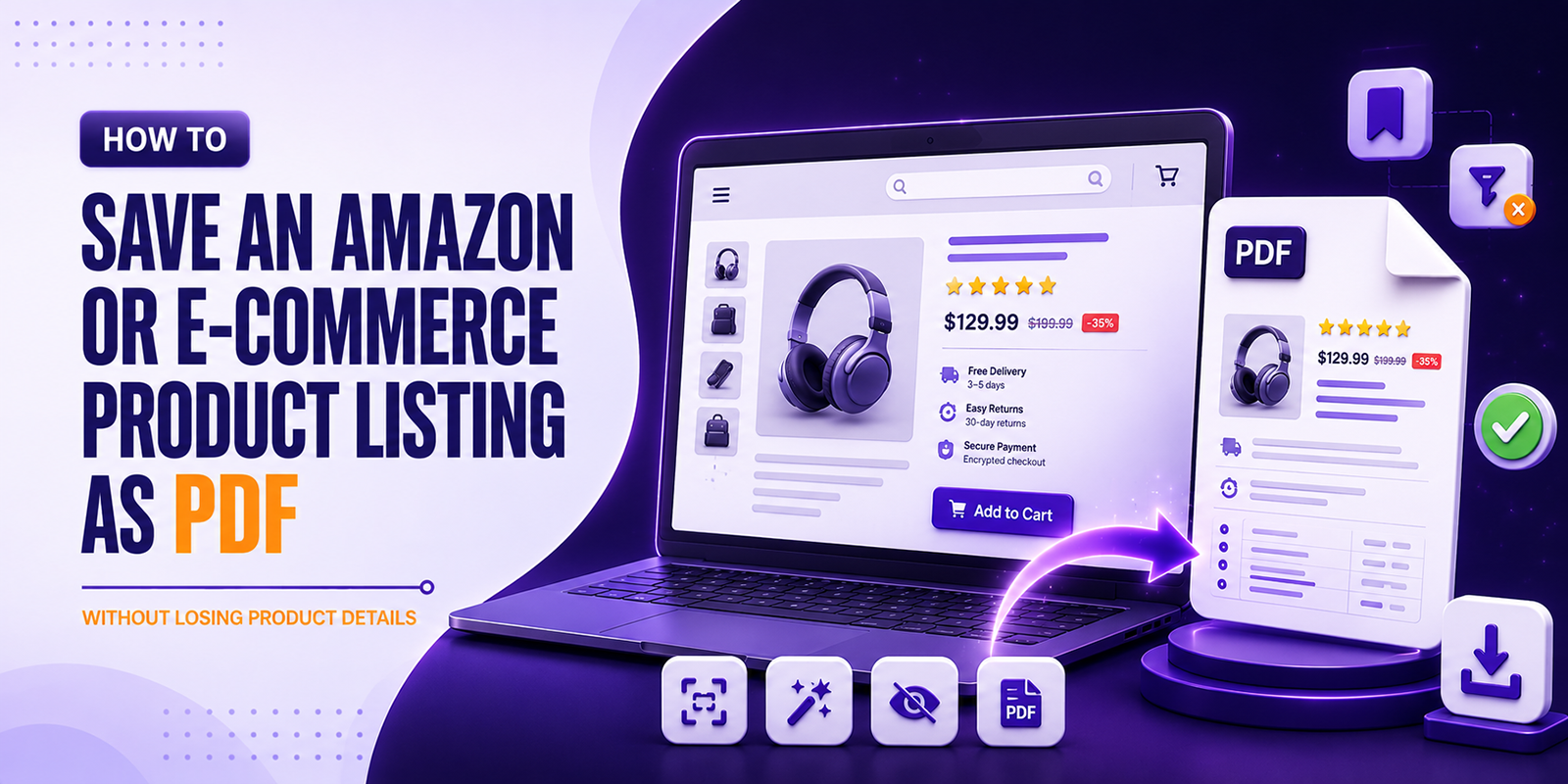
Saving a product listing as a PDF solves all of this. The PDF captures exactly what the listing looked like at that moment: price, description, images, seller name, rating, reviews, specifications, and all, and gives you a permanent, shareable, offline-readable record that does not change.
Why Save Product Listings as PDF? 7 Real-World Reasons
Saving a product URL is not the same as saving the product information. Here is why PDF archiving is the more reliable approach for every serious online shopper, seller, and researcher.
- Prices change constantly. Amazon’s algorithm updates prices throughout the day based on demand, competitor pricing, and inventory levels. A PDF captures the price at the exact moment you saw it, useful for price dispute documentation, procurement records, and purchase comparisons.
- Listings get updated without notice. Sellers can change product titles, descriptions, bullet points, images, and specifications at any time without any notification to previous viewers. What you see today may not be what the next person sees.
- Products go out of stock or get discontinued. A product you are researching may be unavailable by the time you are ready to buy. A PDF gives you all the specifications you need to find an equivalent elsewhere.
- Sharing with people who cannot access the platform. Not everyone shops on Amazon or has access to the same e-commerce platforms across different regions. A PDF is universally readable without an account, without a VPN, and without internet access.
- Product research and comparison. Researchers, procurement teams, and resellers comparing multiple products across multiple platforms benefit from having consistent, static PDFs side by side rather than switching between live browser tabs that may show different prices.
- Evidence for returns, disputes, and warranty claims. If a product description on the listing page made a claim that the actual product does not fulfill, a PDF of that listing at the time of purchase is evidence of what was promised. Without it, you only have your word against the seller’s updated listing.
- Dropshipping and reseller sourcing documentation. Dropshippers and resellers who source products from multiple platforms need systematic records of supplier listings, pricing, and specifications. PDF archives become the foundation of a structured sourcing database.
Amazon listings in 2026 are more dynamic than ever
Amazon’s A10 algorithm in 2026 continues to prioritize conversion performance, which means sellers are constantly optimizing their listings, adjusting titles, updating images, tweaking bullet points, and repricing. What was on a listing when you first saw it can be significantly different 48 hours later. A PDF is the only way to preserve exactly what a listing said at a specific moment in time.
Which E-Commerce Platforms Work with Webs2PDF?
Webs2pdf.com converts any publicly accessible web page to PDF, which means it works with virtually every major e-commerce platform in the world. Here is a breakdown of the most commonly used platforms and what their product listing PDFs contain:
| Platform | Region / Audience | What the PDF captures |
| Amazon.com / .ae / .in | Global / UAE / India | Product title, price, Prime badge, seller info, star rating, review count, bullet points, full description, technical specs, A+ content images |
| Shopify stores | Global (independent brands) | Product title, price, variants (color, size), full description, product images, customer reviews if enabled |
| eBay | Global | Listing title, buy-it-now or auction price, seller rating, item condition, shipping info, full item description |
| Daraz.pk / .com | Pakistan / South Asia | Product title, discounted price, seller rating, flash sale countdown, specifications, delivery info, reviews |
| Noon.com | UAE / Saudi Arabia | Product title, price, brand, ratings, delivery options, full product details, seller information |
| AliExpress | Global | Product title, wholesale pricing tiers, MOQ, seller rating, shipping options, product specifications |
| Flipkart | India | Product title, price, discount percentage, seller info, delivery promise, specifications, reviews |
| IKEA / major retailers | Global | Product name, SKU, dimensions, materials, price, availability, assembly instructions link |
Method 1: Use Webs2PDF
Webs2pdf.com fully renders the product page before generating the PDF, capturing all content, including dynamically loaded elements like review sections, specification tables, and A+ content image modules that basic browser print often misses.
Step-by-step for Amazon
- Open the Amazon product listing in your browser and wait for the full page to load, including all images and the review section.
- Scroll down to make sure all content has loaded, particularly the product description, A+ content section, and specifications table.
- Copy the URL from your browser address bar. For Amazon, this will look like: https://www.amazon.com/dp/XXXXXXXXXX
- Open webs2pdf.com in a new tab and paste the URL into the converter.
- Click Convert to PDF and wait a few seconds for the full page to render.
- Download your PDF. The complete listing, title, price, seller, rating, description, and specs are preserved.
Pro tip: use the short Amazon URL for cleaner conversion
Amazon product URLs often contain long strings of tracking parameters. For a cleaner conversion, use the short ASIN-based URL format: https://www.amazon.com/dp/XXXXXXXXXX (replacing XXXXXXXXXX with the product’s ASIN number, which appears in the full URL). This produces the same product page with fewer URL parameters that occasionally cause rendering issues.
Step-by-step for other e-commerce platforms
- Open the product listing on any platform: Shopify, eBay, Daraz, Noon, AliExpress, or any other site.
- Scroll through the full listing to ensure all images, descriptions, and specifications have loaded.
- Copy the full URL from the address bar.
- Paste into webs2pdf.com and convert. The same process works on any publicly accessible product page.
Method 2: Browser Print to PDF (Quick but Often Incomplete)
The browser’s built-in Print to PDF function (Ctrl+P on Windows, Cmd+P on Mac) is the fastest option and requires no additional tools. For simple product pages, it works adequately. For complex listings with dynamic content, it frequently misses important elements.
How to use browser print for product listings
- Open the product listing in Chrome, Firefox, Edge, or Safari.
- Scroll through the entire page to load all content.
- Press Ctrl+P (Windows) or Cmd+P (Mac).
- Select Save as PDF as the destination.
- In More settings, uncheck Headers and footers for a cleaner output.
- Click Save and choose your download location.
Known limitations of browser print on product pages
Amazon product pages are complex JavaScript-driven pages. Browser print-to-PDF frequently misses: A+ content image sections, dynamically loaded review summaries, specification tables that render after page interaction, and the full product image gallery. For a complete capture of a complex Amazon listing, webs2pdf.com is significantly more reliable. For simple Shopify or independent retailer pages with less JavaScript complexity, browser print usually works fine.
Method 3: Use Amazon’s Own Share and Print Features
Amazon provides a built-in sharing mechanism that can be used as a starting point for creating a listing record. While Amazon does not offer a direct “Save as PDF” button on product pages, its mobile app and share functionality can be combined with PDF conversion tools.
Using Amazon’s print-friendly option
- On some Amazon product pages, scrolling to the bottom reveals a “Print” link in the footer. Clicking this opens a simplified, print-optimized version of the listing.
- Copy the URL of this print-optimized page (it usually contains /print in the URL or has a simpler layout) and paste it into webs2pdf.com for a cleaner PDF capture.
- The print-optimized version removes navigation, sidebar recommendations, and advertising elements, producing a cleaner PDF that focuses on the core listing information.
Best for: Users who want the cleanest possible PDF of an Amazon listing with minimal surrounding interface elements. Not all Amazon product pages have a print-optimized version, so this method is not always available.
Who Uses Product Listing PDFs and How
Online shoppers making considered purchases
For high-value purchases of electronics, appliances, furniture, and business equipment, saving the product listing as a PDF before buying creates a permanent record of exactly what was advertised. If the product arrives and does not match the listing’s specifications, the PDF is evidence of what was promised. Consumer protection claims, return requests, and chargebacks are all significantly stronger with a timestamped PDF of the original listing.
Procurement and supply chain teams
Corporate procurement teams that source products online for business use need systematic documentation of supplier listings, pricing, and product specifications for approval workflows, budget records, and compliance audits. Saving product listing PDFs at the time of purchase creates an organized procurement archive. For government or regulated-industry procurement, timestamped PDF records of publicly listed prices and specifications may be a compliance requirement, not just a convenience.
Amazon sellers and e-commerce businesses
Amazon sellers conducting competitor research routinely archive competitor product listings as PDFs to track pricing changes, messaging strategies, and listing optimizations over time. By comparing PDFs from different dates, sellers can identify when a competitor made a significant change, updated their title, added a feature, or repositioned their price, and assess whether it affected their ranking. This is competitive intelligence built on a documented, verifiable record.
Dropshippers and resellers
Dropshippers who source products from AliExpress, Alibaba, or wholesale platforms and resell them on Amazon, Shopify, or eBay need organized records of their supplier listings. PDF archives of supplier product pages serve as the sourcing documentation for their own listing creation, price calculations, and product research. When a supplier changes their product or discontinues an item, the PDF archive shows what was originally being sourced.
Price tracking and deal hunting
Deal hunters and bargain shoppers who track prices across shopping events, Prime Day, Black Friday, Eid sales, and Harley season sales use PDF archives to document prices before and after sales events. This helps verify whether a “50% off” claim is genuinely a discount from the regular price or an inflated original price created to manufacture an apparent discount.
Product researchers and reviewers
Tech reviewers, journalists, and product researchers who write about specific products need a static reference of the listing at the time of their research. Product listings change after reviews are published, which means readers who click through from a review may see a different product version or price. A PDF of the listing at the time of writing provides a stable reference document.
Method Comparison for E-Commerce Product Listings
| Factor | Webs2PDF vs Browser print-to-PDF |
| Full page captured | Webs2PDF: complete render including all sections. Browser: often partial, misses dynamic content |
| A+ content/image modules | Webs2PDF: captured. Browser: frequently missing on complex pages |
| Specification tables | Webs2PDF: fully rendered. Browser: may render incorrectly or miss rows |
| Review summaries | Webs2PDF: loaded and captured. Browser: sometimes cuts off before full load |
| Amazon navigation bar | Webs2PDF: cleaner output. Browser: navigation appears at the top of the PDF |
| Browser headers/footers | Webs2PDF: not included. Browser: URL and date on every page unless disabled |
| Works on all platforms | Both work on any public product page. Webs2PDF is more reliable on JS-heavy pages |
| Time required | Both: under 2 minutes. Webs2PDF is slightly faster for consistently clean results |
Pro Tips for Better Product Listing PDFs
- Include the capture date in the filename. Product listing prices and descriptions change constantly. Always save your PDF with a date: AmazonHeadphones_Sony_2026-07-10.pdf. Without a date, the PDF has no context for when it was current.
- Capture before you buy, not after. The most valuable time to save a product listing PDF is before completing the purchase. Once you buy, the listing may update. The pre-purchase PDF documents what was advertised at the point of sale.
- Scroll the full page before converting. Amazon and other major e-commerce platforms use lazy loading. Scroll all the way to the bottom before converting to ensure all images, descriptions, and review sections are fully loaded.
- For comparison shopping, convert multiple listings to PDF and name them consistently. If you are comparing three headphone models, save each as Headphones_Brand1_ASIN_Date.pdf, Headphones_Brand2_ASIN_Date.pdf. This creates a structured comparison set you can reference offline.
- For Amazon, capture both the main listing and the seller profile. If seller reputation matters for your purchase decision, capture both the product listing PDF and the seller’s profile page PDF separately. Seller ratings and reviews can change, and the seller page shows their full history at the time of your purchase.
- For Daraz and regional platforms, use the mobile URL for cleaner output. Daraz and similar regional e-commerce platforms often have mobile-optimized pages that convert more cleanly to PDF. Try replacing the www subdomain with m in the URL (e.g., m.daraz.pk) before converting for a cleaner, less ad-heavy output.
Frequently Asked Questions
Can I save an Amazon product listing as PDF on mobile?
Yes. Webs2pdf.com works on any mobile browser. Open the Amazon product page in your mobile browser (Chrome, Safari, or Firefox, not the Amazon app), copy the URL from the address bar, navigate to webs2pdf.com, paste the URL, and convert. The PDF will be downloaded to your device. For the cleanest mobile capture, try using the desktop version of the Amazon page by toggling “Desktop site” in your mobile browser settings before converting.
Will the product images be included in the PDF?
Yes. Webs2pdf.com captures all images that have loaded on the page at the time of conversion, including the main product image, secondary images, and A+ content image modules. For the most complete image capture, scroll through all product images in the listing gallery before copying the URL and converting, as this triggers the images to load fully.
Can I save an Amazon listing that requires login?
Webs2pdf.com converts publicly accessible web pages. Standard Amazon product listing pages do not require a login and can be converted directly. Some Amazon pages, such as those with subscription pricing or business-only pricing, may display different information to logged-in users. Webs2pdf.com will capture the publicly visible version of the listing.
How do I save multiple product listings for comparison?
Convert each product listing URL separately using webs2pdf.com and name each file consistently with the product name, platform, and date, for example: Sony_WH1000XM6_Amazon_2026-07-10.pdf and Bose_QC45_Amazon_2026-07-10.pdf. Store all comparison PDFs in one folder and open them side by side for comparison. This is particularly useful for procurement decisions where multiple options need to be evaluated against consistent criteria.
Does saving a product listing PDF violate Amazon’s terms of service?
Saving publicly visible product information for personal research, purchase documentation, price tracking, or competitive analysis is consistent with how public web content is generally treated. Amazon’s publicly listed product pages are accessible to any visitor. You should not scrape, systematically collect, or commercially redistribute Amazon listing data in bulk, which is addressed in Amazon’s terms. For personal and professional use of individual listing PDFs, this is standard web archiving practice.
Conclusion: A Product Listing Today Is Not the Same as a Product Listing Tomorrow
E-commerce product listings are some of the most frequently updated content on the internet. Prices update multiple times per day. Sellers optimize their listings constantly. Products go in and out of stock. A URL that points to a product page today does not guarantee you will see the same information tomorrow.
A PDF is a permanent snapshot of exactly what a listing said at a specific moment. Whether you are a shopper building a purchase record, a procurement team documenting sourcing decisions, a seller tracking competitor changes, or a dropshipper organizing supplier data, a PDF archive is the only reliable way to preserve what a product listing actually contained.
The process takes under 60 seconds. Open the product page, scroll to load all content, copy the URL, paste it into webs2pdf.com, and download. The listing is yours permanently, exactly as it appeared.
Try it now at webs2pdf.com, save your first product listing PDF for free, on any platform, in under a minute.