You are planning a business trip. You pull up a dozen local restaurants, hotels, and service providers on Google Maps, check their hours, read a few reviews, and note the address and phone number. You think you will remember which ones you liked. By the time you land, you remember almost none of it.
Or you are a field sales representative who researches prospective businesses on Google Maps before a visit, needing their trading hours, review profile, category, and service area. The detail you need is on Google Maps, but you need it on your phone offline, in a format you can reference without a signal.
Or you are a researcher monitoring how a competitor’s Google Business Profile changes over time, tracking when they update their description, add photos, change categories, or accumulate new reviews. You need a timestamped snapshot, not a live link.
In all of these situations, saving a Google Maps business listing as a PDF is the practical solution. In this guide, we cover four methods to do it clearly and completely, from the fastest one-click approach to a method designed specifically for business owners archiving their own profiles.
Google Maps in 2026: Why Business Listings Matter More Than Ever
Google Maps has become the primary discovery channel for local businesses. Research in 2026 shows that 88 percent of consumers use Google Maps to find local businesses, and 80 percent of those local searches result in a physical visit within 24 hours. Complete business profiles on Google Maps receive 7 times as many clicks as incomplete ones.
This means that a Google Business Profile listing is not just a map pin. It is a business’s primary first impression for millions of potential customers. It contains the address, operating hours, phone number, website link, photos, star rating, review summaries, product and service listings, question-and-answer sections, and often a detailed business description.
For anyone who researches, monitors, references, or works with local business information, this data is valuable. And like all web-based data, it can change without notice. Business owners update their hours. They change their categories. They respond to reviews. Their star rating shifts as new reviews arrive. The listing that exists today may be different next week.
Saving a Google Maps listing as a PDF creates a permanent, timestamped snapshot of that information exactly as it appeared at a specific moment in time.
What a Google Maps listing PDF contains
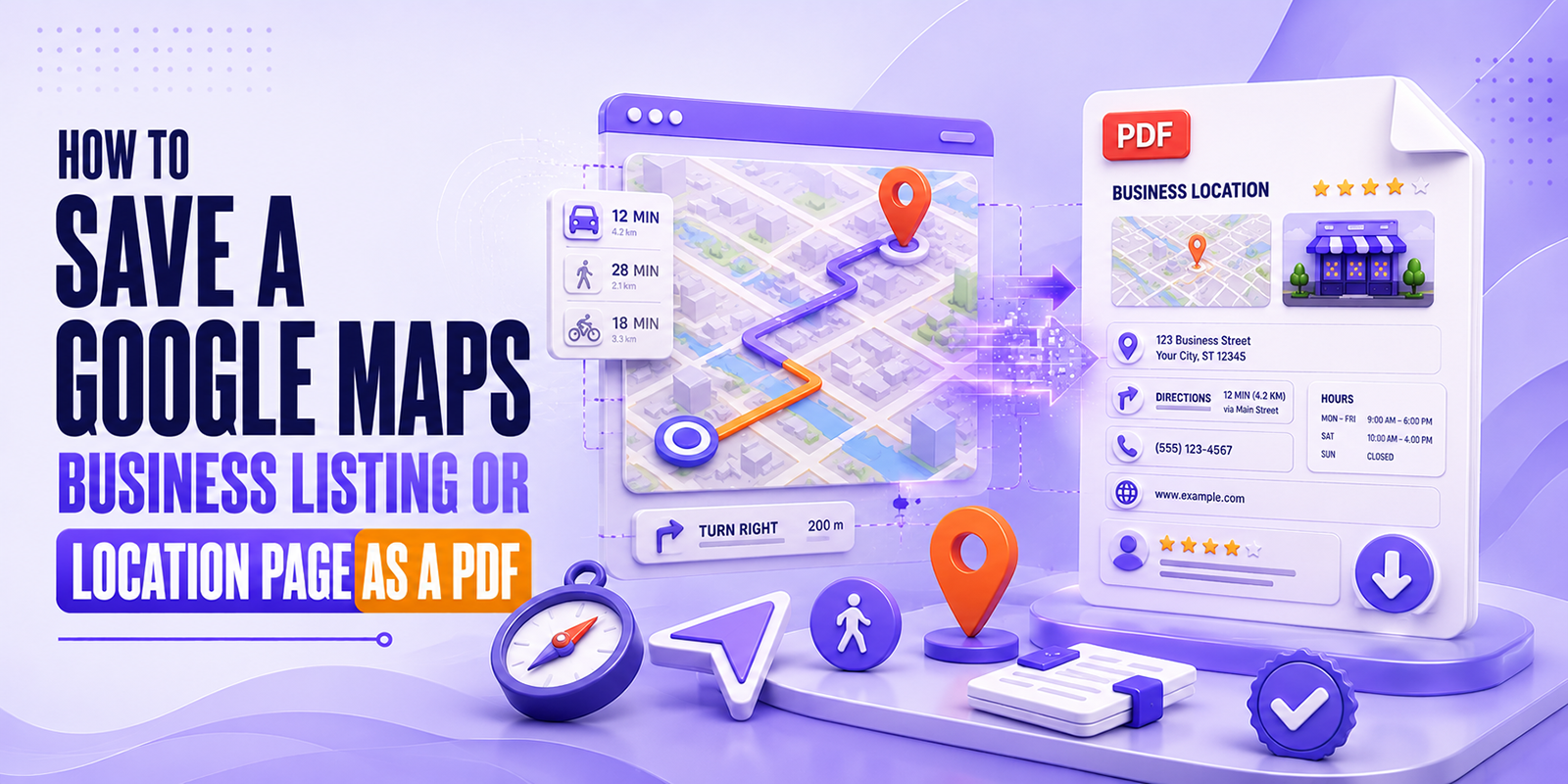
A complete PDF capture of a Google Maps business listing includes: business name and category, address and map location information, operating hours (including special hours), phone number, website link, star rating and total review count, the business description (if the owner has added one), attributes (e.g. wheelchair accessible, accepts card payments, outdoor seating), popular times information if visible, the Q&A section, and photos that have loaded on the page. The specific content depends on how completely the business owner has filled out their Google Business Profile.
What Google Maps Pages Can You Save as a PDF?
Google Maps has several different page types, each accessible via a URL and each convertible to PDF. Here is a breakdown of the most useful page types to save:
| Google Maps page type | How to access it | What the PDF captures |
| Business listing (Google Business Profile) | Search the business name on maps.google.com and open the full listing panel | Full business info: name, address, hours, phone, website, rating, reviews, description, photos, attributes |
| Google Maps place page (direct URL) | maps.google.com/maps/place/[Business+Name]/@coordinates | Same as above, accessible via a direct shareable link from the Share button on any listing |
| Direction results page | maps.google.com/maps/dir/origin/destination | Route overview, distance, travel time, and key waypoints, useful for field work documentation |
| Google Maps search results | maps.google.com/maps/search/[query]/@coordinates | List of businesses in a search result, useful for capturing a competitive landscape snapshot |
| Street View location | maps.google.com/maps/@lat,lng,3a… | Street-level view of a location at a recorded date, useful for property and location research |
| Google Maps embed (on a business website) | Any website with an embedded Google Maps widget | The embedded map as it appears on that business’s own site |
Method 1: Use Webs2PDF: Recommended for Complete Listings
Google Maps business listing pages are complex, JavaScript-rendered pages. The full listing content, including business description, attributes, review counts, and operating hours, loads dynamically as you interact with the page. Webs2pdf.com fully renders the page before generating the PDF, capturing all visible content rather than just the initial page shell.
Step-by-step instructions
- Open maps.google.com in your browser and search for the business or location you want to save.
- Click on the business name in the search results to open its full listing panel on the left side of the screen.
- Scroll through the listing panel to ensure all information has loaded, including the hours section, reviews, description, and attributes.
- Click the Share button on the listing and copy the shareable link. This gives you a direct URL to the listing that is cleaner and more stable than the full Google Maps URL with coordinates.
- Alternatively, copy the URL directly from your browser address bar.
- Open webs2pdf.com in a new tab, paste the URL, and click Convert to PDF.
- Download your PDF. The complete listing information is captured as a clean, readable document.
Use the Share button for the cleanest URL
Google Maps URLs in the browser address bar are long and contain coordinate data that can sometimes cause conversion issues. When you click Share on a Google Maps listing, Google generates a shorter, cleaner URL (usually starting with maps.app.goo.gl or a similar short format). Using this share link as your input for webs2pdf.com tends to produce more reliable, complete results than copying the full browser URL directly.
What webs2pdf.com captures on a Google Maps listing
- Business name, category, and primary description. The full listing header includes the business name as it appears on Google, the primary business category, and the owner-written description if present.
- Contact and location details. Address, phone number, website link, and any additional contact information the business has added to their profile.
- Operating hours. Regular weekly hours including any special hour notes. Particularly valuable to capture for businesses with complex or seasonal hours schedules.
- Star rating and review count. The aggregate star rating and total number of reviews are displayed at the time of capture. This changes as new reviews are added.
- Business attributes. Accessibility features, payment methods, parking availability, outdoor seating, and other attributes the business or Google has added to the profile.
- Popular times overview. The busy hours histogram is visible on the loaded page, showing peak visiting times by day.
Method 2: Browser Print to PDF: Quick but Limited
Browser print-to-PDF (Ctrl+P on Windows, Cmd+P on Mac) is the fastest option and requires no additional tools. For Google Maps listings, this method works reasonably well for capturing the core business information visible in the listing panel, but has specific limitations.
How to use it
- Open the Google Maps listing in your browser and scroll through the full listing panel to load all content.
- Press Ctrl+P (Windows) or Cmd+P (Mac) to open the print dialog.
- Select Save as PDF as the destination.
- In More settings, uncheck Headers and footers to remove the URL and page number from the output.
- Click Save.
Known limitations with browser print on Google Maps
Google Maps is a heavily JavaScript-dependent application. Browser print-to-PDF on a Google Maps page often captures only the initial visible portion of the listing panel rather than all loaded content. The map tile itself frequently appears as a blank grey area or renders incompletely. Review text and attribute sections that require scrolling may not appear. The output also typically includes Google Maps navigation elements that clutter the PDF. For a cleaner, more complete capture, webs2pdf.com is significantly more reliable for Google Maps pages specifically.
Method 3: Full-Page Screenshot Converted to PDF
For capturing the visual appearance of a Google Maps listing, including the map view, business photos, and the overall panel layout, a full-page screenshot tool followed by PDF conversion is the most visually faithful approach.
How to do it
- Open the Google Maps listing in Chrome with the full listing panel visible.
- Use a full-page screenshot extension (GoFullPage for Chrome, or the built-in screenshot tools in Firefox via Ctrl+Shift+S) to capture the complete visible page.
- Save the screenshot as a PNG or JPEG.
- Convert the image to PDF using your operating system’s print function or an image-to-PDF tool.
Best for: Visual documentation where the map view and business photos matter, property research, location scouting, travel planning, or presentations where you want to show the map alongside the business information. The trade-off is that the text in the screenshot PDF is not searchable or selectable.
Method 4: Google Maps Share Feature: For Business Owners
Google Business Profile owners have access to additional export options for their own listings through the Google Business Profile dashboard. While Google does not offer a direct “Export to PDF” button for your own listing, the dashboard does provide data export options that can be used alongside PDF conversion.
For business owners: exporting your own profile data
- Sign in to business.google.com and open your Google Business Profile dashboard.
- Navigate to your business listing and click Edit profile to open the full profile view.
- Copy the URL of your full profile page from the browser address bar.
- Paste this URL into webs2pdf.com to create a clean PDF record of your complete listing as it appears publicly on Google Maps.
- Alternatively, Google Business Profile allows you to download your profile data as a spreadsheet via Settings → Download your data. This CSV or spreadsheet can be converted into a formatted PDF for record-keeping purposes.
Best for: Business owners who want a permanent record of their Google Business Profile at a specific point in time, for business records, for franchise documentation, for handover when selling a business, or for auditing changes to their profile over time.
Who Saves Google Maps Listings as PDF and Why
Travelers and trip planners
Travelers who research destinations, restaurants, hotels, and activities in advance benefit enormously from having those listings saved as PDFs. A hotel’s address, phone number, and hours are saved in a PDF on your phone is accessible anywhere, no signal, no roaming charges, no Wi-Fi required. For international travel in particular, having offline access to location details, contact numbers, and directions is a practical necessity, not a luxury.
Field sales representatives
Sales professionals who visit prospective businesses in person routinely use Google Maps to research accounts before a visit. Saving the business’s Google listing as a PDF gives them a reference document they can review before walking in, including the business category, size signals from review count, operating hours, and any visible description of what the business does. This information is especially valuable when visiting multiple prospects in a single day without a reliable mobile signal.
Digital marketers and local SEO professionals
Local SEO professionals who manage Google Business Profiles for multiple clients use PDF snapshots to document listing states before and after optimization campaigns. Saving a client’s listing before making changes creates a before state record. Saving it after the campaign creates an after-state record. Together, they document the impact of the optimization work in a format that can be included in client reports without requiring the client to log in to Google Maps.
Competitive research and business intelligence
Marketing teams and business analysts save competitor Google Business Profiles as PDFs to track how their positioning, hours, categories, and review profiles change over time. A business that changes its primary category, expands its service hours, or suddenly accumulates a large number of new reviews has made a strategic shift. A series of timestamped PDF snapshots of a competitor’s Google Maps listing is a documented timeline of their local marketing strategy.
Journalists and researchers
Journalists who cover local business stories, community investigations, or consumer protection topics frequently need to document business listings at a specific point in time. If a business later closes, changes its name, or removes negative reviews, the journalist’s PDF of the original listing is evidence of what was publicly visible when the story was researched.
Property and due diligence research
Investors and buyers researching commercial properties or business acquisitions often review the Google Maps presence of businesses at a target location as part of due diligence. Saving these listing PDFs creates a documented picture of the commercial activity at a specific address as it appeared during the research period.
Pro Tips for Better Google Maps PDF Captures
- Use the Share link, not the browser URL. Google Maps share links are shorter, cleaner, and more stable than the full coordinate-based browser URLs. Click Share on any listing to get the cleanest input URL for webs2pdf.com.
- Scroll through the full listing panel first. Google Maps loads listing content progressively as you scroll. Scroll through the hours, description, attributes, and review sections before copying the URL and converting. This ensures all content has loaded and will be captured.
- Include the business name and date in your filename. Save your PDFs as BusinessName_Location_YYYY-MM-DD.pdf so you can identify them quickly and know exactly when the information was current.
- For competitive monitoring, use a consistent schedule. If you are tracking a competitor’s listing over time, capture a PDF on the same day each month. This gives you consistent, comparable snapshots that reveal changes clearly.
- Capture the search results page for a broader view. If you want to document the competitive landscape for a specific search, all the businesses that appear when someone searches for a service in a location, capture the Google Maps search results page as a PDF, not just individual listings.
- For travel, capture before you lose signal. Download your location PDFs while you still have internet access, at home, at the airport, or on hotel Wi-Fi. Do not wait until you are in an area with poor coverage.
Which Method Is Right for Your Use Case?
| Your goal | Best method |
| Capture complete listing info (hours, phone, rating, description) | Webs2PDF most complete render of the full listing panel |
| Save a listing for offline travel reference | Webs2PDF on desktop, then transfer the PDF to the phone |
| Visual capture, including map and business photos | Full-page screenshot converted to PDF |
| Quick capture of the visible listing panel only | Browser print-to-PDF (Ctrl+P), disable headers/footers |
| Archive your own Google Business Profile for records | Webs2PDF on your public profile page, or GBP dashboard export |
| Track competitor listing changes over time | Webs2PDF on a scheduled monthly basis |
| Document search results for a specific local query | Webs2PDF on the search results URL |
| Field sales prep, multiple prospect listings before a visit | Webs2PDF for each listing, name files by business and date |
Frequently Asked Questions
Can I save a Google Maps listing as PDF on my phone?
Yes. Webs2pdf.com works on any mobile browser. Open Google Maps on your phone, find the business listing, tap Share, copy the link, open webs2pdf.com in your mobile browser, paste the link, and convert. The PDF downloads to your phone and is accessible offline from that point. This is particularly useful for travel planning, save your destination listings at home before you leave, and access them on your phone even without internet.
Does the PDF include the map image and business photos?
It depends on the method. Webs2pdf.com captures what is rendered on the page, which may include the map thumbnail and business photos that have loaded. For full visual capture of the map view and photo gallery as they appear in Google Maps, a full-page screenshot converted to PDF is more reliable. Webs2pdf.com is optimal for capturing the text-based listing information (hours, contact details, description, rating) completely and accurately.
Will the PDF include customer reviews?
The PDF will include the star rating, total review count, and any review summaries visible on the listing panel at the time of conversion. Individual full-text reviews are typically found on a separate reviews page within the listing. To capture specific reviews, navigate to the reviews section of the listing and convert that page URL separately using webs2pdf.com.
Can I save a Google Maps listing that is not claimed by a business?
Yes. Unclaimed Google Maps locations, places that have been automatically added by Google or user-submitted but not yet claimed by the business owner, are publicly visible and can be converted to PDF just like claimed listings. The content of unclaimed listings is typically more limited, containing basic address and category information without the enhanced details that verified business owners add.
Is saving a Google Maps listing as PDF allowed?
Saving publicly visible location and business information from Google Maps for personal research, travel planning, business reference, or journalistic purposes is consistent with how public web content is generally treated. Google Maps information is publicly accessible to any visitor without a login. For personal and professional reference use of individual listing PDFs, this is standard practice. You should not bulk-collect or commercially redistribute Google Maps data, which is covered separately in Google’s terms of service for data use.
Conclusion
Google Maps is where 88 percent of consumers find local businesses. The information on those listings, hours, phone numbers, descriptions, categories, and review profiles changes constantly as business owners update their profiles and Google’s algorithms refine what they display.
A saved PDF of a Google Maps listing is a permanent record of what was publicly visible at a specific moment. For travelers who need offline access, researchers who need timestamped documentation, marketers who track competitive positioning, or business owners who want records of their own profile, a PDF snapshot has real, practical value.
The process takes under 60 seconds. Open the listing, click Share, copy the link, paste it into webs2pdf.com, and download. The listing is preserved exactly as it appeared.
Try it now at webs2pdf.com, save your first Google Maps listing PDF for free, in under a minute.