A useful webpage can contain thousands of words of research, statistics, instructions, product information, or industry analysis. Reading every section, extracting the important details, organizing notes, and keeping a copy of the source can take far longer than expected.
AI can make the first part faster. Instead of manually turning a long article into notes, you can use an AI tool to identify the main ideas, key facts, important statistics, conclusions, and actionable takeaways.
PDF completes the workflow by giving you a practical way to preserve either the original webpage, the AI-generated summary, or a structured research report. If you need to preserve the original content, learn how to convert any webpage to PDF for future reference.
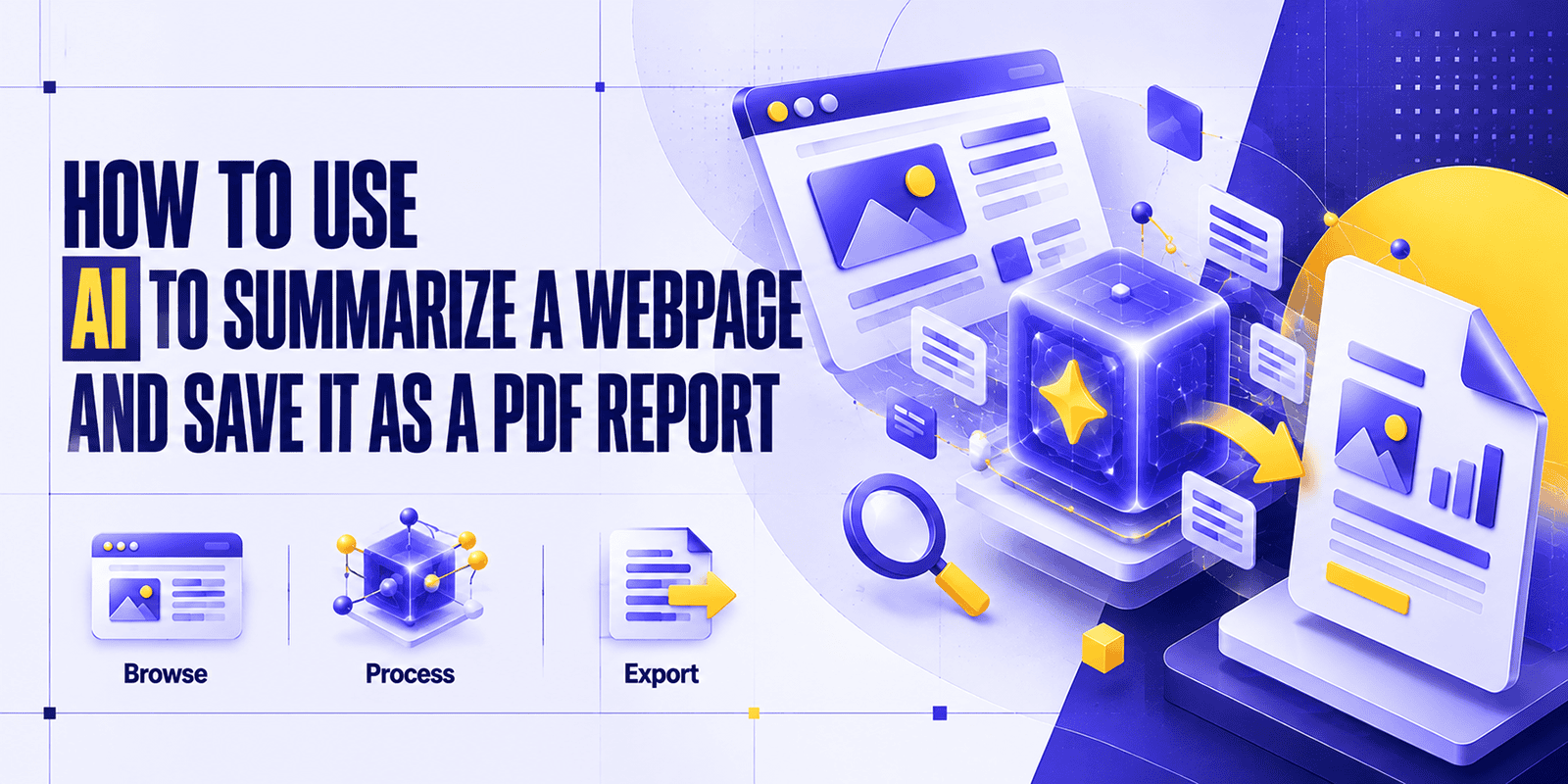
If your goal is to use AI to summarize a webpage and save it as PDF, the most reliable workflow is:
Find the webpage → give the content to an AI tool → generate and verify the summary → organize the findings → preserve the source and/or report as PDF.
This guide explains each step, including how to verify AI-generated information and when it makes sense to keep both the original webpage PDF and the AI summary. You can also learn how to save AI-generated web pages as PDF to keep useful online content for later reference.
Can AI Summarize a Webpage and Save It as a PDF?
Yes, but summarization and PDF creation are usually separate parts of the workflow.
An AI tool can summarize webpage content when it can access or process that content. Depending on the AI platform, you might provide the webpage URL, paste the article text, upload copied content, or use a built-in web or research feature.
You can then create three different types of PDFs:
- AI summary PDF: A concise document containing the AI-generated summary.
- Source webpage PDF: A preserved copy of the original webpage.
- Research report PDF: A structured document combining the summary, findings, statistics, notes, and source references.
These files serve different purposes. The summary makes information easier to understand quickly. The source PDF preserves the original context. A research report organizes the information for sharing or future use.
For example, ChatGPT currently supports web search and can provide cited web-based answers when search is available, although OpenAI recommends checking sources when accuracy matters.
Why Summarize Webpages With AI?
The main benefit is not simply producing shorter text. A useful AI webpage summarizer can help turn unstructured online information into something easier to review and work with.
Common use cases include:
- Faster research: Understand the core ideas of a long page before deciding whether to read every section.
- Extracting important facts: Ask specifically for dates, statistics, names, findings, or recommendations.
- Understanding unfamiliar topics: Request a plain-English explanation of technical or specialist material.
- Comparing sources: Summarize several webpages using the same structure so differences are easier to identify.
- Creating research notes: Turn articles into headings, bullet points, takeaways, and follow-up questions.
- Preparing business reports: Extract conclusions, risks, opportunities, or actions relevant to a project.
- Saving information for later: Create concise notes while preserving the original webpage separately.
- Reviewing long content efficiently: Get an overview before spending time on less relevant sections.
AI is particularly useful for the first pass through a source. It should not automatically replace reading the original when details, citations, legal language, technical accuracy, or important decisions are involved.
What You Need to Create an AI Webpage Summary PDF
A simple AI research workflow requires four things:
1. A webpage or URL
Start with the article, research page, documentation, news report, product page, guide, or other online source you need to understand.
2. An AI tool that can process the content
The tool needs access to the actual content. Depending on the platform, that could happen through web access, pasted text, an uploaded document, or another supported input method.
Do not assume that every AI tool can open every URL. Login requirements, paywalls, robots restrictions, dynamic content, and platform limitations may prevent access.
3. A way to preserve the source webpage
If the original page matters for research, citation, documentation, or verification, save a separate PDF copy of it.
4. A document editor or PDF export method
For a polished AI-generated PDF report, paste the reviewed summary into Google Docs, Microsoft Word, another document editor, or a supported report workflow and export the finished document as PDF.
The important distinction is simple:
AI summarizes the information. PDF tools preserve or package the information.
How to Use AI to Summarize a Webpage
How do you use AI to summarize a webpage?
Give an AI tool access to the webpage content, tell it exactly what information you need, and verify the output against the source.
A practical workflow is:
- Choose a credible webpage.
- Provide its content or URL to an AI tool using a supported method.
- Ask for a structured summary.
- Verify important facts against the source.
- Save the summary and source in the format you need.
Step 1: Find the Webpage You Want to Summarize
Before using AI, check whether the source itself is worth summarizing.
Review:
- Who published it?
- Is an author identified?
- When was it published or updated?
- Is it relevant to your question?
- Does it cite evidence or primary sources?
- Are you viewing the complete article rather than an excerpt?
- Is the information current enough for your purpose?
AI can summarize weak information just as easily as strong information, so source selection still matters.
Step 2: Give the Webpage Content to an AI Tool
The exact method depends on your chosen AI platform.
Common approaches include:
- Providing a URL when the tool supports web access.
- Copying and pasting the relevant webpage text.
- Uploading saved content when file uploads are supported.
- Using a built-in browsing or research feature.
- Dividing a very long article into sections and summarizing them sequentially.
Do not assume that pasting a URL automatically means the tool successfully read the entire page. If the source matters, ask the AI what content it was able to access or provide the relevant text directly.
Step 3: Give AI a Specific Summary Prompt
A vague request such as “summarize this” may produce a usable overview, but a detailed prompt produces a more useful report.
For a general article, try:
Summarize this webpage in 5–10 key points. Identify the main topic, central argument, important facts, statistics, conclusions, and actionable takeaways. Separate factual claims from opinions where possible. Do not add information that is not supported by the source. Flag any details that should be verified against the original webpage.
You can adjust the instruction for different purposes:
Executive summary: Ask for a short overview, business implications, risks, opportunities, and recommended actions.
Research notes: Ask for the research question, major claims, supporting evidence, statistics, limitations, and potential follow-up sources.
Business report: Ask for key findings, market implications, decisions affected, risks, and next steps.
Student research: Ask for the main thesis, supporting arguments, evidence, important terms, and points that may need citation.
Technical article: Ask for the problem being addressed, technical approach, prerequisites, implementation details, limitations, and key conclusions.
Step 4: Review the AI Summary
Do not move directly from AI output to a final report without checking it.
Compare important statements against the webpage, especially:
- Numbers and percentages
- Dates
- Names and organizations
- Quotes
- Product specifications
- Research findings
- Technical instructions
- Conclusions
- Claims attributed to specific people
Also look for missing context. A summary can be factually correct yet misleading if an important exception, limitation, or qualification has been omitted.
OpenAI’s own search guidance recommends checking cited sources because search results and citations can occasionally be incomplete, outdated, or incorrect.
How to Save the Original Webpage as a PDF
An AI summary is useful for speed, but it is not a substitute for the source.
When the webpage matters for research, documentation, client work, study, or future verification, preserve a copy separately.
One option is to use Webs2PDF to save a webpage as a PDF. The workflow is straightforward: copy the webpage URL, paste it into the web-to-PDF converter, convert the page, and save the resulting PDF.
Keeping the source is especially useful when:
- You may need to verify the summary later.
- The webpage could change.
- You need evidence for a report.
- Important context was omitted from the summary.
- Someone reviewing your work needs access to the original material.
If clutter such as navigation, advertisements, or browser-added headers is causing problems, see the site’s guide to converting webpages to PDF without unnecessary clutter.
For JavaScript-heavy or interactive sources, the guide to converting dynamic webpages to PDF provides additional context about challenges such as lazy-loaded content.
How to Create a PDF Report From an AI Webpage Summary
Once the summary has been checked, turn it into a document designed for future reference.
A useful report structure is:
- Report title
- Source webpage title
- Source URL
- Original publication or update date
- Date the report was created
- Executive summary
- Key findings
- Important statistics or data
- Main arguments
- Actionable takeaways
- Questions or items requiring verification
- Sources and references
Paste the reviewed content into your preferred document editor, clean up the formatting, and export the finished document as a PDF.
It helps to understand the three possible outputs:
| PDF Type | What It Contains | Best Use |
|---|---|---|
| Summary PDF | Condensed AI-generated explanation | Quick reading and sharing |
| Source PDF | Original webpage content | Verification, archiving, context |
| Research report PDF | Summary, findings, notes, data, and sources | Research and professional documentation |
For important projects, keeping both a source PDF and a report PDF creates a stronger research trail. You can also learn how to save AI-generated web pages as PDF to preserve useful AI-generated content for future reference.
Best AI Prompt for Summarizing a Webpage Into a Report
Use this reusable prompt:
Analyze the webpage content provided and turn it into a structured research report.
Include:
- The main topic and purpose of the webpage
- A concise executive summary
- 5–10 key findings
- Important facts, dates, figures, and statistics
- The main arguments or conclusions
- A clear distinction between factual claims and opinions where possible
- Important context, limitations, or exceptions
- Actionable insights or practical takeaways
- Any statements that should be checked against the source
- The source URL
Do not invent facts, statistics, quotes, sources, or conclusions. If information is unclear or missing, say so rather than guessing. Format the output with clear headings so it can be copied into a PDF report.
You can make the prompt even more effective by stating who the report is for.
For example: “Write this for a marketing manager,” “Explain this for a university student,” or “Focus on implications for a software development team.”
How to Preserve the Source While Using AI
When information is important, keep the source alongside the AI-generated notes.
This provides several advantages.
Verification: You can check whether the AI represented a claim accurately.
Citation: You retain the page containing the original evidence.
Context: Details excluded from the summary remain available.
Future reference: You can revisit the full material without finding the page again.
Change tracking: Websites can be edited, replaced, or removed. A saved copy records the version you reviewed.
A practical research folder might therefore contain:
- industry-report-source-2026-10-07.pdf
- industry-report-ai-summary-2026-10-07.pdf
If you also need to preserve browser-based AI output itself, this guide to saving AI-generated web pages as PDF covers additional considerations for modern web apps.
Common Problems When Summarizing Webpages With AI
The AI Cannot Access the URL
Not every AI system can browse the web, and even tools with web access may be unable to retrieve particular pages.
Possible causes include:
- Login requirements
- Paywalls
- Website access restrictions
- Unsupported page structures
- Private content
- Dynamic content that has not loaded
If access fails, paste the relevant text or use another supported input method instead of asking the AI to guess.
The Webpage Is Too Long
For extremely long articles, reports, or documentation pages, divide the material into logical sections.
Ask the AI to summarize each section using the same format, then provide those summaries and request a final consolidated report.
This reduces the chance that important sections receive too little attention. If you need to preserve the complete source page, learn how to convert long webpages to PDF without cropping, so you can refer back to the original content while reviewing the AI-generated summary.
The Summary Leaves Out Important Details
Make your prompt more specific.
Instead of asking only for a summary, request:
- Numbers
- Dates
- Examples
- Key claims
- Evidence
- Limitations
- Conclusions
- Action items
You can also ask, “What important information from the source was not included in the previous summary?”
AI Misunderstands the Source
Return to the webpage and check the relevant passage.
If a statement is important enough to include in a research report, it is important enough to verify.
The PDF Does Not Look Like the Webpage
A summary PDF and a source webpage PDF are different documents.
A summary PDF is intentionally reorganized for readability. A webpage PDF is meant to preserve the original source more closely.
If browser printing produces missing content or broken layouts on modern sites, there can be differences between screen layouts and printable layouts. Google documents Chrome’s normal print workflow, while modern JavaScript-heavy pages may still require additional handling.
Tips for Creating Better AI-Powered PDF Reports
For a cleaner and more trustworthy workflow:
- Keep the source title and URL.
- Record the publication date when available.
- Add the date you created the report.
- Verify important AI-generated facts.
- Preserve significant statistics exactly.
- Clearly distinguish facts from opinions.
- Use descriptive headings.
- Remove repetitive AI output.
- Keep explanations concise.
- Preserve the original webpage when the source matters.
- Add dates to filenames.
- Use the same report structure when comparing multiple sources.
- Include a short “verification required” section when information is uncertain.
AI Summary PDF vs. Saving the Full Webpage as PDF
| Method | Best For | Main Advantage | Limitation |
|---|---|---|---|
| AI summary | Quick understanding | Saves reading and note-taking time | May omit details or context |
| Webpage PDF | Preserving the source | Keeps the original information available | Can be lengthy |
| AI report PDF | Research and documentation | Organized around your specific purpose | Requires human review |
These approaches are not competitors.
A strong research workflow often uses all three: read an AI summary for speed, keep the source webpage for verification, and create a structured PDF report for future use.
Frequently Asked Questions
Can AI summarize a webpage?
Yes, if the AI tool can access or process the webpage content. Depending on the tool, you may be able to provide a URL, paste the article text, upload content, or use a web-search feature.
How do I summarize a webpage with AI?
Provide the webpage content to an AI tool, ask for a structured summary with specific information such as key findings and statistics, then compare important claims against the source.
Can I save an AI webpage summary as a PDF?
Yes. Copy the reviewed summary into a document editor and export or print the document as a PDF. Some AI platforms may also provide their own sharing or export options, but availability varies.
How do I save a webpage as a PDF?
You can use your browser’s print-to-PDF function or a dedicated web-to-PDF tool. Chrome, for example, supports opening the print dialog and selecting a PDF destination where available.
Can ChatGPT summarize a webpage?
ChatGPT can work with web information when web search is available and can provide answers with links to sources. Whether a particular webpage can be accessed depends on the page and the available browsing features. You can also provide the relevant text directly.
What is the best way to create a PDF report from online research?
Preserve the source URL, generate a structured AI summary, verify important claims, organize the findings in a document editor, add references, and export the reviewed report as a PDF.
Should I save the original webpage as well as the AI summary?
Yes, when the information is important. The original webpage provides context and allows you or another reader to verify the AI-generated summary later.
Can Webs2PDF convert a webpage to PDF?
Yes. Webs2PDF is designed for URL-based webpage-to-PDF conversion. Use it to preserve the original webpage as a PDF, and use a separate AI tool to summarize the content and create a research report.
Conclusion
Using AI to summarize a webpage and save it as a PDF works best as a multi-step research process rather than a single automated action.
Use AI to understand and organize the information. Verify important facts against the source. Preserve the source webpage when context or evidence matters. Then turn your reviewed findings into a structured PDF report.
The result is more useful than a summary alone: you get faster understanding, a clear research record, and a reliable source you can return to later.