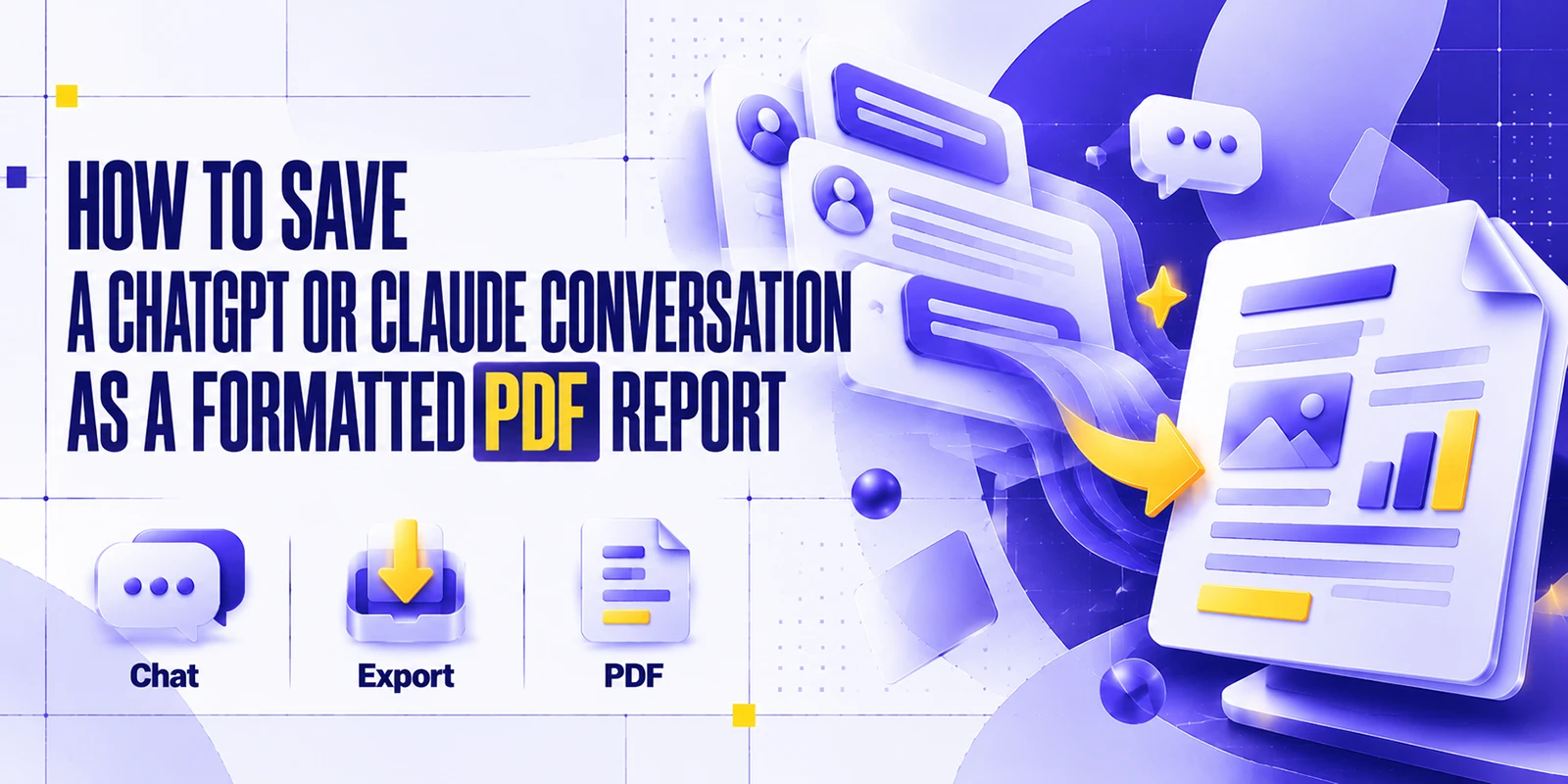
You spend an hour researching a difficult topic with ChatGPT or Claude. The conversation now contains useful explanations, tables, references, code examples, decisions, and recommendations.
Leaving all of that buried inside your chat history is not always practical. For research, project documentation, study notes, client work, or internal knowledge management, it can be far more useful to turn the conversation into a clean PDF you can organize, review offline, archive, or share.
The simplest way is your browser’s Print → Save as PDF. For a more professional result, it is often better to clean the conversation, organize the useful information into a document, and export that as a formatted report.
This guide covers four approaches:
- Print the AI conversation directly to PDF.
- Copy or export useful content into a document and create a PDF.
- Use a web-to-PDF workflow when the content is intentionally available through an accessible webpage (see how to convert any webpage to PDF).
- Turn the raw conversation into a polished AI research or project report.
Can You Save a ChatGPT or Claude Conversation as a PDF?
Yes. A conversation you can legitimately view can generally be preserved by printing from the browser, copying into a document, or reorganizing into a report and exporting as PDF. But creating a PDF and creating a good PDF report are not the same thing.
A direct print may preserve most of the visible conversation, but long chats, wide tables, code blocks, images, sidebars, and dynamic interface elements may not fit cleanly onto fixed pages. Always open the finished PDF and verify:
- Headings, paragraphs, and lists
- Tables and code
- Images, hyperlinks, and citations
- Page breaks
- Prompt and response order
Modern AI chat interfaces are dynamic webpages, so printed output can differ from what appears on screen.
Why Save an AI Conversation as a PDF?
AI conversations increasingly become working documents rather than temporary chats. Saving them can be useful for:
- Research documentation: preserve questions, findings, references, and follow-up analysis.
- Project records: keep decisions, requirements, troubleshooting steps, and recommendations.
- Client deliverables: convert useful AI-assisted work into a cleaner document for review.
- Study notes: turn long explanations into material you can annotate or print.
- Technical troubleshooting: archive debugging steps, commands, code, and solutions.
- Business analysis: preserve comparisons, strategy discussions, risks, and conclusions.
- Content planning: save outlines, research notes, campaigns, and editorial ideas.
- Training material: organize explanations into reusable reference documents.
- Knowledge management: store valuable research outside an individual chat history.
- Offline reference: access important information without reopening the original chat.
Before sharing a PDF, review it for confidential, personal, client, financial, proprietary, or otherwise sensitive information. If your conversation came from ChatGPT, review OpenAI’s Privacy Policy to understand how personal information is handled. Remove details recipients do not need.
What Makes a Good AI Conversation PDF Report?
A useful PDF should be easy to understand six months later, even if the reader never saw the original chat. Consider including:
- A clear title, date, topic or project name, and AI platform used
- A short explanation of the original objective
- Important prompts and key responses
- Logical headings, lists, readable tables, and properly formatted code
- References or source links
- Conclusions, recommended next steps, and items that still require verification
There are three common output types:
| Type | What it contains | Best for |
|---|---|---|
| Chat transcript PDF | Most or all prompts and responses in original order | Complete records |
| Formatted PDF report | Cleaned and reorganized conversation content | Work, clients, study |
| AI research report | Findings, sources, conclusions, limitations, recommendations | Research and decision-making |
A transcript preserves context. A report prioritizes usability.
How to Save a ChatGPT Conversation as PDF
Short answer: open the conversation in a desktop browser, use Print, choose Save as PDF, review the preview, and save. Then open the PDF and check that the complete conversation and important formatting were preserved.
Step 1: Open the conversation
Open the specific conversation you want to preserve. For a long chat, review it in full first so you know which messages, tables, images, links, and code blocks matter.
Step 2: Review the conversation
Before printing, check for important prompts, final answers, tables, code blocks, images, links, citations, uploaded-file information, and sensitive information you should not share. If your goal is a professional report rather than a complete record, remove or reorganize irrelevant back-and-forth instead of printing everything.
Step 3: Open the print dialog
Windows/Linux: Ctrl + P Mac: Command + P. Google’s Chrome keyboard shortcuts documentation covers this.
Step 4: Choose Save as PDF
Choose Save as PDF or the equivalent destination on your system, and review orientation, page size, scale, margins, headers and footers, and background graphics.
Step 5: Review the PDF
Inspect several pages, not just the first. Pay attention to wide tables, long code blocks, images, URLs, and messages that cross a page boundary.
ChatGPT also supports shared conversation links. For personal accounts, anyone with the link may be able to view the conversation, while workspace rules can be more restrictive. Review the material carefully before creating one. See OpenAI’s guide to ChatGPT shared links.
How to Save a Claude Conversation as PDF
- Open the Claude conversation.
- Review the complete content you want to preserve and make sure responses, tables, and code are loaded.
- Press Ctrl + P (Windows) or Command + P (Mac).
- Select Save as PDF and adjust margins, orientation, and scale.
- Save the file, then open it and check the result.
The Claude interface can change, so browser printing is best treated as a general webpage workflow rather than a permanent platform-specific PDF feature.
Claude also provides account data export for eligible users, and Anthropic states that exports include conversation data. For current eligibility and instructions, see the Anthropic Help Center. This is for exporting account and chat data; it is not a polished PDF report of one conversation.
Claude also supports shareable chat snapshots. For personal chats, anyone with the link may be able to view the snapshot, while Team and Enterprise sharing can be limited to the organization.
How to Create a More Professional PDF Report
Direct printing is useful for archiving. It is rarely the best format for a client report, research brief, or project document. For a cleaner result:
- Review the full conversation and identify the useful prompts and responses.
- Remove duplicated or irrelevant exchanges.
- Add a descriptive title and a short executive summary.
- Group information under logical headings.
- Preserve important tables, lists, and code.
- Retain prompts when they explain why a response was generated.
- Add source links and references, and mark statements that still require verification.
- Paste the cleaned content into a document editor and export as PDF.
This changes the output from a chat archive into a usable report. For example, instead of saving 35 messages from a competitor-analysis conversation, your PDF might contain:
Executive Summary → Market Findings → Competitor Comparison → Risks → Opportunities → Recommendations → Sources
The AI conversation remains the working material; the PDF becomes the deliverable.
Best Prompt for Turning an AI Conversation Into a PDF Report
Use this prompt in ChatGPT or Claude after finishing your research:
Analyze this conversation and turn the useful information into a professional report.
Identify the main objective of the conversation and organize the content into logical sections. Include:
- A clear report title and a short executive summary
- The main objective or research question
- Key findings
- Important facts, numbers, dates, and technical details
- Useful tables and structured lists
- Important user requirements or constraints
- Recommendations and next steps
- Relevant source links or references already present in the conversation
- Important limitations or uncertainties
- Information that should be independently verified
Remove repetitive discussion and irrelevant back-and-forth, but preserve context where a user prompt materially affects the meaning of the answer.
Clearly distinguish user-provided information from AI-generated analysis or recommendations where that distinction matters.
Do not invent facts, numbers, sources, quotations, or conclusions. If something is uncertain, label it clearly rather than guessing.
Format the result with professional headings and readable sections so it can be copied into a document and exported as PDF.
You can also specify the audience: “Write this report for a client,” “for senior management,” “for a university research project,” or “for a software development team.”
How to Preserve Formatting
- Use a desktop browser for long chats. A larger viewport makes it easier to preview tables, code, and page boundaries.
- Review print preview carefully. Problems often appear deeper in long conversations.
- Adjust margins and scale. If tables or code are cut off, slightly smaller margins or scale may help.
- Try landscape for wide content. It can improve comparison tables and wide code.
- Check background graphics. This setting preserves visual styling but may use more ink when printed.
- Check page breaks. A response may begin at the bottom of one page and continue awkwardly. Copying into a document editor gives you more control.
- Inspect tables. Wide tables are a common reason to use a formatted document. See these tips on converting long webpages to PDF without cropping.
- Inspect code blocks. Make sure indentation, line wrapping, and monospace formatting remain understandable.
- Test important links. A visible URL and a clickable PDF hyperlink are not always the same thing.
Modern AI pages can be difficult to print cleanly because they rely on dynamic layouts. Webs2PDF discusses this in its guides to why Chrome Print to PDF can fail on modern websites and saving AI-generated web pages as PDF.
Using Webs2PDF
Webs2PDF is a web-to-PDF converter, not a ChatGPT or Claude account integration. If relevant AI-generated content is intentionally available through a webpage or URL that an external converter can legitimately access, you can use the Webs2PDF tool to convert it. For a walkthrough, see how to convert any webpage to PDF.
The important limitation is access. A conversation visible only because you are signed into your private account should not be assumed to be accessible to a URL-based converter, and Webs2PDF should not be used to bypass authentication, privacy settings, or workspace permissions. For private or confidential conversations, browser printing or copying selected content into a local document is usually more appropriate.
If you intentionally create a shareable page for non-sensitive information, consider the privacy implications first. For technical background, see converting dynamic webpages to PDF.
ChatGPT vs. Claude PDF Saving Methods
| Method | ChatGPT | Claude | Best for |
|---|---|---|---|
| Browser Print → PDF | Yes, for content visible in your browser | Yes, for content visible in your browser | Quick transcript |
| Copy into document → PDF | Yes | Yes | Professional formatting |
| Web-to-PDF workflow | Depends on page accessibility | Depends on page accessibility | Accessible webpage content |
| Manually formatted report | Yes | Yes | Client, research, work reports |
| Account data export | Eligible accounts/workspaces | Eligible accounts/workspaces | Backup, not a polished PDF |
Common Problems
The PDF is too long
Do not preserve every exchange unless you need a complete record. Summarize the useful parts into a structured report and keep the original chat separately.
Tables are cut off
Try landscape or a smaller scale. If it is still hard to read, copy the table into a document or spreadsheet and format it separately.
Code blocks are hard to read
Long lines can overflow narrow pages. For technical documentation, put important code in its own section with a monospace font and controlled wrapping.
Page breaks look awkward
Browser printing does not understand the logical structure of your report. Move the conversation into a document if precise pagination matters.
Images do not appear correctly
Dynamically loaded images may not render consistently. Make sure content is fully loaded before creating the PDF, and check the output.
The chat interface appears in the PDF
Browser printing works on the webpage, so navigation or other UI elements can sometimes appear. For a cleaner document, use a structured report workflow.
The conversation contains sensitive information
Remove passwords, financial information, confidential client details, proprietary data, and personal identifiers the recipient does not need. Avoid creating public share links just to make a private conversation easier to convert.
Full Conversation or Summary?
| Option | Best for | Advantage | Limitation |
|---|---|---|---|
| Full conversation | Complete records | Preserves prompts and context | Can become very long |
| Summary | Fast reference | Short and easy to review | Can omit useful details |
| Formatted report | Professional use | Clear, organized, presentable | Requires some editing |
When the conversation records important decisions or instructions, keep the full version privately and create a separate report for sharing.
Naming and Organizing AI PDF Reports
Use filenames that make sense without opening the document. A useful structure is project or topic + platform + document type + date. Examples:
AI-Research-Report-ChatGPT-October-2026.pdf
Claude-Project-Analysis-October-2026.pdf
ClientName-Market-Research-ChatGPT-2026-10-07.pdf
Also consider storing the PDF report, the original conversation reference or URL, source documents, supporting links, and a final approved version. This makes the report easier to trace back to its research. For other online resources, learn how to archive a website before it goes offline.
Frequently Asked Questions
How do I save a ChatGPT conversation as a PDF?
Open it in a desktop browser, press Ctrl + P (Windows) or Command + P (Mac), choose Save as PDF, review the preview, and save. Check the finished PDF for missing or broken content.
Can I save a chat as PDF without copying everything?
Yes. Print → Save as PDF creates a file directly from the visible webpage. For a cleaner professional document, selectively copying the useful material into a report usually works better.
How do I save a Claude conversation as PDF?
Use your browser’s print function, select Save as PDF, adjust settings, and inspect the result. Claude’s account-data export should not be confused with a formatted one-chat PDF export.
Can I turn a conversation into a formatted report?
Yes. Extract the useful parts, remove repetition, organize findings under headings, add sources and conclusions, and export the cleaned document as PDF.
Why does my PDF look different from the chat?
AI interfaces are responsive, interactive webpages. PDF output uses fixed pages, so columns, tables, code, and images may reflow or break differently.
Can I use Webs2PDF for an AI conversation?
Only when the page is accessible to the converter. Do not assume it can reach private ChatGPT or Claude conversations. For private material, prefer browser printing or a document-based workflow.
Is it safe to share a PDF of an AI conversation?
It depends on the contents. Review the PDF first and remove information the recipient does not need, especially personal, confidential, financial, client, or proprietary details.
Conclusion
The easiest way to save a ChatGPT conversation as PDF is your browser’s Print → Save as PDF workflow, and the same works for a Claude conversation visible in your browser. But the best method depends on what you need afterward.
For archiving, a transcript PDF may be enough. For research, work documentation, study material, or client delivery, a cleaned and structured PDF report is usually much easier to use. Preserve the context that matters, remove unnecessary back-and-forth, verify important facts and links, and review the finished document before storing or sharing it.
Private AI chats should remain private unless you deliberately choose to share them.