
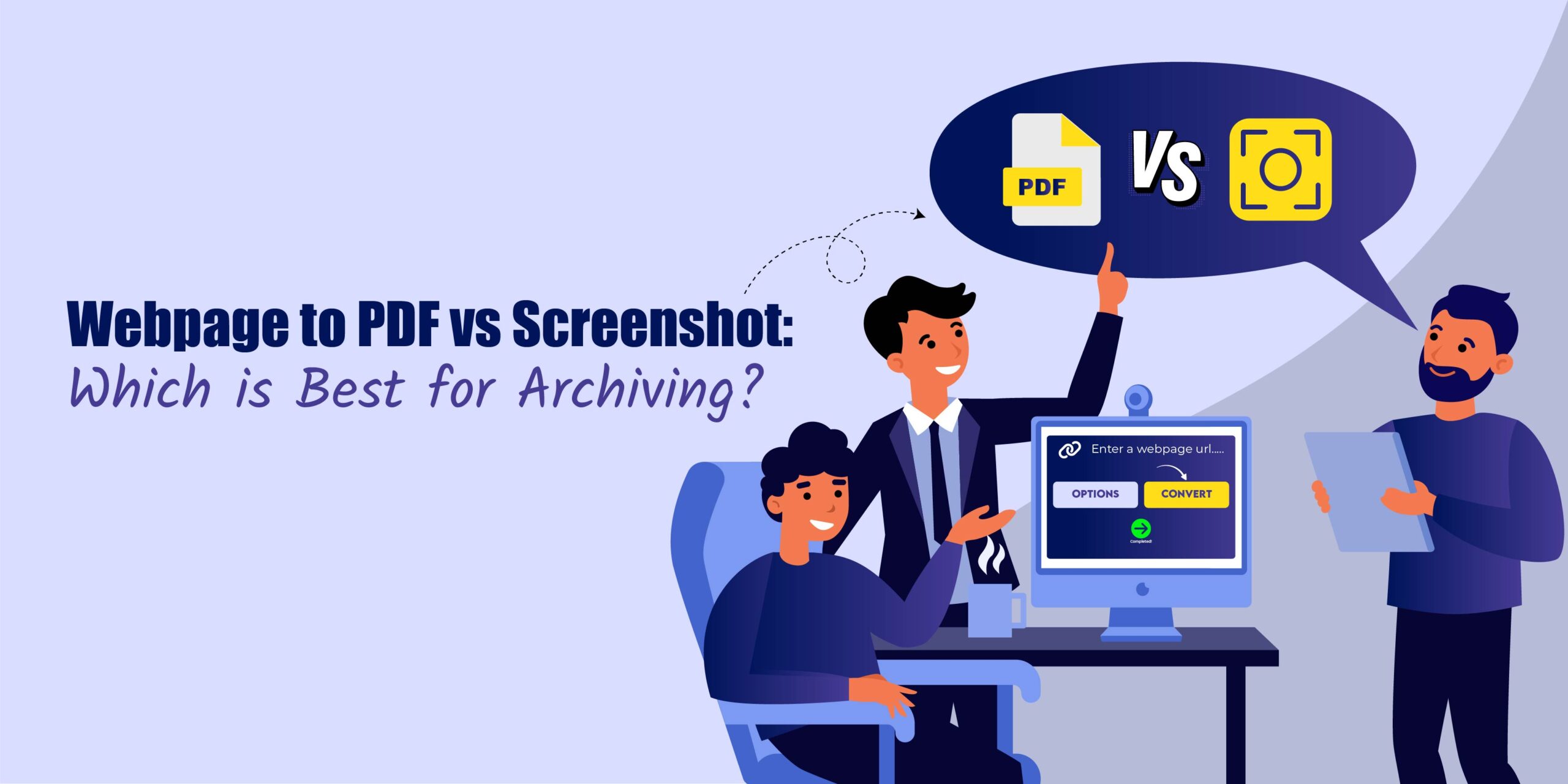
Archiving web content has become essential in today’s digital world. Whether you’re a student, researcher, journalist, developer, or business professional, saving important webpages ensures you have a permanent and reliable copy, even if the original page is changed or deleted.
But the biggest question is: Should you save a webpage as a PDF or take a screenshot?
In this fully updated 2025 guide, we compare Webpage to PDF vs Screenshot, explain which method is better for different use cases, and share best practices to archive webpages with high quality.
Why Archiving Web Pages Matters
Web pages frequently change over time; content updates, layout redesigns, URL removals, paywalls, and even full website shutdowns can make information disappear. Archiving ensures you always have a reliable, permanent copy of important content.
Benefits of Archiving Web Pages
- Preserve information permanently even if the original webpage is deleted
- Save research references for academic work, assignments, or citations
- Keep records for legal, financial, or compliance purposes
- Maintain visual or design references for UI/UX, development, or documentation
- Avoid losing dynamic or time-sensitive content such as news, social posts, or evidence
Due to these reasons, selecting the right method of archiving (PDF vs. screenshot) is crucial to ensure long-term accessibility and accuracy.
Common Challenges in Saving Web Content
Saving or archiving a webpage isn’t always straightforward. Many users struggle with technical limitations that affect the final output. The most common challenges include:
Dynamic or Interactive Elements Not Saving Correctly
Videos, sliders, animations, pop-ups, and embedded content often break or disappear during capture.
Long or Infinite-Scrolling Pages
Scrolling pages (blogs, social feeds, product listings) may cut off, load partially, or require manual stitching.
Loss of Original Formatting & Layout
Fonts, spacing, alignment, and CSS styling sometimes change, making the saved version look different from the original webpage.
Poor Image or Text Quality
Low-resolution screenshots or poorly converted PDFs can blur details, especially when zooming.
Large File Sizes
High-quality screenshots or unoptimized PDFs can become heavy and difficult to share or store.
What Is a Webpage to PDF Conversion?
A Webpage to PDF conversion is the process of turning any online page into a PDF document while preserving its original content and layout. A good Webpage to PDF converter accurately saves:
- Text
- Images
- Formatting & styles
- Clickable links
- Full-page layout
Key Benefits of PDF Archiving
- Maintains original structure and styling
- Perfect for multi-page or long-scroll pages
- Easy to annotate, highlight, print, or share
- Supports bookmarks, metadata, and password protection
- Ideal for long-term archiving and offline access
Common Use Cases
- Research papers
- News articles
- Invoices & financial statements
- Legal documentation
- Tutorials & blog posts
What Is a Screenshot?
A screenshot captures only what is visible on your screen. It’s a quick and simple way to save information visually.
Benefits of Screenshots
- Instant capture
- Stores the exact visual appearance
- Great for documenting errors or temporary content
- Useful for design or UI references
Common Use Cases
- Saving part of a webpage
- Capturing social media posts
- Recording error messages
- Visual notes for design teams
Webpage to PDF vs Screenshot: Key Differences
Below is a detailed comparison:
1. File Format & Quality
- PDF: Preserves text clarity, layout, and images. Stays crisp even when zoomed in.
- Screenshot: Quality depends on screen resolution. Text may blur when zoomed.
2. Page Length Capture
- PDF: Captures full-page, multi-page, infinite scroll pages.
- Screenshot: Only visible area, or requires multiple stitched images.
Editability & Annotation
- PDF: Supports highlights, notes, signatures, bookmarks.
- Screenshot: Requires third-party editors for annotation.
4. File Size
- PDF: Compressed and optimized for long documents.
- Screenshot: PNG/JPG images can be large.
Comparison Table: Webpage to PDF vs Screenshot
| Feature | Webpage to PDF | Screenshot |
| Full-page capture | ✔ Yes | ✘ Limited |
| Text clarity on Zoom | ✔ Excellent | ✘ Reduces |
| Dynamic content support | ✔ Good | ✘ Weak |
| Edit & annotate | ✔ Built-in | ✘ Requires tools |
| File size | ✔ Smaller | ✘ Larger |
| Best for | Research, legal, multipage | Visual reference, quick capture |
Advantages of Using Webpage to PDF
- Perfect formatting
- Works for long pages
- Easy to print/share
- Supports security (passwords)
- Ideal for professional documentation
Advantages of Using Screenshots
- Fast & simple
- Best for visual elements
- Useful for small sections
- Great for temporary or short-term archiving
When Should You Use a PDF vs a Screenshot?
Choose PDF if you are:
- Researcher
- Student
- Lawyer
- Business professional
- Saving long articles
Choose Screenshot if you are:
- Designer
- Developer
- Social media user
- Saving part of a webpage
Tips for High-Quality Webpage Archiving
- Use a full-page capture tool to save the entire webpage without missing hidden sections or scrolling content
- Avoid zooming in or out before capturing
- Save screenshots in PNG format for maximum sharpness
- Compress large PDFs before sharing
- Preview and test your final output to confirm readability
Common Mistakes to Avoid
- Missing dynamic content such as videos or sliders
- Capturing low-resolution images
- Skipping cloud backups
- Using unreliable converters
FAQs
1. Which is better for archiving: PDF or a Screenshot?
PDF is better for complete, high-quality, multi-page archives. Screenshots are best for visual references.
2. Do screenshots work for long webpages?
They can, but require multiple stitched captures. PDFs are easier for long pages.
3. Can every webpage be saved as a PDF?
Yes, with reliable tools, including pages with dynamic and interactive elements.
Conclusion
- Use PDF for complete, accurate, and long-term archiving. For easy conversion, you can use tools like Webs2PDF to save webpages quickly and reliably.
- Use Screenshot for visual references, quick captures, or small sections of a page.
Both methods have their strengths, but PDFs are generally better for research, professional use, and preserving full content. Using Webs2PDF ensures your archives remain high-quality, secure, and accessible whenever you need them.

2 Responses