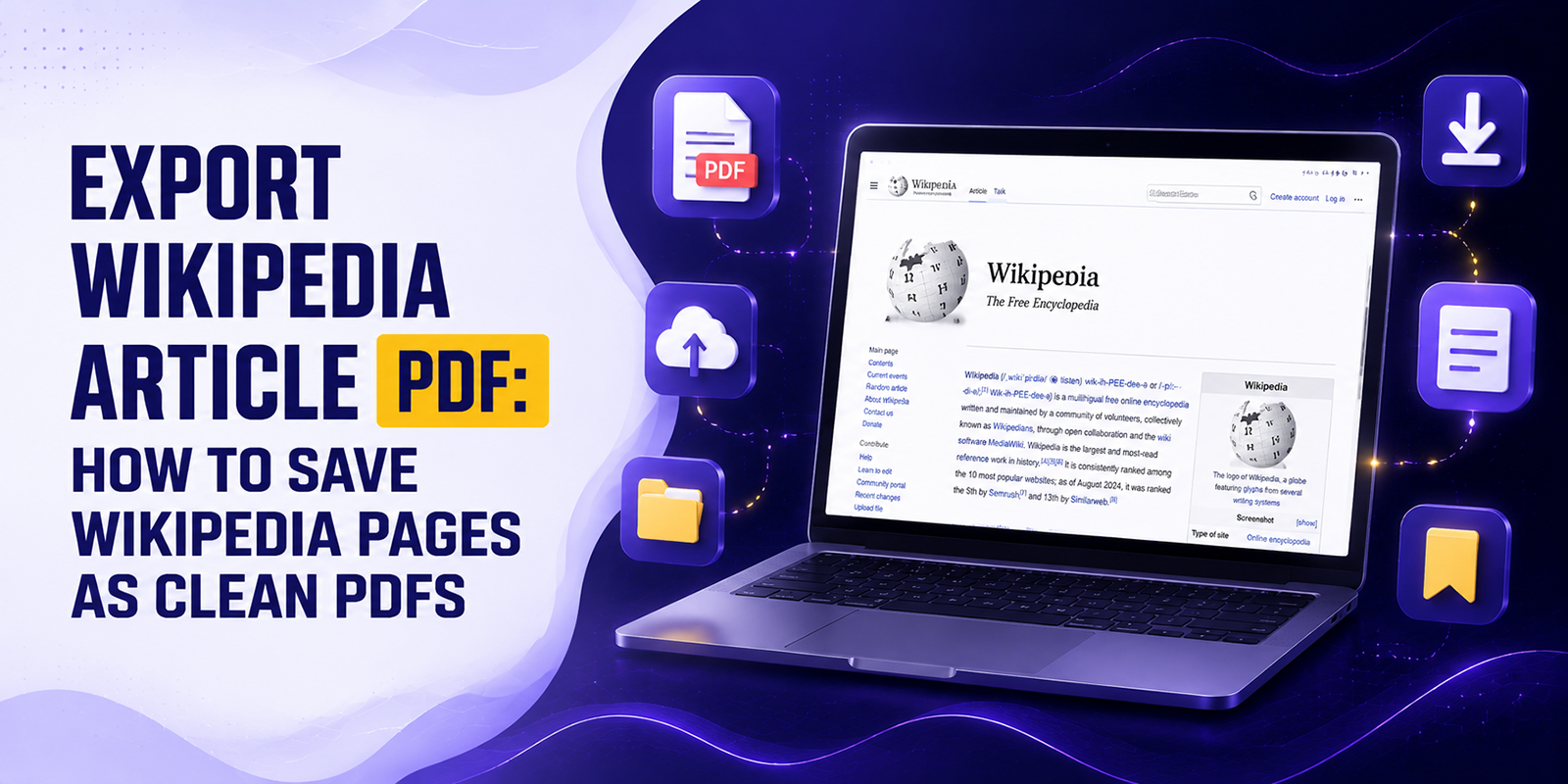
Wikipedia is one of the largest knowledge resources available online, covering millions of topics across science, history, technology, medicine, and countless other fields. While reading an article online is convenient, many users need a permanent copy for research, presentations, classroom assignments, or professional documentation.
Learning how to export Wikipedia article PDF files makes it easier to store important information, share references, and access articles without an internet connection.
However, saving a webpage as a PDF is not always as straightforward as it seems. Wikipedia’s built-in export tools may not always provide the formatting users expect, browser print options can create messy layouts, and long articles may lose images or references during conversion.
This guide explains different ways to save a Wikipedia page as a PDF, including built-in options, browser methods, and online PDF converters. You will also learn how to create cleaner documents, properly cite Wikipedia article sources, and use Webs2PDF.com to generate professional-looking PDFs quickly.
What Is Wikipedia PDF Export?
Wikipedia PDF export is the process of converting a Wikipedia article into a downloadable PDF document. A PDF version preserves the article’s text, images, references, and formatting so users can read or share it outside the Wikipedia website.
Wikipedia provides its own PDF creation feature through the “Wikipedia Download as PDF” option available in the sidebar or export menu on supported pages. This feature creates a printable version of the article without requiring third-party software.
However, Wikipedia PDF export has some limitations:
- Large articles may take time to generate.
- Formatting options are limited.
- Some interactive elements may not transfer properly.
- Tables and complex layouts may not always appear correctly.
- The final PDF design may not match academic or professional expectations.
For casual reading, Wikipedia’s built-in option works well. But users who need polished documents for research, education, or professional use may prefer additional conversion methods.
Why Export a Wikipedia Article as a PDF?
There are many practical reasons to export a Wikipedia article as a PDF. Whether you’re a student, researcher, educator, journalist, or professional, saving a Wikipedia page as a PDF makes it easier to read offline, print, share, and reference important information whenever you need it.
1. Offline Reading
Internet access is not always available. Saving an article as a PDF allows you to:
- Read during travel
- Access information without Wi-Fi
- Store research materials locally
- Create a personal knowledge library
A PDF version keeps important information available whenever you need it. You can also learn how to save web pages as high-quality PDFs for better readability and offline access.
2. Academic Research
Students and researchers often collect background information before writing papers, reports, or presentations.
A Wikipedia PDF can help with:
- Reviewing information offline
- Highlighting important sections
- Organizing research notes
- Comparing multiple sources
While Wikipedia should generally be used as a starting point rather than a primary academic source, exporting an article to PDF makes it easier to review background information, examine cited references, and identify reliable sources for further research. Students can also learn how to save online content as PDFs when preserving research material.
3. Printing Articles
Many users still prefer physical copies for studying and reviewing.
A properly formatted PDF makes it easier to:
- Print long articles
- Add handwritten notes
- Create study materials
- Share information during meetings or classes
Using a PDF instead of printing directly from a browser usually produces cleaner results.
4. Sharing Information
PDF files are universally supported across devices and platforms.
You can share Wikipedia PDFs through:
- Cloud storage
- Learning platforms
- Internal documentation systems
Recipients do not need special software to open them.
5. Documentation and Record Keeping
Professionals often save online information for future reference.
A Wikipedia PDF can be useful for:
- Project documentation
- Internal reports
- Training materials
- Historical references
Saving a copy also ensures you can access the information even if the online page changes later.
6. Citation Reference
Researchers often use Wikipedia references to discover reliable external sources.
Exporting an article helps preserve:
- Article title
- Revision information
- References section
- External links
This makes it easier to review sources when preparing citations.
Methods to Export a Wikipedia Article as PDF
There are several ways to create a Wikipedia PDF. Each method has advantages depending on your needs.
| Method | Best For | Advantages | Limitations |
| Wikipedia PDF option | Quick downloads | Official tool, simple process | Limited customization |
| Browser Print | Basic saving | Available everywhere | Formatting issues possible |
| Reader Mode | Cleaner text | Removes distractions | May remove images |
| Online PDF converters | Professional PDFs | Better formatting control | Requires third-party tools |
Method 1: Browser Print → Save as PDF
One of the easiest ways to create a Wikipedia PDF is through your browser’s built-in printing feature.
Steps:
- Open the Wikipedia article.
- Press Ctrl + P on Windows or Command + P on Mac.
- Select Save as PDF as the printer option.
- Adjust page settings.
- Click Save.
Advantages:
- Works in Chrome, Edge, Firefox, and Safari.
- No additional software required.
- Quick for short articles.
Problems:
Long Wikipedia pages may produce:
- Broken page breaks
- Missing images
- Unnecessary browser elements
- Poor spacing
For more information, see our guide to browser print-to-PDF layout issues
For simple articles, this method is acceptable. For professional documents, dedicated PDF conversion tools usually create better results.
Method 2: Wikipedia’s Built-In PDF Option
Wikipedia includes its own PDF export feature.
Steps:
- Open the Wikipedia article.
- Find the Download as PDF option.
- Select the PDF download option.
- Wait while Wikipedia generates the document.
- Download the file.
Benefits:
- Official Wikipedia feature
- Includes references
- Maintains article structure
Limitations:
The generated file may not provide advanced formatting options such as:
- Custom margins
- Layout control
- Branding removal
- Improved typography
Method 3: Reader Mode
Modern browsers include reader modes designed to simplify web pages.
Reader Mode can:
- Remove advertisements
- Reduce distractions
- Improve readability
- Create cleaner text layouts
After enabling Reader Mode, you can print or save the page as a PDF.
However, this approach may remove:
- Images
- Tables
- References
- Article navigation elements
It works best when your priority is reading rather than preserving the complete article. If you need another approach, you can explore ways to convert webpages into PDFs
Method 4: Online Wikipedia PDF Converters
Online converters provide another way to create PDFs from Wikipedia pages. You can use a webpage-to-PDF converter to convert an article directly from its URL.
These tools allow users to:
- Paste a webpage URL
- Convert the article automatically
- Download a formatted PDF
This option is useful when you need:
- Better formatting
- Faster conversion
- Device compatibility
- Professional-looking documents
Webs2PDF.com: A Simple Solution for Wikipedia PDF Export
For users who regularly need clean PDF versions of online articles, Webs2PDF.com provides an easier conversion workflow.
Instead of manually adjusting browser print settings or dealing with inconsistent layouts, Webs2PDF.com converts web pages into downloadable PDFs directly from a URL.
It can be useful for students, researchers, educators, and professionals who need reliable document copies.
Key benefits include:
- One-click PDF generation
- Cleaner webpage formatting
- Faster conversion process
- High-quality PDF output
- No software installation required
- Works across browsers and devices
Rather than treating PDF creation as a technical task, Webs2PDF.com simplifies the process into a few straightforward steps.
Step-by-Step Guide: Export Wikipedia Article PDF Using Webs2PDF.com
Creating a Wikipedia PDF with Webs2PDF.com takes only a few steps.
Step 1: Open the Wikipedia Article
First, visit Wikipedia and open the article you want to save.
Example:
You may want to save an article about:
- A historical event
- A scientific concept
- A technology topic
- A famous person
Make sure the page contains the information you need before converting it.
Step 2: Copy the Article URL
Copy the full URL from your browser’s address bar. If you’re working with other webpages, you can also learn how to convert any web page to PDF
Example:
https://en.wikipedia.org/wiki/Artificial_intelligence
This URL tells Webs2PDF.com which page should be converted.
Step 3: Visit Webs2PDF.com
Open Webs2PDF.com in your browser.
The tool works directly online, so there is no need to install applications or browser extensions.
Step 4: Paste the Wikipedia URL
Paste the copied Wikipedia article link into the conversion field.
Double-check that:
- The URL is complete
- The page is publicly accessible
- The correct article is selected
Step 5: Click Convert
Start the conversion process.
Webs2PDF.com processes the webpage and creates a PDF version designed for easier reading and sharing.
Step 6: Download the PDF
Once conversion finishes, download your PDF file.
You can now:
- Read it offline
- Print it
- Share it
- Store it with your research materials
Tips for Better Wikipedia PDF Formatting
A few adjustments can improve your final document quality.
Choose Portrait or Landscape Layout
Use:
Portrait:
- Articles
- Essays
- Text-heavy pages
Landscape:
- Tables
- Charts
- Wide images
Adjust Margins
Smaller margins can reduce page count, while larger margins improve readability.
For academic documents, balanced margins usually work best.
Use Reader Mode Carefully
Reader Mode can improve text readability, but avoid it when you need:
- Images
- References
- Tables
Remove Unnecessary Headers and Footers
Extra browser information can make PDFs look unprofessional.
A clean PDF should focus on the article content.
Preserve Images and References
For research purposes, always ensure your PDF includes:
- Images
- Captions
- Footnotes
- References section
These elements improve the document’s usefulness.
How to Properly Cite a Wikipedia Article
If you use information from Wikipedia, follow your required citation style.
APA Style
Example:
Wikipedia contributors. (2026). Artificial intelligence. In Wikipedia, The Free Encyclopedia. URL
MLA Style
Example:
“Artificial Intelligence.” Wikipedia, The Free Encyclopedia, Wikimedia Foundation, 2026.
Chicago Style
Example:
Wikipedia contributors. “Artificial Intelligence.” Wikipedia, The Free Encyclopedia. Accessed September 2, 2026.
Always verify citation requirements from your institution or publisher.
Common Wikipedia PDF Problems and Solutions
| Problem | Possible Cause | Solution |
| Missing images | Browser printing limitations | Use a dedicated PDF converter or fix missing images in webpage PDFs |
| Broken formatting | Complex Wikipedia layouts | Adjust conversion settings |
| Large file size | Many images and references | Compress PDF after export |
| Missing references | Incorrect print settings | Use full article conversion |
| Hyperlinks not working | Basic print conversion | Use a PDF tool that preserves links |
Frequently Asked Questions
Can I export every Wikipedia page as a PDF?
Most publicly available Wikipedia articles can be converted into PDFs. Some pages may have restrictions or technical limitations.
Is exporting Wikipedia articles as PDFs free?
Yes. Wikipedia provides free PDF downloads, and many online conversion tools offer free options.
Is Webs2PDF safe?
Webs2PDF.com is designed to convert publicly accessible webpages into PDF files without requiring software installation.
Does the PDF include Wikipedia references?
Depending on the conversion method, references can usually be included. Full-page conversions typically preserve the references section.
Can I print a Wikipedia PDF?
Yes. PDF files are designed for printing and maintain formatting across devices.
Can I use Wikipedia PDFs offline?
Yes. Once downloaded, the PDF can be opened without an internet connection.
Is Wikipedia PDF suitable for academic work?
A Wikipedia PDF can help with background research, but academic papers should usually rely on sources listed in Wikipedia references.
Can I save Wikipedia pages as PDFs on mobile devices?
Yes. Mobile browsers and online PDF converters allow users to create PDFs from smartphones and tablets.
What is the easiest Wikipedia PDF converter method?
Using an online URL-based converter is often the fastest option because it avoids manual formatting adjustments.
Final Thoughts
Learning how to export Wikipedia article PDF files is useful for anyone who needs offline access, printable documents, or organized research materials.
While Wikipedia provides its own download option, browser printing and manual methods can sometimes create formatting issues. A dedicated conversion solution makes the process faster and produces cleaner results.
Whether you are a student collecting references, a researcher organizing information, or a professional creating documentation, Webs2PDF.com provides a simple way to turn Wikipedia pages into high-quality PDF documents.
Try Webs2PDF.com today and create clean, printable, and shareable Wikipedia PDFs in just a few clicks.