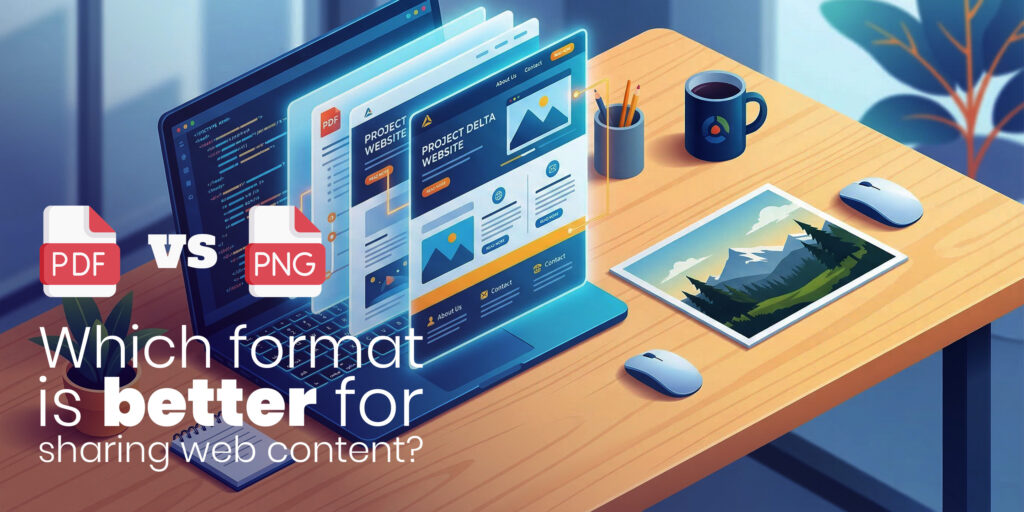
Chrome’s “Print to PDF” feature looks simple and convenient. With just a few clicks, you can turn almost any webpage into a PDF. Yet, anyone who has tried to use it on modern websites knows the frustration, broken layouts, missing images, blank pages, or PDFs that look nothing like the original webpage.
This is not a temporary bug or a Chrome-specific glitch. The real issue is that modern websites are not built for browser-based printing. They are designed for screens, interactions, and dynamic loading, not static PDF generation.
In this detailed guide, we’ll explain why Chrome “Print to PDF” fails on modern websites, why these issues keep happening despite updates, and what actually works if you want clean, reliable PDFs every time.
Chrome “Print to PDF” Is Not Broken, It’s Limited by Design
Before blaming Chrome, it’s important to understand how its print-to-PDF feature works. Chrome captures the current visible state of a webpage and tries to fit it into a fixed, printable layout. This approach worked reasonably well in the early days of the web, when pages were mostly static and content loaded all at once.
Modern websites, however, are fundamentally different. They are interactive, responsive, and heavily dependent on JavaScript. Chrome’s print engine was never designed to handle this level of complexity. As a result, many failures are not bugs; they are architectural limitations.
This is why the same page might print correctly one day and fail the next, even without any changes on your end.
Lazy Loading: Why Content Disappears in PDFs
One of the biggest reasons Chrome’s “Print to PDF” fails is lazy loading. To improve performance, modern websites load images, charts, and even text only when the user scrolls down the page. This helps pages load faster and reduces unnecessary data usage.
The problem arises when you try to print the page before all that content has loaded. Chrome only captures what is currently rendered. Anything that hasn’t appeared yet, images further down the page, embedded sections, or dynamically fetched data, may be missing entirely in the PDF.
Even scrolling to the bottom doesn’t always solve the issue, because some elements load based on user interaction rather than scroll position. This makes browser printing unreliable for long or complex pages.
Complex CSS Layouts Don’t Translate Well to Print
Modern websites rely heavily on CSS Grid, Flexbox, and responsive design techniques. These layouts are optimized for screens that can resize, scroll, and adapt to different devices.
When Chrome tries to force these layouts into a fixed PDF page size, things often break. Columns overlap, elements shift unexpectedly, and text may be cut off. What looks perfect on-screen can become unreadable in print.
This happens because print styles are an afterthought on many websites. Most developers optimize for mobile and desktop viewing, not for printing. Chrome’s print engine struggles to reinterpret these layouts accurately.
JavaScript Rendering Happens Too Late
JavaScript plays a central role in how modern websites work. Content is often generated after the page loads, based on user behavior, API calls, or application state.
When you open the print dialog, Chrome doesn’t always wait for JavaScript to finish executing. If the rendering process is interrupted, the PDF captures an incomplete version of the page. This results in missing sections, broken formatting, or even blank PDFs.
For JavaScript-heavy websites, this issue is especially common and extremely difficult to fix using browser settings alone.
Pop-ups, Overlays, and Ads Interfere with Printing
Cookie banners, subscription pop-ups, sticky headers, chat widgets, and ads are everywhere. While they are manageable during normal browsing, they cause serious issues during printing.
Chrome often captures these overlays as part of the page. In some cases, they cover the main content. In others, they cause the print process to freeze or fail altogether. Even closing them manually doesn’t guarantee success, as some scripts re-trigger overlays automatically.
This adds another layer of unpredictability to browser-based PDF generation.
Responsive Scaling Breaks PDF Layouts
Responsive design ensures websites look good on phones, tablets, and desktops. But printing forces all of this into a static format.
Chrome often struggles to decide which layout version to use when generating a PDF. The result can be oversized fonts, narrow columns, excessive white space, or pages that contain nothing but a URL and a header.
These scaling issues are common and difficult to control, especially on websites that don’t include dedicated print styles.
Why Chrome “Print to PDF” Can Never Be Fully Fixed
Many users search for the perfect Chrome setting that will make “Print to PDF” reliable. Unfortunately, such a setting doesn’t exist.
Chrome’s print feature is a client-side tool. It captures whatever the browser happens to be displaying at that moment. It does not perform full server-side rendering, it does not reliably wait for JavaScript execution, and it does not resolve complex layout conflicts.
This means no matter how many workarounds you try, scrolling, disabling hardware acceleration, or using incognito mode, the results will always be inconsistent. The tool simply wasn’t built for modern, dynamic websites.
Common Workarounds and Why They’re Not Reliable
Some quick fixes may work occasionally. Scrolling to the bottom of the page can trigger lazy-loaded content. Incognito mode can disable extensions that interfere with layout. Enabling background graphics may restore colors and images.
However, these are temporary hacks, not real solutions. They depend on timing, browser behavior, and how the website is built. What works for one page may fail for another.
For professional use, such as saving invoices, reports, or client documents, this inconsistency is unacceptable.
The Real Fix: Use a Dedicated Web to PDF Tool
If you need reliable PDFs from modern websites, the solution is not another Chrome tweak. The solution is using a dedicated Web to PDF tool designed for this exact purpose.
Unlike browser printing, these tools perform server-side rendering. They fully load the webpage, execute JavaScript, apply styles correctly, and only then convert the page into a PDF.
This approach eliminates the core issues that cause Chrome “Print to PDF” to fail.
How Webs2PDF Solves These Problems
Webs2PDF is built specifically to handle modern websites. Instead of capturing a half-rendered screen, it processes the webpage in a controlled environment where everything loads properly.
JavaScript-driven content is rendered completely. Lazy-loaded images are included. Complex CSS layouts are preserved. The final PDF closely matches the live webpage, without broken sections or missing elements.
Because the conversion happens online, there is no dependency on your browser, device, or extensions. The result is consistent and professional every time.
When Webs2PDF Is the Better Choice
If you only need a quick, informal PDF, Chrome’s print option may be sufficient. But if accuracy matters, whether for business records, client sharing, research, or archiving, Webs2PDF is the better choice.
It’s especially useful for long pages, dynamic dashboards, JavaScript-based websites, and any content where layout and completeness are important.
Chrome Print to PDF vs Webs2PDF: A Practical Difference
Chrome Print to PDF relies on what you see at a single moment. Webs2PDF relies on how the webpage is actually built and rendered.
That difference is why one fails unpredictably while the other delivers consistent results. Webs2PDF doesn’t fight against modern web technologies; it works with them.
Final Thoughts
Chrome “Print to PDF” fails on modern websites because modern websites have outgrown browser-based printing. Dynamic loading, complex layouts, and JavaScript rendering are now the norm, not the exception.
No amount of tweaking can turn Chrome’s print feature into a fully reliable solution. For clean, accurate, and professional PDFs, a dedicated web to PDF tool is the correct approach.
If you regularly need to convert webpages into PDFs without broken layouts or missing content, Webs2PDF offers a reliable fix built for the modern web.