Your LinkedIn profile is your most important professional asset online. It holds your career history, achievements, recommendations, featured posts, and your professional brand, all in one place. And sometimes, you need it as a PDF.
Maybe you’re applying for a job and want to send more than a plain resume. Maybe you’re a recruiter who needs to save a candidate’s profile for offline review. Maybe you’re a professional who wants to archive an important post, save a competitor’s company page, or document a LinkedIn conversation for business records.
The problem? LinkedIn’s own ‘Save to PDF’ feature is severely limited. It strips out your profile’s design, removes posts and featured content, only works in English, and does nothing at all for individual LinkedIn posts. Most people who try it are disappointed by the plain, incomplete result.
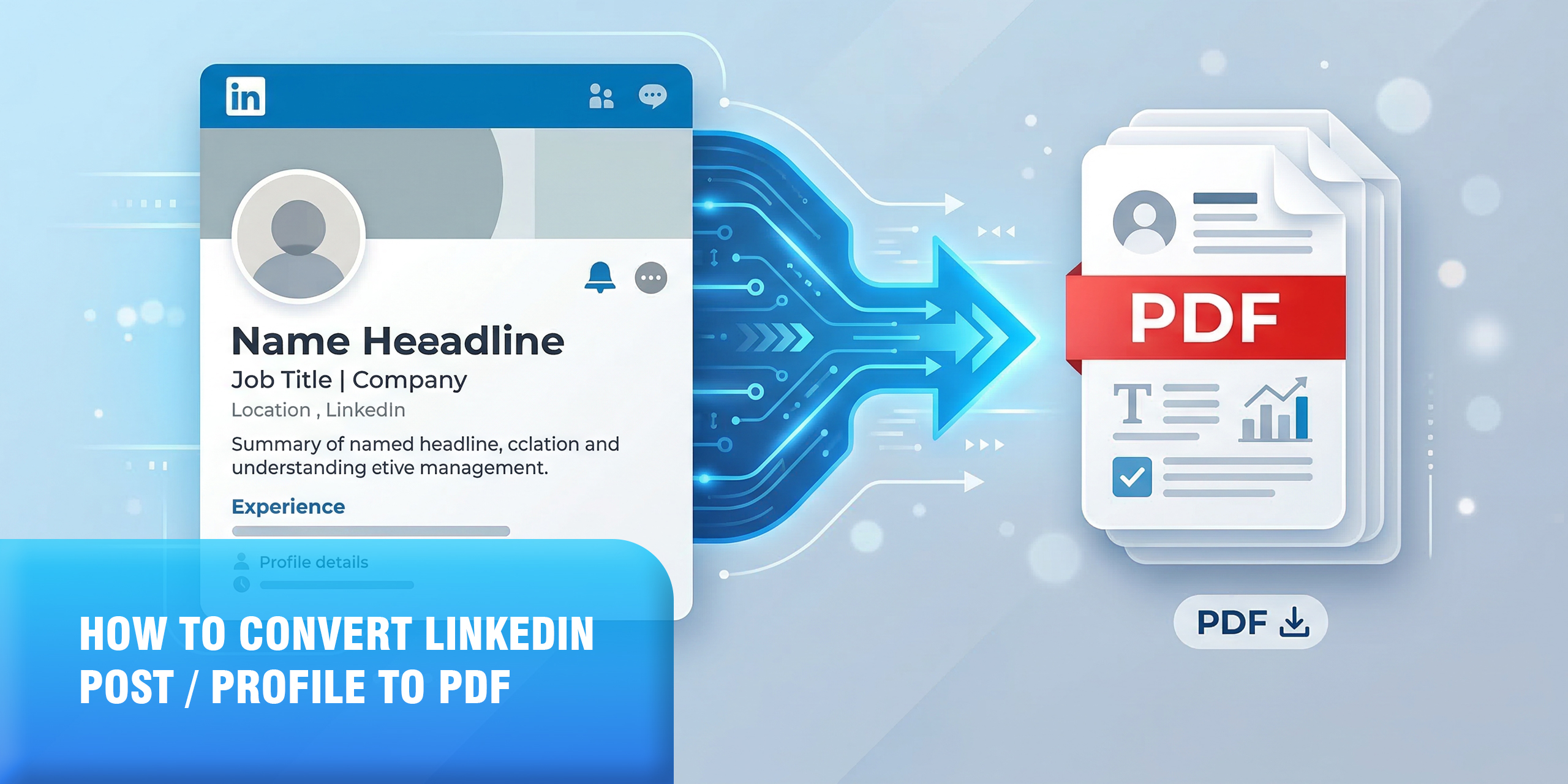
In this guide, we’ll show you every method to save a LinkedIn profile or post as a PDF, starting with the best one, Web to PDF, which captures everything exactly as it looks in just 30 seconds.
Why Would You Want to Save a LinkedIn Profile or Post as a PDF?
There are more reasons than you might think:
Job Applications: Many job applications ask for your resume, but a well-formatted PDF of your LinkedIn profile shows employers a richer, more visual picture of your professional brand than a plain text resume.
Networking and Events: Sending a PDF of your LinkedIn profile before a meeting, conference, or business event lets others review your background without needing to be connected on LinkedIn first.
Recruiting and Talent Research: HR professionals and recruiters regularly need to save candidate profiles for offline review, team sharing, and applicant tracking systems.
Archiving Important Posts: A viral LinkedIn post, a thought leadership article, or an important announcement can disappear or be edited. Saving it as a PDF preserves the exact content permanently.
Competitive Intelligence: Businesses save competitor company pages and executive profiles to track messaging, positioning, and team changes over time.
Legal and Compliance Documentation: LinkedIn content is increasingly used as evidence in employment disputes, contract cases, and regulatory investigations. A proper PDF is a credible, court-admissible record.
Personal Backup: Before making major changes to your LinkedIn profile, saving a PDF gives you a permanent record of what your profile looked like at that moment in time.
LinkedIn’s Built-in ‘Save to PDF’: What It Does and What It Misses
Let’s start with the official method, because understanding its limitations explains exactly why Webs2PDF is the better solution for most situations.
How LinkedIn’s Built-in Export Works (Desktop)
- Log in to LinkedIn on a desktop browser (this feature does not exist on mobile).
- Click your profile photo icon at the top right, then click ‘View Profile’.
- Look for the ‘Resources’ button (or ‘More’ button depending on your interface) near the top of your profile.
- Click it and select ‘Save to PDF’ from the dropdown.
- LinkedIn generates and downloads a PDF of your profile automatically.
For saving someone else’s profile: navigate to their profile page, click the ‘More’ button near their photo, and select ‘Save to PDF’ if available. Note that this only works for 1st-degree connections, and you are limited to 100 downloads per month for other people’s profiles.
The Real Limitations of LinkedIn’s Export: Why It Disappoints
Here is the critical problem: LinkedIn’s export does not give you a PDF of your actual profile page. It gives you a plain, stripped-down resume format, with no design, no visual layout, and a lot of missing content:
| LinkedIn Built-in Limitation | What This Means for You |
| Plain, unstyled resume format | Your actual LinkedIn profile layout, banner, photo, and design are gone |
| No posts or activity included | Featured posts, articles, recommendations, and engagement are excluded |
| English profiles only | Non-English profiles produce broken or garbled PDFs |
| Desktop only, no mobile | Mobile app users cannot use the Save to PDF feature |
| Others’ profiles: 100/month limit | Useful for research but heavily restricted for HR/recruiters |
| No customisation at all | You cannot choose which sections to include or exclude |
| Cannot save LinkedIn posts | Individual posts have no built-in export option whatsoever |
The result looks like a plain text document, not your LinkedIn profile. Your professional banner, profile photo styling, featured section design, post content, and all visual elements are completely absent.
Best Method: Convert Any LinkedIn Page to PDF Using Webs2PDF
Webs2PDF solves every single limitation of LinkedIn’s built-in export. Instead of generating a stripped resume, it captures your LinkedIn profile page exactly as it appears in the browser, with your full layout, banner, profile photo, featured posts, recommendations, activity feed, and all visual elements preserved in a single, beautiful, continuous PDF.
It works for your own profile, other people’s public profiles, company pages, individual LinkedIn posts, LinkedIn articles, and any other publicly visible LinkedIn page.
Step 1: Open the LinkedIn Page You Want to Save
Navigate to the LinkedIn profile, company page, or post you want to convert. Make sure you’re on the specific page you want to capture; the URL in your address bar should reflect the exact page.
Pro Tip: For individual LinkedIn posts, click on the post’s timestamp to open it on its own page with a dedicated URL. This gives Webs2PDF a clean, focused URL to convert just that post as a PDF.
Step 2: Copy the LinkedIn URL
Copy the full URL from your browser’s address bar. LinkedIn profile URLs typically look like: linkedin.com/in/yourname/, and post URLs look like: linkedin.com/posts/username_keyword-activity-numbers.
Step 3: Go to Webs2PDF.com
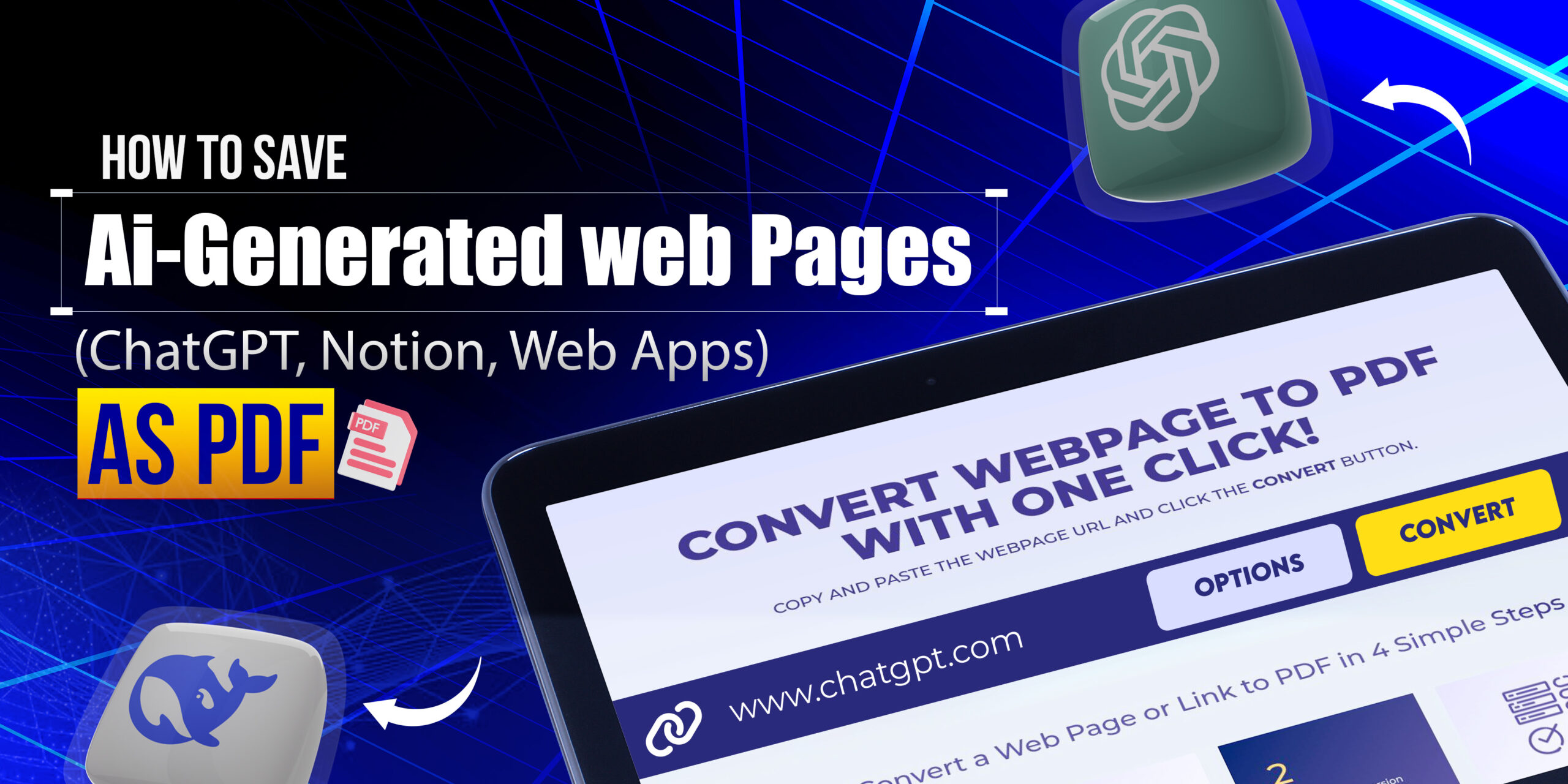
Open Webs2PDF.com in a new tab. You’ll find a clean input box on the homepage, no account, no installation, no extension required.
Step 4: Paste the URL and Choose Your Settings
Paste the LinkedIn URL into the input box. Click the Options button to customise your conversion:
- Page Size – Desktop/Laptop: This captures the full desktop layout of the LinkedIn page, exactly how it appears when you’re logged in and browsing normally.
- Quality – High: Essential for crisp profile photos, banner images, and text. Always choose High for professional documents.
- Site Map – Current Page: For a single profile or post. Use ‘All Pages’ or Bulk Conversion for saving multiple profiles in one batch.
- Margins – 10-15px: Adds a professional border around the content.
Step 5: Convert and Download
Click Convert. Webs2PDF fully renders the LinkedIn page, loading all dynamic content, images, and JavaScript elements, before capturing it. In seconds, your complete LinkedIn PDF is ready to download.
What You Get With Webs2PDF: A pixel-perfect PDF of the LinkedIn page exactly as it looks, with full layout, profile photo, banner, featured posts, recommendations, skills section, and all visible content. One file, perfectly formatted, permanently saved.
What Webs2PDF Captures on LinkedIn: That LinkedIn’s Export Misses
Full Profile Design and Layout: Your banner image, profile photo, headline, about section, and overall visual design, exactly as it appears on LinkedIn.
Featured Section: Posts, articles, media, and external links that you’ve pinned to your featured section are fully captured.
Recommendations: Written recommendations from colleagues and managers, which LinkedIn’s built-in export excludes entirely, appear in full.
Activity and Posts: Your recent posts and activity feed are visible and saved, giving a full picture of your professional presence.
Skills and Endorsements: The complete skills section with endorsement counts is preserved.
Company Pages: Save any LinkedIn company page, including the about section, recent posts, employee count, and company branding.
Individual LinkedIn Posts: Save any specific post as a standalone PDF, with the full text, images, like and comment counts, and author information.
LinkedIn Articles: Long-form LinkedIn articles are saved in full, including embedded images, headers, and formatting.
Other Methods to Save LinkedIn as PDF: And Why They Fall Short
Browser Print to PDF (Ctrl+P → Save as PDF)
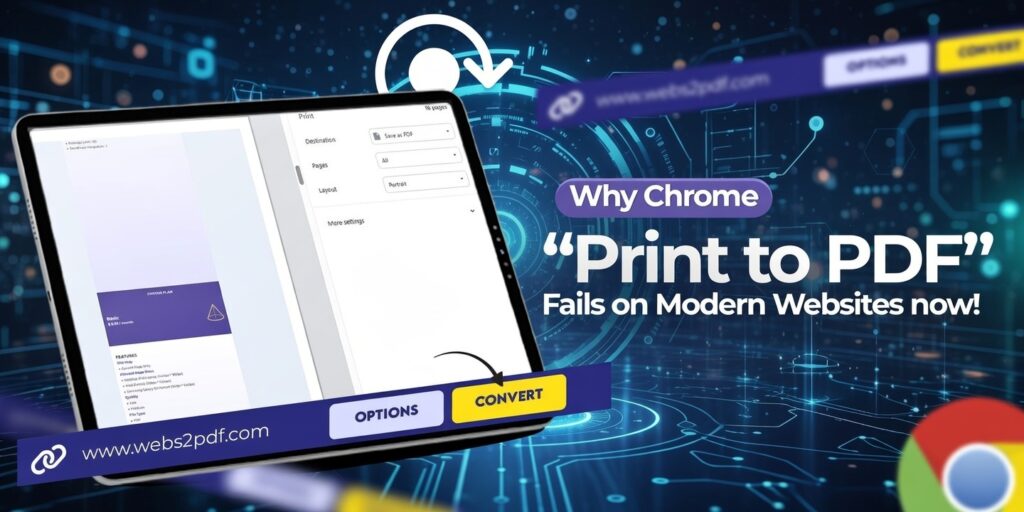
Pressing Ctrl+P in your browser while viewing a LinkedIn profile opens the print dialog, where you can choose ‘Save as PDF‘.
What it captures: A partial capture of the visible profile page.
Problems: LinkedIn’s layout is not optimised for printing. The browser print view often splits the profile awkwardly across multiple pages, cuts off sections, includes browser navigation elements, and misses dynamically loaded content like recommendations and featured posts that require scrolling to load. The result is messy and unprofessional.
Verdict: Technically possible but produces poor results. Webs2PDF handles LinkedIn’s dynamic content properly, but browser print does not.
LinkedIn’s Built-in Save to PDF
As detailed above, this official feature exports a plain resume-style PDF with no design, no posts, no featured content, and English-only support.
When it works: For generating a basic resume-style summary of your work experience and education, nothing more.
Verdict: Use it only if you specifically need a plain text resume format. For anything else, Webs2PDF is vastly superior.
Screenshots
Taking screenshots of a LinkedIn profile and combining them into a PDF is a time-consuming workaround.
Problems: Extremely slow for long profiles. Multiple screenshots must be stitched together manually. Text in the result is not searchable or selectable. The output is a collection of images, not a real PDF document.
Verdict: Only useful for capturing a very small, specific section of a profile quickly. Not a real archiving solution.
Copy and Paste to Word
Manually copying the text of a LinkedIn profile and pasting it into Word gives you editable text, but loses all formatting, images, and layout.
Problems: All design, photos, and visual structure are lost. The content needs heavy manual reformatting. Featured posts, recommendations, and dynamic elements are not captured. Very slow for long profiles.
Verdict: Only worth it if you specifically need editable text to build a new CV from scratch, not for archiving or sharing a LinkedIn profile.
All Methods Compared at a Glance
| Method | Full Layout? | Posts Included? | Free? | Best For |
| Webs2PDF (Best) | Pixel-perfect | Yes | Yes | Complete profile + posts PDF |
| LinkedIn Save to PDF | Plain resume only | No | Yes | Basic resume export |
| Browser Print Ctrl+P | Broken layout | Partial | Yes | Quick but messy |
| Screenshots | Visual only | Yes | Yes | Simple visual proof |
| Copy to Word | Manual cleanup | No | Yes | Heavy editing needed |
| Paid PDF tools | Varies | Varies | Paid | Enterprise use |
Real-World Use Cases: How Professionals Use Webs2PDF for LinkedIn
Job Seekers: Sharing a Visual Profile With Employers
Instead of sending a plain-text resume, job seekers use Webs2PDF to convert their LinkedIn profile to a professional PDF that includes their banner, photo, recommendations, and featured posts. This gives hiring managers a richer view of their professional identity than a plain resume, and it takes 30 seconds to create.
Recruiters: Saving Candidate Profiles for Review
Recruiters regularly need to save and share candidate profiles internally. With Webs2PDF, they can convert any public LinkedIn profile to a PDF in seconds, share it with hiring managers, and store it in their applicant tracking system. No more LinkedIn 100-per-month limits or stripped-down exports.
Business Development: Researching Prospects Before Meetings
Sales professionals and business development teams use Webs2PDF to archive LinkedIn profiles of prospects and clients before meetings. A PDF of a prospect’s full profile, including their recent posts and activity, gives valuable context that helps build rapport and personalise conversations.
Content Creators: Archiving Viral Posts
A LinkedIn post that gets thousands of likes or comments can be edited or deleted by its author. Content creators and marketers use Webs2PDF to save high-performing posts as PDFs, preserving the exact text, images, engagement numbers, and author credit as a permanent record.
Legal Teams: Documenting LinkedIn Content as Evidence
Employment lawyers, compliance teams, and HR investigators routinely need to document LinkedIn content, profiles, posts, messages, and company pages as legal evidence. Webs2PDF produces professional, visually accurate PDF records of LinkedIn pages that are suitable for inclusion in legal proceedings and compliance documentation.
Professionals: Backing Up Before Profile Changes
Before updating your LinkedIn profile significantly, changing your headline, restructuring your experience, or updating your summary, save your current profile as a PDF with Webs2PDF. Unlike LinkedIn’s own export, this preserves a true visual record of exactly what your profile looked like.
Frequently Asked Questions
Can I save someone else’s LinkedIn profile as a PDF using Webs2PDF?
Yes, Webs2PDF works with any publicly accessible LinkedIn URL. If someone’s profile is public (or if you are logged in and can view their profile), you can copy their profile URL and convert it to PDF with Webs2PDF. This gives you a complete, full-layout PDF of their profile, far more detailed than LinkedIn’s own restricted export, which limits other members’ profile downloads to 100 per month.
Can I save individual LinkedIn posts as a PDF?
Yes, and this is something LinkedIn’s built-in feature cannot do at all. To save a LinkedIn post as a PDF, click the timestamp on the post to open it on its own dedicated page with its own URL. Copy that URL and paste it into Webs2PDF. The converted PDF will include the full post text, images, author details, and visible engagement data, permanently preserved.
Does Webs2PDF require me to log in to LinkedIn to convert profiles?
Webs2PDF works with publicly accessible URLs. For public LinkedIn profiles and posts, no login is required; you can simply paste the URL and convert. For profiles that are partially or fully restricted to connections only, the PDF will capture whatever content is publicly visible at that URL.
Why is LinkedIn’s built-in ‘Save to PDF’ so limited?
LinkedIn’s export function was designed specifically to generate a resume-style document, not to archive your actual profile page. It intentionally strips out design elements, posts, and featured content to produce a simple, data-only export. This serves a specific purpose (quick resume generation) but is inadequate for professional archiving, sharing a full profile impression, or saving posts. Webs2PDF captures the actual page instead.
Can I save a LinkedIn company page as a PDF using Webs2PDF?
Yes. Simply navigate to the LinkedIn company page, copy the URL, paste it into Webs2PDF, and convert. You will receive a complete PDF of the company page, including the banner, about section, follower count, recent posts, and all other visible content. This is ideal for competitive research and business intelligence.
Will the PDF look like the actual LinkedIn page or like a plain resume?
With Webs2PDF, the PDF looks exactly like the actual LinkedIn page as it appears in your browser, with full design, profile photo, banner image, layout, fonts, and all visible content preserved. This is the fundamental difference between Webs2PDF and LinkedIn’s built-in export, which produces a plain, unstyled resume document with no visual design.
Conclusion
LinkedIn’s built-in ‘Save to PDF’ is useful only for generating a basic resume summary. For everything else, saving a full profile with design, archiving posts, documenting company pages, researching candidates, or creating professional records, it falls far short.
Webs2PDF gives you what LinkedIn’s export cannot: a complete, pixel-perfect PDF of any LinkedIn page exactly as it appears, with full layout, photos, posts, recommendations, and all visible content, in under 30 seconds, completely free.
- Save your own profile, full design, photos, featured posts, and recommendations included
- Save anyone’s public profile, no connection required, no monthly limits
- Save individual LinkedIn posts, with full text, images, and engagement data
- Save LinkedIn company pages for competitive research and business intelligence
- Create legal and compliance records, professional, accurate, court-suitable PDFs
- Free to use, no account, no installation, 30 seconds
Try it now, go to Webs2PDF.com, paste any LinkedIn URL, and download a perfect PDF in seconds. Completely free.