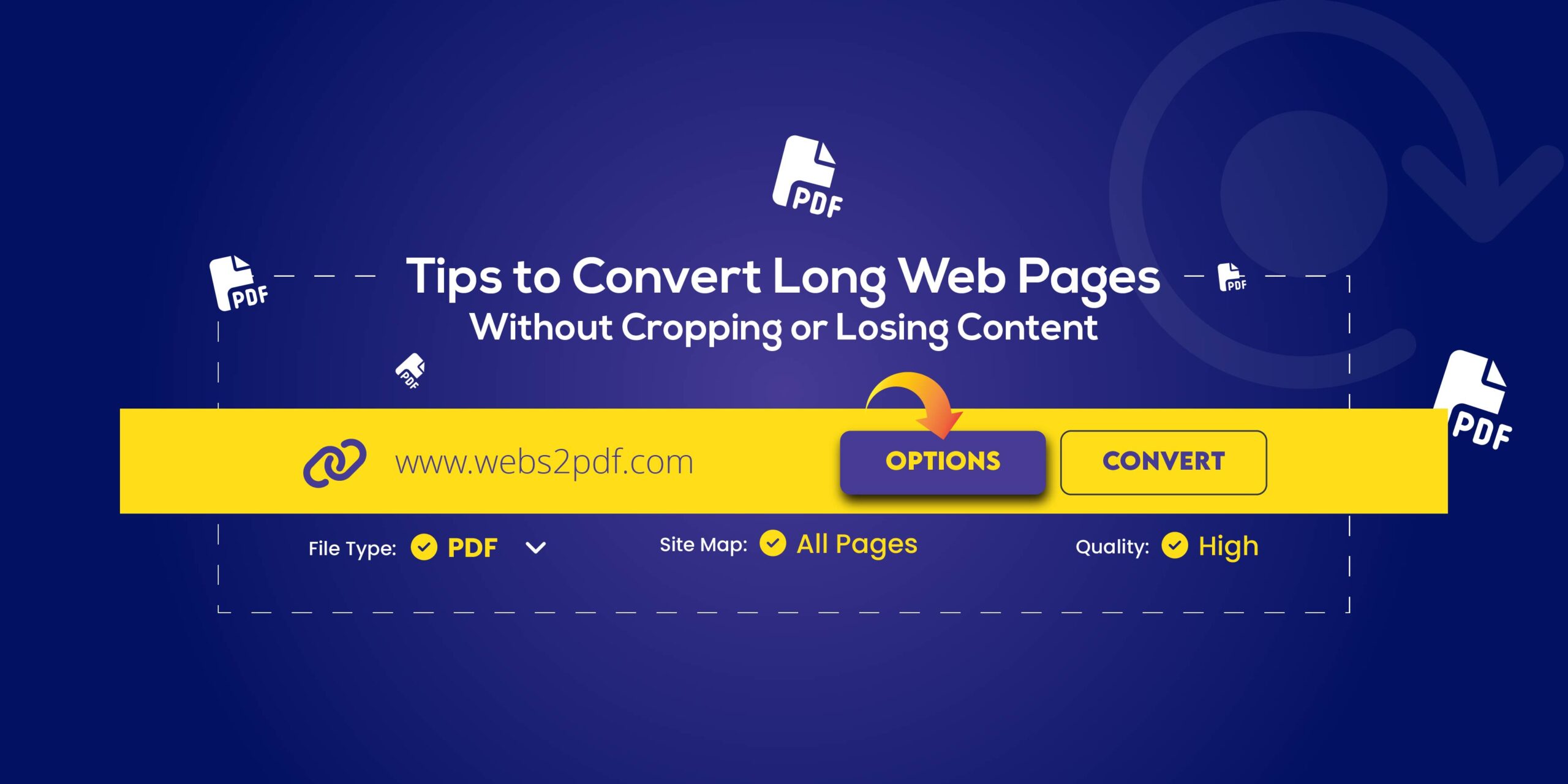
Converting long web pages to PDF without cropping or losing content has become essential in 2026 for researchers, students, and professionals who need to save, archive, or share online content.
Long pages with infinite scroll, lazy-loaded images, or fixed headers often break in standard converters, leaving missing sections or distorted layouts.
In this guide, we’ll show you step-by-step how to convert long web pages to full-page PDFs or images, recommend the best tools, and explain how to handle dynamic content and multi-section layouts effectively.
Why Long Web Pages Are Hard to Convert
Converting long web pages to PDF without cropping or losing content can be tricky due to several factors:
1. Infinite Scrolling
Many websites load content only when you scroll. Basic screenshot or PDF tools often capture only the visible portion, leaving large sections of the document missing.
2. Lazy-Loaded Images
Images that load only when visible may not appear in the final PDF, causing incomplete visuals or broken layouts
3. Fixed Headers & Sticky Elements
Menus, navigation bars, or sticky banners can overlap content, resulting in clipped or misaligned sections in the PDF.
4. Multi-Section & Complex Layouts
Websites with multiple sections, animations, or multi-column layouts often break formatting during conversion, making it difficult to capture full-page content.
Understanding these challenges is the first step to choosing the right full-page PDF conversion tool and ensuring your web content is captured accurately.
Best Tools to Convert Long Web Pages to PDF Without Cropping
Not all PDF converters can handle long web pages with dynamic content, infinite scrolling, or complex layouts. To convert long web pages to full-page PDFs without losing content, choose tools that can:
- Capture full-page scrolling
- Render JavaScript, AJAX, and animations
- Maintain proper formatting, CSS, and multi-section layouts
- Allow custom margins, page size, and orientation
Here’s a comparison of the top tools for full-page PDF conversion:
| Tool | Full Page Support | Handles Infinite Scroll | Output Quality | Best For |
| Webs2PDF | Yes | Yes | ★★★★★ | Research & documentation |
| Chrome Full-Page Screenshot | Partial | No | ★★★☆☆ | Quick single-use |
| Adobe Acrobat Web Capture | Yes | No | ★★★★☆ | Offline PDF workflows |
Webs2PDF is the top choice because it supports lazy-loaded sections, JavaScript-heavy websites, and full-length PDF generation with no cropping.
How to Configure Conversion Settings for Best Results
To convert long web pages to PDF without cropping or losing content, it is essential to configure your conversion settings correctly. Proper settings ensure your PDF is complete, crisp, and formatted correctly.
Page Size & Orientation
Choose A4, Letter, or a custom page height for long content. Using landscape mode can help avoid horizontal cropping for wide layouts.
Zoom Level
Adjust zoom between 80-100% so all content fits properly without cutting off text or images.
Margins
Set margins to 0.5-1 inch to prevent content from being cut off at the edges.
Header & Footer Settings
Remove unnecessary browser headers or footers, or add custom ones for clean, professional PDFs.
Tip: Most modern tools, such as Webs2PDF, allow you to easily adjust these settings for full-page PDF capture, even for multi-section or dynamic webpages.
How to Handle Infinite Scroll & Lazy-Loaded Content When Converting Long Web Pages to PDF
Dynamic websites that use infinite scroll or lazy-loaded images and videos can cause incomplete PDFs if not handled properly. To convert long web pages to full-page PDFs without cropping or missing content, follow these steps:
Scroll Through the Entire Page First: Ensure all images, videos, and dynamic elements are fully loaded before capturing.
Use a Longer Delay / Wait Time: Many PDF tools offer a “wait before capture” feature. Set it to 3-5 seconds to allow lazy-loaded content to appear.
Use Tools That Support JavaScript Rendering: Converters like Webs2PDF can render JavaScript-heavy sites and handle lazy-loaded sections more reliably than standard browser extensions.
Pro Tip: For extremely long pages, preloading all sections manually or using a tool with full-page capture mode ensures nothing is cut off.
How to Convert Very Long or Multi-Section Pages
For extremely long or multi-section webpages, standard conversion methods may cut off content or break layouts. To convert long web pages to full-page PDFs without losing any sections, follow these tips:
Split the Page Into Sections: If the webpage uses endless scroll, take multiple full-page captures to ensure no content is missed.
Use Multi-Page PDF Conversion: Some PDF tools, like Webs2PDF, automatically break long pages into clean, aligned PDF pages for better readability.
Enable “Full Page Capture” Mode: Make sure your tool’s full-page capture feature is active to include all content above and below the fold, including images, tables, and dynamic elements.
Pro Tip: Combining section splits with full-page capture ensures even the longest pages are accurately converted without cropping or missing content.
Advanced Tips to Ensure Perfect Full-Page Conversion
Even with the right tools, long or multi-section webpages can sometimes result in cropped content, misaligned layouts, or low-quality images. To convert long web pages to full-page PDFs without losing content, follow these advanced tips:
Switch to Print Layout Mode: If your tool offers a print layout option, enable it for better alignment of text and images.
Remove Ads, Pop-Ups, or Unnecessary Elements: Clean up the page beforehand to prevent distractions and overlapping elements in the final PDF.
Use “Reader Mode” for Clean Output: Reader Mode simplifies the webpage layout, ensuring only the main content is captured.
Add Page Numbers, Headers, and Timestamps: For documentation or research purposes, adding these elements enhances organization and usability.
Select Higher Image Resolution (150-300 DPI): Ensure images and screenshots remain crisp and readable in the final PDF.
Pro Tip: Tools like Webs2PDF support these advanced settings, making it easier to create clean, professional full-page PDFs from even the longest webpages.
Step-by-Step: Convert Long Web Pages to PDF Without Cropping
Follow this simple process to convert long web pages into full-page PDFs without losing content:
- Open the Webpage and scroll to the End: Scroll through the entire page to preload all lazy-loaded images, videos, and dynamic content.
- Copy the Webpage URL: Make sure you have the exact URL of the page you want to convert.
- Open Your Conversion Tool: Use Webs2PDF or any other reliable full-page PDF converter that supports dynamic content.
- Paste the URL: Insert the copied URL into the tool’s input field.
- Adjust Key Conversion Settings: Ensure proper configuration for full-page capture:
- Page size (A4, Letter, or custom)
- Orientation (portrait or landscape)
- Margins (0.5-1 inch)
- Zoom level (80-100%)
- Enable full-page capture mode
- Click Convert: Start the conversion process and wait for the tool to render the full page.
- Download & Review Your PDF/Image: Check that all content, images, and sections are captured correctly. Repeat the process with adjusted settings if any elements are missing.
Common Problems & How to Fix Them When Converting Long Web Pages to PDF
Even with the right tools, converting long web pages to full-page PDFs without cropping can sometimes cause issues. Here are the most common problems and how to fix them:
Images Missing
Some images may not appear if they are lazy-loaded. Scroll through the entire page before conversion or enable the “wait for lazy-load content” feature in your tool.
Content Cropped
If parts of the webpage are cut off, increase the page size, switch to landscape orientation, or ensure full-page capture mode is enabled.
Layout Broken
Complex layouts with multiple sections or dynamic elements can break during conversion. Use a Chromium-based converter like Webs2PDF to maintain accurate formatting.
File Size Too Big
High-resolution images or very long pages can result in large PDFs. Compress the PDF or lower image DPI (150-200 DPI) to reduce file size without sacrificing readability.
Pro Tip: Regularly review the PDF after conversion to ensure no elements are missing, especially for multi-section or dynamically loaded webpages.
FAQs
Here are answers to common questions about converting long web pages into full-page PDFs without losing content:
1. How do I convert a long webpage to PDF without cropping?
Use a full-page PDF converter like Webs2PDF. First, scroll through the entire page to preload all lazy-loaded content, then adjust the page size, orientation, and enable full-page capture for accurate results.
2. Can I save infinite scroll pages as a PDF?
Yes. Tools like Webs2PDF can handle dynamically loaded content and infinite scroll pages, ensuring all sections are included in the PDF without cropping.
3. How do I capture full-page screenshots?
Use tools like Snagit or Chrome’s built-in full-page capture feature. Make sure all content, including images and sections, is preloaded before taking the screenshot.
4. Which browser works best?
Chrome and Firefox offer the most accurate rendering for long webpage conversions, especially for dynamic or multi-section content.
Conclusion
Converting long web pages into full-page PDFs or images without losing content is essential for documentation, research, archiving, and professional reporting. By selecting the right tools, properly handling dynamic content and lazy-loaded elements, and adjusting key conversion settings, you can create clean, accurate, and complete PDFs every time.
For seamless, high-quality full-page PDF capture, tools like Webs2PDF make it easy to save, share, and archive even the longest or most complex webpages without cropping or missing sections. Take control of your web content and enjoy reliable, professional conversions with minimal effort.