You want to save a web page, a report, a competitor’s landing page, a research article, a product listing, or an important document, and share it with someone. The question hits you: should I save this as a PDF or a PNG?
Both formats can capture a web page visually. But there is a massive difference between what they actually preserve, how they behave when shared, and what happens when someone tries to read, search, or print them on the other end.
In this guide, we’ll break down every key difference between PDF and PNG for sharing web content, clearly, without jargon, and show you exactly when to use each one. Spoiler: for saving and sharing web pages, PDF wins every time. And with Webs2PDF, converting any web page to a perfect PDF takes under 30 seconds, completely free.
What is a PDF File?
PDF stands for Portable Document Format. It was created by Adobe in 1993 with one goal: to display a document identically on every device, screen, and printer, regardless of the software, operating system, or fonts installed.
A PDF is not just an image of a page. It is a structured document format that stores:
- Real, searchable, selectable text
- Images at compressed or full resolution
- Page layout, margins, and spacing
- Fonts and typography
- Multiple pages in a single file
- Hyperlinks, bookmarks, and navigation
- Accessibility metadata for screen readers
- Optional: password protection, annotations, digital signatures
This is why PDFs are the standard for contracts, reports, invoices, research papers, legal documents, and professional sharing of any kind.
What is a PNG File?
PNG stands for Portable Network Graphics. It is a raster image format, meaning it stores information as a grid of individual pixels. It was created in the 1990s to replace the GIF format and is now the most widely used lossless image format on the web.
PNG is excellent at:
- Storing logos, icons, and graphics with transparent backgrounds
- Preserving sharp edges and flat colours without quality loss
- Screenshots where pixel-perfect accuracy matters
- Web design elements, buttons, banners, UI components
However, PNG is fundamentally an image format. When you save a web page as a PNG, all the text becomes pixels, unselectable, unsearchable, and inaccessible. The page structure, links, metadata, and multi-page content are entirely lost.
PDF vs PNG: 8 Key Differences Explained
1. Text Quality and Searchability
PDF: Text in a PDF is stored as real characters. You can select it, copy it, search through it with Ctrl+F, and it remains perfectly sharp at any zoom level or print size. Screen readers and accessibility tools can read it.
PNG: All content, including text, is converted into pixels. You cannot select, search, or copy text from a PNG. If you zoom in, the text becomes blurry. Screen readers cannot interpret it.
2. Multi-Page Support
PDF: A single PDF file can contain dozens or hundreds of pages. For saving web pages, this means the entire page, no matter how long, is contained in one file with proper flow and navigation.
PNG: PNG is strictly a single-image format. If a web page is long, you either get one extremely tall image file or you need to take multiple screenshots and manage several separate files.
3. File Size for Web Content
PDF: PDFs store text as characters (not pixels), which makes text-heavy pages much smaller than their PNG equivalents. A PDF of a 10,000-word article is dramatically smaller than a PNG of the same page.
PNG: PNG stores everything as pixels. A high-resolution PNG of a full web page can be 5-10x larger than the equivalent PDF. This makes PNGs slow to share, difficult to email, and storage-intensive.
4. Layout and Structure Preservation
PDF: A properly converted PDF preserves the complete layout of the web page, columns, spacing, fonts, image placement, headers, footers, and visual hierarchy, exactly as it appeared in the browser.
PNG: PNG captures the visual appearance only. While it looks like the page at first glance, any structural information, the relationship between elements, heading levels, and link destinations is completely gone.
5. Print Quality
PDF: PDFs are resolution-independent for text and vector elements, meaning they print perfectly at any size. This is why all professional printing workflows use PDF. A printed PDF looks identical to the digital version.
PNG: PNG is resolution-fixed. If you print a PNG at a larger size than its native resolution, the result is blurry or pixelated. This is why print shops always ask for PDFs, never PNGs.
6. Accessibility
PDF: PDFs support full accessibility features, alt text for images, heading structure, reading order tags, and screen reader compatibility. PDFs can meet WCAG and Section 508 accessibility standards.
PNG: PNG has zero built-in accessibility. It is a flat image. A screen reader cannot tell a visually impaired user what is written on a PNG; it can only read the file name. For sharing any kind of web content professionally, this is a serious limitation.
7. Security and Privacy
PDF: PDF supports password protection, encryption, and permissions settings. You can share a PDF that can be viewed but not printed, copied from, or opened without a password. This is critical for legal, financial, and sensitive documents.
PNG: PNG has no security features whatsoever. Anyone who receives a PNG can share, edit, or screenshot it freely.
8. Where PNG Actually Wins
To be fair, PNG is genuinely the better choice in specific situations:
- Logos and icons: especially when a transparent background support (alpha channel) is needed.
- Web design graphics: buttons, banners, UI elements, and small images, where the file size must be minimal.
- Single screenshots for quick visual reference: when you just need to show someone what a specific part of a page looks like.
- Images that need editing in design software: PNG integrates more easily into tools like Photoshop, Figma, and Canva than PDF for image editing.
Bottom line: PNG is for images. PDF is for documents and web content. When someone asks you to share a web page, a report, or any structured content, a PDF is always the right answer.
PDF vs PNG: Full Comparison Table
| Factor | PDF (Winner for Web Content) | PNG (Better for Images Only) |
| Multi-page support | Multiple pages in one file | One image per file only |
| Text quality | Crisp, searchable, scalable text | Pixelated text when zoomed |
| File size (mixed content) | Smaller, text stored as characters | Large, everything stored as pixels |
| Sharing web pages | Full page layout preserved perfectly | Loses structure, links, and metadata |
| Print quality | Perfect, resolution-independent | Can blur when resized |
| Accessibility | Screen readers, searchable, taggable | No accessibility support |
| Password protection | Built-in encryption supported | Not supported |
| Annotations & comments | Fully supported | Not supported |
| Transparency support | Limited | Full alpha channel transparency |
| Logo/icon use | Not ideal | Best format for logos & icons |
| Web content archiving | Best format, via Webs2PDF | Incomplete, no text, no links |
How to Convert Any Web Page to PDF Using Webs2PDF
Now that you know PDF is the right format for sharing web content, here is the fastest and cleanest way to convert any web page to PDF, using Webs2PDF.
Webs2PDF captures web pages exactly as they appear in the browser, with all images, fonts, layouts, JavaScript-rendered content, and dynamically loaded elements preserved, and delivers a single, pixel-perfect, continuous PDF. No page breaks cutting off content. No missing images. No broken layouts.
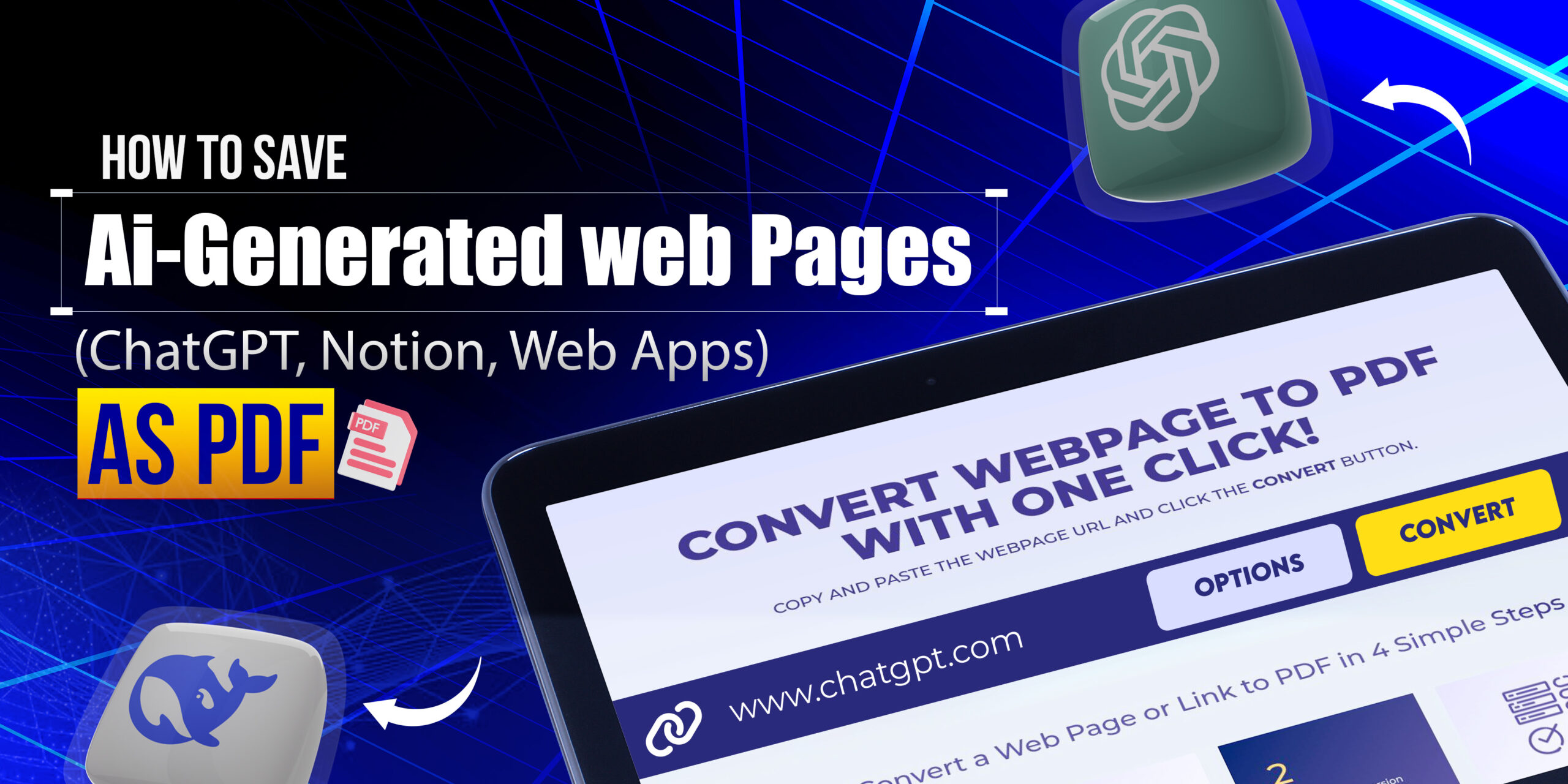
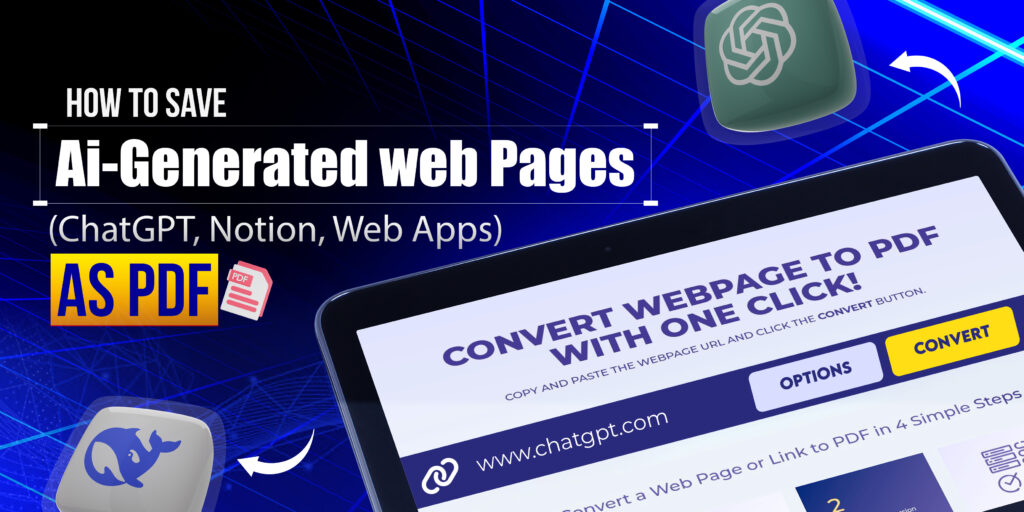
Step 1: Copy the Web Page URL
Open the web page you want to save as a PDF in your browser and copy the URL from the address bar.
Step 2: Go to Webs2PDF.com
Visit Webs2PDF.com. No account needed, no installation, no extensions required.
Step 3: Paste the URL and Set Your Options
Paste the URL into the input box. Click Options to customise:
- Page Size Desktop/Laptop: Captures the full desktop layout of the web page.
- Quality High: Essential for crisp text and sharp images in your PDF.
- File Type PDF: Select PDF (not PNG or JPEG) for all web content sharing.
- Margins 10-15px: Adds a clean border around your content.
Step 4: Click Convert and Download
Hit Convert. Webs2PDF fully renders the page, including JavaScript and lazy-loaded images, before capturing it. Download your perfect PDF in seconds.
Why Webs2PDF is the Best PDF Converter for Web Pages: Unlike browser print (which splits pages badly and misses content) or PNG screenshots (which lose all text functionality), Webs2PDF produces a single continuous, pixel-perfect PDF that preserves every detail of the web page, for free, with zero installation.
Real-World Scenarios: PDF vs PNG in Practice
Scenario 1: Sharing a Competitor’s Pricing Page with Your Team
Wrong approach (PNG): Screenshot the page as PNG. Your team receives a flat image; they can’t click links, can’t search for specific features, and the text may be blurry on their screen resolution. If the page is long, you need multiple screenshots.
Right approach (PDF via Webs2PDF): Convert the pricing URL to PDF using Webs2PDF. Your team gets a complete, searchable, printable PDF of the entire pricing page, one file, perfectly formatted, permanently accessible.
Scenario 2: Saving a Research Article for Offline Reference
Wrong approach (PNG): Save as PNG. The 5,000-word article is now an enormous image file. You can’t Ctrl+F to find a specific section, you can’t copy a quote, and your screen reader can’t help visually impaired colleagues access it.
Right approach (PDF via Webs2PDF): Convert the article to PDF. The result is a compact, fully searchable document that can be annotated, shared by email, and accessed offline with all text functionality intact.
Scenario 3: Documenting a Website for Legal Evidence
Wrong approach (PNG): Take screenshots. PNG screenshots are easily disputed, they can be edited, they lack metadata, and they don’t capture the full page context professionally.
Right approach (PDF via Webs2PDF): Convert the URL to a high-quality PDF using Webs2PDF. The result is a complete visual and textual record of the page, professional, accurate, and suitable for compliance and legal documentation.
Scenario 4: Creating a Web Design Logo (PNG is correct here)
Wrong approach (PDF): Export your logo as a PDF for use in a website header. PDF is not designed for web image elements, and browsers handle it differently.
Right approach (PNG): Export your logo as PNG with a transparent background. PNG is the correct and universal format for logos, icons, and web graphics used directly on a website.
Quick Reference: Which Format to Use for Each Task
| Use Case | Best Format | How to Do It | Tool |
| Save a web page for sharing | Convert URL to PDF | Webs2PDF.com | |
| Archive a website permanently | Convert URL to PDF | Webs2PDF.com | |
| Send a report/proposal | Convert to PDF | Webs2PDF.com | |
| Save a logo or icon | PNG | Export from the design tool | Figma / Canva |
| Share a single screenshot | PNG | Screenshot tool | Snagit / OS tool |
| Legal or compliance record | Convert URL to PDF | Webs2PDF.com | |
| Competitor research page | Convert URL to PDF | Webs2PDF.com | |
| Transparent graphic overlay | PNG | Export with transparency | Design software |
| Multi-page documentation | Convert URL to PDF | Webs2PDF.com | |
| Social media graphic | PNG | Export from the design tool | Canva / Photoshop |
Why Webs2PDF Produces Better PDFs Than Any Other Method
Knowing that PDF is the right format is only half the answer. The other half is how you create the PDF, and most methods fall short for web content:
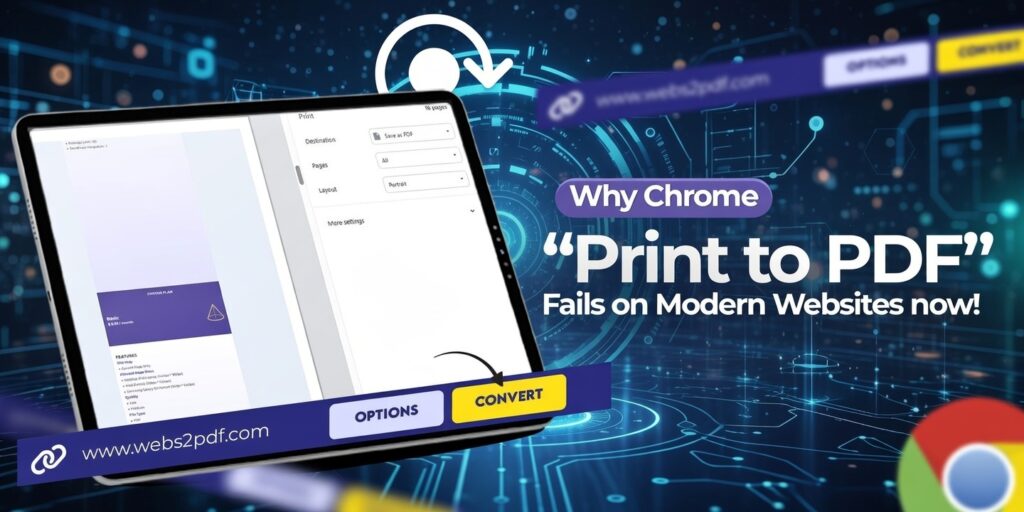
- Browser Print (Ctrl+P): Splits the page into A4 chunks with awkward page breaks. Misses JavaScript-rendered content. Includes the browser sidebar and UI in the output. Frequently cuts off images and long paragraphs.
- Screenshot to PDF: Essentially just a PNG converted to PDF format; all the same limitations of PNG apply. Text is still pixelated, not searchable or selectable.
- Copy-paste to Word, then export: Destroys all original formatting. Images detach, layouts collapse, and code blocks become plain text. Requires enormous manual cleanup.
Webs2PDF solves all of these problems:
- Full JavaScript rendering: Waits for all dynamic content to load before capturing.
- Single continuous PDF: No page breaks, no split content, the full page in one seamless document.
- Pixel-perfect layout: Every font, colour, image, and element is preserved exactly.
- Full resolution images: No compression artefacts, no missing visuals.
- Completely free: No account needed, no trial limits for standard use.
Frequently Asked Questions
Q1: Is PDF or PNG better for sharing web pages?
PDF is better in almost every scenario. It preserves real, selectable text, maintains the full multi-page layout, supports printing at any size, and allows password protection. PNG flattens the page into a single image — text becomes unreadable by machines, the structure is lost, and file sizes are often larger. Use Webs2PDF.com to convert any URL to a properly structured PDF in seconds.
Q2: Can I use Webs2PDF to save a web page as PNG instead of PDF?
Yes, Webs2PDF supports PNG and JPEG output alongside PDF. PNG output is useful when you specifically need an image file, such as a thumbnail for a presentation or a visual preview. For archiving, sharing, or professional documentation, PDF is the better choice.
Q3: Why does PNG look fine on screen but blurry when printed?
PNG stores content at a fixed pixel resolution. When you scale a PNG larger than its original size, which often happens during printing, the display software has to interpolate (guess) the missing pixel data, resulting in blurriness. PDF, by contrast, stores text as resolution-independent vector characters and preserves separate image data, so it prints sharply at any size.
Q4: What is the difference between saving a webpage as a PDF and taking a screenshot?
A screenshot captures only the visible pixels; it’s a flat image with no text functionality, no clickable links, and no structure. Saving as PDF via Webs2PDF captures the full page layout, preserves real selectable text, and produces a structured document you can search, share, and print, not just a picture of the page.
Q5: Can a PNG file be converted to a searchable PDF?
Not directly. When a web page is saved as PNG, all text becomes pixels; there is no underlying text data to make it searchable. Converting that PNG back to PDF just wraps the image in a PDF container, which does not make the text selectable. The only way to get a truly searchable, functional PDF of a web page is to convert the original URL directly to PDF, which is exactly what Webs2PDF does.
Q6: Is PDF better than PNG for SEO or documentation purposes?
For documentation, PDF wins clearly, as it supports accessibility tagging, real text metadata, and heading structures that make it a reliable long-term record. For SEO, PDFs are directly indexed by Google, which reads the actual text content inside them. A PNG of a web page is treated as a plain image; search engines cannot read any of the text it contains.
Conclusion:
The PDF vs PNG debate has a clear answer when it comes to web content:
- PDF for web pages, reports, articles, documentation, legal records, and professional sharing
- PNG for logos, icons, transparent graphics, web design elements, and quick screenshots
PDF preserves text, structure, layout, accessibility, and print quality in a way that PNG simply cannot. And when it comes to converting web pages to PDF, no tool does it better or more easily than Webs2PDF.
With Webs2PDF, you get:
- A pixel-perfect PDF of any web page, exactly as it looks in the browser
- Full JavaScript rendering, dynamic content is never missed
- Single continuous PDF, no page breaks, cutting off your content
- All images are at full resolution, and nothing is missing
- Completely free, no account or installation required
Stop saving web pages as PNGs. Visit Webs2PDF.com and convert any web page to a perfect PDF right now. Free, no signup, 30 seconds.