You just wrapped up an incredibly useful ChatGPT conversation: a detailed business plan, a research breakdown, a solved coding problem, or a full study guide. And now you want to save it permanently in a clean, shareable, and professional format.
The problem is that most people try browser printing or copy-pasting, and end up with a messy PDF that cuts off mid-sentence, misses images, or looks nothing like the original conversation.
In this guide, we’ll show you the best and easiest way to save any ChatGPT conversation as a perfect PDF using Webs2PDF, plus 4 other alternatives, so you can choose what works best for your situation.
Why Save ChatGPT Conversations as PDF?
Before we get into the how, let’s quickly understand why PDF is the best format for saving your ChatGPT chats:
- Permanent & Offline: OpenAI can delete conversations, update the interface, or change how chats are stored. A PDF ensures your content lives forever, accessible even without the internet.
- Professional Sharing: Sending a PDF to a client, colleague, or professor looks far more professional than sharing a raw chat link that might expire or require login.
- Searchable & Organised: PDFs are easy to search through, annotate, and file. Great for research, legal documentation, and business records.
- Universal Format: PDFs look identical across Windows, Mac, iPhone, and Android. No formatting surprises.
- Print-Ready: If you ever need to print your conversation, for study, handouts, or filing, PDF is the only format that prints cleanly.
Why Browser “Print to PDF” Doesn’t Work Well for ChatGPT
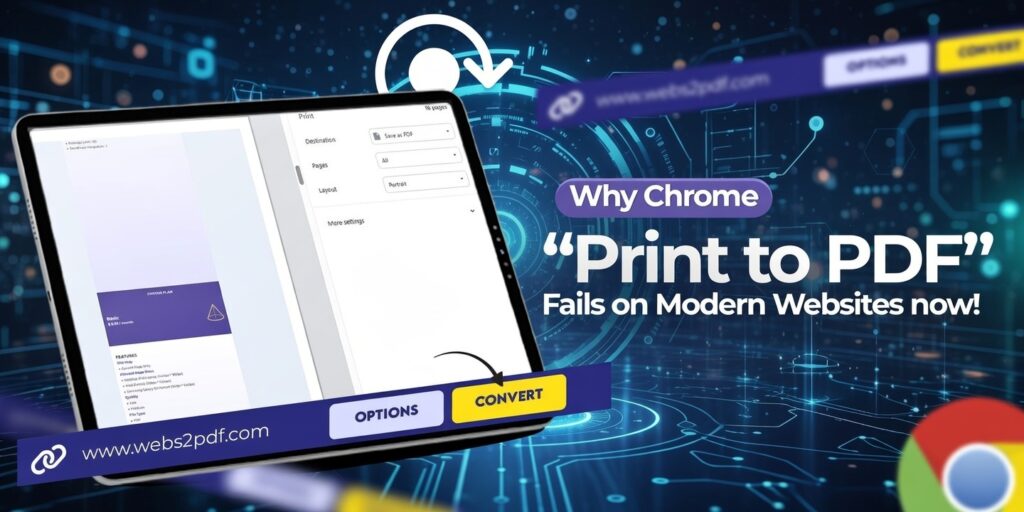
Most people’s first instinct is to press Ctrl+P and save as PDF. But here’s what actually happens when you do that with a ChatGPT conversation:
- The sidebar is included: Your conversation history, buttons, and navigation appear in the PDF, making it look cluttered.
- Responses get cut off: Long AI responses are split mid-paragraph across pages, destroying readability.
- Code blocks break: The monospace code styling is often lost, making code snippets unreadable.
- Images are missing or blurry: DALL-E images and charts often fail to render properly in browser print.
- The result looks unprofessional: Multiple unnecessary page breaks, headers, footers, and UI elements make the PDF unusable for sharing.
That’s exactly why Webs2PDF exists: to solve every single one of these problems and give you a clean, complete, professional-looking PDF of any web page, including ChatGPT conversations.
Method 1: Webs2PDF: The Best Way to Save ChatGPT as PDF
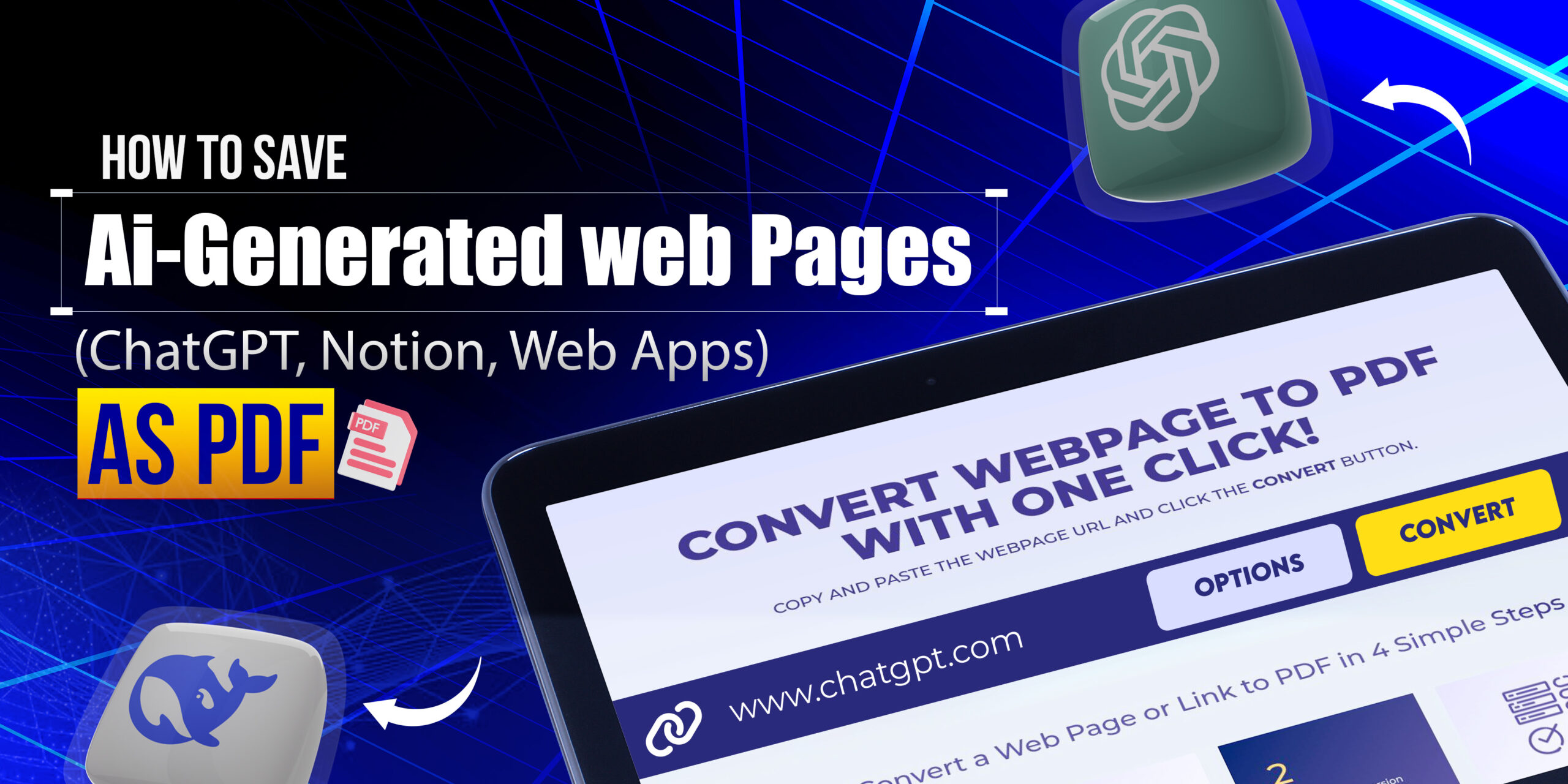
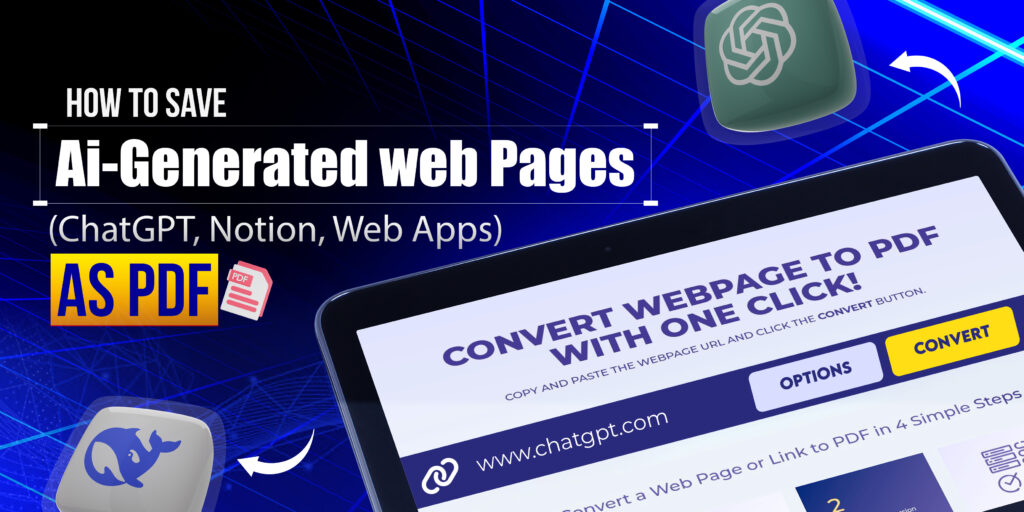
Webs2PDF is a free online web-to-PDF converter designed to capture any web page exactly as it looks, in a perfect PDF. It renders every pixel, font, code block, image, and layout element precisely before converting, which is why it produces results that no other method can match.
Here is how to use it, step by step:
Step 1: Get Your ChatGPT Conversation Link
Open ChatGPT in your browser and go to the conversation you want to save. For the cleanest PDF (without the sidebar), click the Share button inside the chat and copy the public share link. This gives Webs2PDF a clean view of just your conversation.
Pro Tip: Using the Share link removes the left sidebar entirely, so your PDF only contains the actual conversation, nothing else.
Step 2: Open Webs2PDF.com
Go to Webs2PDF.com in your browser. You will see a clean input box ready for your URL. No account needed, no installation, no setup.
Step 3: Paste the URL and Set Your Options
Paste your ChatGPT conversation URL into the input box. Then click the Options button to customise your conversion:
- Page Size: Choose Desktop/Laptop for a wide, easy-to-read layout, ideal for conversations with long code blocks or tables.
- Quality: Select High for crisp text and sharp images. This is especially important if the conversation includes DALL-E images.
- Site Map: Keep this on “Current Page”; you just want this one conversation.
- Margins: Set to 10-15px for comfortable reading with a small border on each side.
Step 4: Click Convert
Hit the Convert button. Webs2PDF loads the full page, waits for all JavaScript and dynamic content to render (something browsers print completely skips), and then captures everything perfectly.
Step 5: Download Your Perfect PDF
In seconds, your PDF is ready. Click Download PDF to save it. You now have a clean, complete, pixel-perfect copy of your ChatGPT conversation, with all formatting, code blocks, and images intact, in a single continuous PDF with zero page breaks cutting off your content.
Why Webs2PDF beats every other method: It renders JavaScript, preserves CSS styling, captures lazy-loaded images, and outputs a single continuous PDF with no forced page breaks, things that browser print simply cannot do.
What Makes Webs2PDF Different From Every Other Tool
There are dozens of web-to-PDF tools out there, but Webs2PDF was built specifically to solve the problems that others fail at. Here is what sets it apart when saving ChatGPT conversations:
- Single Continuous PDF No Page Breaks: Most converters chop your content into A4-sized chunks. Webs2PDF produces one seamless, scrollable PDF; your entire conversation flows naturally without any content being cut mid-sentence.
- Full JavaScript Rendering: ChatGPT is a JavaScript-heavy web app. Webs2PDF fully renders the page before capturing it, which means code blocks, formatted responses, and dynamically loaded content are always included.
- Image-Perfect Quality: Every DALL-E image, diagram, chart, and graphic in your conversation is captured at full resolution, no blank boxes, no missing visuals.
- 100% Layout Accuracy: Fonts, colours, spacing, and structure are preserved exactly. Your PDF looks identical to the original ChatGPT conversation.
- No Installation Required: Works entirely in your browser. No extension, no desktop app, no account needed for basic use.
- Privacy-Safe: Webs2PDF only reads the URL you provide. It never accesses your ChatGPT account, login credentials, or conversation history.
- Works With All AI Chatbots: Save conversations from Gemini, Claude, Perplexity, DeepSeek, Copilot, same simple process, same perfect results every time.
4 Other Methods (And Why They Fall Short)
For completeness, here are the other ways people try to save ChatGPT chats as PDF, with an honest assessment of when they work and when they fail.
Option A: Browser Print (Ctrl+P → Save as PDF)
The most common method is to press Ctrl+P, choose “Save as PDF”, and download.
When it works: Only for very short, simple conversations with no code blocks or images.
Problems: Captures the full browser UI, including the sidebar. Splits content across pages at random points. Code blocks lose their styling. Long responses are often cut off entirely. The result looks unprofessional and is frustrating to read.
Option B: ChatGPT’s Built-in Export Data
OpenAI lets you export your full conversation history from Settings → Data Controls → Export Data.
When it works: Great if you want to back up your entire ChatGPT history at once.
Problems: The export arrives as raw HTML files, not a PDF. You need an additional conversion step. The email can take hours to arrive. The exported HTML has minimal styling and looks nothing like the ChatGPT interface.
Option C: Chrome Browser Extensions
Extensions like ChatGPT Exporter add a download button directly inside the ChatGPT interface.
When it works: Good for users who export conversations frequently and want a button inside ChatGPT itself.
Problems: Requires granting the extension broad access to your browser and ChatGPT data, a significant privacy concern for sensitive conversations. Extensions frequently break when OpenAI updates the ChatGPT interface. Quality varies widely between extensions.
Option D: Copy-Paste to Word or Google Docs
Manually select and copy the conversation, paste it into Word or Docs, clean it up, and export as a PDF.
When it works: If you want to heavily edit the content and create a properly formatted document from the chat.
Problems: Extremely time-consuming for long chats. Code blocks lose all styling. Pasting includes UI text you don’t want. Formatting cleanup can take longer than the original conversation did.
Quick Comparison: Webs2PDF vs Other Methods
| Method | PDF Quality | Speed | Free? | Best For |
| Webs2PDF (Recommended) | ⭐⭐⭐⭐⭐ Perfect | Instant | Yes | Clean, professional PDF always |
| Browser Ctrl+P | ⭐⭐ Poor | Fast | Yes | Very short chats only |
| ChatGPT Export Data | ⭐⭐ HTML raw | Slow (email) | Yes | Full history backup |
| Chrome Extension | ⭐⭐⭐ Varies | Medium | Mostly | Frequent exporters |
| Copy → Word/Docs | ⭐⭐ Manual | Very Slow | Yes | Editing content |
Common Problems and How Webs2PDF Solves Them
Problem: My PDF is missing parts of the conversation
Why it happens: Browser print only captures what’s rendered on screen. ChatGPT lazy-loads content as you scroll, so unscrolled sections are invisible to the browser print engine.
Webs2PDF solution: Webs2PDF fully loads and scrolls the entire page before capturing, ensuring every single message in the conversation is included, and nothing is ever missed.
Problem: Code blocks look broken or unstyled in my PDF
Why it happens: Browser print strips dynamic CSS styling, so the monospace code block formatting is lost.
Webs2PDF solution: Webs2PDF preserves all CSS styles exactly. Code blocks in your PDF look identical to the highlighted, formatted code in the original ChatGPT interface.
Problem: ChatGPT sidebar appears in my PDF
Why it happens: Browser print captures the entire visible viewport, including navigation and sidebar.
Webs2PDF solution: Use the ChatGPT Share link (clean view with no sidebar) as the URL input to Webs2PDF. The result is a PDF with only the conversation, completely clean.
Problem: DALL-E images are missing from my PDF
Why it happens: Images in ChatGPT are often hosted on separate CDN servers. Browser print doesn’t always wait for these to load.
Webs2PDF solution: Webs2PDF waits for all resources, including external images, to fully load before capturing. Every image appears in full resolution.
Who Uses Webs2PDF to Save ChatGPT Conversations?
Students & Researchers: Save AI-generated research breakdowns, essay outlines, and study notes as clean PDFs for offline revision and citation.
Developers & Programmers: Archive full debugging sessions, code reviews, and technical explanations, with perfectly formatted code blocks, as reference PDFs.
Business Professionals: Convert AI-generated business plans, proposals, and meeting summaries to professional PDFs ready for client sharing.
Content Creators & Writers: Save brainstorming sessions, content calendars, and draft ideas from ChatGPT as organised reference files.
Teachers & Educators: Turn AI-generated lesson plans, quiz questions, and explanations into print-ready PDFs for distribution to students.
Legal & Compliance Teams: Preserve timestamped, complete AI conversation records as PDFs for documentation, audit trails, and compliance requirements.
Frequently Asked Questions
Q1: Is Webs2PDF free to use for saving ChatGPT conversations?
Yes, Webs2PDF is completely free for standard conversions. Simply go to Webs2PDF.com, paste your ChatGPT URL, and download your PDF. No account required, no credit card, no trial limits for basic use. Premium plans are available for bulk conversions, custom watermarks, and advanced settings.
Q2: Does Webs2PDF access my ChatGPT account or login?
No. Webs2PDF only processes the URL you provide. If you use a public ChatGPT share link, Webs2PDF reads only that publicly accessible page; it never touches your account, login data, or conversation history. Your privacy is fully protected.
Q3: Can I save ChatGPT conversations with images (DALL-E) as a PDF?
Yes. Webs2PDF fully renders all images, including AI-generated DALL-E images, at full resolution before capturing the PDF. Browser print frequently misses these images or renders them blurry. With Webs2PDF, every visual appears exactly as it does in ChatGPT.
Q4: Can I save multiple ChatGPT conversations as a PDF at once?
Yes. Webs2PDF offers a Bulk Conversion feature in its paid plans, allowing you to convert multiple chat URLs in one batch. This is ideal for researchers, developers, or teams who need to archive many conversations at once.
Q5: Does this work for other AI chatbots besides ChatGPT?
Absolutely. Because Webs2PDF works with any web page URL, you can save conversations from any AI chatbot, Gemini, Claude, Perplexity, DeepSeek, Microsoft Copilot, or any other browser-based AI tool. The process is identical: copy the URL, paste it into Webs2PDF, convert, and download.
Q6: Why does my browser print off my ChatGPT conversation?
Browser print uses your screen’s visible area as the capture source. ChatGPT dynamically loads messages as you scroll, so any unscrolled portion of a long conversation is invisible to the browser’s print engine. Webs2PDF eliminates this problem by fully rendering the entire page before conversion; no content is ever left out.
Conclusion: Stop Struggling With Browser Print, Use Webs2PDF
Saving ChatGPT conversations as PDF should be simple, fast, and give you a result that actually looks professional. Browser print fails at this almost every time, with broken layouts, missing content, and cluttered sidebars.
Webs2PDF was built specifically to solve this problem. It captures any ChatGPT conversation exactly as it appears, with all formatting, code blocks, and images preserved, and delivers a single, clean, continuous PDF in seconds.
- Free to use, no account required
- No extensions, no installs, no permissions needed
- Works with ChatGPT, Gemini, Claude, Perplexity, and every other AI chatbot
- Perfect for students, developers, professionals, and educators
- Single continuous PDF, no page breaks, cutting off your content