Freelance disputes rarely happen because of bad work; they happen because of missing or unclear documentation. A client says they never approved a design. A brief gets edited after the project starts. Feedback is scattered across emails, Slack, and shared docs. Without a clear record, proving what was agreed becomes difficult.
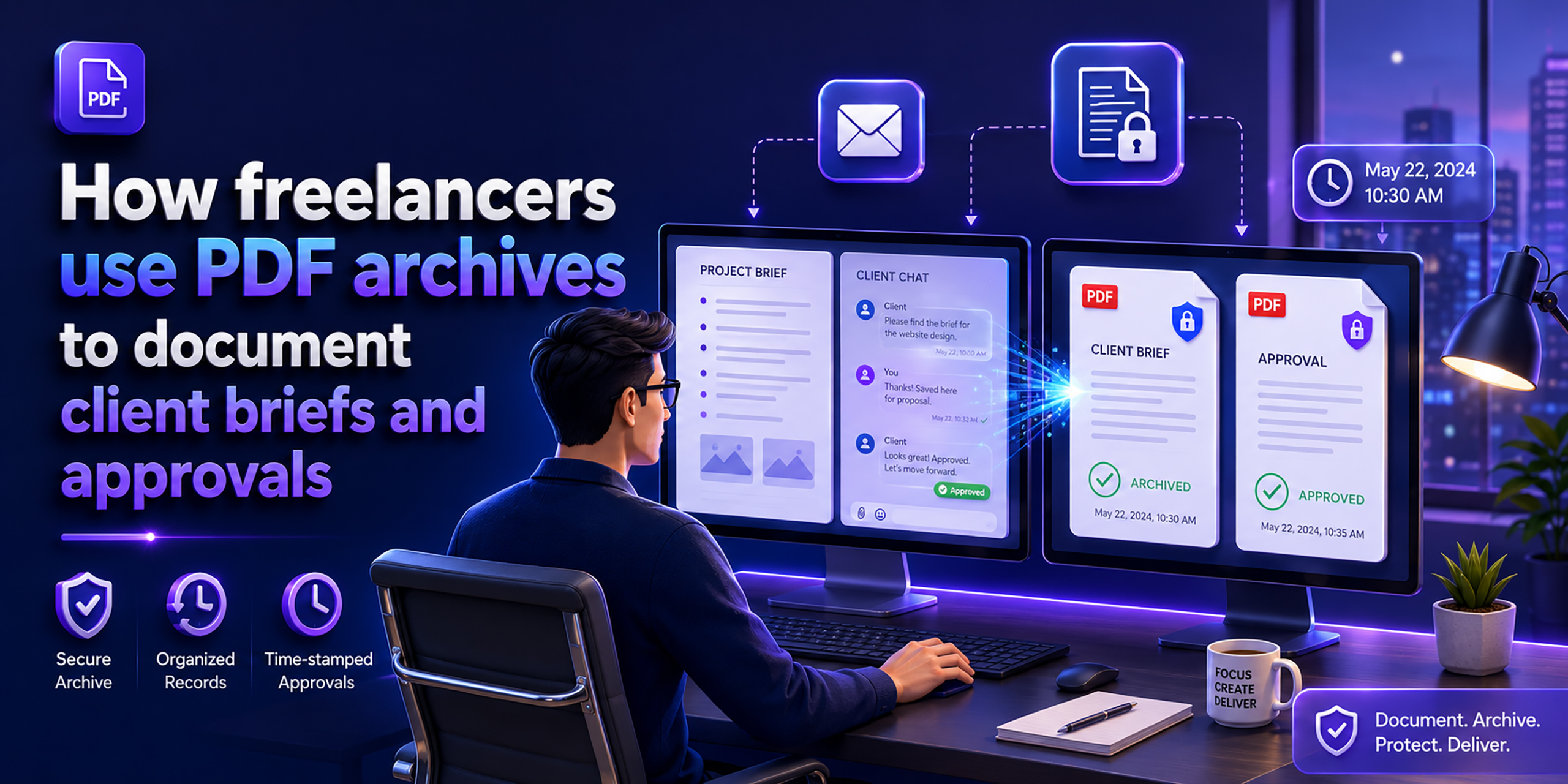
That’s why experienced freelancers focus on one thing: documenting client approvals properly. One of the most reliable ways to do this is to save client briefs, feedback, and emails as PDF files, creating a permanent, timestamped record that cannot be changed later.
In this guide, you’ll learn how freelancers document client approvals, avoid costly misunderstandings, and use simple tools to archive web pages as PDFs for records. By the end, you’ll have a clear system to protect your work, reduce disputes, and keep every project backed by solid proof.
Why Freelancers Lose Disputes They Should Win
Every experienced freelancer has been here. The project is delivered. The client is unhappy. And despite having done exactly what was discussed, there is no clear, single document they can point to that proves it.
The problem is rarely dishonesty; it is usually ambiguity. Briefs get updated in shared docs without anyone noting what changed. Feedback is scattered across three Slack threads, two email chains, and a WhatsApp message. Approvals are verbal or buried in a casual reply. And critically, the platforms where all this communication lives are outside the freelancer’s control; they can be edited, deleted, or revoked at any time.
- Shared docs get edited silently. A Notion brief that says X today may have said Y three weeks ago when you started. You have no proof of the original version.
- Link-based approvals expire. Figma preview links, Loom recordings, and shared Google Doc links can expire or be revoked. If the client later denies approving a design, your link is now useless.
- Verbal approvals leave no trace. A quick “yes, looks good” on a video call is not documentation. Without a written record, it simply did not happen in any dispute.
- Email threads get messy. Approvals buried in long email threads are hard to reference quickly and even harder to present as clear evidence in a dispute.
- Platforms can disappear. The client’s project management tool, their shared Dropbox folder, and their company Slack, all of these can become inaccessible when a project ends or a relationship sours.
What Every Freelancer Should Archive as a PDF
Not every message needs to be archived; that would be overwhelming. What you need is a PDF record of every document that defines the scope, captures approval, or confirms a change to the original agreement.
| Document type | Why archive it | When to do it |
| Project brief / creative brief | Proves what scope and deliverables were agreed upon at the start | Immediately at project kickoff |
| Client feedback on draft work | Records exactly what changes were requested at each revision | After every revision round |
| Approval confirmation | Proves the client signed off on a specific version or stage | The moment approval is received |
| Scope change request | Documents any work added beyond the original brief | When a new request arrives |
| Contract or proposal page | Captures the terms as they existed at signing | Before the project starts |
| Online form submission | Preserves intake form data and stated requirements | When the brief is submitted |
| Figma / design preview page | Archives the design state at the time of approval | When the client gives feedback |
| Project management page | Captures task list, milestones, and status at key moments | At project kickoff and close |
How to Archive Client Documents as PDFs: Step by Step
The workflow is simple and takes under a minute per document. The key is consistency, doing it at the right moments, every time, for every project.
Archiving a Notion brief or shared doc
- Open the Notion page, Google Doc, or shared brief in your browser.
- Make sure the content is fully loaded and visible on screen.
- Copy the URL from the browser address bar.
- Go to webs2pdf.com, paste the URL, and click Convert to PDF.
- Download the PDF and save it to the project folder immediately. Name it clearly: ClientName_Brief_YYYY-MM-DD.pdf.
Why does this beat browser print?
Browser print-to-PDF often cuts off content, misses dynamically loaded sections, or adds unwanted browser headers and footers. Webs2pdf.com renders the complete page as it actually appears, including all embedded tables, images, and formatted content, giving you a faithful, professional record every time.
Archiving an email approval thread
- Open the email thread in your browser-based email client (Gmail, Outlook Web, etc.).
- Navigate to the specific email or thread that contains the approval.
- Copy the URL of that email or thread.
- Paste into webs2pdf.com and convert. The full email thread, including timestamps, sender names, and content, is captured.
- Save with a clear name: ClientName_Approval_ProjectPhase_YYYY-MM-DD.pdf.
Archiving Figma or design preview feedback
- Open the Figma file, InVision share, or design preview link.
- Navigate to the frame or view that shows the approved design along with any client comments.
- Copy the URL.
- Paste into webs2pdf.com. The rendered design view, including all visible comments and annotations, is captured as a PDF.
- Archive immediately. Do not wait for the link to potentially expire.
Archiving a scope change request
- When a client sends a new request via Slack, their project portal, or a web form, open it in the browser.
- Convert to PDF using webs2pdf.com immediately.
- Name the file: ClientName_ScopeChange_Description_YYYY-MM-DD.pdf.
- Reference this PDF in your reply to the client, confirming what you have logged as the change request.
Building a Filing System That Saves You in Disputes
A PDF archive is only useful if you can find the right document quickly when you need it. Here is a simple folder structure that experienced freelancers use to keep project records organized and retrievable.
| Folder | What goes in it |
| 01: Brief | Project brief PDF, intake form PDF, initial proposal PDF |
| 02: Feedback | One PDF per revision round capturing client feedback and comments |
| 03: Approvals | PDFs of every approval email, message, or confirmation |
| 04: Scope Changes | PDFs of every new request or change to the original agreement |
| 05: Invoices | Invoice PDFs and payment confirmation records |
| 06: Final | PDF of the final delivered work and sign-off confirmation |
Keep this folder in a cloud storage location you control, your own Google Drive, Dropbox, or iCloud, not in a shared workspace that the client also has access to. When a project ends, compress the full folder and keep it for at least three years.
The File Naming Convention That Protects You
How you name your PDF archives is as important as creating them. A clear, consistent naming convention lets you find any document in seconds and immediately understand what it contains.
| Recommended naming format
[ClientName]_[DocumentType]_[ProjectOrPhase]_[YYYY-MM-DD].pdfExamples:AcmeCo_Brief_WebsiteRedesign_2026-05-01.pdfAcmeCo_Approval_HomePageDesign_2026-05-14.pdfAcmeCo_ScopeChange_AddBlogSection_2026-05-19.pdf |
This format ensures three things: you can sort by client, by document type, and by date. If a dispute arises six months after delivery, you can pull up every archived document for that client in chronological order within seconds.
When to Archive: Building the Habit
The biggest mistake freelancers make is planning to archive documents later. Later becomes never. The brief gets updated. The approval email gets buried. The Figma link expires.
Build the archiving habit into three specific moments in every project:
- At kickoff. Archive the brief, proposal, and contract page the day the project starts. This is your baseline, the definitive record of what was agreed before any work began.
- After every client touchpoint. Every time a client reviews work and gives feedback or approval, archive that record within 24 hours. Revision rounds, milestone approvals, change requests, all of them.
- At project close. Archive the final approval or sign-off confirmation the day the project is delivered. This closes the loop and gives you a clean endpoint for the project record.
The 60-second rule
The entire process of archiving any web-based document, brief, email, Notion page, or Figma preview takes under 60 seconds using webs2pdf.com. Copy the URL. Paste it. Download. File it. If you do this three times per project at the right moments, you will never lose a dispute for lack of documentation again.
Real Scenarios Where PDF Archives Protect Freelancers
Scenario 1: “I never approved that design.”
A client claims they never approved the final homepage layout. You open your 03_Approvals folder and pull up the PDF of their email from two weeks ago. The subject line, the timestamp, their name, and the words “Yes, this looks great, please go ahead” are all there, rendered exactly as they appeared in Gmail. The dispute ends in minutes.
Scenario 2: “The brief said something different.”
A client insists the original brief specified a five-page website, not three pages. You open your 01_Brief folder and show them the PDF captured on project kickoff day. The scope section clearly states “three pages: Home, About, Contact.” The Notion page has since been edited, but your PDF preserved the original. You have proof. They do not.
Scenario 3: “We never asked for extra work.”
A client disputes a change order invoice, claiming they never asked for the additional feature. You open your 04_Scope_Changes folder and pull up the PDF of their Slack message from three weeks ago, captured via webs2pdf.com when the request first came in. The message, the timestamp, and their username are all preserved. The invoice gets paid.
Scenario 4: “Your revision was different from our feedback.”
A client claims your revision did not address their feedback correctly. You pull up the PDF from your 02_Feedback folder, capturing their exact comments on the previous draft. You can show point by point that every requested change was made. The conversation shifts from dispute to resolution.
Frequently Asked Questions
Can I archive a password-protected client portal as a PDF?
Webs2pdf.com converts publicly accessible web pages. For pages behind a login, the most reliable method is to use your browser’s built-in print-to-PDF from inside the authenticated session, or to take a screenshot of the relevant content for your records. For most freelance workflows, Notion briefs, Gmail threads, Figma previews with share links, and webs2pdf.com work directly without any login.
Is a PDF archive legally admissible as evidence in a payment dispute?
A PDF that accurately captures the content of a web page at a specific time can serve as supporting evidence in a dispute. Its weight depends on the circumstances, your jurisdiction, and the specific nature of the dispute. PDF archives are most powerful when combined with a consistent capture log (noting the date, source URL, and reason for capture). For formal legal proceedings, consult a lawyer about the best way to present digital evidence.
What if the client edits a Notion brief after I have archived it?
That is precisely the protection that PDF archiving provides. Once you have a PDF of the Notion brief as it existed at kickoff, any subsequent edits to the live Notion page do not affect your archive. If the client claims the brief always said something different, your PDF with its capture date proves otherwise. This is the single most valuable reason to archive briefs immediately at the start of every project.
Should I tell clients that I am archiving documents as PDFs?
This is a matter of professional judgment. Many freelancers treat PDF archiving as a standard internal record-keeping practice, no different from keeping a copy of a signed contract. Some include a brief note in their client onboarding process explaining that they maintain project records in PDF format. Transparency is generally a professional asset — clients who are operating in good faith will not be troubled by the fact that you keep organized records.
How long should I keep client PDF archives?
Best practice is to retain all project documentation for a minimum of two to three years after project completion. For larger projects or ongoing relationships, five years or more is common. Keep your archive in a cloud storage location you control, not in a shared workspace with the client, so you retain access regardless of how the relationship ends.
Conclusion
Freelancing is built on trust, but trust alone does not protect your income when a project goes sideways. Documentation does.
A consistent PDF archiving habit costs you less than three minutes per project phase and gives you ironclad protection against the most common and costly freelance disputes: scope creep, approval denials, and retroactive brief changes.
The platforms where your briefs, approvals, and feedback live are not under your control. Shared docs get edited. Links expire. Accounts get deactivated. A PDF saved to your own drive is permanent, portable, and always available, exactly when you need it most.
Start your archive with webs2pdf.com. The next time a client sends a brief, a piece of feedback, or an approval, convert it to PDF before you do anything else. It takes 60 seconds, and it could save you hours of dispute, thousands in lost fees, and the stress of having no proof when you need it most.