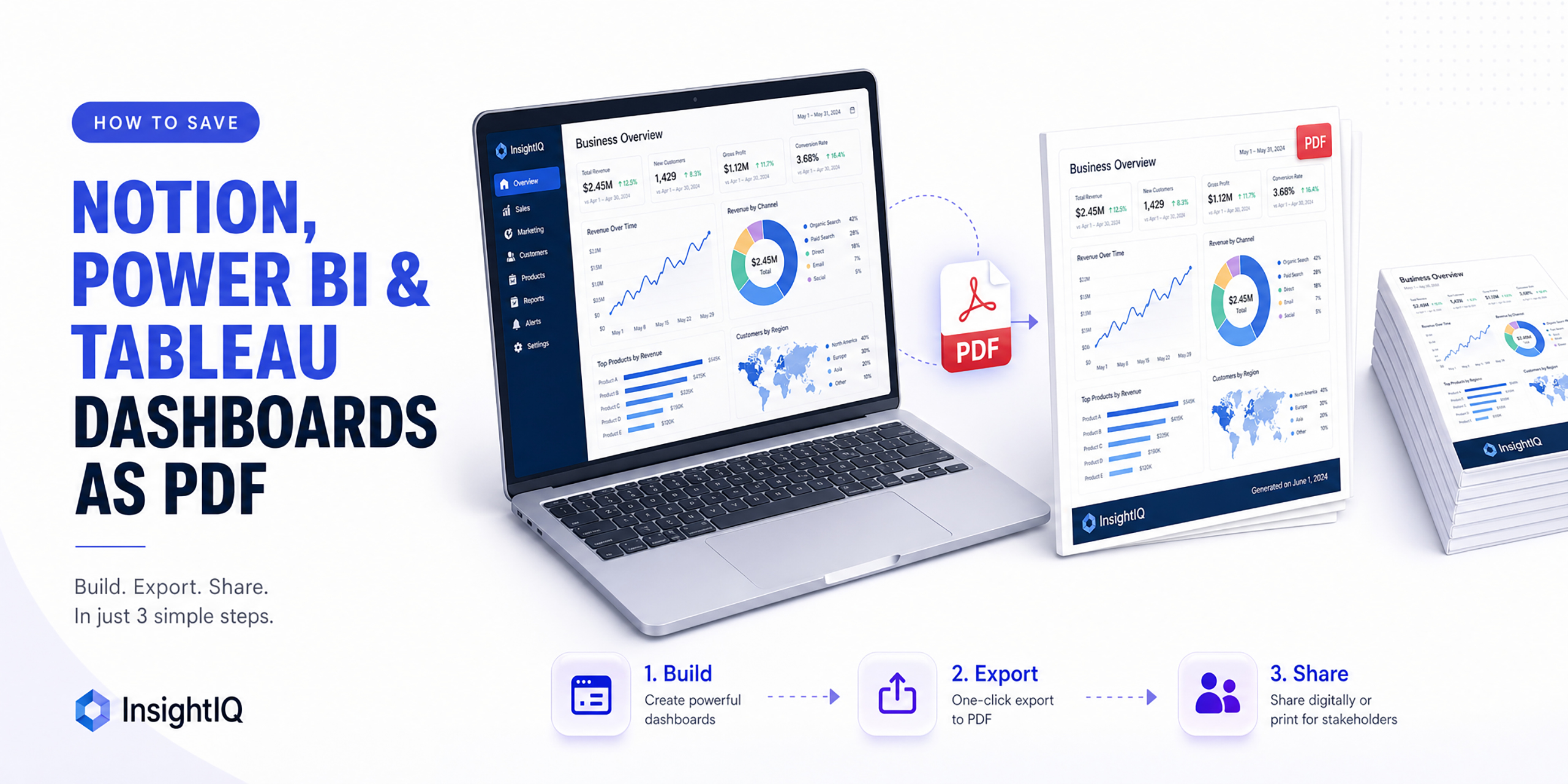
Your weekly marketing report is live in Notion. Your sales KPI dashboard is built and filtered exactly right in Power BI. Your operations data is perfectly visualised in Tableau. Now someone, your manager, a client, an investor, needs a copy they can read without a licence, without logging in, and without the data changing underneath them.
That is the moment almost every analyst and project manager hits the same wall: the built-in export tools are clunky, incomplete, or simply do not work the way you expect. Charts disappear. Filters reset. Scrollable sections get cut off. The final PDF looks nothing like the beautiful dashboard you built.
This guide solves that problem for the three most widely used dashboard tools in 2026, Notion, Power BI, and Tableau, and shows you the fastest, most reliable way to get a clean PDF out of all of them.
Why Built-in Export Tools Often Disappoint
Before looking at solutions, it helps to understand why saving a dashboard as a PDF is harder than it should be. Each platform has its own set of limitations.
Notion
Notion does not have a direct “Export to PDF” button for most page types. The built-in export option often produces inconsistent results, database views get collapsed, embedded content disappears, and page formatting shifts when rendered as a document. For database-heavy Notion pages, the exported PDF rarely matches what you see on screen.
Power BI
Power BI does offer a built-in “Export to PDF” option under the File menu, but it comes with several documented limitations. Custom visuals and certain extensions may not render correctly in the export. The output is also fixed to a page-by-page format, which can split charts awkwardly across pages. For reports with complex layouts, the native PDF is often not presentation-ready without manual cleanup.
Tableau
Tableau’s Print to PDF function works well for simple dashboards, but breaks down in common situations. Dashboards that contain scrollable worksheets only export the visible portion; data hidden below a scroll bar is simply not included in the PDF. Extension objects and certain dynamic elements may appear blank in the export output.
The common thread: All three platforms were designed around interactivity. Their export tools are an afterthought. When you need a static, complete, shareable document, a web-to-PDF tool that captures what is actually rendered on screen, exactly as you see it, will always outperform a built-in export function.
How to Save Each Dashboard Type as a PDF
Saving a Notion dashboard or page as a PDF
Notion pages, whether they are project trackers, OKR dashboards, meeting notes, or database views, are accessible via a unique URL. That URL is all you need.
Method 1: Using Webs2PDF (recommended)
- Open your Notion page and make sure it is set to public or shared with link access.
- Copy the URL from your browser address bar.
- Go to webs2pdf.com, paste the URL, and click Convert to PDF.
- Download your PDF. The full page, including database tables, embedded content, and images, is captured exactly as it appears.
Method 2: Notion’s built-in export
- Click the three-dot menu (…) at the top right of your Notion page.
- Select Export and then choose PDF as the format.
- Click Export and download the file.
Notion export limitation: The built-in Notion export tends to collapse database views, ignore embedded media, and produce inconsistent formatting on complex pages. For a faithful, complete capture of your Notion dashboard, webs2pdf.com is the more reliable option, particularly for board views, gallery views, and pages with embedded charts.
Saving a Power BI report or dashboard as a PDF
Power BI reports accessed via the browser (Power BI Service) have a shareable URL that can be passed directly to a web-to-PDF converter. This captures the full rendered report, including all visuals, without the layout and extension limitations of the built-in export.
Method 1: Using Webs2PDF (recommended for shared/published reports)
- Open your Power BI report in Power BI Service (the browser version at app.powerbi.com).
- Apply all filters and set the report to the exact view you want to capture.
- Copy the URL from your browser. For publicly published reports, paste this URL into webs2pdf.com and convert.
- Download the PDF. All visuals render in their current filtered state.
Method 2: Power BI built-in Export to PDF
- In Power BI Service, open the report and click File from the top menu.
- Select Export to PDF.
- Power BI generates a PDF page for each report page and downloads the file.
Power BI export limitation: Power BI’s built-in export does not support all custom visual types. Visuals built with certain third-party extensions may render as blank boxes in the exported PDF. If your report uses custom visuals, always verify the output before sharing. Webs2PDF captures what is visually rendered in the browser, making it a reliable fallback for complex reports.
Saving a Tableau dashboard as a PDF
Tableau dashboards published to Tableau Cloud or Tableau Server are accessible via browser URL, making them ideal for web-to-PDF capture. For Tableau Desktop workbooks, the built-in Print to PDF option works well when the dashboard uses a fixed layout.
Method 1: Using Webs2PDF (recommended for Tableau Cloud / Server)
- Open your Tableau dashboard in Tableau Cloud or Tableau Server via your browser.
- Set all filters and parameters to the exact state you want captured.
- Copy the URL from your browser address bar.
- For publicly shared or embedded dashboards, paste the URL into webs2pdf.com and convert. The full rendered dashboard, including all charts, legends, and filter states, is captured as a clean PDF.
Method 2: Tableau built-in Print to PDF (Desktop)
- Open the dashboard in Tableau Desktop.
- Go to File > Print to PDF.
- Set the paper size, orientation, and which sheets to include.
- Click OK to save the PDF.
Tableau export limitation: Tableau’s Print to PDF only captures the visible portion of scrollable worksheets. If your dashboard includes a long data table with a scroll bar, the exported PDF will be cut off at the visible boundary. For dashboards with scrollable content, webs2pdf.com captures the full rendered page, including content that requires scrolling.
Built-in Export vs Webs2PDF: Full Comparison
Here is a side-by-side comparison of how the built-in export tools for each platform compare to using webs2pdf.com for PDF capture.
| Feature | Notion export | Power BI / Tableau export | Webs2PDF |
| Full page captured | Partial | Partial | Complete |
| All charts rendered | Often missing | Some may be blank | All rendered |
| Scrollable content included | Collapsed | Cut off | Fully captured |
| Embedded media included | Often missing | Varies | Included |
| Filter state preserved | Sometimes | Yes | Yes |
| No software/licence required | Notion login needed | Tool login needed | No login needed |
| Works for all platforms | Notion only | Tool-specific | All platforms |
| Time to export | 30–60 seconds | 30–60 seconds | Under 60 seconds |
When a PDF Snapshot Is the Right Choice
Interactive dashboards are powerful for exploration. PDF snapshots are essential for communication. Here are the most common situations where a PDF of your dashboard is exactly what is needed.
- Weekly and monthly reporting. A PDF snapshot of your KPI dashboard sent every Monday morning gives stakeholders a consistent, comparable view of performance over time. Unlike a live link, the PDF is a permanent record of that week’s numbers.
- Board and investor presentations. Investors and board members do not always have access to your BI tools. A clean PDF of your dashboard lets them review key metrics in a format they can read on any device, annotate, and share with advisors.
- Client reporting. Agencies, consultants, and account managers who build dashboards for clients need a way to deliver the output without giving clients access to internal tools. A PDF report is the professional standard.
- Audit and compliance records. Regulatory and compliance requirements often mandate preserving data in a static, non-editable format. A timestamped PDF snapshot satisfies this requirement in a way that a live dashboard cannot.
- Sharing with stakeholders who lack tool access. A Power BI report requires a Power BI licence to view. A Tableau dashboard requires Tableau Server access. A PDF requires nothing but a PDF reader, which every device already has.
- Archiving historical states. Live dashboards update with new data. If you need to preserve what the numbers looked like at a specific point in time, end of quarter, close of a campaign, product launch day, a PDF snapshot is the only reliable way to do it.
Pro Tips for Better Dashboard PDFs
- Set your filters before converting. A PDF captures the dashboard exactly as it appears at the moment of conversion. Apply all filters, date ranges, and selections before you paste the URL into webs2pdf.com.
- Use a wide browser window. Dashboard layouts are often responsive. Open your browser to full width before capturing to ensure the dashboard renders in its desktop layout, not a narrower mobile or tablet view.
- Scroll through the full page first. For pages with lazy-loaded content, charts, and images that only load when you scroll to them, scroll through the entire page in your browser before converting. This ensures all content has loaded.
- Name PDF files with dates. Dashboard PDFs are most useful when you know exactly when they were captured. Use a naming convention like SalesKPIs_April2026_W4.pdf so you can find and compare snapshots over time.
- Create a shared folder for recurring reports. If you produce the same dashboard PDF weekly or monthly, create a dedicated shared folder (Google Drive, Dropbox, or SharePoint) and upload each snapshot there. Stakeholders can browse the history without asking you for past versions.
- For Tableau: use a fixed-size layout. If you build Tableau dashboards that will regularly be exported, design them with a fixed-size layout from the start. Fixed-size dashboards produce consistently sized PDFs with no layout shifts between exports.
Frequently Asked Questions
Can I save a private Notion page or Power BI report as a PDF?
Webs2pdf.com converts publicly accessible web pages. For private Notion pages, you can temporarily set the page to “Share with link” to generate a public URL, convert to PDF, and then revert to private. For internal Power BI reports and Tableau workbooks behind a corporate login, the built-in export tools are the appropriate method for those access-restricted environments.
Will interactive charts and filters be preserved in the PDF?
No, and that is by design. A PDF is a static document. What Webs2PDF captures is the current visual state of the dashboard at the moment of conversion, including whichever filters and selections are active. Interactivity is not preserved, but the visual output of those interactions is.
How do I save a Tableau dashboard that requires a login?
For Tableau dashboards published to Tableau Server or Tableau Cloud behind authentication, the most reliable method is the built-in “Download” option available from the toolbar in Tableau Cloud. For dashboards that can be embedded publicly, webs2pdf.com provides a cleaner, more complete output, particularly for dashboards with scrollable content.
Can I automate recurring dashboard PDF snapshots?
Yes. For teams that need dashboard PDFs on a regular schedule, weekly revenue reports, and monthly marketing dashboards, webs2pdf.com offers API access that can be integrated into automation tools like Zapier, Make, or n8n. This allows you to schedule automatic PDF generation and delivery without manual intervention.
What if my dashboard has multiple pages or tabs?
Webs2PDF captures the active view of the page at the time of conversion. For multi-page dashboards, you can convert each tab or page separately as individual PDFs and then combine them using a PDF merge tool. For Power BI, the built-in export does generate one PDF page per report page, which may be preferable for multi-page reports.
Conclusion
Notion, Power BI, and Tableau are exceptional tools for building and exploring data. Their built-in PDF exports are not. Collapsed databases, missing charts, cut-off scroll sections, and broken formatting are frustrations that cost analysts time and embarrass teams in front of stakeholders.
The solution is simple: capture the dashboard as it actually appears in the browser. Webs2pdf.com does exactly that, rendering the complete, live page and converting it to a clean, professional PDF in under 60 seconds, with no software to install, no login required, and no formatting surprises.
Try it now at webs2pdf.com. Paste any Notion, Power BI, or Tableau URL and download your first dashboard PDF for free.