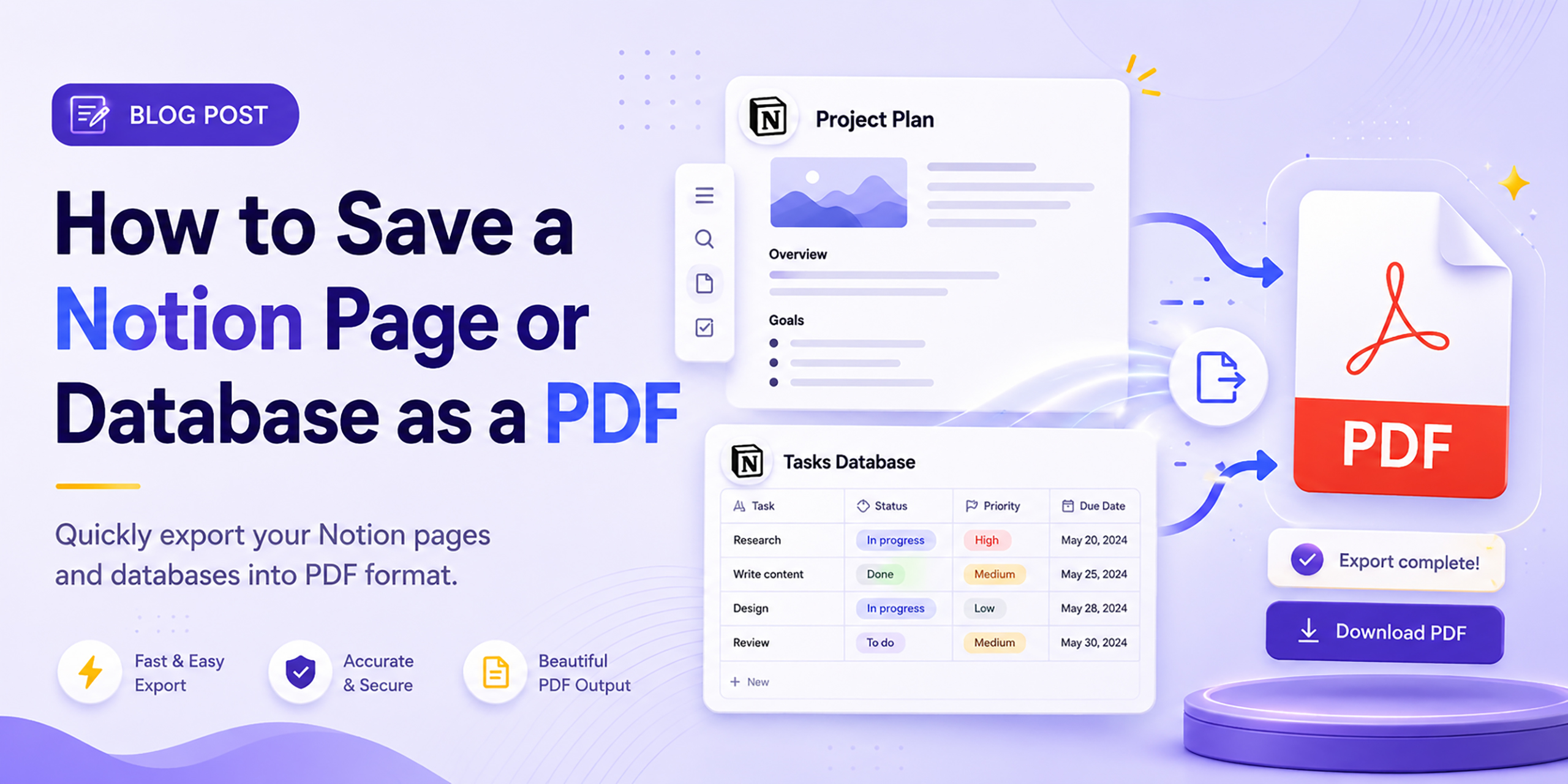
Notion has become the workspace of choice for millions of knowledge workers, students, freelancers, and teams around the world. Project trackers, client wikis, research databases, OKR dashboards, meeting notes, product roadmaps, all of it lives in Notion, organized beautifully and accessible from anywhere.
Until someone who does not use Notion needs to see it.
That moment comes sooner or later for every Notion user. A client who wants the project brief as a document. A manager who needs the quarterly report in their inbox. A student is submitting research notes to a professor. A freelancer archiving a signed-off proposal. The destination is always the same: a PDF.
Unfortunately, getting a clean, complete PDF out of Notion is not as straightforward as it should be. Notion’s built-in export works fine for simple pages, but it has well-documented limitations for complex layouts, database views, and embedded content. This guide walks through all four methods, honestly, with the pros and cons of each, so you can choose the right one for your situation.
Why Notion Users Need PDF Exports
Notion is designed for collaboration inside a workspace. But the real world constantly requires you to share content with people outside it. Here are the most common reasons Notion users need PDF exports every day:
- Sharing with non-Notion users. Not everyone has a Notion account. A PDF is universally readable on any device, without any login, app, or subscription required.
- Client deliverables and proposals. Freelancers and agencies use Notion to build project briefs, proposals, and reports. These need to be delivered to clients as professional, polished documents.
- Offline access and archiving. Notion requires an internet connection to view pages. A PDF works completely offline and can be stored permanently on any device or drive.
- Version preservation. Notion pages get updated. A PDF snapshot captures exactly what a page contained at a specific moment, useful for approvals, audits, and records.
- Printing. PDFs are the standard format for printing. Notion’s browser interface does not print cleanly; headers, sidebars, and navigation elements appear in the output.
- Formal submissions. Academic submissions, regulatory filings, and formal proposals typically require PDF format with consistent, reliable formatting.
Method 1: Use Webs2PDF (Recommended Best Quality)
For most Notion users most of the time, webs2pdf.com produces the most complete and reliable PDF output. It renders the full Notion page as it actually appears in the browser, including database tables, embedded content, toggle lists, callout blocks, images, and all inline formatting.
When to use this method
- You need a complete, faithful capture of any Notion page type
- Your page contains databases, galleries, boards, or embedded media
- You want a clean PDF without browser toolbars, Notion navigation, or export watermarks
- You need the result in under 60 seconds with no software to install
Step by step
- Open your Notion page in a browser. Make sure all content is fully loaded, scroll through the page to trigger any lazy-loaded sections.
- If the page is private, click Share at the top right and enable Share to web or Copy link (anyone with the link). This gives the converter access to render the page.
- Copy the URL from your browser address bar.
- Go to webs2pdf.com and paste the URL into the converter field.
- Click Convert to PDF and wait a few seconds for the page to render.
- Download your PDF. If needed, you can revert your Notion share settings after downloading.
Pro tip: scroll before converting
Notion uses lazy loading; content like images and database rows may not fully render until you scroll past them. Before copying the URL and converting, scroll slowly through the entire page in your browser. This ensures all content has loaded and will be captured completely in the PDF.
Method 2: Notion’s Built-in Export (Simple Pages Only)
Notion has a native PDF export feature built directly into the interface. For simple text-based pages, meeting notes, plain documents, and basic task lists, it works well and requires no external tools.
How to use it
- Open the Notion page you want to export.
- Click the three-dot menu (•••) at the top right of the page.
- Select Export from the dropdown.
- In the format dropdown, choose PDF.
- Select your page size (Letter, A4, A3, Legal, or Tabloid) and adjust the scale percentage if needed.
- Click Export and choose where to save the file.
Important limitations of Notion’s built-in PDF export
Notion’s official documentation confirms that complex layouts may not retain their original structure in the exported PDF. Specifically: database views (board, gallery, timeline, calendar) often collapse or render incorrectly; nested blocks and toggle content may be cut off; embedded media, including videos and third-party embeds, do not export; and the export size limit is approximately 5.62 MB, which causes failures on large pages. For simple text pages, the built-in export is fine. For anything more complex, use Method 1.
Method 3: Browser Print to PDF (Free but Limited)
Every browser has a built-in Print to PDF feature accessible with Ctrl+P on Windows or Cmd+P on Mac. This is the most universally available method and requires nothing beyond the browser you already have.
How to use it
- Open your Notion page in Chrome, Firefox, Edge, or Safari.
- Press Ctrl+P (Windows) or Cmd+P (Mac) to open the print dialog.
- Under the Destination or Printer setting, select Save as PDF.
- Adjust margins and layout if needed, then click Save.
The key limitation: Notion’s official help documentation explicitly notes that you cannot print a full-page database using this method. The browser print function also includes Notion’s navigation sidebar and header in the output by default, which creates a cluttered, unprofessional document. For clean, complete PDFs of database-heavy pages, this method is not recommended.
Method 4: Chrome Extension
Several Chrome extensions are designed specifically for Notion-to-PDF export. These add a button directly inside the Notion interface and can automate parts of the export process.
To use this approach, search the Chrome Web Store for Notion to PDF and install your preferred extension. Once installed, it typically appears as a button in your Notion toolbar that triggers an export of the current page.
Best for: Power users who export Notion pages frequently and want a one-click solution without leaving the Notion interface. Extensions vary in quality and maintenance. Check recent reviews and update dates before installing, as some Notion extensions become outdated when Notion updates its interface.
Which Method Should You Use? Full Comparison
| Feature | Webs2PDF | Notion export | Browser print | Chrome extension |
| Full-page capture | ✓ Complete | Partial (5.62MB limit) | ✗ Viewport only | Varies by tool |
| Database views | ✓ All types | ✗ Often collapsed | ✗ Not supported | Varies by tool |
| Embedded content | ✓ Captured | ✗ Not included | ✗ Not captured | Varies by tool |
| Toggle/nested blocks | ✓ Fully shown | May be cut off | May be cut off | Usually works |
| No Notion UI chrome | ✓ Clean output | ✓ Clean output | ✗ Nav bar included | ✓ Clean output |
| No login required | ✓ Yes | ✓ Notion account | ✓ Yes | ✓ Yes |
| Works on mobile | ✓ Yes | ✓ Limited | ✓ Yes | ✗ Desktop only |
| Setup required | ✓ None | ✓ None | ✓ None | Extension install |
Common Use Cases: Notion to PDF in Practice
Project briefs and proposals
Freelancers and agencies frequently build project briefs, proposals, and scopes of work inside Notion. When it is time to share these with a client, a PDF is the professional standard. Webs2pdf.com renders the complete brief, including any embedded tables, images, or linked databases, in a polished, shareable format.
Student notes and research submissions
Students use Notion to organize research, lecture notes, and project outlines. Converting these to PDF is required for most academic submissions and for sharing with professors or group members who do not use Notion. A PDF from webs2pdf.com preserves all formatting exactly as it appears, including callout blocks, code snippets, and inline images.
Meeting notes and action items
Teams that run meetings inside Notion often need to share the notes with stakeholders outside the workspace, clients, board members, or external partners. A quick PDF conversion creates a clean, permanent record of the meeting without requiring recipients to have Notion access.
Knowledge base and wiki snapshots
For regulatory compliance, auditing, or simply preserving a snapshot of internal documentation at a specific point in time, converting a Notion wiki page to PDF creates a permanent, non-editable record. This is particularly valuable for compliance-sensitive industries where process documentation must be version-controlled.
Database and tracker reports
A Notion project tracker or CRM database is dynamic; it changes as tasks are updated and records are added. Converting a specific filtered database view to PDF creates a static report that captures the state of the data at a particular moment, useful for weekly reporting, end-of-sprint reviews, and client status updates.
Offline reading and travel
Notion requires an internet connection. For users who want to read their notes, research, or documentation on a plane, in a remote location, or simply without draining data, a PDF provides complete offline access with no app required.
Pro Tips for Better Notion PDFs
- Use a simplified view for databases. Before converting a Notion database to PDF, apply a filter to show only the rows and columns you need. A focused, filtered view produces a cleaner, more readable PDF than a raw full database dump.
- Expand all toggles before converting. Toggle lists in Notion collapse their content by default. Click to expand every toggle section before copying the URL and converting, so all content is visible and captured.
- Use a wide browser window. Notion adapts its layout to the browser width. A wider window produces a more spacious, document-like layout in the PDF. Open your browser to full width before converting.
- Archive immediately after updates. If you are saving a Notion page as a record, a signed brief, an approved proposal, or a delivered report, convert it to PDF the moment the version is finalized. Notion pages can be edited by anyone with access at any time.
- Name PDF files with dates and context. A name like ProjectAlpha_Brief_2026-05-01.pdf is infinitely more useful than Untitled_export.pdf when you need to find a specific document three months later.
- For private pages, revert sharing after export. If you temporarily set a page to public to enable the Webs 2 PDF conversion, remember to revert the sharing settings once you have downloaded your PDF.
Frequently Asked Questions
Can I export a private Notion page to PDF?
Yes, with one extra step. For private Notion pages, you need to temporarily enable sharing via link (Share → Share to web or Copy link) before using Webs to PDF. Once you have downloaded your PDF, you can revert the sharing settings. Alternatively, use Notion’s built-in export feature, which works for private pages without changing share settings.
Will my Notion database export as a full table in the PDF?
This depends on the method. Notion’s built-in export often collapses database views, and browser print does not support full-page databases at all (this is noted in Notion’s own help documentation). Webs2pdf.com renders the database as it appears in the browser, including the current view, filters, and visible rows, giving you the most complete output of the three methods.
Why does my Notion PDF look different from the page?
This is a common issue with browser print and Notion’s native export. Both methods struggle with responsive layouts, embedded content, and JavaScript-rendered elements. Webs2pdf.com fully renders the page before generating the PDF, which produces output much closer to what you see in the browser. If your PDF still looks different, try scrolling the full page to load all content before converting, and use a wider browser window to capture the full-width layout.
Can I export an entire Notion workspace to PDF?
Notion’s built-in export (Settings → Export all workspace content) supports exporting a full workspace, but the output is delivered as a ZIP file containing individual page files rather than a single merged PDF. For individual pages and databases, webs2pdf.com converts one page at a time. To create a combined PDF from multiple Notion pages, convert each page individually and use a PDF merge tool to combine them.
Does the PDF include embedded images from Notion?
Yes. Webs2pdf.com captures all images that are fully loaded on the page at the time of conversion. Notion’s built-in export also supports images, with an option to include or exclude files and images during the export process. Browser print may miss lazy-loaded images that have not yet appeared in the viewport, which is why scrolling through the full page first is important.
Conclusion:
Notion is a brilliant tool for building and organizing knowledge. Getting that knowledge out as a clean, complete PDF has always been its weak point, especially for database-heavy pages, embedded content, and complex layouts.
The four methods in this guide cover every situation, but for most users most of the time, the fastest and most reliable path is also the simplest: copy the Notion page URL and paste it into webs2pdf.com. No export menus, no size limits, no collapsed databases, no navigation chrome in the output.
Try it now at webs2pdf.com, convert your first Notion page to PDF in under 60 seconds, completely free.