You spent two hours polishing a proposal. You removed the old client’s name from every page. You double-checked the pricing. You exported it as a PDF and hit send, confident it was clean.
What you did not check was the invisible layer underneath.
Your name. Your company. The software version you used. The exact date the document was first created was three months before this client ever came along. The fact that it was originally drafted by a colleague who no longer works at your firm. All of this information was sitting inside the PDF file, hidden from view, readable by anyone who knew where to look.
This is the reality of PDF metadata in 2026. Hidden data in PDF files is one of the most widespread and least understood privacy risks in modern professional life. This guide explains exactly what PDF metadata is, what it reveals, why it is dangerous, and most importantly, how to clean a PDF before sharing so you only send what you intend to.
What Is PDF Metadata? Data About Your Data
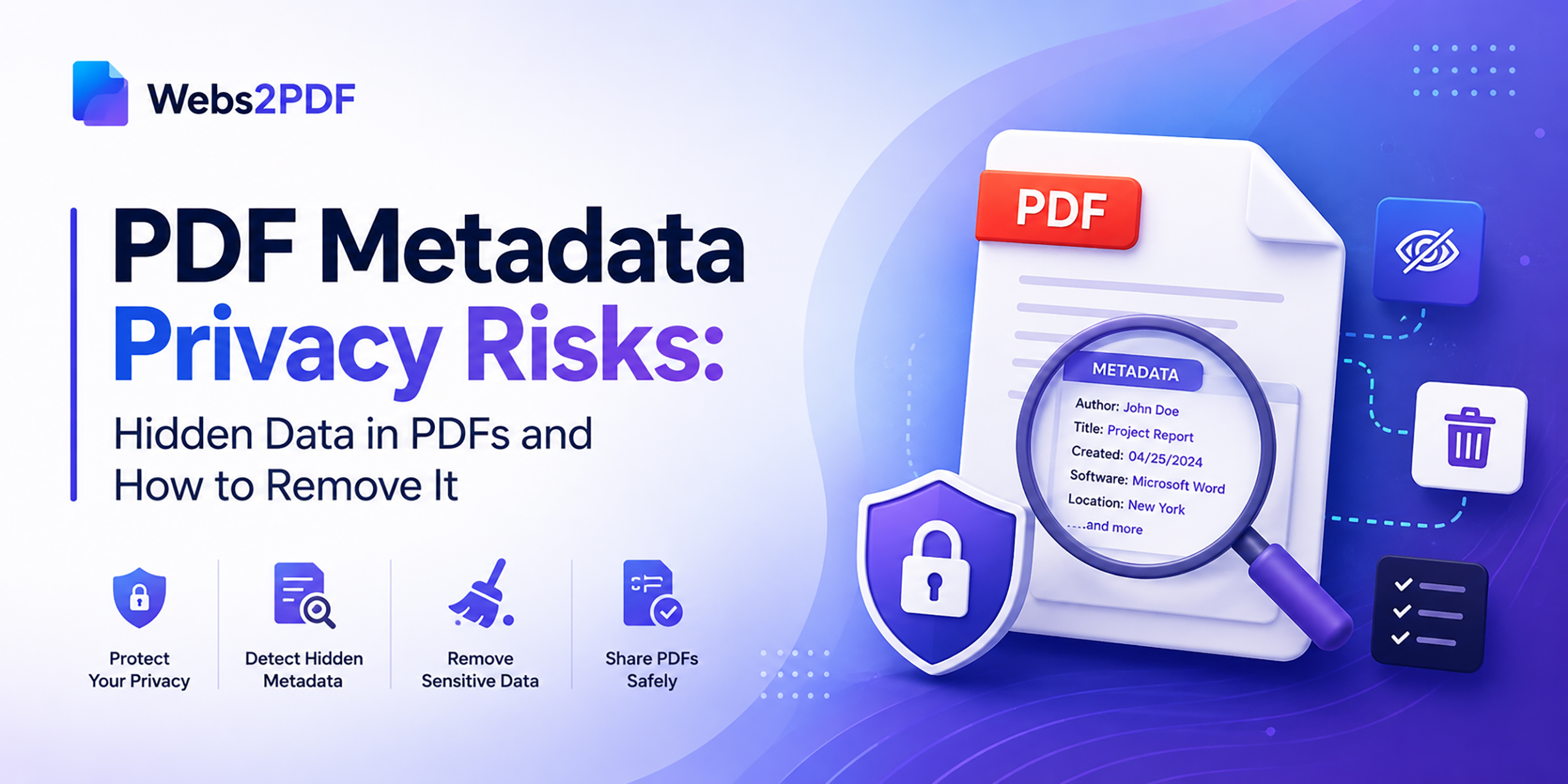
PDF metadata is structured information embedded inside a PDF file that describes the document itself. It is often called “data about data,” invisible to the reader, but present in every file and accessible to anyone who knows how to look for it.
This metadata lives in the file’s properties, not in the visible page content. It can be read, extracted, and analyzed using widely available tools, including free ones, in under a minute. You do not need any special technical knowledge to access someone else’s PDF metadata. Is it that straightforward?
Document metadata security is a growing professional concern. Research analyzing tens of thousands of public PDFs found that only a small fraction of organizations cleaned metadata before publishing. The gap between what people think they are sharing and what they are actually sharing is enormous.
What Information Is Stored in PDF Metadata?
Here is a complete breakdown of the document properties that PDF files commonly store, including several that will surprise even experienced professionals.
| Metadata field | What it contains | Privacy risk level |
| Author | The name of the person who created the document is often pulled automatically from the computer’s user account | HIGH: exposes identity |
| Creator software | The application and version used to create the file (e.g., Microsoft Word 16.0, Adobe InDesign 2025) | MEDIUM: reveals software stack |
| Creation date | The exact date and time the original document was first created | HIGH: reveals timeline |
| Modification date | When the document was last saved or edited | MEDIUM: reveals recent activity |
| Producer | The PDF conversion software used (e.g., Acrobat PDFMaker, Mac OS X Quartz) | LOW: technical exposure |
| Title / Subject | Document title and subject, as set in application properties, may contain internal project codenames | HIGH: reveals internal names |
| Keywords | Tags added during document creation, often including internal classification terms | HIGH: reveals categorization |
| Company / Org | Organisation name pulled from software registration or system settings | MEDIUM: reveals affiliation |
| XMP metadata | Extended metadata, including full edit history, contributor list, and rights information in XML format | VERY HIGH: full history |
| Embedded comments | Reviewer comments and tracked changes are hidden in the exported PDF, but still present in the file data | VERY HIGH: reveals drafts |
| GPS coordinates | Location data embedded by mobile scanners or apps when location services were enabled | VERY HIGH: reveals location |
| Revision history | How many times the document was saved and edited can reveal negotiation stages in contracts | VERY HIGH: reveals strategy |
Why PDF Metadata Is Dangerous: 6 Real Privacy Risks
Understanding the risks of sharing PDFs with metadata is not a theoretical exercise. These are real situations where hidden data in PDF files has caused documented harm.
Risk 1: Exposing the real author of a document
Author information in PDF files can directly contradict the intended presentation of a document. A law firm submitting a document supposedly drafted by the client may have actual authorship exposed in the metadata. A journalist submitting an anonymous document may have their identity embedded in the file properties. This single metadata field has ended careers and compromised sources.
Risk 2: Revealing negotiation strategy through revision history
Revision history and XMP metadata can expose how many times a contract was edited before sending. In a negotiation, this is revealing: the other party can see how many drafts you went through and how far you moved from your original position. A legal contract sent for signature could contain previous draft information in its metadata, giving the other side a full view of your negotiation strategy.
Risk 3: Personal data leakage from conversion artifacts
The most common PDF privacy breach involves conversion metadata. When you convert a Word document to PDF, all the original document’s metadata transfers over, plus additional conversion details. Your PDF might contain information from documents created months or years ago. An employee whose name is still in a template from a previous firm may find that name appearing in the metadata of every PDF your organization sends.
Risk 4: Hidden embedded files and sensitive content
PDF files can contain embedded attachments, images, spreadsheets, or other documents that are not visible when the PDF is opened normally. These embedded files carry their own metadata and may contain sensitive content that was never meant to leave your organization.
Risk 5: GPS coordinates from mobile-created PDFs
PDFs created or scanned on mobile devices with location services enabled can embed GPS coordinates in the file metadata. This is particularly dangerous for journalists, whistleblowers, and anyone whose physical location must remain private. A PDF scanned at a confidential meeting location can quietly broadcast that location in its metadata.
Risk 6: Competitive intelligence through aggregated metadata
Over time, collections of PDFs from an organization paint a detailed picture of its internal operations. By extracting metadata from multiple files, a competitor can identify key personnel, map internal software infrastructure, and track document workflow patterns. None of this is in the visible content; all of it is in the hidden metadata.
How to Check PDF Metadata in Your Files
Before you can clean PDF metadata, you need to know how to inspect it. Here are the most reliable ways to check hidden metadata in PDF files.
Method 1: Adobe Acrobat (most complete)
- Open the PDF in Adobe Acrobat Reader or Acrobat Pro.
- Go to File → Properties (or press Ctrl+D on Windows / Cmd+D on Mac).
- The Description tab shows core metadata: Title, Author, Subject, Keywords, Created, Modified, Application, and PDF Producer.
- Click Additional Metadata to see the full XMP metadata, including extended history and rights information.
Method 2: Browser developer tools (any browser, free)
- Open the PDF in Chrome or Firefox.
- Press F12 to open developer tools.
- Search the document source for metadata fields. Less complete than Acrobat, but requires no software.
Method 3: Free online PDF metadata viewer
Several free tools let you upload a PDF and view all its metadata fields in seconds. Search for “PDF metadata viewer online” to find current options. These are useful for a quick document inspection before any external sharing.
How to Remove Metadata from PDF Before Sharing
There are several effective methods to delete metadata from PDF files. Choose the right one based on how the PDF was created and how sensitive the content is.
Method 1: Convert via webs2pdf.com (clean output, no inherited metadata)
If your PDF was generated from a webpage, an invoice, a report, a Notion page, or a dashboard, converting directly from the source URL using webs2pdf.com produces a clean PDF with no inherited metadata from a Word or InDesign file.
Because webs2pdf.com renders the page fresh from the web and generates a new PDF, the output contains only standard generation metadata rather than accumulated author history, revision data, and embedded comments from a document editing workflow. For web-based documents, this is the simplest way to remove metadata from a PDF before sending.
- Open the source page in your browser.
- Copy the URL.
- Go to webs2pdf.com, paste the URL, and convert.
- Download the clean PDF, with no inherited document metadata from any previous editing history.
Method 2: Adobe Acrobat Pro: Sanitize Document
Adobe Acrobat Pro includes a Sanitize Document feature that removes all metadata, hidden layers, embedded content, and hidden data in one step.
- Go to Tools → Redact → Sanitize Document.
- Acrobat permanently removes all metadata, embedded content, scripts, and hidden data.
- Save the sanitized version as a new file to preserve the original.
Method 3: Print to PDF (basic metadata removal)
Printing to PDF creates a new file that does not carry over the full metadata from the original. This removes most standard metadata fields but may not strip all XMP data. It is a useful, quick solution for low-sensitivity documents.
- Open the PDF in any viewer.
- Press Ctrl+P (Windows) or Cmd+P (Mac) and select Save as PDF.
- The new PDF contains minimal metadata, primarily the new creation timestamp.
Method 4: Dedicated PDF metadata cleaner tools
Several free and paid PDF metadata cleaner tools are available online and as desktop software. These offer the most granular control over which fields to remove versus preserve. When choosing a tool, ensure it handles both standard document properties and XMP metadata, and consider whether it uploads your files to third-party servers if your content is sensitive.
| Method | Best for |
| webs2pdf.com conversion | Web-based documents: invoices, dashboards, Notion pages, online reports |
| Acrobat Sanitize Document | Maximum metadata removal from complex Word or InDesign PDFs |
| Print to PDF | Quick basic cleanup of simple, low-sensitivity documents |
| Online metadata cleaner | Users without Acrobat Pro who need deeper metadata removal |
| Dedicated desktop software | Organizations processing large volumes of sensitive documents |
Who Should Be Cleaning PDF Metadata?
PDF metadata security is not just a concern for large enterprises. Here are the professional groups for whom removing hidden data from PDF files is genuinely important.
- Lawyers and legal professionals. Contracts, briefs, and discovery documents should never carry internal revision history or embedded comments. PDF anonymization is standard practice in careful legal departments.
- Journalists and researchers. Source protection is non-negotiable. Any document shared in a sensitive investigation should be stripped of all metadata that could identify the author, device, or location.
- Freelancers and agencies. Proposals built on templates from previous clients may carry those clients’ names or project details in metadata. Clean PDF before sharing to ensure every client receives a truly fresh document.
- HR and recruiting teams. Job postings and offer letters shared externally may contain internal metadata revealing who drafted them, internal salary band discussions in revision history, or strategic software choices.
- Regulatory and compliance submissions. Government filings and grant applications are analyzed in detail by recipients. Metadata can reveal authorship, advocacy relationships, or strategic considerations never meant to be public.
- Whistleblowers and privacy-sensitive individuals. If your identity or location must remain protected, metadata removal is not optional. GPS coordinates, author names, and device information in metadata have directly compromised sources who believed they were anonymous.
PDF Metadata Security Checklist: Before You Send
- Inspect the file first. Open Document Properties in Acrobat and check Author, Title, Subject, Creation date, and Additional Metadata before anything else.
- Check for embedded comments. Use Acrobat’s Document Inspection to find hidden reviewer comments and tracked changes not visible in the rendered PDF.
- Verify the creation date. If the creation date is earlier than expected, the file carries metadata from an older version. Clean it before sending.
- Use a PDF metadata cleaner for sensitive documents. For legally, commercially, or personally sensitive PDFs, always run a dedicated metadata removal step.
- For web-based documents, convert fresh via webs2pdf.com. This produces a clean PDF without inherited document metadata from any prior editing workflow.
- Keep the cleaned file separate from your working copy. Always save the cleaned version as a new file and never overwrite your working original.
- Verify the cleaned file opens correctly. After cleaning, confirm the PDF looks exactly as expected before sending. Metadata removal should not affect visible content.
Frequently Asked Questions
Does a PDF contain hidden personal data?
Yes. PDFs often include hidden metadata like author name, creation date, software used, and edit history. This data is not visible but can be extracted using tools.
How can I remove metadata from a PDF for free?
You can use browser print-to-PDF (Ctrl+P → Save as PDF) or online tools. For web pages, converting via webs2pdf.com helps generate cleaner PDFs with minimal metadata.
What is the difference between PDF metadata and content?
Content is what you see (text, images, layout). Metadata is hidden information, such as author details, timestamps, and editing history, stored within the file.
Can PDF metadata be used legally?
Yes. Metadata can be used as digital evidence to verify authorship, creation time, and document changes in legal or professional disputes.
Does webs2pdf.com remove PDF metadata?
Yes. It generates a fresh PDF from the web page, avoiding leftover document history, author data, and revision metadata from editing tools.
Conclusion
PDF metadata is invisible to the reader. That is precisely why it is so dangerous. You cannot see it. But your recipient can, and in the wrong context, what is hidden in your file properties can be far more damaging than anything on the page itself.
The habits that protect you are straightforward: check before you share, clean when the stakes are high, and when generating PDFs from web-based content, use a tool like webs2pdf.com that creates a fresh PDF without inheriting the accumulated metadata of your editing history.
Start with a free conversion at webs2pdf.com, the cleanest way to generate a PDF from any web page, invoice, dashboard, or online document without inherited metadata risks.