Skip to content
Webs 2 PDF Logo
  • Home
  • Benefits
  • Reviews
  • Pricing
  • FAQs
  • Blog
  • Contact
  • Home
  • Benefits
  • Reviews
  • Pricing
  • FAQs
  • Blog
  • Contact
sign in

Author: Mamoon Rashid

  • July 7, 2026

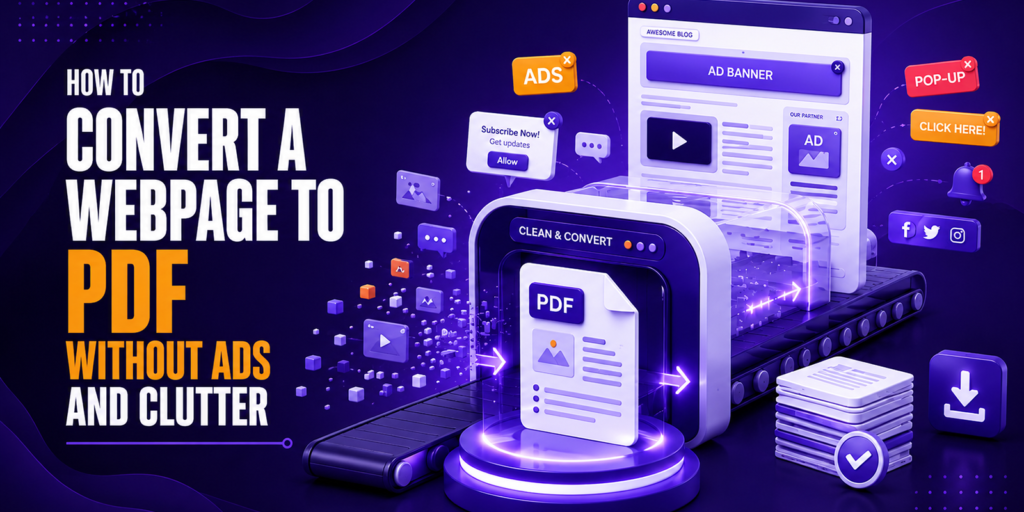
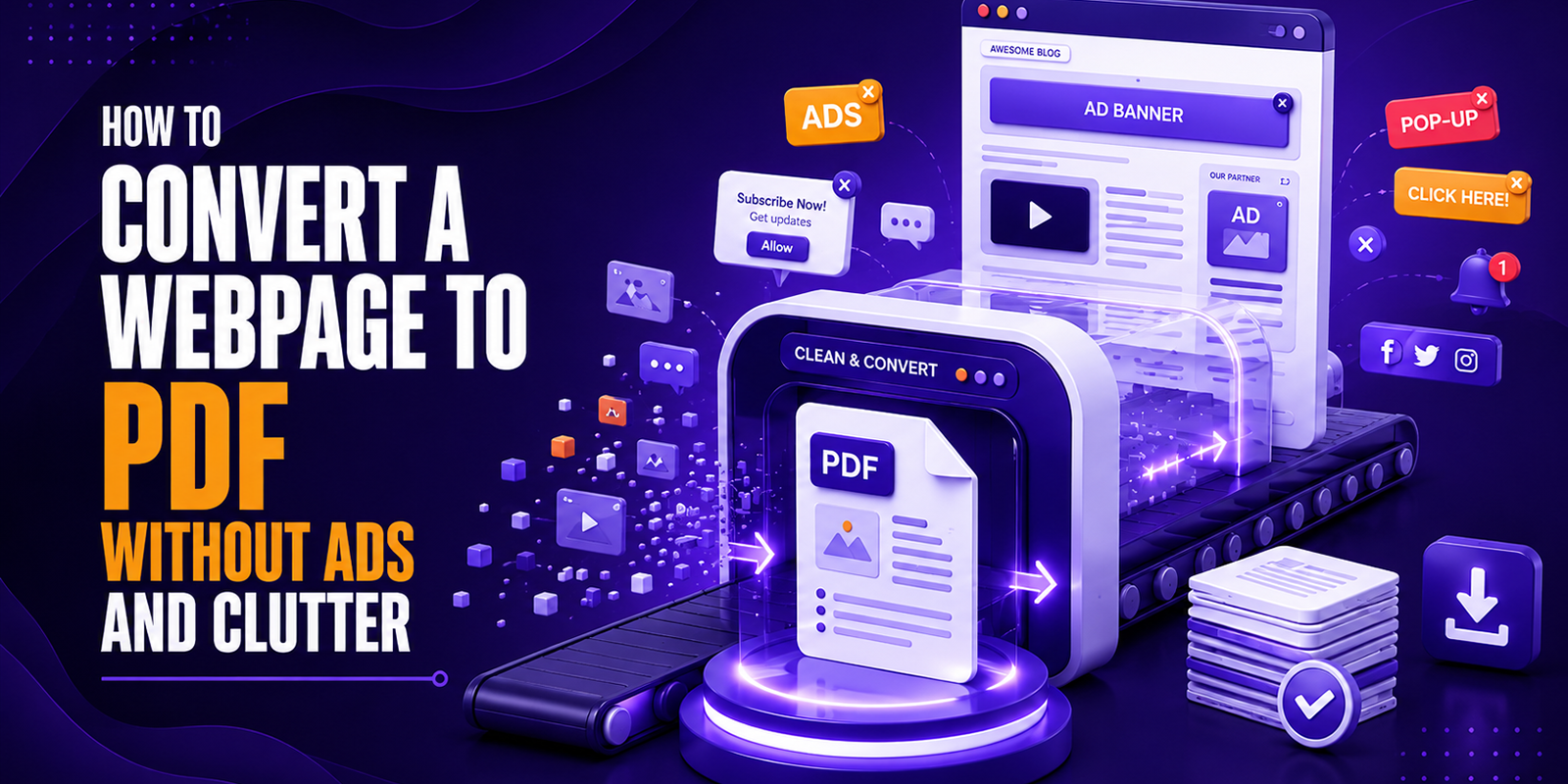
How to Convert a Webpage to PDF Without Ads and Clutter

Convert a webpage to PDF without ads, sidebars, headers, or browser clutter

You found a great article. Maybe it is a long-form research piece, a detailed recipe, a technical tutorial, or a news story you want to read later. Press Ctrl+P, select Save as PDF, then download the file.

You open it and find: the header navigation taking up the top third of the first page, a banner ad sliced awkwardly across page two, a sidebar with related content and promotional links filling the right margin of every page, a cookie consent popup frozen mid-screen, and a footer with the URL, page number, and print date printed in small text at the bottom of every page.

The actual article content is there somewhere, buried underneath all of that. It looks nothing like what you wanted to save.

This is the universal frustration of browser print-to-PDF. The good news is that it is completely avoidable. In this guide, we cover five reliable methods to convert any webpage to a clean, content-only PDF without ads, navigation, sidebars, or browser clutter, so what you get is exactly what you wanted to save, and nothing else.

Why Browser Print-to-PDF Always Includes Ads and Clutter

Understanding why the default browser print function fails is helpful before looking at solutions. The clutter you see in a browser-printed PDF is not a bug; it is how the browser was designed to work.

When you press Ctrl+P, your browser renders the page exactly as it appears visually and converts that visual output to a PDF. The browser has no way to distinguish between “content you want” and “everything else on the page.” It captures it all: the navigation bar, the ad units, the sidebar, the cookie banner, the related articles widget, the newsletter popup, the footer links. Every element that is visible on screen becomes part of the PDF output.

There are specific types of clutter that appear in virtually every browser-printed PDF of a modern webpage:

Clutter type Why it appears Impact on PDF
Navigation bar/header Fixed position element at the top of the page Takes up space on page 1, often breaks layout
Banner ads Ad units embedded in the page HTML Appear mid-content, split awkwardly across pages
Sidebar content Parallel column layouts render side by side Fills margins with unrelated content on every page
Cookie consent banner The overlay element is still visible in the print render Frozen popup blocks content on the first page
Related articles widgets Below-content recommendation blocks Adds several extra pages of junk at the end
Newsletter signup forms Inline promotional elements Interrupts article flow mid-reading
Browser headers and footers Default browser print settings URL, page number, date on every page
Social share buttons Icon elements scattered through content Appear as broken symbols or boxes in PDF

Method 1: Use Webs2PDF: Clean Output, Zero Setup (Recommended)

Webs2pdf.com is specifically designed to produce clean, complete PDF output from any webpage. It renders the full page content but outputs a document focused on the page’s primary content, without browser headers, footers, or the interface clutter that browser print-to-PDF includes by default.

How to convert any webpage to a clean PDF using Webs2PDF

  1. Open the webpage you want to save in your browser.
  2. Copy the URL from the address bar.
  3. Go to webs2pdf.com and paste the URL into the converter.
  4. Click Convert to PDF.
  5. Download your PDF. The output contains the page content without browser header and footer additions.

What Webs2PDF removes automatically

When you convert via webs2pdf.com, the output does not include the browser’s default print headers (page URL, document title) or footers (page number, print date) that appear in Ctrl+P conversions. The result is a cleaner document that starts with the actual page content rather than browser metadata.

Best for: Any webpage where you want a complete, clean capture without installing anything or adjusting settings. Works on any device, any browser, no account required.

Method 2: Disable Headers and Footers in Browser Print Settings

The quickest fix for cleaner browser-printed PDFs is to turn off the default headers and footers that appear on every page. This alone eliminates the URL, page title, page number, and print date that crowd the top and bottom of every page.

How to disable headers and footers in Chrome

  1. Open the webpage in Chrome and press Ctrl+P (Windows) or Cmd+P (Mac).
  2. In the print dialog, click More settings to expand the full options panel.
  3. Scroll down to find the Headers and footers checkbox.
  4. Uncheck Headers and footers.
  5. Click Save as PDF.

How to disable headers and footers in Firefox

  1. Press Ctrl+P to open the print dialog.
  2. Click More settings.
  3. Under Headers and Footers, set all dropdowns to Blank.
  4. Click Save to PDF.

Important: This only removes browser-added headers and footers

Disabling headers and footers removes the browser’s own additions to the PDF, but it does nothing about ads, sidebars, navigation bars, cookie banners, and promotional content that are part of the webpage itself. This method is a useful first step but does not produce a truly clean, content-only PDF for ad-heavy pages.

Method 3: Use Browser Reader Mode Before Printing

Reader Mode is a built-in feature in Firefox, Safari, and Microsoft Edge that strips a webpage down to just its core text and images, removing all ads, navigation, sidebars, and decorative elements. Converting a page to PDF from Reader Mode produces one of the cleanest possible outputs for article-style content.

Reader Mode in Firefox (most complete)

  1. Open the article or webpage in Firefox.
  2. Look for the Reader Mode icon (a small book icon) in the browser address bar on the right side. It appears automatically on article-type pages.
  3. Click the Reader Mode icon. The page reloads in a clean, stripped-back format with no ads, no sidebars, and no navigation.
  4. Press Ctrl+P and select Save as PDF. Because the page is now showing only content, the resulting PDF is clean and readable.

Reader Mode in Microsoft Edge

  • Click the book icon in the address bar, or press Ctrl+Shift+R to enter Immersive Reader.
  • Once in Immersive Reader, press Ctrl+P and save as a PDF.

Reader Mode in Safari (Mac)

  • Click the Reader icon in the Safari address bar (two horizontal lines).
  • Press Cmd+P and save as PDF from Reader view.

Reader Mode limitation

Reader Mode only works on article-format webpages, news articles, blog posts, and editorial content. It does not work on product pages, search results, dashboards, forums, social media pages, or any page that is not structured as a readable article. Chrome does not have a built-in Reader Mode, though extensions can add this functionality.

Method 4: PrintFriendly or Similar Browser Extension

PrintFriendly is a browser extension that gives you full manual control over what appears in your PDF before you convert. It lets you click to remove any element from the page, ads, sidebars, images, headers, footers, and preview the cleaned-up version before downloading.

How to use PrintFriendly

  • Install the PrintFriendly extension from the Chrome Web Store or Firefox Add-ons.
  • Navigate to the webpage you want to save.
  • Click the PrintFriendly extension icon in your browser toolbar.
  • A preview of the cleaned page appears. Click on any element you want to remove: ads, sidebars, images, navigation blocks.
  • Click Print and select Save as PDF to download the customized, clutter-free PDF.

Best for: Users who need precise control over exactly what appears in the PDF, or who regularly save complex pages where automatic clutter-removal does not work perfectly. The manual removal step takes a little more time but gives complete control over the final output.

Method 5: Mercury Reader or Similar Article Extraction Extension

Mercury Reader, Reader View, and similar extensions work like browser Reader Mode but are available for Chrome and offer more configuration options. They extract only the core article text and images from a webpage and display them in a clean, minimalist layout before you print to PDF.

  1. Install Mercury Reader or Reader View from the Chrome Web Store.
  2. Navigate to the article or blog post you want to save.
  3. Click the extension icon. The page is rerendered as clean article text.
  4. Press Ctrl+P and save as PDF. The output contains only article content.

Best for: Chrome users who regularly save long-form articles and want a Reader Mode equivalent without switching browsers. These extensions work specifically on article-format content and are not suitable for non-article pages like product listings, forums, or dashboards.

Method Comparison: Which Gives the Cleanest PDF?

Method Removes ads/sidebars Removes browser headers Works on all page types
Webs2PDF ✓ Yes (most pages) ✓ Yes ✓ Yes
Disable headers/footers in the browser No ✓ Yes ✓ Yes
Reader Mode (Firefox/Edge/Safari) ✓ Yes ✓ Yes Articles only
PrintFriendly extension ✓ Manual removal ✓ Yes ✓ Yes
Mercury Reader (Chrome) ✓ Yes ✓ Yes Articles only


Your situation Best method
You want the fastest solution with no setup Webs2PDF: paste URL, convert, download
You use Firefox and mostly save articles Reader Mode + Ctrl+P
You use Chrome and want browser-native cleanliness Mercury Reader extension + Ctrl+P
You want full manual control over what appears in the PDF PrintFriendly extension
You only want to remove the URL and page numbers from Ctrl+P Disable headers/footers in print settings
You are saving a non-article page (product, forum, dashboard) Webs2PDF: only reliable option for non-articles
You are on mobile Webs2PDF: works on any mobile browser

Extra Tips for Even Cleaner PDF Output

  • Wait for the page to fully load before converting. Ads and dynamic content load after the main article. Waiting a few seconds after the page loads allows ad units to fully render, which actually makes them easier for some tools to identify and remove cleanly.
  • Use incognito mode for fewer overlays. Many sites show cookie consent banners, newsletter popups, and login prompts only to new visitors. Opening the page in incognito mode before converting can reduce the number of overlay elements that appear in the PDF.
  • Try the print-preview version of the URL. Some news sites and blogs offer a print-friendly version of their articles at a modified URL (often ending in /print or ?print=true). These pages strip out ads and navigation by design, making them ideal for clean PDF conversion.
  • Use old.reddit.com, m.example.com, or lite versions where available. Many sites have mobile or lite versions with simpler layouts and fewer ads. Converting from the mobile URL often produces a cleaner PDF than the full desktop version.
  • Disable background graphics in browser print settings. In the browser print dialog, turning off Background graphics prevents background images and colored sections from appearing in the PDF. This often improves readability for pages with heavy design elements.

Frequently Asked Questions

Why does my browser-printed PDF always include ads?

Browser print-to-PDF captures the visual output of the page exactly as it appears on screen. It has no way to distinguish between article content and advertising elements, both are part of the page’s HTML, and both get included. The only way to get a PDF without ads is to either strip the page to content-only before printing (Reader Mode, PrintFriendly) or use a conversion tool like webs2pdf.com that renders the page and produces a clean output.

Does webs2pdf.com remove all ads from every webpage?

Webs2pdf.com converts the rendered page and does not add the browser’s own headers and footers. For most pages, this produces significantly cleaner output than browser print. On some heavily ad-supported sites with aggressive inline advertising, some ad content may still appear in the PDF because it is embedded directly in the article’s content flow rather than in sidebar or header zones. For maximum control over ad removal, combining webs2pdf.com with Reader Mode or PrintFriendly gives the cleanest result.

How do I remove the URL and page numbers from a browser-printed PDF?

In Chrome: open the print dialog (Ctrl+P), click More settings, and uncheck Headers and footers. In Firefox, open the print dialog, click More settings, and set all header and footer dropdowns to Blank. In Edge, open the print dialog and look for the Headers and footers option in More settings. In Safari, open the print dialog, click Show Details, and uncheck Print headers and footers.

Does Reader Mode work in Chrome?

Chrome does not have a native Reader Mode like Firefox, Edge, and Safari. However, Chrome extensions such as Mercury Reader and Reader View add this functionality. Search for either extension in the Chrome Web Store and install it to get a Reader Mode equivalent in Chrome. Alternatively, switching to Firefox for article-heavy browsing gives you the best built-in Reader Mode experience.

Which method works on mobile to get a clean PDF without ads?

On mobile, webs2pdf.com is the most reliable option. Open any browser on your phone, navigate to webs2pdf.com, paste the URL of the page you want to save, and convert. The PDF is downloaded to your device without browser headers, footers, or the URL bar that mobile browsers often add to print outputs. Firefox for mobile also has a Reader Mode that works well before printing to PDF.

Conclusion: You Should Never Have to Read Around the Ads

The content you want to save is the article, the guide, the recipe, the tutorial. Not the ads. Not the sidebar. Not the navigation. Not the cookie banner. Not the browser’s helpfully added URL and page number at the bottom of every single page.

All five methods in this guide give you cleaner PDFs than the default Ctrl+P approach. The right choice depends on how much setup you want to do and what type of page you are saving.

For most people, most of the time, paste the URL into webs2pdf.com and download a clean PDF in under 60 seconds. For Chrome users who save a lot of articles: install a Reader Mode extension and convert from there. For users who need precise manual control, PrintFriendly gives you click-to-remove for every element on the page.

Start with webs2pdf.com, paste any URL, and download a clean, ad-free PDF for free.
  • June 30, 2026

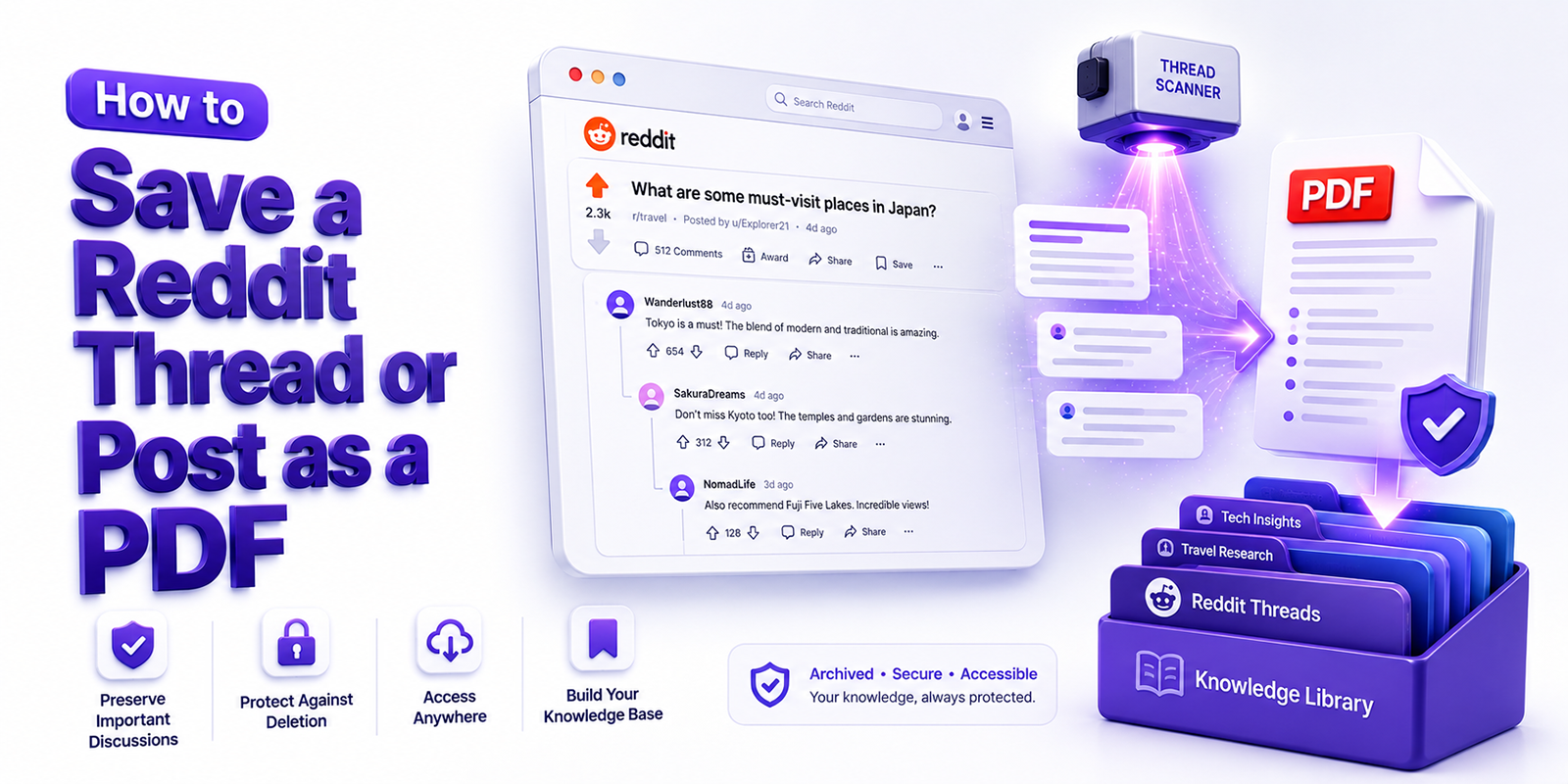
How to Save a Reddit Thread or Post as a PDF

Guide showing how to save Reddit threads, posts, and comments as PDF files for offline reading and archiving.

You bookmarked a Reddit thread last week. A genuinely useful one may be a long technical discussion with step-by-step troubleshooting advice, a deeply personal community thread where hundreds of people share real experiences, or an expert AMA where a professional answers questions with incredible detail.

You go back to it today. The post title is there. But where the content was, it now says: [deleted].

This is one of the most common and frustrating experiences on Reddit. Posts get deleted by their authors who had second thoughts. Comments get removed by moderators. Entire subreddits get banned, and every thread inside them vanishes overnight. Reddit’s own API restrictions, rolled out in 2023, killed many third-party archiving tools that used to capture this content before it disappeared.

The solution is simple: save the threads you care about as PDFs before they are gone. In this guide, we cover four practical methods to save any Reddit post or thread as a clean, complete PDF in 2026, from a single click to a fully automated approach.

Why Reddit Content Disappears (And Why Archiving Matters)

Understanding why Reddit content vanishes helps explain why saving posts as a PDF, not just bookmarking, is the only reliable preservation method.

  • Author deletion: Any Reddit user can delete their own posts and comments at any time. This is the most common cause of missing content: someone posts something valuable, gets second thoughts, and hits delete. The post title may remain as a shell, but the body and every comment from that user disappear permanently.
  • Moderator removal: Subreddit moderators can remove posts that violate rules. The post is technically in Reddit’s database but hidden from normal browsing. Top-voted, highly useful posts get removed all the time when subreddit rules change or enforcement becomes stricter.
  • Subreddit bans: Reddit can ban entire subreddits for policy violations. When a subreddit is banned, every post and comment thread inside it disappears from public view simultaneously. Communities with years of accumulated knowledge can be wiped out in a single moderation decision.
  • Account suspension: When a Reddit account is suspended or banned, all posts and comments from that account are removed. If the person who started a valuable AMA or wrote a comprehensive guide gets banned, their content goes with them.
  • Reddit’s API restrictions: Since 2023, Reddit has significantly restricted third-party API access. This killed many of the automatic archiving bots that used to preserve threads before they were deleted. The safety net that previously caught valuable content no longer exists.

Method 1: Use Webs2PDF

Webs2PDF is the fastest and most reliable way to save a Reddit thread or post as a PDF. Instead of relying on browser print or taking multiple screenshots, you can convert a Reddit thread or post to PDF directly from its URL while preserving the thread structure, comments, images, timestamps, and other visible page elements.

Step-by-step

  1. Open the Reddit thread you want to save in your browser.
  2. Scroll down through the thread to expand collapsed comments and trigger any lazy-loaded content. Click Load more comments where the option appears.
  3. Copy the full URL from your browser address bar. It will look like: https://www.reddit.com/r/subredditname/comments/XXXXX/post_title/
  4. Open webs2pdf.com in a new tab and paste the URL into the converter.
  5. Click Convert to PDF and wait a few seconds for the full page to render.
  6. Download your PDF. The post and all visible comments are captured.

Old Reddit tip: use old.reddit.com for cleaner PDF output

Reddit’s modern interface (new Reddit) is heavily JavaScript-driven and can sometimes produce inconsistent results with web-to-PDF tools. For the cleanest capture, replace www.reddit.com with old.reddit.com in the URL before converting. Old Reddit uses a simpler, text-first layout that renders more predictably as a PDF; all post content and comments are laid out linearly with no collapsing or infinite scroll behaviour.

What webs2pdf.com captures on a Reddit thread

  • Post title and body. The full original post including all text, embedded images, and links.
  • Post metadata. Subreddit name, username, upvote count, award badges, and posting date as displayed on the page.
  • Top-level comments. All comments visible on the page at the time of conversion, including usernames, upvote counts, and timestamps.
  • Nested replies. Reply threads are captured in their expanded state, preserving the conversation hierarchy.
  • Clean layout. Navigation bars, sidebars, ads, and Reddit UI chrome are not included in the output PDF.

Method 2: Browser Print to PDF

Every browser includes a Print to PDF function accessible with a keyboard shortcut. For short Reddit posts with a limited number of comments, this method is the fastest option and requires no additional tools.

How to use browser print on Reddit

  1. Open the Reddit post in Chrome, Firefox, Edge, or Safari.
  2. Scroll through the entire thread to load all visible comments. Click Load more comments where it appears.
  3. Press Ctrl+P on Windows or Cmd+P on Mac.
  4. Under Destination or Printer, select Save as PDF.
  5. Adjust the paper size and margins if needed. Disable headers and footers if you want a cleaner output.
  6. Click Save and choose your download location.

Known limitations of browser print on Reddit

Reddit’s modern interface causes specific problems with browser print-to-PDF: collapsed comment threads are not expanded in the output, content below the loaded viewport may be cut off, Reddit’s navigation header often appears at the top of the first page, and post media (images, gallery posts, embedded videos) may render inconsistently. For threads with many comments or important nested replies, browser print frequently misses significant content. Switch to old.reddit.com before printing for more reliable results.

Method 3: Reddit-to-PDF Chrome Extension

Several Chrome extensions are designed specifically to convert Reddit threads to clean, formatted PDFs. These are the best options for users who regularly save Reddit content and want a one-click workflow directly inside the Reddit interface.

Recommended extensions (as of June 2026)

  • ThreadIT: Reddit to PDF Exporter. One-click export of any Reddit post and its comments to a clean, formatted PDF. Works on both modern Reddit and old.reddit.com. No account required, no tracking, processes content locally in the browser. Includes post title, author, votes, and nested comments.
  • Reddit PDF Saver. Automatically scrolls through the thread, loads all Load more comments sections, and optionally expands nested replies before generating the PDF. Includes a live preview before saving. The free version includes a small watermark; the Pro version removes it.
  • Reddit Save as PDF. A lightweight extension for capturing individual Reddit comment sections as PDFs. Best for saving specific comment threads rather than entire posts.

How to use a Reddit-to-PDF extension

  1. Search for your preferred extension in the Chrome Web Store and click Add to Chrome.
  2. Once installed, open any Reddit post in Chrome.
  3. Click the extension icon in your browser toolbar.
  4. The extension automatically processes the thread scrolling, expanding comments, and generating the PDF.
  5. Download the PDF from the extension popup.

Extension maintenance note

Reddit Chrome extensions depend on Reddit’s page structure, which changes periodically. An extension that works perfectly today may break after a Reddit interface update. Always check the extension’s last update date and recent user reviews before relying on it for important archiving work. For critical captures, use webs2pdf.com as a reliable fallback that does not depend on Reddit’s interface structure.

Method 4: Old Reddit Interface: The Simplest Clean Capture

Old Reddit (old.reddit.com) uses the classic, text-first layout that predates Reddit’s modern JavaScript-heavy interface. For web-to-PDF conversion and browser printing, old Reddit consistently produces better results because its page structure is simpler, loads more linearly, and does not rely as heavily on dynamic content rendering.

How to use old Reddit for PDF conversion

  1. Take any modern Reddit URL and replace www.reddit.com with old.reddit.com.
  2. For example: https://www.reddit.com/r/programming/comments/XXXXX/ becomes https://old.reddit.com/r/programming/comments/XXXXX/
  3. The page loads in the classic Reddit layout; all comments are visible linearly without JavaScript-triggered collapsing.
  4. Copy this old.reddit.com URL and paste it into webs2pdf.com, or use browser print-to-PDF directly.
  5. The resulting PDF is cleaner, more complete, and more consistently formatted than a capture from the modern Reddit interface.

Why this works better: Old Reddit renders all comments as straightforward HTML without requiring JavaScript execution to display content. This means web converters and browser print functions can capture the full thread in a single pass, without missing content that would otherwise only load through user interaction on the modern interface.

Ready to save a Reddit thread or post?

Use Webs2PDF to convert any public Reddit URL into a clean, downloadable PDF in just a few seconds, no extensions or software required.

Save Reddit Thread as PDF

Which Method Should You Use? Full Comparison

Factor Webs2PDF Browser print Chrome extension Old Reddit + convert
Setup required None None Extension install None
Full thread captured ✓ Yes Often partial ✓ Yes ✓ Yes
Nested comments ✓ Yes Often missing ✓ Yes ✓ Yes
Clean output (no ads) ✓ Yes Partial ✓ Yes ✓ Yes
Works on mobile ✓ Yes ✓ Yes ✗ No ✓ Yes
Reliability High Medium High* High
Time to convert 60 seconds 2–3 min 30 seconds 60 seconds
Best for Any thread Short posts Regular users Long threads

Who Saves Reddit Threads as PDF and Why

Researchers and academics

Reddit has become a legitimate primary source for qualitative research in fields ranging from medicine to linguistics to cultural studies. Researchers regularly cite Reddit posts in academic papers, which means they need persistent, citable records of the exact content they referenced. A PDF created at the time of research is the only reliable citation anchor when the original post may be deleted before the paper is published.

Journalists and fact-checkers

Journalists use Reddit as a source for firsthand accounts, community reactions, and primary documentation. Saving relevant threads as PDF immediately upon discovery creates a timestamped record of what was publicly stated, which is critical when a story involves content that may later be removed. Investigative journalists and fact-checkers treat PDF archiving of online content as standard practice.

Students

Students frequently discover valuable learning resources on Reddit: study guides, worked examples, peer tutoring threads, AMA sessions with experts. Saving these as PDFs before starting a study project ensures the resource is available throughout the process, even if the original thread is deleted or the subreddit is closed before the work is submitted.

Community managers and moderators

Reddit community managers save important threads, pinned posts, policy discussions, and significant community moments as PDF records. These become part of the community’s documented history and governance record, accessible even if Reddit’s own platform changes how old content is displayed or stored.

Anyone who finds something genuinely useful

This is the most common use case. Someone finds a thread that solves a problem they have been struggling with, a detailed technical tutorial, a life experience that resonates, a compilation of resources on a specific topic. The correct action is to save it as a PDF immediately, not to bookmark it and hope it is still there next time.

Pro Tips for Better Reddit-to-PDF Archives

  • Use old.reddit.com for the cleanest captures. Replace www.reddit.com with old.reddit.com in the URL before converting. The classic layout produces the most complete and consistently formatted PDFs.
  • Expand all comments before converting. Click every Load more comments button before copying the URL. Comments that have not been loaded will not appear in the PDF.
  • Save the post immediately when you find it. Do not wait. The single most common mistake is planning to save something later. Later often means [deleted]. Save the PDF the moment you know the thread matters.
  • Include the URL in your filename. Name your PDF with the subreddit and a description: r_AskScience_BlackHole_Thread_2026-06-11.pdf. Include the Reddit URL in a text file alongside the PDF for reference.
  • Capture the URL in a capture log. For research purposes, maintain a simple spreadsheet noting the full Reddit URL, the date captured, the subreddit, and the reason for archiving. This creates a documented record even if the PDF filename changes.
  • For very long threads, check scroll and load before converting. On threads with hundreds of comments, scroll to the bottom and click every Load more comments section before starting the conversion. The more content is loaded in the browser, the more complete the PDF capture.

Frequently Asked Questions

Can I save a Reddit thread as a PDF for free?

Yes. You can save a Reddit thread as a PDF for free using Webs2PDF. Simply copy the Reddit URL, paste it into the converter, and download the generated PDF without installing any software.

Will the PDF include Reddit comments?

Yes. The PDF can include comments that are loaded and visible on the page at the time of conversion. For the most complete archive, expand all comments and “Load More Comments” sections before converting.

Can I save Reddit posts for offline reading?

Yes. Converting a Reddit post to PDF allows you to access the content offline without needing an internet connection. This is useful for research, study materials, tutorials, and long discussion threads.

Can I convert a Reddit thread to a PDF on mobile?

Yes. Webs2PDF works on mobile devices. Open the Reddit thread in your browser, copy the URL, paste it into Webs2PDF, and download the PDF directly to your phone or tablet.

What happens if a Reddit post is deleted after I save it as a PDF?

Once you save a Reddit thread as a PDF, you keep a permanent copy of the content captured at that time. Even if the original post is later deleted, removed, or edited on Reddit, your PDF remains unchanged.

Why is PDF better than bookmarking a Reddit thread?

A bookmark only saves a link to the content. If the Reddit post is deleted or removed, the bookmark may no longer be useful. A PDF preserves the actual content, making it available anytime, even if the original thread disappears.

Conclusion:

Reddit contains some of the most valuable community knowledge on the internet. It also has one of the highest rates of content loss of any major platform. Posts that were upvoted as genuinely helpful are deleted every day by their authors, by moderators, or by platform-level enforcement.

Bookmarking is not archiving. A bookmark is a pointer to content that may no longer exist. A PDF is the content itself, permanent, portable, and available whether or not Reddit is up, whether or not the post still exists, and whether or not you have an internet connection.

The workflow is simple. When you find a Reddit thread worth keeping, save it immediately. Copy the old.reddit.com URL, paste it into webs2pdf.com, and download the PDF in under 60 seconds. The thread is now yours permanently.

Ready to archive an important Reddit discussion? Visit Webs2PDF, paste the Reddit thread URL, and download a high-quality PDF in seconds for offline reading, research, or record-keeping.

  • June 23, 2026

Save Substack Articles as PDF for Offline Reading

Convert and save Substack articles as PDF files for offline reading using Webs2PDF

Looking for a simple way to save Substack articles as PDF files? Whether you want to read newsletters offline, archive valuable content, or keep important insights for future reference, converting a Substack article to PDF is one of the easiest solutions.

Substack has become a popular platform for newsletters, long-form essays, expert analysis, and independent publishing. However, readers often need a way to access content without an internet connection or organize articles for research and study.

With Webs2PDF, you can quickly convert Substack articles to PDF, download them to your device, and read them anytime. Simply paste the article URL into our Substack PDF converter, generate the PDF, and save it for offline reading, sharing, printing, or archiving.

Why Save Substack Articles as PDF?

Substack articles are designed primarily for online reading, but there are many situations where having a PDF copy is more convenient. When you save Substack articles as PDF, you can access your favorite newsletters and long-form content even without an internet connection.

Converting a Substack article to PDF creates a portable file that can be opened on smartphones, tablets, laptops, and desktop computers. It also makes it easier to archive, organize, share, and print valuable content.

Saving or downloading Substack articles as PDFs is useful when you want to:

  • Read articles offline while traveling or commuting
  • Build a personal archive of favorite newsletters
  • Save research material for future reference
  • Share publicly accessible articles with colleagues or classmates
  • Organize content by topic, author, or publication date
  • Keep important insights available for long-term access
  • Print long-form articles in a clean, readable format

A PDF is often easier to store, search, and manage than dozens of open browser tabs or bookmarked links. For readers who regularly follow newsletters, converting Substack newsletters to PDF can help create a well-organized offline reading library that remains accessible whenever needed.

What Is the Best Way to Convert Substack Articles to PDF?

The easiest way to convert Substack articles to PDF is by using Webs2PDF. Instead of manually copying text, adjusting formatting, or relying on browser print settings, you can convert a Substack article to PDF directly from its URL. Within seconds, you’ll have a downloadable PDF that you can save for offline reading, research, sharing, or archiving.

To save a Substack article as a PDF, simply copy the article link, paste it into Webs2PDF, and start the conversion process. Within seconds, you’ll have a PDF version that can be stored, shared, printed, or accessed offline whenever needed.

This method is particularly useful for saving:

  • Substack newsletters
  • Long-form essays
  • Research articles
  • Educational content
  • Tutorials and guides
  • Business and investment analysis
  • Technology and industry insights

Whether you want to download Substack articles for offline reading or build a personal archive of valuable newsletters, converting a Substack article to PDF with Webs2PDF is a fast and convenient solution.

How to Save a Substack Article as PDF Using webs2pdf.com

If you’re wondering how to save a Substack article as PDF, Webs2PDF makes the process quick and simple. You can convert Substack articles to PDF in just a few steps and download them for offline reading, archiving, printing, or research.

Step 1: Open the Substack Article

Navigate to the Substack article or newsletter post you want to convert. Make sure the page has fully loaded, including any images or embedded content.

Step 2: Copy the Article URL

Copy the complete URL from your browser’s address bar.

Example: https://example.substack.com/p/article-title

Step 3: Visit Webs2PDF

Open Webs2PDF.com in your browser.

Step 4: Paste the Substack URL

Paste the copied Substack article link into the URL input field on the Webs2PDF homepage.

Step 5: Convert the Substack Article to PDF

Click the Convert button and allow the tool to generate a PDF version of the article.

Step 6: Download and Save the PDF

Once the conversion is complete, download the PDF file to your device. You can now read the article offline, organize it in your digital library, print it, or share it when needed.

Ready to save a Substack article for offline reading?

Use Webs2PDF to convert any publicly accessible Substack article into a clean, downloadable PDF in just a few clicks.

Save Substack Article as PDF

Benefits of Saving Substack Articles as PDFs

1. Offline Reading Anytime

Once you save a Substack article as a PDF, you do not need an internet connection to access it. This is perfect for flights, commutes, travel, or areas with weak connectivity.

2. Better Content Organization

PDF files are easy to organize into folders. You can create folders by topic, author, newsletter, date, or project.

For example:

  • Business newsletters
  • Writing inspiration
  • Investment research
  • Marketing ideas
  • Technical tutorials
  • Personal reading list

3. Long-Term Archiving

Bookmarks can get messy, and online links may change over time. Saving a PDF gives you a stable copy for your own records.

4. Easier Sharing

A PDF is simple to send through email, cloud storage, messaging apps, or project management tools. This makes it useful for teams, students, researchers, and professionals.

5. Print-Friendly Format

Some readers prefer printing long articles for focused reading. A PDF makes it easier to print Substack content in a clean and structured way.

Who Can Benefit from Saving Substack Articles as PDF?

Saving Substack articles as PDFs is useful for many types of readers.

Students and Researchers

Students can save educational essays, academic commentary, and expert newsletters for later review.

Professionals

Professionals can archive industry insights, leadership articles, market updates, and business analysis.

Writers and Content Creators

Writers can collect inspiration, references, and examples of strong long-form writing.

Marketers

Marketing teams can save newsletters related to growth, SEO, branding, content strategy, and advertising trends.

Investors and Analysts

Financial newsletters often contain valuable commentary. Saving them as PDFs makes it easier to create a personal research library.

Tips for Creating Clean PDFs from Substack Articles

To get the best results when you save Substack articles as PDFs, follow these simple tips before converting the page:

Use the Direct Article URL

Always copy the URL of the specific Substack article you want to convert. Avoid using the publication homepage or author profile page, as this may not capture the intended content.

Wait for the Article to Fully Load

Before converting the page, make sure all text, images, and embedded content have loaded completely. This helps ensure the PDF captures the full article correctly.

Convert Only Content You Can Access

Some Substack newsletters are restricted to subscribers. Only convert articles that you have permission to view and access.

Use Clear File Names

When downloading your PDF, use descriptive file names such as: author-name-article-title-date.pdf

This makes your PDF library easier to search and organize.

Store PDFs in Cloud Storage

Upload your saved PDFs to services like Google Drive, Dropbox, or OneDrive so you can access them from multiple devices and keep backups of important content.

Organize Articles by Topic

If you regularly save newsletters, create folders for categories such as business, investing, technology, marketing, or personal development. This makes it easier to find articles later.

Why Use webs2pdf.com?

webs2pdf.com is designed to make webpage conversion simple and convenient. Instead of relying on browser print settings or manual formatting, you can quickly convert web pages into PDF files using a direct URL.

For Substack readers, this means you can build a personal offline library of your favorite articles in just a few clicks.

With webs2pdf.com, you can:

  • Convert Substack article URLs into PDFs
  • Save content for offline access
  • Keep articles organized
  • Download readable PDF files
  • Archive important web content
  • Access saved articles anytime

Is It Legal to Save Substack Articles as PDF?

Saving a Substack article as a PDF for personal offline reading is generally used as a personal convenience. However, you should respect the author’s rights and Substack’s terms.

Do not republish, sell, or distribute paid or copyrighted content without permission. If an article is behind a paywall, make sure you have proper access before saving it.

Common Use Cases for Saving Substack Articles as PDF

There are many reasons why readers choose to save Substack articles as PDF files. Here are some of the most common use cases:

Reading During Travel

Download Substack articles before a flight, train journey, or commute and read them offline without relying on Wi-Fi or mobile data.

Building a Personal Knowledge Library

Create a collection of valuable newsletters, essays, and research articles that you can access whenever needed.

Team Research and Collaboration

Save and share publicly accessible articles with colleagues for project planning, market research, brainstorming, or strategy discussions.

Content Planning and Inspiration

Writers, marketers, and content creators often convert Substack articles to PDF so they can review successful content examples and collect ideas for future projects.

Studying and Annotating Articles

PDFs can be highlighted, annotated, and bookmarked using tools such as Adobe Acrobat and other PDF readers, making them useful for students, researchers, and professionals.

Archiving Valuable Newsletters

Some readers save important newsletters as PDFs to maintain a personal archive that remains accessible even if links change or content becomes harder to find later.

Substack PDF vs Bookmark: Which Is Better?

Bookmarks are useful for quick access, but PDFs are better when you want long-term control over your reading material.

Feature Bookmark PDF
Needs internet Yes No
Easy to archive Limited Yes
Can be shared as a file No Yes
Can be annotated Limited Yes
Better for long-term storage No Yes
Print-friendly Not always Yes

For casual reading, bookmarks are fine. For important articles, PDFs are usually the better option.

Frequently Asked Questions

How do I save a Substack article as a PDF?

To save a Substack article as a PDF, copy the article URL and paste it into Webs2PDF. The tool will convert the webpage into a downloadable PDF file that you can save to your device for offline reading, printing, or archiving.

Can I read Substack articles offline?

Yes. By converting a Substack article to PDF, you can access it without an internet connection. This is useful for travel, commuting, research, or anytime you want to read newsletters offline on your phone, tablet, or computer.

Is it legal to save Substack articles as PDF?

Saving Substack articles as PDFs for personal use is generally acceptable. However, you should respect copyright laws, author rights, and Substack’s terms of service. Do not redistribute, republish, or sell copyrighted content without permission.

Can I convert paid Substack articles to PDF?

You should only convert paid or subscriber-only Substack articles if you have legitimate access through an active subscription or permission from the content owner. Always respect the author’s publishing rights and subscription policies.

Does Webs2PDF work on mobile devices?

Yes. Webs2PDF works on smartphones, tablets, laptops, and desktop computers. You can convert Substack articles to PDF directly from your mobile browser without installing additional software.

Can I print a Substack article after converting it to PDF?

Yes. Once the Substack article has been converted to PDF, you can print it using any standard PDF reader. PDFs often provide a cleaner and more organized format for printing long-form content.

What types of Substack content can I convert to PDF?

You can convert publicly accessible Substack newsletters, essays, tutorials, research articles, business insights, educational content, and other long-form posts into PDF files for personal use and offline reading.

Final Thoughts

Substack is full of valuable long-form content, but not every article needs to stay trapped in your browser. By converting Substack articles into PDFs, you can read them offline, organize them better, and keep important insights available whenever you need them.

Ready to build your offline reading library? Visit Webs2PDF, paste your Substack article URL, and convert it into a high-quality PDF in seconds.

Whether you are a student, professional, researcher, writer, or regular newsletter reader, converting Substack articles to PDF can help you build a reliable offline reading library.

  • June 16, 2026

How to Save a YouTube Channel Page as PDF (2026 Guide)

Guide showing how to save a YouTube channel page, About section, playlist, and video description as a PDF using Webs2PDF and browser tools.

You are researching a competitor’s YouTube channel. Their About page has a detailed brand description, contact email, and links. Their most popular video has a description packed with timestamps, keywords, and external resources. Their channel banner and featured sections tell a clear story about their content strategy.

You want to save all of this for your analysis. Maybe you are a marketer benchmarking a competitor. Maybe you are a journalist researching a creator for an article. Maybe you are a student documenting sources for a research project. Maybe you are a creator archiving your own channel info as a professional record.

Whatever the reason, you need a permanent, portable, shareable copy of that YouTube page. Not a screenshot. Not a bookmark that breaks. A clean, complete PDF.

In this guide, we cover exactly how to convert any YouTube channel page, video description, playlist, or About section to PDF, using four practical methods, with honest notes on what works and what does not.

What YouTube Pages Can You Save as PDF?

YouTube is a web-based platform, which means every page on YouTube has a URL and can be captured as a PDF using a web-to-PDF tool. Here is a breakdown of the most useful YouTube page types to save, and what each one contains:

YouTube page type URL format What the PDF captures
Channel About page youtube.com/@channelname/about Channel description, subscriber count, total views, join date, location, contact email, links
Channel home page youtube.com/@channelname Featured sections, latest uploads, playlists, channel art description, shorts, community tab
Channel Videos tab youtube.com/@channelname/videos Full video listing with thumbnails, titles, view counts, and upload dates
Channel Playlists tab youtube.com/@channelname/playlists All public playlists with titles and video counts
Individual video page youtube.com/watch?v=XXXX Video title, description, tags, chapter markers, creator notes, pinned comments
YouTube search results youtube.com/results?search_query=X Search result listings useful for keyword research documentation
YouTube handle / @page youtube.com/@channelname Merged channel identity page including all public channel info

Method 1: Use Webs2PDF

Webs2pdf.com converts any public web page, including YouTube channel pages, into a clean, complete PDF by fully rendering the page before generating the output. This means you get all visible content: channel description, subscriber count, video listings, About information, and page structure exactly as it appears in the browser.

Step-by-step instructions

  1. Open the YouTube page you want to save in your browser. This can be a channel About page, a video page, a playlist, or any other public YouTube URL.
  2. Make sure the page is fully loaded. Scroll down if needed to trigger any lazy-loaded content, particularly video grids and playlist listings.
  3. Copy the full URL from your browser address bar. For example: https://www.youtube.com/@channelname/about
  4. Open webs2pdf.com in a new tab and paste the URL into the converter field.
  5. Click Convert to PDF and wait a few seconds for the page to render completely.
  6. Download your PDF. The complete page is captured, including all text, channel metadata, and visible content.

What webs2pdf.com captures on a YouTube channel page

Webs2PDF captures publicly visible channel information, including About details, subscriber counts, video listings, playlists, and other loaded page elements in a single PDF. This provides a highly detailed capture of the publicly visible content on the page without requiring access to the YouTube API.

Method 2: Browser Print to PDF (Free but Limited)

Every browser includes a built-in Print to PDF function. For YouTube pages, this method is quick and free, but it comes with some limitations you should know about before relying on it.

How to use browser print on a YouTube page

  1. Open the YouTube channel or video page in Chrome, Firefox, Edge, or Safari.
  2. Press Ctrl+P on Windows or Cmd+P on Mac to open the print dialog.
  3. Under Destination or Printer, select Save as PDF.
  4. Adjust the page size and margins if needed, then click Save.

Known limitations with browser print on YouTube

YouTube’s interface is heavily built on JavaScript and dynamic loading. Browser print-to-PDF frequently misses: video thumbnails that have not fully loaded, content below the initial viewport (video grids only show partially), YouTube’s navigation sidebar which appears in the output, and the channel banner image which often renders as a blank space. For research or archiving purposes, browser print works for capturing text-heavy pages like the About section, but is less reliable for full channel or video grid pages.

Method 3: Full-Page Screenshot Converted to PDF

For capturing the visual appearance of a YouTube page including the channel banner, profile image, and video thumbnails, a full-page screenshot tool can be more effective than a standard print-to-PDF. The screenshot can then be converted to PDF for a permanent, visual record.

How to do it

  1. Use a full-page screenshot browser extension (GoFullPage for Chrome, or the built-in screenshot tools in Firefox and Edge) to capture the complete page from top to bottom.
  2. Save the screenshot as a PNG or JPEG file.
  3. Convert the image to PDF using an image-to-PDF tool, or simply use your operating system’s print function to print the image as a PDF.
  4. The result is a visual PDF that preserves the full layout of the YouTube page, including banners and thumbnails.

Best for: Visual documentation where the look and layout of the channel matters, such as a competitive audit, a creator portfolio document, or a design reference. The trade-off is that text in a screenshot-based PDF is not searchable or selectable.

Method 4: Copy the Text Content and Export as PDF

For users who specifically need the text content of a YouTube page channel description, video description, chapter markers, or links rather than a full-page visual capture, the simplest approach is to copy the relevant text directly from the page and paste it into a document.

  1. Open the YouTube channel About page or video description.
  2. Click Show More to expand the full description or About text.
  3. Select and copy all the text content you need.
  4. Paste into Google Docs, Notion, or Microsoft Word.
  5. Add a header noting the channel name, URL, and date captured.
  6. Export the document as a PDF from the application’s File menu.

Best for: Researchers and journalists who need clean, editable text from video descriptions or channel About sections. This method gives you fully searchable, annotatable text content, but does not preserve the visual layout of the original YouTube page.

Which Method Is Right for You?

Your goal Best method
Archive a complete channel page for research or competitor analysis Webs2PDF full render, all content captured
Save an About page with contact info and links Webs2PDF or browser print text-heavy pages work well
Document the visual appearance of a channel (banner, thumbnails, layout) Full-page screenshot converted to PDF
Save a video description with all timestamps and links Webs2PDF or copy-paste into document then PDF
Archive a channel’s video list with titles and view counts Webs2PDF most complete video grid capture
Create an editable, searchable text record of channel content Copy-paste method into Google Docs, export as PDF
Quick capture of a single visible section of a page Browser print is fast and requires no tools
Build a recurring archive of a channel’s growth over time Webs2PDF on a scheduled basis using automation

Who Saves YouTube Pages as PDF and Why

Content creators and personal branding

Creators save their own channel About page and top video descriptions as PDFs for several professional reasons: submitting channel information to brand partnerships, including in media kits sent to sponsors, documenting their channel’s milestones at key moments (100K subscribers, 1M views), and maintaining a personal archive of their content strategy as it evolves. A PDF of your channel at a significant milestone is a permanent professional record that your YouTube Studio analytics cannot fully replace.

Digital marketers and competitive intelligence

Marketing teams regularly audit competitor YouTube channels as part of brand strategy and content planning. Saving a competitor’s channel page, video listing, and About section as a PDF creates a documented baseline for comparison over time. When that competitor rebrands, changes their content strategy, or updates their messaging, you have a timestamped record of what they were doing before.

Journalists and researchers

Journalists frequently need to document YouTube channels as part of investigative research, source verification, or media analysis. A PDF of a channel page at a specific date provides verifiable, timestamped evidence of what was publicly visible. This is particularly important when covering content creators, viral videos, or platform policy stories where channel information may later be changed or removed.

Students and academic researchers

Students studying media, marketing, communication, or platform studies often cite YouTube channels as primary sources. A PDF capture of the channel page at the time of research creates a citable, persistent record, essential for academic integrity when the original page may be updated or removed before a paper is published.

Brand monitoring and PR teams

PR professionals and brand managers who monitor their brand’s presence on YouTube save channel pages and video descriptions as PDFs to document: brand mentions and collaborations, sponsored content declarations, creator partnership terms, and any content that involves their brand. These PDFs become part of the brand monitoring paper trail. When a dispute arises over sponsored content claims or brand representation, a timestamped PDF of what was publicly stated is far more useful than trying to recreate a live page after the fact.

Tips for Better YouTube-to-PDF Captures

  • Use the About page URL for the cleanest capture. The About page (youtube.com/@channelname/about) contains the most structured text information: description, subscriber count, join date, location, and all public links. It is the easiest page to capture cleanly as a PDF.
  • Expand all content before converting. Click Show More on descriptions and About sections before converting. Content that is collapsed by default may not appear in the PDF if it has not been loaded.
  • Note the capture date in your filename. YouTube channel statistics change constantly. Always save your PDF with a date in the filename: ChannelName_About_2026-06-10.pdf. This makes the capture date unambiguous when you reference it later.
  • For video descriptions, open the full description first. YouTube truncates video descriptions. Click Show More on the description before converting to ensure the full text is captured in the PDF.
  • Scroll the full page before converting. YouTube uses lazy loading for video thumbnails and grid items. Scroll slowly to the bottom of the page before copying the URL and converting. This triggers all content to load, ensuring a more complete capture.
  • For channel analytics, use YouTube Studio’s export instead. If you need subscriber counts, watch time, and engagement data in PDF format, YouTube Studio’s built-in analytics export is the more appropriate tool. Webs2pdf.com captures what is publicly visible on a channel page, not internal analytics data.

Frequently Asked Questions


Can I save a YouTube channel page as a PDF?

Yes. Any publicly accessible YouTube channel page, including the Home, Videos, Playlists, and About sections, can be saved as a PDF using a web-to-PDF converter, the browser’s print function, or a screenshot-based method.

How do I save a YouTube About page as a PDF?

Open the channel’s About page, ensure all information is visible, copy the URL, and use a tool like Webs2PDF to convert the page into a downloadable PDF. You can also use your browser’s Print to PDF feature.

Will a PDF include YouTube subscriber counts and channel details?

Yes. Publicly visible information such as subscriber counts, channel descriptions, join dates, website links, and other About page details can be included in the PDF at the time of capture.

Can I save a YouTube video description with timestamps and links?

Yes. Expand the full video description by clicking Show More before converting the page. This helps ensure that timestamps, chapter markers, and visible links are included in the PDF.

Why are some thumbnails or page elements missing from my PDF?

YouTube uses dynamic loading and lazy-loaded content. Scrolling through the page before converting it can help ensure that thumbnails, video grids, and other page elements are fully loaded and captured.

Can I automatically archive YouTube channel pages as PDFs?

Yes. If your PDF tool offers an API, you can connect it with automation platforms such as Zapier, Make, or n8n to create scheduled PDF snapshots of YouTube channel pages for research, monitoring, or record-keeping purposes.

Conclusion

Every YouTube channel page, video description, and About section is a publicly accessible web page with its own URL. That means it can be saved as a PDF using the same approach as any other web page, and it should be, whenever that information matters enough to keep permanently.

Channel descriptions get updated. Subscriber counts change. Videos get removed. Contact emails shift. A PDF captured today is a permanent record of exactly what was publicly visible at that moment. For competitive research, academic citation, journalism, or creator archiving, that permanent record has real value.

If you need a faster way to archive YouTube channel pages, playlists, or video descriptions, Webs2PDF can convert publicly accessible YouTube URLs into downloadable PDFs in just a few clicks.

  • June 10, 2026

How to Schedule Automatic PDF Backups of Important Web Pages

Automated web page backup to PDF using the Webs2PDF plugin with scheduled PDF backups and a website archiving workflow

A competitor’s pricing page changed overnight, and you did not catch it. A government regulation you were tracking was quietly updated. A news article that was critical to a legal case was removed without warning. A supplier’s terms of service shifted in ways that affect your contracts.

All of these situations have one thing in common: by the time you noticed, the original content was gone. And you had no record of what it said.

Scheduling automatic PDF backups of important web pages is the solution. Instead of manually checking pages and trying to remember to save them, you set up an automation that converts the pages you care about to PDF on a regular schedule daily, weekly, or whenever you choose and stores them automatically. You build a rolling archive of any web page, completely hands-free.

In this guide, we cover four practical methods to schedule automatic PDF backups in 2026, from a one-click WordPress plugin to advanced automation workflows using Zapier, Make, and n8n, so you can choose the right approach for your technical level and use case.

Why Schedule Automatic PDF Backups? The Case for Automation

Manual web page archiving works for occasional saves. But for any page that matters consistently, a competitor’s pricing, a regulatory page, a key supplier’s terms, or a public data source you depend on, manual checking is unreliable. You forget. You get busy. The page changes on a day you were not looking.

Automated web page backup as PDF solves this completely. Here is why scheduled PDF backups are worth setting up properly:

  • Pages change without notice. Websites update pricing, terms, product details, and policies at any time without announcement. A scheduled backup captures the exact content at each point in time, creating a document version history you can reference.
  • Evidence preservation. For legal, compliance, and regulatory purposes, having a timestamped PDF of a web page from a specific date can be the difference between having evidence and having nothing. Automated backups run whether or not you remember to save the page.
  • Compliance backups and data retention. Many industries require organizations to maintain records of specific web content for defined periods. Automated PDF archiving satisfies data retention strategies without requiring manual effort from your team.
  • Competitive monitoring. Businesses that track competitor websites, their pricing pages, product announcements, and job postings need a reliable way to capture snapshots over time. Automated PDF backups create a timeline of competitor changes.
  • Content preservation for disappearing pages. Online content is fragile. News articles are removed. Product pages are retired. Forums are shut down. A regular backup schedule ensures you have PDF copies before they disappear.
  • Digital record keeping without manual work. Whether you are tracking regulatory changes, monitoring a data source, or maintaining records for a project, automated backups eliminate the manual labor of website archiving tools.

Method 1: The Webs2PDF WordPress Plugin

If your website runs on WordPress, the Webs2PDF WordPress plugin is by far the fastest and most straightforward way to set up automatic PDF backups of web pages. It integrates directly into your WordPress dashboard, requires no coding knowledge, and handles scheduling, conversion, and storage automatically.

What is the Webs2PDF WordPress Plugin?

The Webs2PDF WordPress plugin brings the power of webs2pdf.com directly into your WordPress admin panel. Instead of manually visiting the website and pasting URLs, you configure your target pages and backup schedule once inside WordPress, and the plugin automatically converts and archives those pages as a PDF on your chosen schedule. It is the set-it-and-forget-it solution for WordPress site owners who need a reliable, automated web page backup as a PDF.

How to set up automatic PDF backups with the Webs2PDF plugin

  1. Log in to your WordPress admin dashboard and navigate to Plugins → Add New.
  2. Search for Webs2PDF in the plugin directory and click Install Now, then Activate.
  3. Once activated, go to the Webs2PDF settings panel in your WordPress sidebar.
  4. Add the URLs of the web pages you want to back up automatically. These can be your own site’s pages, competitor pages, news sources, government portals, or any publicly accessible URL.
  5. Set your backup schedule: daily, weekly, monthly, or a custom cron-style interval.
  6. Choose where the PDF backups are saved to your WordPress media library, a designated server folder, or an integrated cloud storage destination.
  7. Click Save, and the plugin begins running automatically on your chosen schedule. No further manual action required.

What the Webs2PDF plugin does for you automatically

Once configured, the plugin handles everything: it triggers the conversion on schedule, sends the URL to the webs2pdf.com conversion engine, retrieves the completed PDF, stores it in your configured location, and logs each backup with a timestamp. You get a clean, organized archive of every scheduled backup, without touching the WordPress dashboard again.

Key features of the Webs2PDF WordPress plugin

  • Scheduled backups. Set daily, weekly, or monthly PDF backup schedules for any URL list. The plugin runs automatically via WordPress cron; no server-level cron job setup required.
  • Multiple URL management. Add as many URLs as you need to monitor multiple competitor pages, regulatory portals, or internal pages in a single plugin installation.
  • Organized archive storage. Each backup is saved with a timestamp, making it easy to browse your document version history and find exactly which PDF corresponds to which date.
  • No-code setup. The entire configuration happens inside the familiar WordPress admin interface. No API keys to manage manually, no code to write, no server configuration required.
  • Notifications. Configure email alerts when new PDF backups are generated, so your team always knows when the archive has been updated.

Method 2: Zapier No-Code Scheduled PDF Backups

For users who do not run WordPress or need to integrate PDF backups into a broader business workflow, Zapier provides a no-code way to connect webs2pdf.com with a schedule trigger. Zapier is best for non-technical users who want a simple, reliable setup connected to their existing SaaS tools.

How to build a scheduled PDF backup Zap

  1. Create a new Zap in Zapier and set the Trigger to Schedule by Zapier. Choose your interval: every day, every week, or a custom time.
  2. Add an Action step: select Webhooks by Zapier → POST.
  3. Set the URL to the webs2pdf.com API endpoint and include the target webpage URL as a parameter.
  4. Add a second Action: Google Drive → Upload File (or your preferred cloud storage). Map the PDF output from the previous step as the file to upload.
  5. Name the file dynamically using the page URL and the current date, for example: CompetitorPricing_{{date}}.pdf.
  6. Turn the Zap on. Zapier will now automatically convert the target URL to PDF on your chosen schedule and save it to your designated folder.

Method 3: Make (formerly Integromat) Visual Workflow Automation

Make is ideal for users who need more complex backup workflows, for example, backing up a list of URLs from a spreadsheet, applying conditional logic, or routing different PDFs to different storage destinations. Make sits between Zapier’s simplicity and n8n’s technical depth, offering a visual canvas for building sophisticated automation scenarios.

Building a scheduled PDF backup scenario in Make

  1. Create a new Scenario in Make and add a Schedule module as your trigger. Set it to run daily at a specific time, or weekly on a chosen day.
  2. Add an HTTP → Make a Request module. Configure it to call the webs2pdf.com API with your target URL.
  3. Add a Google Sheets → Get Rows module if you want to loop through a list of URLs from a spreadsheet, useful for backing up multiple pages in one scheduled run.
  4. Add an Iterator module to process each URL in the list one by one.
  5. Add a Google Drive or Dropbox → Upload a File module for each processed URL, naming the file with the URL and the current date.
  6. Activate the scenario. Make will execute the full workflow on your schedule, processing every URL in your list and saving each backup to your cloud storage.

Method 4: n8n: Self-Hosted, Unlimited, Fully Customizable

For technical teams, developers, and organizations with compliance requirements around data sovereignty, n8n is the most powerful option. It runs on your own server, charges per workflow execution rather than per task step, and offers the deepest customization of all three automation platforms. As of January 2026, n8n 2.0 introduced native AI nodes and expanded scheduling capabilities. n8n is the right choice for engineering-led teams running high-volume automated web page backup workflows.

Building a scheduled PDF backup workflow in n8n

  1. In your n8n instance, create a new Workflow and add a Cron node as the trigger. Configure it with a cron expression for your desired schedule.
  2. For a daily backup at 6:00 AM, use the cron expression:
0 6 * * *   (runs daily at 6:00 AM)
  1. Add an HTTP Request node. Set the Method to GET or POST, the URL to the webs2pdf.com API endpoint, and include the target page URL as a parameter.
  2. Add a Code node if needed to process the response, extract the PDF binary, and generate a dynamic filename based on the URL and timestamp.
  3. Add a Write Binary File node to save the PDF to a local server path, or connect an S3 node, Google Drive node, or FTP node to send it to your preferred storage destination.
  4. Optionally, add a Send Email node or a Slack node to notify your team when each backup completes.
  5. Activate the workflow. n8n runs it on your server on the cron schedule, completely independently.

Which Method Should You Use? Full Comparison

Factor WP Plugin Zapier Make n8n
Technical skill needed None None Low Developer
Setup time Under 5 mins 15–30 mins 20–40 mins 30–60 mins
Multiple URL support ✓ Yes ✓ Yes ✓ Yes ✓ Yes
Dynamic URL list Via settings Manual update ✓ Spreadsheet ✓ Spreadsheet
Self-hosted / private ✓ Yes ✗ Cloud only Cloud only ✓ Yes
Cost at scale Flat (plugin fee) High per task Moderate Lowest
WordPress required ✓ Yes ✗ Any site ✗ Any site ✗ Any site
Compliance-friendly Moderate Cloud-stored Cloud-stored ✓ Full control
Notifications ✓ Email ✓ Any app ✓ Any app ✓ Any channel

Who Should Be Using Automated PDF Backups?

Scheduled PDF backups are not just for technical teams. Here are the most common real-world use cases across different roles and industries.

Legal and compliance teams

Law firms, in-house legal departments, and compliance officers need permanent, timestamped records of web pages that contain terms, policies, regulatory guidance, or public statements. Automated daily backups ensure these records exist without any human having to remember to save them. When a dispute arises, the evidence archive is already there.

Marketing and competitive intelligence

Marketing teams that track competitor pricing, messaging, and product pages benefit enormously from automated PDF backups. Instead of manually checking competitor sites, a daily backup schedule creates a timeline of every change: when pricing increased, when a product was discontinued, when messaging shifted. This is competitive intelligence built on a documented, verifiable archive.

News monitoring and research

Journalists, researchers, and analysts who track specific news sources, government portals, or public data releases need automated backup workflows that capture new content as it appears. A scheduled daily PDF backup of key sources eliminates the risk of missing content that later gets removed or edited.

Website owners and SEO professionals

Website owners can use automated PDF backups of their own site’s key pages, pricing, landing pages, and product descriptions to maintain a version history of their own content. If a page is accidentally edited or a plugin causes an unintended change, the PDF archive shows exactly what it looked like before.

Supply chain and procurement

Procurement teams that depend on supplier pricing pages, product catalogues, and availability data can set up automated PDF backups of those pages on a weekly schedule. When a supplier changes pricing or discontinues a product, the backup archive provides documented evidence of what was publicly listed and when.

Pro Tips for Better Automated PDF Backup Workflows

  • Start with your highest-value URLs. Do not try to back up everything at once. Begin with the five to ten pages that matter most to your workflow: a competitor’s pricing page, a key regulation, a supplier’s terms. Expand the list once your workflow is running reliably.
  • Name files with date and source. Automated backups are only useful if you can find the right file quickly. Use a consistent naming convention: SourceName_PageType_YYYY-MM-DD.pdf. For example: AcmeCorp_PricingPage_2026-05-14.pdf.
  • Choose a schedule that matches the page change rate. Daily backups are appropriate for pages that change frequently, such as news sites, competitor pricing, and regulatory updates. Weekly is sufficient for slower-changing content like supplier terms or product catalogues.
  • Store backups in an organized folder structure. Organize your PDF archive by source domain and year-month. A clear folder structure means you can find any backup instantly, even two years later.
  • Run a test before activating. Before setting your automation live on a daily schedule, run a manual test trigger and verify the PDF output is complete, correctly named, and saved to the right location.
  • Add a notification step. Always add an email or Slack notification to your automation. If the backup fails for any reason, the page goes offline, an API timeout, or a storage issue, your notification will either fire to confirm success or silently not appear, alerting you to check.
  • For WordPress users: use the Webs2PDF plugin for the simplest setup. The plugin handles WordPress cron scheduling, API calls, and file storage automatically. It is the fastest path from zero to a working automated PDF backup system for any WordPress site owner.

Frequently Asked Questions

What is the easiest way to set up automatic PDF backups of web pages?

For WordPress users, the easiest method is the Webs2PDF WordPress plugin. Simply install it, add your URLs, and set a schedule. For non-WordPress users, no-code tools like Zapier can automate PDF backups using the Webs2PDF API.

Can I back up web pages that require a login?

Most automated tools, including Webs2PDF, work with publicly accessible pages. For login-protected pages, you’ll need browser-based or session-based automation, which requires advanced setup.

How often should I schedule PDF backups?

It depends on how frequently your content changes. Use daily backups for dynamic pages and weekly or monthly backups for static content.

Where should I store automated PDF backups?

Cloud storage like Google Drive or Dropbox is ideal for most users. The Webs2PDF plugin also allows storage in your WordPress media library or server.

Can I monitor web page changes using automated PDF backups?

Yes. Scheduled PDF backups create a version history, allowing you to compare changes over time and track updates easily.

Is the Webs2PDF WordPress plugin free?

Webs2PDF offers a free web converter. For automated backups and API-based workflows, you can check pricing plans on webs2pdf.com.

Conclusion

Every important web page you rely on, a competitor’s pricing, a regulatory document, a supplier’s terms, a news source you track, is only one edit or deletion away from being gone. Manual checking and saving is not a system. It is a habit that breaks the moment you get busy.

Automated PDF backup workflows turn page archiving from a task you might forget into a process that runs reliably in the background. The content you need is captured, timestamped, and stored. When you need it for a legal case, a compliance audit, a competitive analysis, or simply to see what a page said six months ago, it is there.

WordPress users: install the Webs2PDF plugin from your WordPress dashboard and set up your first scheduled backup in under five minutes. Non-WordPress users: connect webs2pdf.com via its API to Zapier, Make, or n8n and build your automation workflow today. The first backup runs automatically. Every backup after that takes zero effort.

Get started at webs2pdf.com, the conversion engine behind all of these automated backup workflows.

  • May 19, 2026

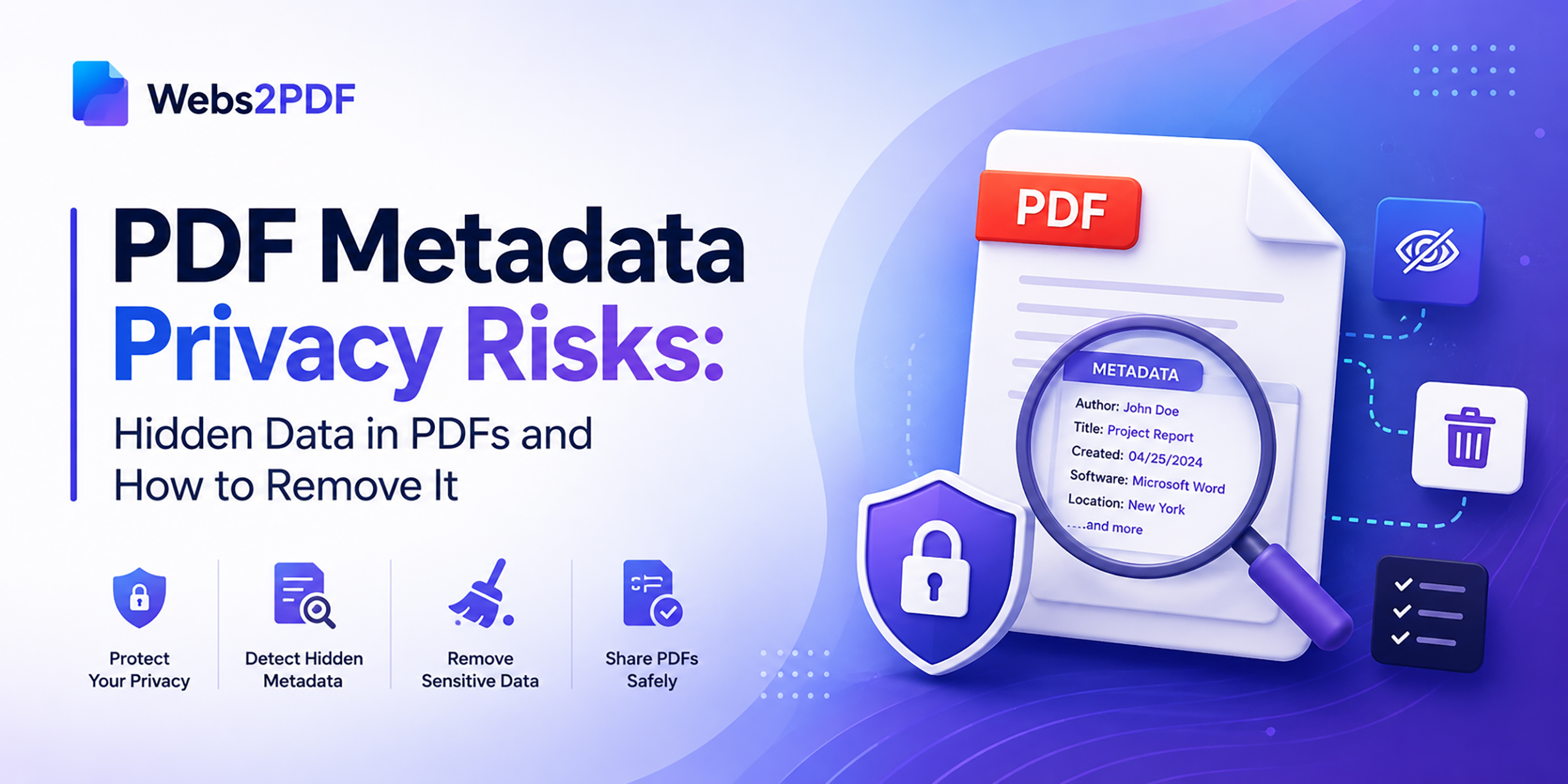
PDF Metadata Privacy Risks: Hidden Data in PDFs and How to Remove It

Concept image of PDF metadata exposing hidden author data and document history.

You spent two hours polishing a proposal. You removed the old client’s name from every page. You double-checked the pricing. You exported it as a PDF and hit send, confident it was clean.

What you did not check was the invisible layer underneath.

Your name. Your company. The software version you used. The exact date the document was first created was three months before this client ever came along. The fact that it was originally drafted by a colleague who no longer works at your firm. All of this information was sitting inside the PDF file, hidden from view, readable by anyone who knew where to look.

This is the reality of PDF metadata in 2026. Hidden data in PDF files is one of the most widespread and least understood privacy risks in modern professional life. This guide explains exactly what PDF metadata is, what it reveals, why it is dangerous, and most importantly, how to clean a PDF before sharing so you only send what you intend to.

What Is PDF Metadata? Data About Your Data

PDF metadata is structured information embedded inside a PDF file that describes the document itself. It is often called “data about data,” invisible to the reader, but present in every file and accessible to anyone who knows how to look for it.

This metadata lives in the file’s properties, not in the visible page content. It can be read, extracted, and analyzed using widely available tools, including free ones, in under a minute. You do not need any special technical knowledge to access someone else’s PDF metadata. Is it that straightforward?

Document metadata security is a growing professional concern. Research analyzing tens of thousands of public PDFs found that only a small fraction of organizations cleaned metadata before publishing. The gap between what people think they are sharing and what they are actually sharing is enormous.

What Information Is Stored in PDF Metadata?

Here is a complete breakdown of the document properties that PDF files commonly store, including several that will surprise even experienced professionals.

Metadata field What it contains Privacy risk level
Author The name of the person who created the document is often pulled automatically from the computer’s user account HIGH: exposes identity
Creator software The application and version used to create the file (e.g., Microsoft Word 16.0, Adobe InDesign 2025) MEDIUM: reveals software stack
Creation date The exact date and time the original document was first created HIGH: reveals timeline
Modification date When the document was last saved or edited MEDIUM: reveals recent activity
Producer The PDF conversion software used (e.g., Acrobat PDFMaker, Mac OS X Quartz) LOW: technical exposure
Title / Subject Document title and subject, as set in application properties, may contain internal project codenames HIGH: reveals internal names
Keywords Tags added during document creation, often including internal classification terms HIGH: reveals categorization
Company / Org Organisation name pulled from software registration or system settings MEDIUM: reveals affiliation
XMP metadata Extended metadata, including full edit history, contributor list, and rights information in XML format VERY HIGH: full history
Embedded comments Reviewer comments and tracked changes are hidden in the exported PDF, but still present in the file data VERY HIGH: reveals drafts
GPS coordinates Location data embedded by mobile scanners or apps when location services were enabled VERY HIGH: reveals location
Revision history How many times the document was saved and edited can reveal negotiation stages in contracts VERY HIGH: reveals strategy

Why PDF Metadata Is Dangerous: 6 Real Privacy Risks

Understanding the risks of sharing PDFs with metadata is not a theoretical exercise. These are real situations where hidden data in PDF files has caused documented harm.

Risk 1: Exposing the real author of a document

Author information in PDF files can directly contradict the intended presentation of a document. A law firm submitting a document supposedly drafted by the client may have actual authorship exposed in the metadata. A journalist submitting an anonymous document may have their identity embedded in the file properties. This single metadata field has ended careers and compromised sources.

Risk 2: Revealing negotiation strategy through revision history

Revision history and XMP metadata can expose how many times a contract was edited before sending. In a negotiation, this is revealing: the other party can see how many drafts you went through and how far you moved from your original position. A legal contract sent for signature could contain previous draft information in its metadata, giving the other side a full view of your negotiation strategy.

Risk 3: Personal data leakage from conversion artifacts

The most common PDF privacy breach involves conversion metadata. When you convert a Word document to PDF, all the original document’s metadata transfers over, plus additional conversion details. Your PDF might contain information from documents created months or years ago. An employee whose name is still in a template from a previous firm may find that name appearing in the metadata of every PDF your organization sends.

Risk 4: Hidden embedded files and sensitive content

PDF files can contain embedded attachments, images, spreadsheets, or other documents that are not visible when the PDF is opened normally. These embedded files carry their own metadata and may contain sensitive content that was never meant to leave your organization.

Risk 5: GPS coordinates from mobile-created PDFs

PDFs created or scanned on mobile devices with location services enabled can embed GPS coordinates in the file metadata. This is particularly dangerous for journalists, whistleblowers, and anyone whose physical location must remain private. A PDF scanned at a confidential meeting location can quietly broadcast that location in its metadata.

Risk 6: Competitive intelligence through aggregated metadata

Over time, collections of PDFs from an organization paint a detailed picture of its internal operations. By extracting metadata from multiple files, a competitor can identify key personnel, map internal software infrastructure, and track document workflow patterns. None of this is in the visible content; all of it is in the hidden metadata.

How to Check PDF Metadata in Your Files

Before you can clean PDF metadata, you need to know how to inspect it. Here are the most reliable ways to check hidden metadata in PDF files.

Method 1: Adobe Acrobat (most complete)

  1. Open the PDF in Adobe Acrobat Reader or Acrobat Pro.
  2. Go to File → Properties (or press Ctrl+D on Windows / Cmd+D on Mac).
  3. The Description tab shows core metadata: Title, Author, Subject, Keywords, Created, Modified, Application, and PDF Producer.
  4. Click Additional Metadata to see the full XMP metadata, including extended history and rights information.

Method 2: Browser developer tools (any browser, free)

  1. Open the PDF in Chrome or Firefox.
  2. Press F12 to open developer tools.
  3. Search the document source for metadata fields. Less complete than Acrobat, but requires no software.

Method 3: Free online PDF metadata viewer

Several free tools let you upload a PDF and view all its metadata fields in seconds. Search for “PDF metadata viewer online” to find current options. These are useful for a quick document inspection before any external sharing.

How to Remove Metadata from PDF Before Sharing

There are several effective methods to delete metadata from PDF files. Choose the right one based on how the PDF was created and how sensitive the content is.

Method 1: Convert via webs2pdf.com (clean output, no inherited metadata)

If your PDF was generated from a webpage, an invoice, a report, a Notion page, or a dashboard, converting directly from the source URL using webs2pdf.com produces a clean PDF with no inherited metadata from a Word or InDesign file.

Because webs2pdf.com renders the page fresh from the web and generates a new PDF, the output contains only standard generation metadata rather than accumulated author history, revision data, and embedded comments from a document editing workflow. For web-based documents, this is the simplest way to remove metadata from a PDF before sending.

  1. Open the source page in your browser.
  2. Copy the URL.
  3. Go to webs2pdf.com, paste the URL, and convert.
  4. Download the clean PDF, with no inherited document metadata from any previous editing history.

Method 2: Adobe Acrobat Pro: Sanitize Document

Adobe Acrobat Pro includes a Sanitize Document feature that removes all metadata, hidden layers, embedded content, and hidden data in one step.

  • Go to Tools → Redact → Sanitize Document.
  • Acrobat permanently removes all metadata, embedded content, scripts, and hidden data.
  • Save the sanitized version as a new file to preserve the original.

Method 3: Print to PDF (basic metadata removal)

Printing to PDF creates a new file that does not carry over the full metadata from the original. This removes most standard metadata fields but may not strip all XMP data. It is a useful, quick solution for low-sensitivity documents.

  • Open the PDF in any viewer.
  • Press Ctrl+P (Windows) or Cmd+P (Mac) and select Save as PDF.
  • The new PDF contains minimal metadata, primarily the new creation timestamp.

Method 4: Dedicated PDF metadata cleaner tools

Several free and paid PDF metadata cleaner tools are available online and as desktop software. These offer the most granular control over which fields to remove versus preserve. When choosing a tool, ensure it handles both standard document properties and XMP metadata, and consider whether it uploads your files to third-party servers if your content is sensitive.

Method Best for
webs2pdf.com conversion Web-based documents: invoices, dashboards, Notion pages, online reports
Acrobat Sanitize Document Maximum metadata removal from complex Word or InDesign PDFs
Print to PDF Quick basic cleanup of simple, low-sensitivity documents
Online metadata cleaner Users without Acrobat Pro who need deeper metadata removal
Dedicated desktop software Organizations processing large volumes of sensitive documents

Who Should Be Cleaning PDF Metadata?

PDF metadata security is not just a concern for large enterprises. Here are the professional groups for whom removing hidden data from PDF files is genuinely important.

  • Lawyers and legal professionals. Contracts, briefs, and discovery documents should never carry internal revision history or embedded comments. PDF anonymization is standard practice in careful legal departments.
  • Journalists and researchers. Source protection is non-negotiable. Any document shared in a sensitive investigation should be stripped of all metadata that could identify the author, device, or location.
  • Freelancers and agencies. Proposals built on templates from previous clients may carry those clients’ names or project details in metadata. Clean PDF before sharing to ensure every client receives a truly fresh document.
  • HR and recruiting teams. Job postings and offer letters shared externally may contain internal metadata revealing who drafted them, internal salary band discussions in revision history, or strategic software choices.
  • Regulatory and compliance submissions. Government filings and grant applications are analyzed in detail by recipients. Metadata can reveal authorship, advocacy relationships, or strategic considerations never meant to be public.
  • Whistleblowers and privacy-sensitive individuals. If your identity or location must remain protected, metadata removal is not optional. GPS coordinates, author names, and device information in metadata have directly compromised sources who believed they were anonymous.

PDF Metadata Security Checklist: Before You Send

  • Inspect the file first. Open Document Properties in Acrobat and check Author, Title, Subject, Creation date, and Additional Metadata before anything else.
  • Check for embedded comments. Use Acrobat’s Document Inspection to find hidden reviewer comments and tracked changes not visible in the rendered PDF.
  • Verify the creation date. If the creation date is earlier than expected, the file carries metadata from an older version. Clean it before sending.
  • Use a PDF metadata cleaner for sensitive documents. For legally, commercially, or personally sensitive PDFs, always run a dedicated metadata removal step.
  • For web-based documents, convert fresh via webs2pdf.com. This produces a clean PDF without inherited document metadata from any prior editing workflow.
  • Keep the cleaned file separate from your working copy. Always save the cleaned version as a new file and never overwrite your working original.
  • Verify the cleaned file opens correctly. After cleaning, confirm the PDF looks exactly as expected before sending. Metadata removal should not affect visible content.

Frequently Asked Questions

Does a PDF contain hidden personal data?

Yes. PDFs often include hidden metadata like author name, creation date, software used, and edit history. This data is not visible but can be extracted using tools.

How can I remove metadata from a PDF for free?

You can use browser print-to-PDF (Ctrl+P → Save as PDF) or online tools. For web pages, converting via webs2pdf.com helps generate cleaner PDFs with minimal metadata.

What is the difference between PDF metadata and content?

Content is what you see (text, images, layout). Metadata is hidden information, such as author details, timestamps, and editing history, stored within the file.

Can PDF metadata be used legally?

Yes. Metadata can be used as digital evidence to verify authorship, creation time, and document changes in legal or professional disputes.

Does webs2pdf.com remove PDF metadata?

Yes. It generates a fresh PDF from the web page, avoiding leftover document history, author data, and revision metadata from editing tools.

Conclusion

PDF metadata is invisible to the reader. That is precisely why it is so dangerous. You cannot see it. But your recipient can, and in the wrong context, what is hidden in your file properties can be far more damaging than anything on the page itself.

The habits that protect you are straightforward: check before you share, clean when the stakes are high, and when generating PDFs from web-based content, use a tool like webs2pdf.com that creates a fresh PDF without inheriting the accumulated metadata of your editing history.

Start with a free conversion at webs2pdf.com, the cleanest way to generate a PDF from any web page, invoice, dashboard, or online document without inherited metadata risks.

  • May 12, 2026

How to Save a Notion Page or Database as a PDF

Webs2PDF tool interface converting a Notion page into a PDF using a URL input field

Notion has become the workspace of choice for millions of knowledge workers, students, freelancers, and teams around the world. Project trackers, client wikis, research databases, OKR dashboards, meeting notes, product roadmaps, all of it lives in Notion, organized beautifully and accessible from anywhere.

Until someone who does not use Notion needs to see it.

That moment comes sooner or later for every Notion user. A client who wants the project brief as a document. A manager who needs the quarterly report in their inbox. A student is submitting research notes to a professor. A freelancer archiving a signed-off proposal. The destination is always the same: a PDF.

Unfortunately, getting a clean, complete PDF out of Notion is not as straightforward as it should be. Notion’s built-in export works fine for simple pages, but it has well-documented limitations for complex layouts, database views, and embedded content. This guide walks through all four methods, honestly, with the pros and cons of each, so you can choose the right one for your situation.

Why Notion Users Need PDF Exports

Notion is designed for collaboration inside a workspace. But the real world constantly requires you to share content with people outside it. Here are the most common reasons Notion users need PDF exports every day:

  • Sharing with non-Notion users. Not everyone has a Notion account. A PDF is universally readable on any device, without any login, app, or subscription required.
  • Client deliverables and proposals. Freelancers and agencies use Notion to build project briefs, proposals, and reports. These need to be delivered to clients as professional, polished documents.
  • Offline access and archiving. Notion requires an internet connection to view pages. A PDF works completely offline and can be stored permanently on any device or drive.
  • Version preservation. Notion pages get updated. A PDF snapshot captures exactly what a page contained at a specific moment, useful for approvals, audits, and records.
  • Printing. PDFs are the standard format for printing. Notion’s browser interface does not print cleanly; headers, sidebars, and navigation elements appear in the output.
  • Formal submissions. Academic submissions, regulatory filings, and formal proposals typically require PDF format with consistent, reliable formatting.

Method 1: Use Webs2PDF (Recommended Best Quality)

For most Notion users most of the time, webs2pdf.com produces the most complete and reliable PDF output. It renders the full Notion page as it actually appears in the browser, including database tables, embedded content, toggle lists, callout blocks, images, and all inline formatting.

When to use this method

  • You need a complete, faithful capture of any Notion page type
  • Your page contains databases, galleries, boards, or embedded media
  • You want a clean PDF without browser toolbars, Notion navigation, or export watermarks
  • You need the result in under 60 seconds with no software to install

Step by step

  1. Open your Notion page in a browser. Make sure all content is fully loaded, scroll through the page to trigger any lazy-loaded sections.
  2. If the page is private, click Share at the top right and enable Share to web or Copy link (anyone with the link). This gives the converter access to render the page.
  3. Copy the URL from your browser address bar.
  4. Go to webs2pdf.com and paste the URL into the converter field.
  5. Click Convert to PDF and wait a few seconds for the page to render.
  6. Download your PDF. If needed, you can revert your Notion share settings after downloading.

Pro tip: scroll before converting

Notion uses lazy loading; content like images and database rows may not fully render until you scroll past them. Before copying the URL and converting, scroll slowly through the entire page in your browser. This ensures all content has loaded and will be captured completely in the PDF.

Method 2: Notion’s Built-in Export (Simple Pages Only)

Notion has a native PDF export feature built directly into the interface. For simple text-based pages, meeting notes, plain documents, and basic task lists, it works well and requires no external tools.

How to use it

  1. Open the Notion page you want to export.
  2. Click the three-dot menu (•••) at the top right of the page.
  3. Select Export from the dropdown.
  4. In the format dropdown, choose PDF.
  5. Select your page size (Letter, A4, A3, Legal, or Tabloid) and adjust the scale percentage if needed.
  6. Click Export and choose where to save the file.

Important limitations of Notion’s built-in PDF export

Notion’s official documentation confirms that complex layouts may not retain their original structure in the exported PDF. Specifically: database views (board, gallery, timeline, calendar) often collapse or render incorrectly; nested blocks and toggle content may be cut off; embedded media, including videos and third-party embeds, do not export; and the export size limit is approximately 5.62 MB, which causes failures on large pages. For simple text pages, the built-in export is fine. For anything more complex, use Method 1.

Method 3: Browser Print to PDF (Free but Limited)

Every browser has a built-in Print to PDF feature accessible with Ctrl+P on Windows or Cmd+P on Mac. This is the most universally available method and requires nothing beyond the browser you already have.

How to use it

  1. Open your Notion page in Chrome, Firefox, Edge, or Safari.
  2. Press Ctrl+P (Windows) or Cmd+P (Mac) to open the print dialog.
  3. Under the Destination or Printer setting, select Save as PDF.
  4. Adjust margins and layout if needed, then click Save.

The key limitation: Notion’s official help documentation explicitly notes that you cannot print a full-page database using this method. The browser print function also includes Notion’s navigation sidebar and header in the output by default, which creates a cluttered, unprofessional document. For clean, complete PDFs of database-heavy pages, this method is not recommended.

Method 4: Chrome Extension

Several Chrome extensions are designed specifically for Notion-to-PDF export. These add a button directly inside the Notion interface and can automate parts of the export process.

To use this approach, search the Chrome Web Store for Notion to PDF and install your preferred extension. Once installed, it typically appears as a button in your Notion toolbar that triggers an export of the current page.

Best for: Power users who export Notion pages frequently and want a one-click solution without leaving the Notion interface. Extensions vary in quality and maintenance. Check recent reviews and update dates before installing, as some Notion extensions become outdated when Notion updates its interface.

Which Method Should You Use? Full Comparison

Feature Webs2PDF Notion export Browser print Chrome extension
Full-page capture ✓ Complete Partial (5.62MB limit) ✗ Viewport only Varies by tool
Database views ✓ All types ✗ Often collapsed ✗ Not supported Varies by tool
Embedded content ✓ Captured ✗ Not included ✗ Not captured Varies by tool
Toggle/nested blocks ✓ Fully shown May be cut off May be cut off Usually works
No Notion UI chrome ✓ Clean output ✓ Clean output ✗ Nav bar included ✓ Clean output
No login required ✓ Yes ✓ Notion account ✓ Yes ✓ Yes
Works on mobile ✓ Yes ✓ Limited ✓ Yes ✗ Desktop only
Setup required ✓ None ✓ None ✓ None Extension install

Common Use Cases: Notion to PDF in Practice

Project briefs and proposals

Freelancers and agencies frequently build project briefs, proposals, and scopes of work inside Notion. When it is time to share these with a client, a PDF is the professional standard. Webs2pdf.com renders the complete brief, including any embedded tables, images, or linked databases, in a polished, shareable format.

Student notes and research submissions

Students use Notion to organize research, lecture notes, and project outlines. Converting these to PDF is required for most academic submissions and for sharing with professors or group members who do not use Notion. A PDF from webs2pdf.com preserves all formatting exactly as it appears, including callout blocks, code snippets, and inline images.

Meeting notes and action items

Teams that run meetings inside Notion often need to share the notes with stakeholders outside the workspace, clients, board members, or external partners. A quick PDF conversion creates a clean, permanent record of the meeting without requiring recipients to have Notion access.

Knowledge base and wiki snapshots

For regulatory compliance, auditing, or simply preserving a snapshot of internal documentation at a specific point in time, converting a Notion wiki page to PDF creates a permanent, non-editable record. This is particularly valuable for compliance-sensitive industries where process documentation must be version-controlled.

Database and tracker reports

A Notion project tracker or CRM database is dynamic; it changes as tasks are updated and records are added. Converting a specific filtered database view to PDF creates a static report that captures the state of the data at a particular moment, useful for weekly reporting, end-of-sprint reviews, and client status updates.

Offline reading and travel

Notion requires an internet connection. For users who want to read their notes, research, or documentation on a plane, in a remote location, or simply without draining data, a PDF provides complete offline access with no app required.

Pro Tips for Better Notion PDFs

  • Use a simplified view for databases. Before converting a Notion database to PDF, apply a filter to show only the rows and columns you need. A focused, filtered view produces a cleaner, more readable PDF than a raw full database dump.
  • Expand all toggles before converting. Toggle lists in Notion collapse their content by default. Click to expand every toggle section before copying the URL and converting, so all content is visible and captured.
  • Use a wide browser window. Notion adapts its layout to the browser width. A wider window produces a more spacious, document-like layout in the PDF. Open your browser to full width before converting.
  • Archive immediately after updates. If you are saving a Notion page as a record, a signed brief, an approved proposal, or a delivered report, convert it to PDF the moment the version is finalized. Notion pages can be edited by anyone with access at any time.
  • Name PDF files with dates and context. A name like ProjectAlpha_Brief_2026-05-01.pdf is infinitely more useful than Untitled_export.pdf when you need to find a specific document three months later.
  • For private pages, revert sharing after export. If you temporarily set a page to public to enable the Webs 2 PDF conversion, remember to revert the sharing settings once you have downloaded your PDF.

Frequently Asked Questions

Can I export a private Notion page to PDF?

Yes, with one extra step. For private Notion pages, you need to temporarily enable sharing via link (Share → Share to web or Copy link) before using Webs to PDF. Once you have downloaded your PDF, you can revert the sharing settings. Alternatively, use Notion’s built-in export feature, which works for private pages without changing share settings.

Will my Notion database export as a full table in the PDF?

This depends on the method. Notion’s built-in export often collapses database views, and browser print does not support full-page databases at all (this is noted in Notion’s own help documentation). Webs2pdf.com renders the database as it appears in the browser, including the current view, filters, and visible rows, giving you the most complete output of the three methods.

Why does my Notion PDF look different from the page?

This is a common issue with browser print and Notion’s native export. Both methods struggle with responsive layouts, embedded content, and JavaScript-rendered elements. Webs2pdf.com fully renders the page before generating the PDF, which produces output much closer to what you see in the browser. If your PDF still looks different, try scrolling the full page to load all content before converting, and use a wider browser window to capture the full-width layout.

Can I export an entire Notion workspace to PDF?

Notion’s built-in export (Settings → Export all workspace content) supports exporting a full workspace, but the output is delivered as a ZIP file containing individual page files rather than a single merged PDF. For individual pages and databases, webs2pdf.com converts one page at a time. To create a combined PDF from multiple Notion pages, convert each page individually and use a PDF merge tool to combine them.

Does the PDF include embedded images from Notion?

Yes. Webs2pdf.com captures all images that are fully loaded on the page at the time of conversion. Notion’s built-in export also supports images, with an option to include or exclude files and images during the export process. Browser print may miss lazy-loaded images that have not yet appeared in the viewport, which is why scrolling through the full page first is important.

Conclusion:

Notion is a brilliant tool for building and organizing knowledge. Getting that knowledge out as a clean, complete PDF has always been its weak point, especially for database-heavy pages, embedded content, and complex layouts.

The four methods in this guide cover every situation, but for most users most of the time, the fastest and most reliable path is also the simplest: copy the Notion page URL and paste it into webs2pdf.com. No export menus, no size limits, no collapsed databases, no navigation chrome in the output.

Try it now at webs2pdf.com, convert your first Notion page to PDF in under 60 seconds, completely free.

  • May 7, 2026

How Freelancers Document Client Approvals (and Avoid Disputes) Using PDF Archives

How Freelancers Document Client Approvals Using PDF Archives

Freelance disputes rarely happen because of bad work; they happen because of missing or unclear documentation. A client says they never approved a design. A brief gets edited after the project starts. Feedback is scattered across emails, Slack, and shared docs. Without a clear record, proving what was agreed becomes difficult.

That’s why experienced freelancers focus on one thing: documenting client approvals properly. One of the most reliable ways to do this is to save client briefs, feedback, and emails as PDF files, creating a permanent, timestamped record that cannot be changed later.

In this guide, you’ll learn how freelancers document client approvals, avoid costly misunderstandings, and use simple tools to archive web pages as PDFs for records. By the end, you’ll have a clear system to protect your work, reduce disputes, and keep every project backed by solid proof.

Why Freelancers Lose Disputes They Should Win

Every experienced freelancer has been here. The project is delivered. The client is unhappy. And despite having done exactly what was discussed, there is no clear, single document they can point to that proves it.

The problem is rarely dishonesty; it is usually ambiguity. Briefs get updated in shared docs without anyone noting what changed. Feedback is scattered across three Slack threads, two email chains, and a WhatsApp message. Approvals are verbal or buried in a casual reply. And critically, the platforms where all this communication lives are outside the freelancer’s control; they can be edited, deleted, or revoked at any time.

  • Shared docs get edited silently. A Notion brief that says X today may have said Y three weeks ago when you started. You have no proof of the original version.
  • Link-based approvals expire. Figma preview links, Loom recordings, and shared Google Doc links can expire or be revoked. If the client later denies approving a design, your link is now useless.
  • Verbal approvals leave no trace. A quick “yes, looks good” on a video call is not documentation. Without a written record, it simply did not happen in any dispute.
  • Email threads get messy. Approvals buried in long email threads are hard to reference quickly and even harder to present as clear evidence in a dispute.
  • Platforms can disappear. The client’s project management tool, their shared Dropbox folder, and their company Slack, all of these can become inaccessible when a project ends or a relationship sours.

What Every Freelancer Should Archive as a PDF

Not every message needs to be archived; that would be overwhelming. What you need is a PDF record of every document that defines the scope, captures approval, or confirms a change to the original agreement.

Document type Why archive it When to do it
Project brief / creative brief Proves what scope and deliverables were agreed upon at the start Immediately at project kickoff
Client feedback on draft work Records exactly what changes were requested at each revision After every revision round
Approval confirmation Proves the client signed off on a specific version or stage The moment approval is received
Scope change request Documents any work added beyond the original brief When a new request arrives
Contract or proposal page Captures the terms as they existed at signing Before the project starts
Online form submission Preserves intake form data and stated requirements When the brief is submitted
Figma / design preview page Archives the design state at the time of approval When the client gives feedback
Project management page Captures task list, milestones, and status at key moments At project kickoff and close

How to Archive Client Documents as PDFs: Step by Step

The workflow is simple and takes under a minute per document. The key is consistency, doing it at the right moments, every time, for every project.

Archiving a Notion brief or shared doc

  1. Open the Notion page, Google Doc, or shared brief in your browser.
  2. Make sure the content is fully loaded and visible on screen.
  3. Copy the URL from the browser address bar.
  4. Go to webs2pdf.com, paste the URL, and click Convert to PDF.
  5. Download the PDF and save it to the project folder immediately. Name it clearly: ClientName_Brief_YYYY-MM-DD.pdf.

Why does this beat browser print?

Browser print-to-PDF often cuts off content, misses dynamically loaded sections, or adds unwanted browser headers and footers. Webs2pdf.com renders the complete page as it actually appears, including all embedded tables, images, and formatted content, giving you a faithful, professional record every time.

Archiving an email approval thread

  1. Open the email thread in your browser-based email client (Gmail, Outlook Web, etc.).
  2. Navigate to the specific email or thread that contains the approval.
  3. Copy the URL of that email or thread.
  4. Paste into webs2pdf.com and convert. The full email thread, including timestamps, sender names, and content, is captured.
  5. Save with a clear name: ClientName_Approval_ProjectPhase_YYYY-MM-DD.pdf.

Archiving Figma or design preview feedback

  1. Open the Figma file, InVision share, or design preview link.
  2. Navigate to the frame or view that shows the approved design along with any client comments.
  3. Copy the URL.
  4. Paste into webs2pdf.com. The rendered design view, including all visible comments and annotations, is captured as a PDF.
  5. Archive immediately. Do not wait for the link to potentially expire.

Archiving a scope change request

  1. When a client sends a new request via Slack, their project portal, or a web form, open it in the browser.
  2. Convert to PDF using webs2pdf.com immediately.
  3. Name the file: ClientName_ScopeChange_Description_YYYY-MM-DD.pdf.
  4. Reference this PDF in your reply to the client, confirming what you have logged as the change request.

Building a Filing System That Saves You in Disputes

A PDF archive is only useful if you can find the right document quickly when you need it. Here is a simple folder structure that experienced freelancers use to keep project records organized and retrievable.

Folder What goes in it
01: Brief Project brief PDF, intake form PDF, initial proposal PDF
02: Feedback One PDF per revision round capturing client feedback and comments
03: Approvals PDFs of every approval email, message, or confirmation
04: Scope Changes PDFs of every new request or change to the original agreement
05: Invoices Invoice PDFs and payment confirmation records
06: Final PDF of the final delivered work and sign-off confirmation

Keep this folder in a cloud storage location you control, your own Google Drive, Dropbox, or iCloud, not in a shared workspace that the client also has access to. When a project ends, compress the full folder and keep it for at least three years.

The File Naming Convention That Protects You

How you name your PDF archives is as important as creating them. A clear, consistent naming convention lets you find any document in seconds and immediately understand what it contains.

Recommended naming format

[ClientName]_[DocumentType]_[ProjectOrPhase]_[YYYY-MM-DD].pdfExamples:AcmeCo_Brief_WebsiteRedesign_2026-05-01.pdfAcmeCo_Approval_HomePageDesign_2026-05-14.pdfAcmeCo_ScopeChange_AddBlogSection_2026-05-19.pdf

This format ensures three things: you can sort by client, by document type, and by date. If a dispute arises six months after delivery, you can pull up every archived document for that client in chronological order within seconds.

When to Archive: Building the Habit

The biggest mistake freelancers make is planning to archive documents later. Later becomes never. The brief gets updated. The approval email gets buried. The Figma link expires.

Build the archiving habit into three specific moments in every project:

  • At kickoff. Archive the brief, proposal, and contract page the day the project starts. This is your baseline, the definitive record of what was agreed before any work began.
  • After every client touchpoint. Every time a client reviews work and gives feedback or approval, archive that record within 24 hours. Revision rounds, milestone approvals, change requests, all of them.
  • At project close. Archive the final approval or sign-off confirmation the day the project is delivered. This closes the loop and gives you a clean endpoint for the project record.

The 60-second rule

The entire process of archiving any web-based document, brief, email, Notion page, or Figma preview takes under 60 seconds using webs2pdf.com. Copy the URL. Paste it. Download. File it. If you do this three times per project at the right moments, you will never lose a dispute for lack of documentation again.

Real Scenarios Where PDF Archives Protect Freelancers

Scenario 1: “I never approved that design.”

A client claims they never approved the final homepage layout. You open your 03_Approvals folder and pull up the PDF of their email from two weeks ago. The subject line, the timestamp, their name, and the words “Yes, this looks great, please go ahead” are all there, rendered exactly as they appeared in Gmail. The dispute ends in minutes.

Scenario 2: “The brief said something different.”

A client insists the original brief specified a five-page website, not three pages. You open your 01_Brief folder and show them the PDF captured on project kickoff day. The scope section clearly states “three pages: Home, About, Contact.” The Notion page has since been edited, but your PDF preserved the original. You have proof. They do not.

Scenario 3: “We never asked for extra work.”

A client disputes a change order invoice, claiming they never asked for the additional feature. You open your 04_Scope_Changes folder and pull up the PDF of their Slack message from three weeks ago, captured via webs2pdf.com when the request first came in. The message, the timestamp, and their username are all preserved. The invoice gets paid.

Scenario 4: “Your revision was different from our feedback.”

A client claims your revision did not address their feedback correctly. You pull up the PDF from your 02_Feedback folder, capturing their exact comments on the previous draft. You can show point by point that every requested change was made. The conversation shifts from dispute to resolution.

Frequently Asked Questions

Can I archive a password-protected client portal as a PDF?

Webs2pdf.com converts publicly accessible web pages. For pages behind a login, the most reliable method is to use your browser’s built-in print-to-PDF from inside the authenticated session, or to take a screenshot of the relevant content for your records. For most freelance workflows, Notion briefs, Gmail threads, Figma previews with share links, and webs2pdf.com work directly without any login.

Is a PDF archive legally admissible as evidence in a payment dispute?

A PDF that accurately captures the content of a web page at a specific time can serve as supporting evidence in a dispute. Its weight depends on the circumstances, your jurisdiction, and the specific nature of the dispute. PDF archives are most powerful when combined with a consistent capture log (noting the date, source URL, and reason for capture). For formal legal proceedings, consult a lawyer about the best way to present digital evidence.

What if the client edits a Notion brief after I have archived it?

That is precisely the protection that PDF archiving provides. Once you have a PDF of the Notion brief as it existed at kickoff, any subsequent edits to the live Notion page do not affect your archive. If the client claims the brief always said something different, your PDF with its capture date proves otherwise. This is the single most valuable reason to archive briefs immediately at the start of every project.

Should I tell clients that I am archiving documents as PDFs?

This is a matter of professional judgment. Many freelancers treat PDF archiving as a standard internal record-keeping practice, no different from keeping a copy of a signed contract. Some include a brief note in their client onboarding process explaining that they maintain project records in PDF format. Transparency is generally a professional asset — clients who are operating in good faith will not be troubled by the fact that you keep organized records.

How long should I keep client PDF archives?

Best practice is to retain all project documentation for a minimum of two to three years after project completion. For larger projects or ongoing relationships, five years or more is common. Keep your archive in a cloud storage location you control, not in a shared workspace with the client, so you retain access regardless of how the relationship ends.

Conclusion

Freelancing is built on trust, but trust alone does not protect your income when a project goes sideways. Documentation does.

A consistent PDF archiving habit costs you less than three minutes per project phase and gives you ironclad protection against the most common and costly freelance disputes: scope creep, approval denials, and retroactive brief changes.

The platforms where your briefs, approvals, and feedback live are not under your control. Shared docs get edited. Links expire. Accounts get deactivated. A PDF saved to your own drive is permanent, portable, and always available, exactly when you need it most.

Start your archive with webs2pdf.com. The next time a client sends a brief, a piece of feedback, or an approval, convert it to PDF before you do anything else. It takes 60 seconds, and it could save you hours of dispute, thousands in lost fees, and the stress of having no proof when you need it most.

  • April 29, 2026

How to Save Notion, Power BI & Tableau Dashboards as PDF (Step-by-Step 2026)

How to save Notion Power BI and Tableau dashboards as PDF step by step

Your weekly marketing report is live in Notion. Your sales KPI dashboard is built and filtered exactly right in Power BI. Your operations data is perfectly visualised in Tableau. Now someone, your manager, a client, an investor, needs a copy they can read without a licence, without logging in, and without the data changing underneath them.

That is the moment almost every analyst and project manager hits the same wall: the built-in export tools are clunky, incomplete, or simply do not work the way you expect. Charts disappear. Filters reset. Scrollable sections get cut off. The final PDF looks nothing like the beautiful dashboard you built.

This guide solves that problem for the three most widely used dashboard tools in 2026, Notion, Power BI, and Tableau, and shows you the fastest, most reliable way to get a clean PDF out of all of them.

Why Built-in Export Tools Often Disappoint

Before looking at solutions, it helps to understand why saving a dashboard as a PDF is harder than it should be. Each platform has its own set of limitations.

Notion

Notion does not have a direct “Export to PDF” button for most page types. The built-in export option often produces inconsistent results, database views get collapsed, embedded content disappears, and page formatting shifts when rendered as a document. For database-heavy Notion pages, the exported PDF rarely matches what you see on screen.

Power BI

Power BI does offer a built-in “Export to PDF” option under the File menu, but it comes with several documented limitations. Custom visuals and certain extensions may not render correctly in the export. The output is also fixed to a page-by-page format, which can split charts awkwardly across pages. For reports with complex layouts, the native PDF is often not presentation-ready without manual cleanup.

Tableau

Tableau’s Print to PDF function works well for simple dashboards, but breaks down in common situations. Dashboards that contain scrollable worksheets only export the visible portion; data hidden below a scroll bar is simply not included in the PDF. Extension objects and certain dynamic elements may appear blank in the export output.

The common thread: All three platforms were designed around interactivity. Their export tools are an afterthought. When you need a static, complete, shareable document, a web-to-PDF tool that captures what is actually rendered on screen, exactly as you see it, will always outperform a built-in export function.

How to Save Each Dashboard Type as a PDF

Saving a Notion dashboard or page as a PDF

Notion pages, whether they are project trackers, OKR dashboards, meeting notes, or database views, are accessible via a unique URL. That URL is all you need.

Method 1: Using Webs2PDF (recommended)

  1. Open your Notion page and make sure it is set to public or shared with link access.
  2. Copy the URL from your browser address bar.
  3. Go to webs2pdf.com, paste the URL, and click Convert to PDF.
  4. Download your PDF. The full page, including database tables, embedded content, and images, is captured exactly as it appears.

Method 2: Notion’s built-in export

  1. Click the three-dot menu (…) at the top right of your Notion page.
  2. Select Export and then choose PDF as the format.
  3. Click Export and download the file.

Notion export limitation: The built-in Notion export tends to collapse database views, ignore embedded media, and produce inconsistent formatting on complex pages. For a faithful, complete capture of your Notion dashboard, webs2pdf.com is the more reliable option, particularly for board views, gallery views, and pages with embedded charts.

Saving a Power BI report or dashboard as a PDF

Power BI reports accessed via the browser (Power BI Service) have a shareable URL that can be passed directly to a web-to-PDF converter. This captures the full rendered report, including all visuals, without the layout and extension limitations of the built-in export.

Method 1: Using Webs2PDF (recommended for shared/published reports)

  1. Open your Power BI report in Power BI Service (the browser version at app.powerbi.com).
  2. Apply all filters and set the report to the exact view you want to capture.
  3. Copy the URL from your browser. For publicly published reports, paste this URL into webs2pdf.com and convert.
  4. Download the PDF. All visuals render in their current filtered state.

Method 2: Power BI built-in Export to PDF

  • In Power BI Service, open the report and click File from the top menu.
  • Select Export to PDF.
  • Power BI generates a PDF page for each report page and downloads the file.

Power BI export limitation: Power BI’s built-in export does not support all custom visual types. Visuals built with certain third-party extensions may render as blank boxes in the exported PDF. If your report uses custom visuals, always verify the output before sharing. Webs2PDF captures what is visually rendered in the browser, making it a reliable fallback for complex reports.

Saving a Tableau dashboard as a PDF

Tableau dashboards published to Tableau Cloud or Tableau Server are accessible via browser URL, making them ideal for web-to-PDF capture. For Tableau Desktop workbooks, the built-in Print to PDF option works well when the dashboard uses a fixed layout.

Method 1: Using Webs2PDF (recommended for Tableau Cloud / Server)

  • Open your Tableau dashboard in Tableau Cloud or Tableau Server via your browser.
  • Set all filters and parameters to the exact state you want captured.
  • Copy the URL from your browser address bar.
  • For publicly shared or embedded dashboards, paste the URL into webs2pdf.com and convert. The full rendered dashboard, including all charts, legends, and filter states, is captured as a clean PDF.

Method 2: Tableau built-in Print to PDF (Desktop)

  • Open the dashboard in Tableau Desktop.
  • Go to File > Print to PDF.
  • Set the paper size, orientation, and which sheets to include.
  • Click OK to save the PDF.

Tableau export limitation: Tableau’s Print to PDF only captures the visible portion of scrollable worksheets. If your dashboard includes a long data table with a scroll bar, the exported PDF will be cut off at the visible boundary. For dashboards with scrollable content, webs2pdf.com captures the full rendered page, including content that requires scrolling.

Built-in Export vs Webs2PDF: Full Comparison

Here is a side-by-side comparison of how the built-in export tools for each platform compare to using webs2pdf.com for PDF capture.

Feature Notion export Power BI / Tableau export Webs2PDF
Full page captured Partial Partial Complete
All charts rendered Often missing Some may be blank All rendered
Scrollable content included Collapsed Cut off Fully captured
Embedded media included Often missing Varies Included
Filter state preserved Sometimes Yes Yes
No software/licence required Notion login needed Tool login needed No login needed
Works for all platforms Notion only Tool-specific All platforms
Time to export 30–60 seconds 30–60 seconds Under 60 seconds

When a PDF Snapshot Is the Right Choice

Interactive dashboards are powerful for exploration. PDF snapshots are essential for communication. Here are the most common situations where a PDF of your dashboard is exactly what is needed.

  • Weekly and monthly reporting. A PDF snapshot of your KPI dashboard sent every Monday morning gives stakeholders a consistent, comparable view of performance over time. Unlike a live link, the PDF is a permanent record of that week’s numbers.
  • Board and investor presentations. Investors and board members do not always have access to your BI tools. A clean PDF of your dashboard lets them review key metrics in a format they can read on any device, annotate, and share with advisors.
  • Client reporting. Agencies, consultants, and account managers who build dashboards for clients need a way to deliver the output without giving clients access to internal tools. A PDF report is the professional standard.
  • Audit and compliance records. Regulatory and compliance requirements often mandate preserving data in a static, non-editable format. A timestamped PDF snapshot satisfies this requirement in a way that a live dashboard cannot.
  • Sharing with stakeholders who lack tool access. A Power BI report requires a Power BI licence to view. A Tableau dashboard requires Tableau Server access. A PDF requires nothing but a PDF reader, which every device already has.
  • Archiving historical states. Live dashboards update with new data. If you need to preserve what the numbers looked like at a specific point in time, end of quarter, close of a campaign, product launch day, a PDF snapshot is the only reliable way to do it.

Pro Tips for Better Dashboard PDFs

  • Set your filters before converting. A PDF captures the dashboard exactly as it appears at the moment of conversion. Apply all filters, date ranges, and selections before you paste the URL into webs2pdf.com.
  • Use a wide browser window. Dashboard layouts are often responsive. Open your browser to full width before capturing to ensure the dashboard renders in its desktop layout, not a narrower mobile or tablet view.
  • Scroll through the full page first. For pages with lazy-loaded content, charts, and images that only load when you scroll to them, scroll through the entire page in your browser before converting. This ensures all content has loaded.
  • Name PDF files with dates. Dashboard PDFs are most useful when you know exactly when they were captured. Use a naming convention like SalesKPIs_April2026_W4.pdf so you can find and compare snapshots over time.
  • Create a shared folder for recurring reports. If you produce the same dashboard PDF weekly or monthly, create a dedicated shared folder (Google Drive, Dropbox, or SharePoint) and upload each snapshot there. Stakeholders can browse the history without asking you for past versions.
  • For Tableau: use a fixed-size layout. If you build Tableau dashboards that will regularly be exported, design them with a fixed-size layout from the start. Fixed-size dashboards produce consistently sized PDFs with no layout shifts between exports.

Frequently Asked Questions

Can I save a private Notion page or Power BI report as a PDF?

Webs2pdf.com converts publicly accessible web pages. For private Notion pages, you can temporarily set the page to “Share with link” to generate a public URL, convert to PDF, and then revert to private. For internal Power BI reports and Tableau workbooks behind a corporate login, the built-in export tools are the appropriate method for those access-restricted environments.

Will interactive charts and filters be preserved in the PDF?

No, and that is by design. A PDF is a static document. What Webs2PDF captures is the current visual state of the dashboard at the moment of conversion, including whichever filters and selections are active. Interactivity is not preserved, but the visual output of those interactions is.

How do I save a Tableau dashboard that requires a login?

For Tableau dashboards published to Tableau Server or Tableau Cloud behind authentication, the most reliable method is the built-in “Download” option available from the toolbar in Tableau Cloud. For dashboards that can be embedded publicly, webs2pdf.com provides a cleaner, more complete output, particularly for dashboards with scrollable content.

Can I automate recurring dashboard PDF snapshots?

Yes. For teams that need dashboard PDFs on a regular schedule, weekly revenue reports, and monthly marketing dashboards, webs2pdf.com offers API access that can be integrated into automation tools like Zapier, Make, or n8n. This allows you to schedule automatic PDF generation and delivery without manual intervention.

What if my dashboard has multiple pages or tabs?

Webs2PDF captures the active view of the page at the time of conversion. For multi-page dashboards, you can convert each tab or page separately as individual PDFs and then combine them using a PDF merge tool. For Power BI, the built-in export does generate one PDF page per report page, which may be preferable for multi-page reports.

Conclusion

Notion, Power BI, and Tableau are exceptional tools for building and exploring data. Their built-in PDF exports are not. Collapsed databases, missing charts, cut-off scroll sections, and broken formatting are frustrations that cost analysts time and embarrass teams in front of stakeholders.

The solution is simple: capture the dashboard as it actually appears in the browser. Webs2pdf.com does exactly that, rendering the complete, live page and converting it to a clean, professional PDF in under 60 seconds, with no software to install, no login required, and no formatting surprises.

Try it now at webs2pdf.com. Paste any Notion, Power BI, or Tableau URL and download your first dashboard PDF for free.

  • April 22, 2026

How Paralegals Use Web-to-PDF Archiving to Build Evidence Files

Learn how paralegals use web-to-PDF archiving to preserve online evidence. Replace screenshots with reliable, timestamped PDFs for court-ready cases.

A critical piece of evidence in a personal injury case is buried inside a defendant company’s website. A social media post proving defamation is live right now, but could be deleted by tomorrow. A news article documenting a fraudulent business practice exists today, but that website might go offline next week.

For paralegals and legal assistants, the challenge is not just finding this online evidence. It is preserving it in a format that is complete, reliable, and ready for case files. A link shared in a team chat can expire. A browser bookmark disappears when a site goes down. A screenshot may be challenged for authenticity in court.

That is why more and more legal professionals are turning to web-to-PDF archiving as their standard method for capturing and preserving online evidence. In this guide, we walk through exactly how paralegals use PDF archiving in their daily workflow, from the first stages of case research all the way through to trial preparation.

Why Screenshots Are Not Enough for Legal Evidence

Many paralegals start by taking screenshots of web pages. It is fast, free, and feels straightforward. But screenshots have serious weaknesses when it comes to building a legal evidence file.

  • Partial capture only. A screenshot captures what is visible on screen at that moment. A long web page, a collapsed section, or content that loads dynamically may not appear. A PDF rendered by a proper tool captures the full page.
  • No metadata. A screenshot file stores minimal information about when and how it was captured. A PDF generated from a web page can retain the source URL, rendering timestamp, and page structure, details that help authenticate the document.
  • Easy to challenge. Screenshots can be edited in seconds with widely available tools. Courts and opposing counsel are increasingly skeptical of screenshots as standalone evidence. A complete, rendered PDF is harder to credibly dispute.
  • Format fragility. Image files degrade, get compressed, or lose quality when shared via email or messaging apps. PDFs maintain their fidelity regardless of how many times they are forwarded or printed.
  • No text search. A screenshot is an image. A PDF preserves selectable, searchable text from the original page, which is invaluable when attorneys need to highlight specific passages or run keyword searches across a case file.

How Paralegals Build Evidence Files Using Web-to-PDF

Here is a step-by-step look at how legal professionals integrate web-to-PDF archiving into real casework.

Step 1: Identify online sources during case research

Early in a case, paralegals often conduct broad research across news archives, social media platforms, corporate websites, court databases, government portals, and public records. Any page that contains information relevant to the case becomes a candidate for archiving.

Common sources paralegals archive include: corporate “About Us” and product pages, social media profiles and posts, news articles, press releases, government agency pages, online forum posts and review sites, and competitor or third-party websites referenced in contracts or disputes.

Step 2: Convert each source to PDF immediately

This is the critical step. The moment a relevant page is identified, it should be archived, not bookmarked, not screenshotted, not noted for later. Websites change constantly. Pages go offline. Companies quietly update their terms, product descriptions, or statements. The version that exists today may not exist tomorrow.

Using a web-to-PDF tool like webs2pdf.com, the process takes under a minute per page:

  1. Copy the URL of the relevant page from the browser address bar.
  2. Paste it into webs2pdf.com and click Convert to PDF.
  3. Download the PDF. The full page, including all text, images, and visible metadata, is captured.
  4. Immediately rename the file with a clear naming convention (see tips below) and save it to the case folder.

Step 3: Document the capture in a log

A PDF alone is not a complete evidence record. For each archived page, paralegals should maintain a simple capture log that records: the full URL of the page, the date and time the PDF was generated, the name of the person who captured it, and a brief note on its relevance to the case. This log becomes part of the chain of custody documentation and is essential if the archive is ever challenged.

Step 4: Organise by case folder and Bates number if required

In larger matters, particularly litigation and discovery, evidence documents are typically assigned Bates numbers for organised reference. Web-archive PDFs should be treated the same as any other documentary evidence: filed systematically, named consistently, and indexed in the case management system.

Step 5: Flag archived PDFs for attorney review

Once the initial archive sweep is complete, the supervising attorney reviews the collected PDFs to determine relevance, privilege, and potential admissibility. The paralegal’s job is to ensure the archive is complete and well-documented so the attorney can make those judgements efficiently.

Web-to-PDF Evidence Archiving by Practice Area

The need for web evidence archiving spans virtually every area of law. Here is how different practice areas use it.

Practice area Common web sources archived Why PDF archiving matters
Personal injury Company safety records, product pages, and regulatory violations Preserves evidence of negligence that companies may remove after the incident
Employment law Job postings, company policy pages, employee review sites Documents working conditions, promises made, and discriminatory patterns
Defamation Social media posts, news articles, blog content Creates a timestamped record before deletion or editing by the defendant
Contract disputes Website terms, pricing pages, product/service descriptions Proves what was represented at the time a contract was entered into
IP and trademark Competitor sites, product listings, marketing materials Documents infringing use at a specific point in time
Family law Social media profiles, online activity, business websites Captures lifestyle evidence relevant to asset claims or custody matters
Consumer protection Advertising claims, product listings, pricing representations Preserves misleading claims before they are corrected or removed
Criminal defense News coverage, social media, public records Documents potentially prejudicial content or contradictory public statements

Best Practices for Legal Web Archiving

  • Archive immediately, not later. The single most important habit. If a page matters to the case, save it as a PDF right now. Do not wait until the end of the day, the end of the week, or “when there’s time.” Online content can change or disappear within hours.
  • Use a consistent file naming convention. A clear, searchable naming structure prevents chaos in large case files. A useful format: CaseCode_Source_YYYY-MM-DD.pdf, for example: SmithvAcme_AcmeProductPage_2026-04-14.pdf.
  • Always record the source URL in your capture log. The PDF itself preserves the page content, but your log should record the exact URL. If the page is later removed, the URL is still part of the paper trail.
  • Capture the full page, not just the visible area. Webs2pdf.com renders the complete page before generating the PDF, including content that requires scrolling. Partial captures that miss content below the fold can create gaps in the evidence record.
  • Note the time zone when recording capture dates. Time zone discrepancies can become relevant, particularly in cases involving events with a specific timeline. Always record capture times in a consistent, documented time zone.
  • Store archives in your case management system, not on local drives. A PDF saved only on a paralegal’s laptop is vulnerable to hardware failure, accidental deletion, and access issues. Store all archived PDFs in the firm’s case management or document management system immediately after capture.
  • Do not alter the PDF after capture. Any post-capture modification, even adding a highlight or annotation, can be grounds for a challenge to authenticity. If annotation is needed for attorney review, work on a copy and preserve the original unmodified archive.

What Webs2PDF Captures That Simple Tools Miss

Not all PDF conversion tools are equal. For legal evidence purposes, the completeness and fidelity of the captured document matter enormously. Here is how webs2pdf.com compares to simpler methods for legal evidence work.

Feature Webs2PDF vs browser print/screenshot
Full-page capture Webs2PDF renders the complete page. Browser print may truncate content. Screenshots are limited to the visible viewport.
Images and media included Webs2PDF renders all images fully loaded. Browser print and screenshots frequently miss lazy-loaded images.
Searchable text preserved Webs2PDF produces text-layer PDFs. Screenshots produce image-only files with no searchable or selectable text.
Source URL in output The conversion captures the full source URL as part of the document context. Screenshots have no built-in source reference.
Dynamic content rendered Webs2pdf.com fully renders JavaScript-driven content before conversion. Browser print often misses dynamically loaded sections.
Consistent output format PDF output is standardised and reproducible. Screenshots vary by device, screen resolution, and zoom level.
No browser toolbar in output Webs2PDF produces a clean document. Browser print-to-PDF includes headers, footers, and print date by default.
Works from any device Webs2PDF works from any browser on desktop or mobile. Screenshot quality varies significantly across devices.

Frequently Asked Questions

Are PDF archives of web pages admissible as evidence in court?

The admissibility of any digital evidence depends on jurisdiction, the specific case circumstances, and how well the evidence is authenticated. Under Federal Rule of Evidence 901, digital evidence, including web page archives, must be shown to be what it purports to be. A complete, unaltered PDF with a documented capture date, source URL, and clear chain of custody log provides a strong foundation for authentication. Always consult with the supervising attorney on the admissibility strategy for specific evidence.

What should I include in a capture log for web evidence?

At minimum, your capture log should record: the full URL of the page, the date and time of capture (including time zone), the name of the person who created the archive, the tool used to generate the PDF, and a brief note on the relevance of the page to the matter. This log should be stored alongside the PDF archives in the case file.

Can I archive social media pages as PDF evidence?

Yes. Webs2pdf.com can convert any publicly accessible web page to PDF, including public social media profiles, posts, and pages. For private or login-required social media content, web-based converters cannot access the content, and alternative capture methods may be needed. Always consult the supervising attorney before attempting to access any non-public content.

How do I handle a web page that changes after I archive it?

This is exactly why early and immediate archiving is so important. If a page changes after your initial capture, archive the new version as well and note the change in your capture log with both dates. The difference between the two archived versions can itself become relevant evidence of a deliberate modification.

Does webs2pdf.com work with government and court portal websites?

Webs2pdf.com works with any publicly accessible web page, including most government and court portal websites. Some court portals require login credentials to access case documents, in which case the publicly visible portions can still be archived. For login-protected content, consult with your firm’s IT team or a legal technology specialist.

Conclusion

Online evidence has become a central part of modern litigation across nearly every area of law. Social media posts, corporate web pages, news articles, regulatory filings, product listings, the web is full of material that can make or break a case.

The paralegals who serve their legal teams best are the ones who capture this evidence immediately, completely, and in a format that is reliable, searchable, and defensible. A web-to-PDF archive created the moment a relevant page is found is infinitely more valuable than a broken link or a blurry screenshot produced weeks later.

Webs2pdf.com makes that process fast, simple, and consistent, no technical expertise required, no software to install, and no account needed to get started. Visit webs2pdf.com and convert your first page in under 60 seconds.

Recent Posts
How to save a Perplexity AI answer or research thread as a PDF using built-in export, Webs2PDF, browser print, and browser extensions.

How to Save a Perplexity AI Answer or Research Thread as a PDF

September 10, 2026
Illustration showing the Wayback Machine archive gaps and a web page being saved as a PDF for permanent online content preservation.

Why the Wayback Machine Can’t Save Everything (And What to Do Instead)

July 28, 2026
Guide showing how to save a Google Maps business listing or location page as a PDF using Webs2PDF for offline access and documentation.

How to Save a Google Maps Business Listing or Location Page as a PDF

July 21, 2026
Save Amazon and e-commerce product listings as a PDF with prices, images, and specifications

How to Save an Amazon or E-Commerce Product Listing as a PDF

July 15, 2026
Convert a webpage to PDF without ads, sidebars, headers, or browser clutter

How to Convert a Webpage to PDF Without Ads and Clutter

July 7, 2026
Blog Categories
Website to PDF
Subscribe

Stay Updated with Webs2PDF

Join our newsletter and never miss a tip.

Next Up on Webs2pdf Blog

How to save a Perplexity AI answer or research thread as a PDF using built-in export, Webs2PDF, browser print, and browser extensions.
How to Save a Perplexity AI Answer or Research Thread as a PDF
  • September 10, 2026
Illustration showing the Wayback Machine archive gaps and a web page being saved as a PDF for permanent online content preservation.
Why the Wayback Machine Can’t Save Everything (And What to Do Instead)
  • July 28, 2026
Guide showing how to save a Google Maps business listing or location page as a PDF using Webs2PDF for offline access and documentation.
How to Save a Google Maps Business Listing or Location Page as a PDF
  • July 21, 2026
Save Amazon and e-commerce product listings as a PDF with prices, images, and specifications
How to Save an Amazon or E-Commerce Product Listing as a PDF
  • July 15, 2026
Convert a webpage to PDF without ads, sidebars, headers, or browser clutter
How to Convert a Webpage to PDF Without Ads and Clutter
  • July 7, 2026
Guide showing how to save Reddit threads, posts, and comments as PDF files for offline reading and archiving.
How to Save a Reddit Thread or Post as a PDF
  • June 30, 2026
Follow Us
Pinterest-p Reddit-alien Github
  • About
  • Benefits
  • Reviews
  • Pricing
  • FAQ
  • Blog
  • Contact

Copyright © 2026 webs2pdf.com All rights reserved.

  • Privacy Policy
  • Cookie Policy
  • Terms of Use
  • Refund Policy
Webs 2 PDF Logo

Transforming Web Content into Portable, Professional Documents

Tick
  • Home
  • Benefits
  • Reviews
  • Pricing
  • FAQs
  • Blog
  • Contact
  • Home
  • Benefits
  • Reviews
  • Pricing
  • FAQs
  • Blog
  • Contact
SIGN IN