
Skip to content
Webs 2 PDF Logo
  • Home
  • Benefits
  • Reviews
  • Pricing
  • FAQs
  • Blog
  • Contact
  • Home
  • Benefits
  • Reviews
  • Pricing
  • FAQs
  • Blog
  • Contact
sign in

Author: Mamoon Rashid

  • April 16, 2026

How Real Estate Agents Save Property Listings as PDF Brochures

Step-by-step guide to saving property listings as PDF brochures for real estate agents

The spring property market is the busiest time of year for real estate agents. Open houses fill up, listings go live daily, and buyers want information, fast. In this environment, the agents who win are the ones who can get polished, professional property information into a client’s hands before anyone else does.

That is why more and more real estate professionals, from solo agents to large brokerages, are converting online property listings directly into PDF brochures. Instead of printing expensive glossy leaflets or relying on clients to visit an online portal, they send a clean, branded, shareable PDF that clients can read on any device, print at home, or forward to family members, helping with a purchase decision.

In this guide, you will learn exactly how agents save listings from platforms like Zillow, Realtor.com, and Zameen.com as professional PDF brochures, and why webs2pdf.com has become the go-to tool for doing it in under a minute.

Why Real Estate Agents Need Property Listing PDFs

Before diving into the how, it is worth understanding why PDF has become the format of choice for property marketing, and why relying only on online listing links is costing agents deals.

  • Links expire or change: Online listings get updated, repriced, or removed. A PDF is a permanent snapshot of the listing at a given moment, ideal for presentations, negotiation records, and client follow-up.
  • Clients want offline access: Buyers discuss properties at the dinner table, on planes, and in areas with poor signal. A PDF works anywhere, anytime, without internet.
  • Sharing is instant: A PDF can be attached to an email, sent via WhatsApp, or uploaded to a shared folder in seconds. A Zillow link requires the recipient to have the app and an internet connection.
  • Professional presentation: A PDF brochure looks far more polished than a screenshot or a forwarded URL. It signals that the agent is organised, professional, and detail-oriented.
  • Listings go offline: When a property sells, its listing page is usually removed. A PDF archive means agents keep a permanent record of every listing they have ever worked with.

Agent insight: Sending a PDF brochure instead of a raw link gets dramatically higher engagement. Clients open PDFs, share them with their spouse, print them, and bring them to viewings. A link gets ignored, bookmarked, and forgotten.

Also Read: How to save web pages as high-quality PDFs


How to Convert a Property Listing to PDF: Step by Step

There are several ways to turn a property listing into a PDF. Here is a breakdown of the most common methods, from the simplest to the more advanced.

Method 1: Use Webs2PDF (Recommended – Under 60 Seconds)

Webs2PDF is designed exactly for this use case. It captures the full property listing page, including photos, descriptions, prices, property details, and other visible content, and converts it into a clean, high-resolution PDF that is ready to share. You can convert a property listing to PDF in seconds without manually formatting the page.

  1. Find the property listing on Zillow, Realtor.com, Zameen.com, or any other portal.
  2. Copy the full listing URL from your browser address bar.
  3. Open webs2pdf.com and paste the URL into the converter.
  4. Click Convert to PDF.
  5. Download your PDF. Done. The whole process takes under a minute.

Why Webs2PDF works better than browser print: Browser print-to-PDF often misses images, cuts off content, or creates messy formatting with browser headers and footers in the output. Webs2PDF renders the full page exactly as it appears online, including all property photos, maps, and detailed specifications, giving you a clean, professional brochure every time.

Method 2: Browser Print to PDF

Every browser has a built-in Print to PDF option. While this is free and requires no extra tools, it comes with significant drawbacks for real estate listings.

  • Press Ctrl+P (Windows) or Cmd+P (Mac) on the listing page.
  • Select Save as PDF as the destination.
  • Adjust page settings if needed and save.

The problem: Listing pages from Zillow or Realtor.com are complex, JavaScript-heavy pages. Browser print often fails to load all images, truncates the property description, or includes unwanted browser chrome elements like the URL bar and print date. The result is an unprofessional document that does not represent the property well.

Method 3: Screenshot and Combine

Some agents take scrolling screenshots and combine them into a PDF using an image editor. This is time-consuming, produces lower image quality, and results in large file sizes. For a busy agent managing multiple listings, this is simply not a scalable approach.

Ready to turn a property listing into a professional PDF brochure?

Use Webs2PDF to convert a Zillow, Realtor.com, Zameen.com, or other public property listing into a shareable PDF in under 60 seconds.

Convert Property Listing to PDF

Which Listing Portals Work with Webs2PDF?

Webs2PDF works with any publicly accessible web page, which means it supports virtually every major property portal in the world. Here are the most commonly used platforms real estate professionals convert to PDF:

Platform Region Works with Webs2PDF
Zillow USA Full page capture
Realtor.com USA Full page capture
Redfin USA Full page capture
Rightmove UK Full page capture
Zoopla UK Full page capture
Zameen.com Pakistan Full page capture
Domain.com.au Australia Full page capture
99.co Singapore / SEA Full page capture
Any MLS page Global Full page capture

Real-World Ways Agents Use Property Listing PDFs

1. Client presentation packets

Before a buyer meeting, agents compile a shortlist of 5 to 10 properties. Converting each listing to PDF and combining them into a single packet gives clients a professional, printable document they can review, annotate, and bring to property viewings.

2. Open house handouts

Instead of expensive printed brochures, agents save the listing as a PDF and print copies at home or at a copy shop on demand. The PDF includes all the listing photos, square footage, room details, and asking price, everything a buyer needs.

3. WhatsApp and email sharing

When a buyer asks about a property, sending them a PDF via WhatsApp or email is far more effective than a link. The PDF opens instantly, loads all images, and can be shared further with family and advisors, without requiring the recipient to have a real estate app installed.

4. Archiving sold properties

Once a property sells, its online listing disappears. Agents who save a PDF before closing have a permanent record they can use for comparable market analysis, testimonials, and portfolio building.

5. Seller presentation documents

Listing agents use PDFs of comparable properties, comps, to show sellers how their property is priced relative to the market. Pulling three to five comparable listing PDFs from Zillow or Realtor.com makes for a compelling, data-rich listing presentation.

6. Offline use at property viewings

At a property viewing, agents pull up the listing PDF on their tablet to walk buyers through specifications without relying on a potentially poor internet connection at the property. Every detail is available offline, instantly.

Also Read: Why professionals save invoices and reports as PDFs

Pro Tips for Better Property Listing PDFs

  • Save immediately when a listing goes live. The best listings go under offer quickly. Save a PDF the moment you find a property your client will love, before the listing updates or disappears.
  • Use a clear naming convention. Save files as ‘123_Main_St_Listing_April2026.pdf’ so you can find them quickly in a folder of dozens of listings.
  • Create a listing folder per client. Keep a shared folder (Google Drive, Dropbox) per client. Upload listing PDFs there so clients can access the shortlist at any time.
  • Scroll the full page before converting. On listing portals, some content (like additional photos or floor plans) only loads after scrolling. Make sure the full page has loaded before converting for the most complete PDF.
  • Convert the print-friendly version when available. Some portals like Rightmove offer a print version of the listing. Converting that URL gives an even cleaner PDF with less advertising and navigation clutter.

PDF Brochure vs. Sharing a Listing Link: Which Is Better?

Factor PDF Brochure (via Webs2PDF) Raw Listing Link
Works offline Yes, always accessible Requires internet
Survives listing removal Yes, permanent record The page goes offline after the sale
Professional appearance Clean, branded document Portal branding, ads included
Easy to print Print-ready format Browser formatting issues
Works on all devices Universal PDF format May need the app installed
Shareable via email/WhatsApp Attach and send Link may not preview correctly
Contains all photos Full page rendered Images may not load in print
Time to create Under 60 seconds Instant (just copy URL)

Also Read: Creative uses of web-to-PDF you have not thought of yet

Frequently Asked Questions

Can I save a Zillow or Zameen.com listing as a PDF?

Yes. Webs2PDF works with any public listing page on Zillow, Realtor.com, Zameen.com, Rightmove, or any other property portal. Simply copy the listing URL and paste it into webs2pdf.com.

Will the property photos be included in the PDF?

Yes. Webs2PDF renders the complete listing page, including all property images, floor plan images, map sections, and property details. This is one of the key advantages over a browser print-to-PDF, which often misses images or cuts them off.

Is this free?

Webs2PDF offers free conversions so you can try it immediately without signing up. Visit webs2pdf.com to get started.

Can I save multiple listings at once?

You can convert listings one at a time through the web interface. For agents who need to process large volumes of listings regularly, webs2pdf.com also offers API access for bulk and automated conversions.

What if the listing page has a lot of interactive elements?

Webs2PDF is built to handle complex, JavaScript-heavy listing pages. It fully renders the page before generating the PDF, so interactive elements like photo galleries and map views are captured in their expanded state.

Conclusion

In a competitive property market, the agents who close deals are the ones who communicate best. A clean, professional PDF brochure, created in under a minute from any listing page, is one of the simplest ways to stand out, serve clients better, and build a more organised business.

You do not need a graphic designer, a Canva subscription, or an expensive brochure printing service. You need a listing URL and webs2pdf.com.

Copy the URL. Paste it. Download the PDF. Send it. That is it.

Ready to create your property listing PDF? Try Webs2PDF, paste your listing URL, and convert it into a professional PDF brochure in under 60 seconds, completely free.
  • April 8, 2026

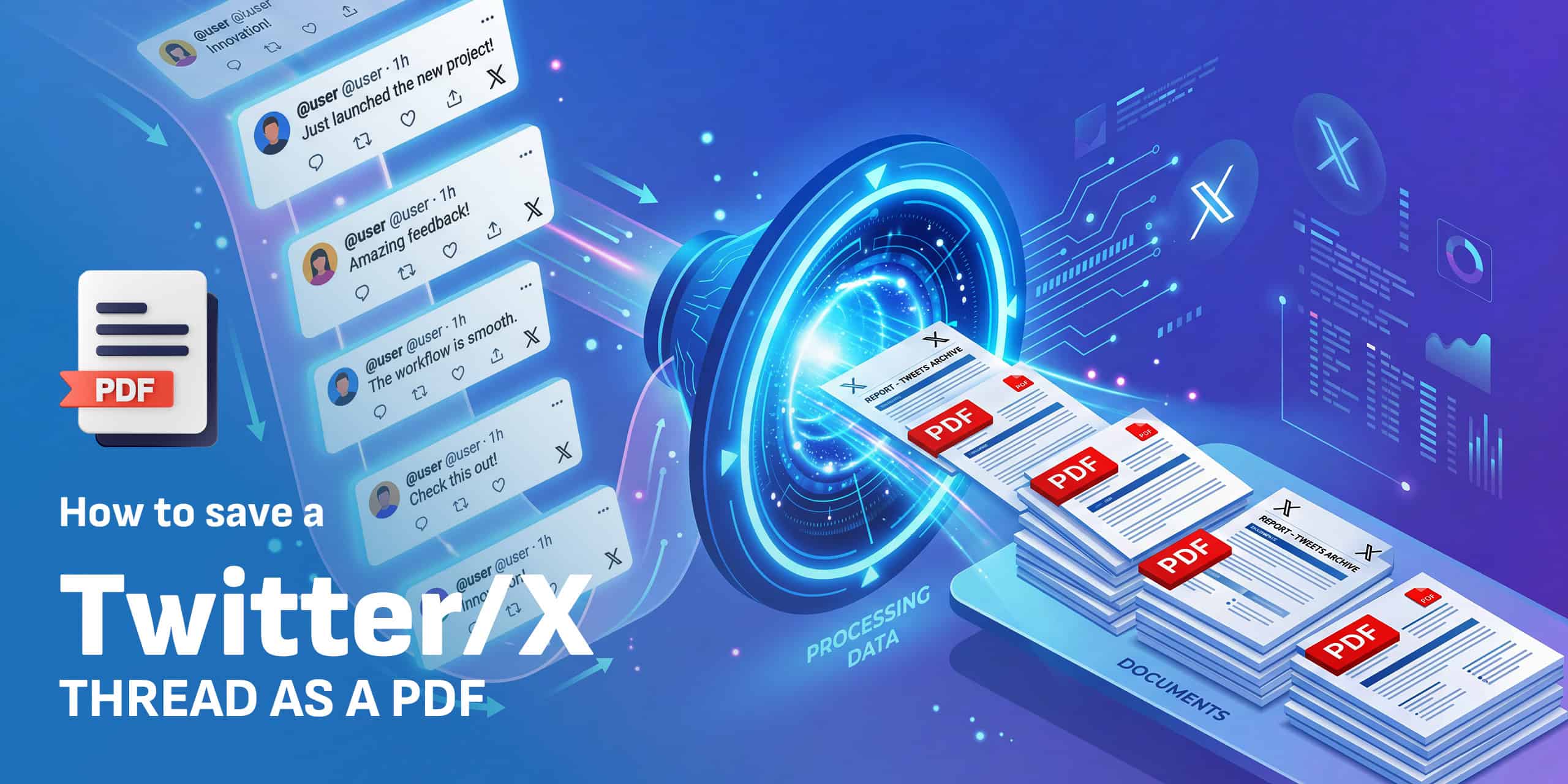
How to Save a Twitter/X Thread as a PDF

How to save a Twitter/X thread as a PDF using Webs2PDF and other methods

Some of the most valuable knowledge on the internet today is not in blog posts or books. It is in Twitter threads. Founders share startup secrets in threads. Doctors explain medical research. Investors break down strategies. Developers teach entire programming concepts in 20 tweets.

But there is one big problem: threads disappear. Accounts get suspended. Tweets get deleted. A thread you bookmarked today might be gone tomorrow. That is why thousands of professionals now save Twitter/X threads as PDFs, to keep a permanent, offline copy they can read anytime.

In this guide, you will learn four easy methods to save any Twitter or X thread as a clean, complete PDF in 2026, including the fastest method that takes less than 30 seconds.

Why People Save Twitter Threads as PDFs

Before we get into the how, it is worth understanding why PDF is the format of choice for saving threads, not screenshots, not bookmarks, not copy-paste.

  • Threads get deleted: Accounts get suspended, or users delete their own threads. A PDF gives you a permanent copy that will never disappear.
  • Bookmarks are unreliable: Twitter’s native bookmarks only work as long as the account and the tweet exist. PDFs work forever, even offline.
  • PDFs are professional and shareable: Sending a clean PDF to a client or colleague looks far more professional than a Twitter link.
  • Offline reading: You can read a saved PDF on a plane, in a meeting, or anywhere without internet access.
  • Build a personal knowledge library: Researchers, marketers, and students use saved threads to build a swipe file of proven ideas and insights.

Method 1: Use Webs2PDF (Fastest – Recommended)

This is the easiest and most reliable method. Webs2PDF converts any public web page, including Twitter/X thread pages, into a clean, high-quality PDF with a single click. You can save a Twitter/X thread as a PDF while preserving the thread content, images, timestamps, and other visible page elements.

Step-by-step:

  1. Open Twitter or X and find the thread you want to save.
  2. Click on the first tweet of the thread to open it fully.
  3. Copy the URL from your browser address bar. It will look like: https://x.com/username/status/123456789
  4. Go to webs2pdf.com and paste the URL into the converter box.
  5. Click Convert to PDF.
  6. Download your PDF. The entire thread is captured as a clean, readable document.

Ready to save your Twitter/X thread?

Use Webs2PDF to convert the thread into a clean PDF in seconds, no installation or extension required.

Why Webs2PDF works best

Unlike browser print-to-PDF, which only captures what is visible on screen, Webs2PDF renders the full page, including all tweets in the thread, images, and timestamps. You get a complete document, not a partial screenshot.

Save Twitter/X Thread as PDF

Read Also: Web to PDF for Teams

Method 2: Use a Thread Unroller Tool

Thread unroller tools are specifically designed for this purpose. They take a Twitter thread URL, unroll all the tweets into one clean page, and then let you export as a PDF.

Popular thread unroller tools include Thread Reader App, Xunroll, and UnrollNow. Here is how to use them:

  1. Copy the URL of the first tweet in the thread.
  2. Go to a thread unroller website and paste the URL.
  3. The tool will fetch and display all tweets in the thread on one clean page.
  4. Use your browser’s built-in Print to PDF function (Ctrl+P or Cmd+P) to save the page as a PDF.
Tool Best for PDF export
Webs2PDF Full page capture, images included Direct PDF download
Thread Reader App Quick reading, no account needed Via browser print
Xunroll No login required, fast Direct PDF download
UnrollNow Clean format, audio option Via browser print

Method 3: Browser Print to PDF (Free but Limited)

Every browser has a built-in Print to PDF feature. While this method is free and requires no extra tools, it comes with some important limitations.

How to do it:

  1. Open the Twitter/X thread in your browser.
  2. Scroll through the entire thread to make sure all tweets have loaded.
  3. Press Ctrl+P on Windows or Cmd+P on Mac to open the print dialog.
  4. Under Destination or Printer, select Save as PDF.
  5. Click Save and choose where to save your file.
Important limitation

Browser print-to-PDF only captures what has been loaded on screen. For long threads with 20+ tweets, many tweets will not have loaded yet and will be missing from your PDF. For complete threads, use Method 1 or Method 2 instead.

Method 4: Chrome Extension

If you regularly save Twitter threads, a Chrome extension can make the process even faster by adding a Save as PDF button directly inside the Twitter interface.

Search for Twitter thread to PDF extensions in the Chrome Web Store. One popular option is Twitter Print Styles, which adds clean print formatting to Twitter and lets you export threads with a single click.

This method is best for power users who save multiple threads per week and want a one-click solution without leaving Twitter.

Read Also: Why Professionals Save Invoices and Reports as PDFs

Pro Tips for Better Thread PDFs

  • Always start from the first tweet: Copy the URL of the very first tweet in the thread, not a reply or middle tweet. This ensures the full thread is captured.
  • Save threads quickly: If you see a valuable thread, save it right away. Do not rely on bookmarks. Threads can be deleted within hours.
  • Name your files clearly: When saving, use a descriptive filename like thread_SEO_tips_april2026.pdf so you can find it later in your PDF library.
  • Use folders to organize: Store saved threads in organized folders by topic: Marketing, Tech, Research, Business. Build a personal knowledge base.
  • Check the full thread loaded: Before converting, scroll to the bottom of the thread to confirm all tweets are visible. Missing tweets at the end are a common issue.

Who Uses Twitter-to-PDF and Why

Marketers and copywriters

Marketing professionals save threads from top copywriters, growth hackers, and brand strategists. These become a swipe file of proven ideas and formulas that can inspire future campaigns and content.

Researchers and students

Academics save threads from subject-matter experts, conference live-tweets, and research discussions. A well-organized PDF library of expert threads can be more useful than a textbook for niche topics.

Journalists and content creators

Journalists use Twitter threads as source material. Saving them as PDFs creates a verifiable, timestamped record that can be referenced even if the original thread is deleted.

Business and startup founders

Founders save threads on fundraising, product strategy, hiring, and growth from experienced operators. These become permanent reference documents for key decisions.

Read Also: Convert and Archive News Articles for Research

Frequently Asked Questions

Can I save a private Twitter thread as a PDF?

No. You can only save public threads. Private or protected accounts are not accessible to web-based PDF converters. You would need to be logged in and use a browser-based method for semi-private content.

Will images in the thread be included in the PDF?

Yes, if you use a full-page converter like Webs2PDF. Browser print methods may miss some images depending on load time. Dedicated converters render the complete page, including all media.

Does saving a thread as a PDF violate Twitter’s terms of service?

Saving public information for personal use, research, archiving, or reference is generally considered acceptable under fair use principles. However, you should always respect the original creator’s content and not republish saved threads without attribution.

How long does it take to save a thread as a PDF?

Using webs2pdf.com, the entire process takes under 60 seconds. Paste the URL, click convert, and download. For very long threads of 50+ tweets, it may take a few extra seconds to render everything completely.

Conclusion: Save Threads Before They Disappear

Twitter/X threads are one of the richest sources of expert knowledge on the internet. But they are also fragile. Accounts get suspended. Tweets get deleted. The algorithm buries threads within hours of posting.

Saving threads as PDFs is the smartest way to preserve valuable information permanently. Whether you are a marketer building a swipe file, a researcher compiling sources, or a professional archiving important discussions, a PDF gives you a clean, permanent, shareable copy that will never disappear.

Ready to preserve a valuable Twitter/X thread? Visit Webs2PDF, paste the thread URL, and download a clean PDF in seconds.

  • March 31, 2026

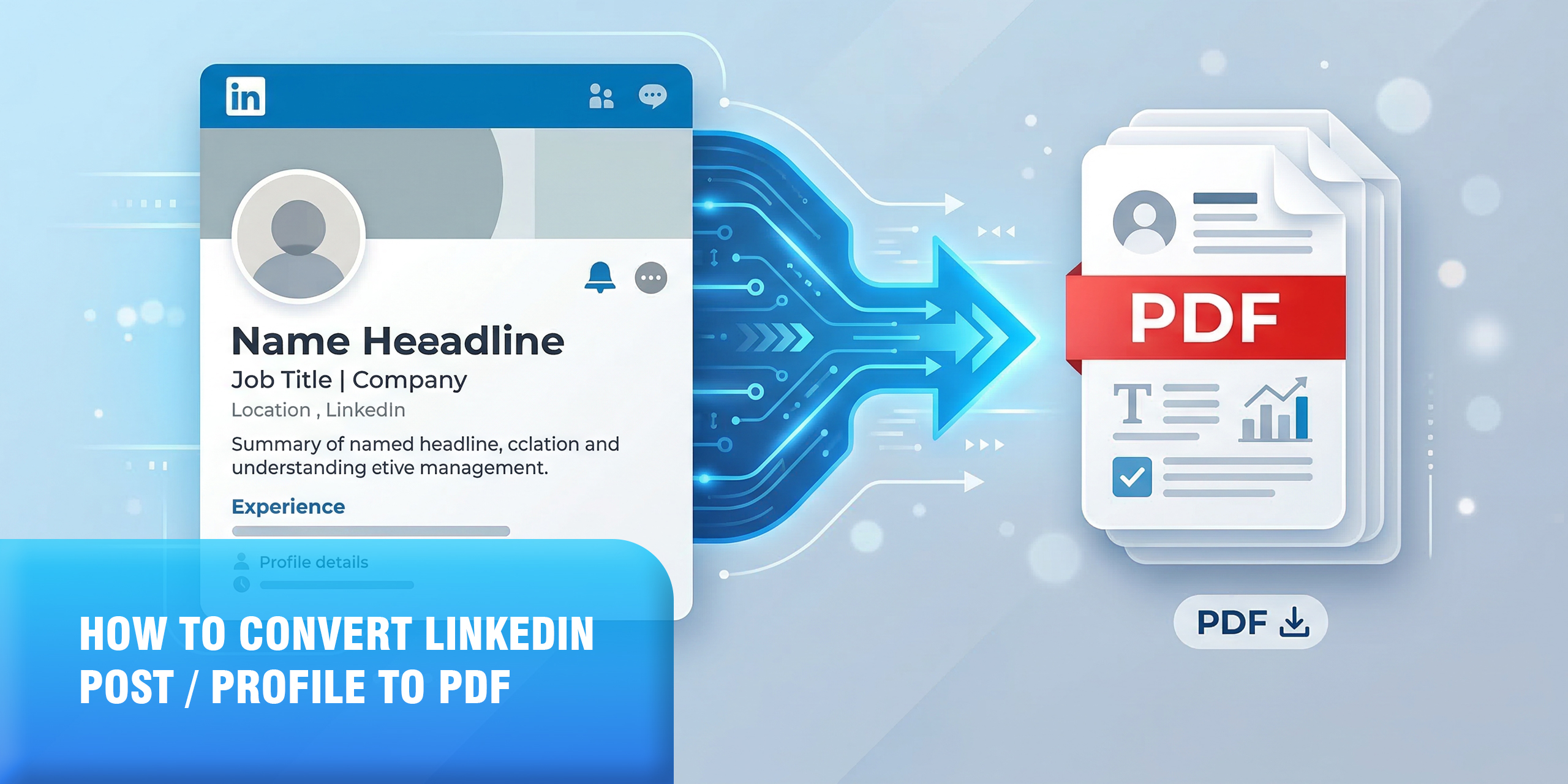
How to Convert a LinkedIn Post or Profile to PDF (Best Methods in 2026)

Convert LinkedIn profile or post to PDF using Webs2PDF tool

Your LinkedIn profile is your most important professional asset online. It holds your career history, achievements, recommendations, featured posts, and your professional brand, all in one place. And sometimes, you need it as a PDF.

Maybe you’re applying for a job and want to send more than a plain resume. Maybe you’re a recruiter who needs to save a candidate’s profile for offline review. Maybe you’re a professional who wants to archive an important post, save a competitor’s company page, or document a LinkedIn conversation for business records.

The problem? LinkedIn’s own ‘Save to PDF’ feature is severely limited. It strips out your profile’s design, removes posts and featured content, only works in English, and does nothing at all for individual LinkedIn posts. Most people who try it are disappointed by the plain, incomplete result.

In this guide, we’ll show you every method to save a LinkedIn profile or post as a PDF, starting with the best one, Web to PDF, which captures everything exactly as it looks in just 30 seconds.

You can convert a LinkedIn profile or post to PDF with Webs2PDF directly, without installing any software or extensions.

Why Would You Want to Save a LinkedIn Profile or Post as a PDF?

There are more reasons than you might think:

Job Applications: Many job applications ask for your resume, but a well-formatted PDF of your LinkedIn profile shows employers a richer, more visual picture of your professional brand than a plain text resume.

Networking and Events: Sending a PDF of your LinkedIn profile before a meeting, conference, or business event lets others review your background without needing to be connected on LinkedIn first.

Recruiting and Talent Research: HR professionals and recruiters regularly need to save candidate profiles for offline review, team sharing, and applicant tracking systems.

Archiving Important Posts: A viral LinkedIn post, a thought leadership article, or an important announcement can disappear or be edited. Saving it as a PDF preserves the exact content permanently.

Competitive Intelligence: Businesses save competitor company pages and executive profiles to track messaging, positioning, and team changes over time.

Legal and Compliance Documentation: LinkedIn content is increasingly used as evidence in employment disputes, contract cases, and regulatory investigations. A proper PDF is a credible, court-admissible record.

Personal Backup: Before making major changes to your LinkedIn profile, saving a PDF gives you a permanent record of what your profile looked like at that moment in time.

LinkedIn’s Built-in ‘Save to PDF’: What It Does and What It Misses

Let’s start with the official method, because understanding its limitations explains exactly why Webs2PDF is the better solution for most situations.

How LinkedIn’s Built-in Export Works (Desktop)

  1. Log in to LinkedIn on a desktop browser (this feature does not exist on mobile).
  2. Click your profile photo icon at the top right, then click ‘View Profile’.
  3. Look for the ‘Resources’ button (or ‘More’ button depending on your interface) near the top of your profile.
  4. Click it and select ‘Save to PDF’ from the dropdown.
  5. LinkedIn generates and downloads a PDF of your profile automatically.

For saving someone else’s profile: navigate to their profile page, click the ‘More’ button near their photo, and select ‘Save to PDF’ if available. Note that this only works for 1st-degree connections, and you are limited to 100 downloads per month for other people’s profiles.

The Real Limitations of LinkedIn’s Export: Why It Disappoints

Here is the critical problem: LinkedIn’s export does not give you a PDF of your actual profile page. It gives you a plain, stripped-down resume format, with no design, no visual layout, and a lot of missing content:

LinkedIn Built-in Limitation What This Means for You
Plain, unstyled resume format Your actual LinkedIn profile layout, banner, photo, and design are gone
No posts or activity included Featured posts, articles, recommendations, and engagement are excluded
English profiles only Non-English profiles produce broken or garbled PDFs
Desktop only, no mobile Mobile app users cannot use the Save to PDF feature
Others’ profiles: 100/month limit Useful for research but heavily restricted for HR/recruiters
No customisation at all You cannot choose which sections to include or exclude
Cannot save LinkedIn posts Individual posts have no built-in export option whatsoever

The result looks like a plain text document, not your LinkedIn profile. Your professional banner, profile photo styling, featured section design, post content, and all visual elements are completely absent.

Best Method: Convert Any LinkedIn Page to PDF Using Webs2PDF

Webs2PDF solves the limitations of LinkedIn’s built-in export. Instead of generating a stripped-down resume, Webs2PDF captures your LinkedIn profile page as it appears in the browser, preserving the layout, banner, profile photo, featured posts, recommendations, activity feed, and other visible elements in a single PDF.

It works for your own profile, other people’s public profiles, company pages, individual LinkedIn posts, LinkedIn articles, and other publicly accessible LinkedIn pages. Convert your LinkedIn profile or post to PDF with Webs2PDF and save the content in seconds.

Step 1: Open the LinkedIn Page You Want to Save

Navigate to the LinkedIn profile, company page, or post you want to convert. Make sure you’re on the specific page you want to capture; the URL in your address bar should reflect the exact page.

Pro Tip: For individual LinkedIn posts, click on the post’s timestamp to open it on its own page with a dedicated URL. This gives Webs2PDF a clean, focused URL to convert just that post as a PDF.

Step 2: Copy the LinkedIn URL

Copy the full URL from your browser’s address bar. LinkedIn profile URLs typically look like: linkedin.com/in/yourname/, and post URLs look like: linkedin.com/posts/username_keyword-activity-numbers.

Step 3: Go to Webs2PDF.com

Open Webs2PDF.com in a new tab. You’ll find a clean input box on the homepage, no account, no installation, no extension required.

Ready to Convert Your LinkedIn Profile or Post to PDF?

Ready to convert your LinkedIn profile or post? Use Webs2PDF to turn any publicly accessible LinkedIn page into a PDF in seconds, without installing any software or extensions.

Convert LinkedIn Page to PDF

Step 4: Paste the URL and Choose Your Settings

Paste the LinkedIn URL into the input box. Click the Options button to customise your conversion:

  • Page Size – Desktop/Laptop: This captures the full desktop layout of the LinkedIn page, exactly how it appears when you’re logged in and browsing normally.
  • Quality – High: Essential for crisp profile photos, banner images, and text. Always choose High for professional documents.
  • Site Map – Current Page: For a single profile or post. Use ‘All Pages’ or Bulk Conversion for saving multiple profiles in one batch.
  • Margins – 10-15px: Adds a professional border around the content.

Step 5: Convert and Download

Click Convert. Webs2PDF fully renders the LinkedIn page, loading all dynamic content, images, and JavaScript elements, before capturing it. In seconds, your complete LinkedIn PDF is ready to download.

What You Get With Webs2PDF: A pixel-perfect PDF of the LinkedIn page exactly as it looks, with full layout, profile photo, banner, featured posts, recommendations, skills section, and all visible content. One file, perfectly formatted, permanently saved.

What Webs2PDF Captures on LinkedIn: That LinkedIn’s Export Misses

Full Profile Design and Layout: Your banner image, profile photo, headline, about section, and overall visual design, exactly as it appears on LinkedIn.

Featured Section: Posts, articles, media, and external links that you’ve pinned to your featured section are fully captured.

Recommendations: Written recommendations from colleagues and managers, which LinkedIn’s built-in export excludes entirely, appear in full.

Activity and Posts: Your recent posts and activity feed are visible and saved, giving a full picture of your professional presence.

Skills and Endorsements: The complete skills section with endorsement counts is preserved.

Company Pages: Save any LinkedIn company page, including the about section, recent posts, employee count, and company branding.

Individual LinkedIn Posts: Save any specific post as a standalone PDF, with the full text, images, like and comment counts, and author information.

LinkedIn Articles: Long-form LinkedIn articles are saved in full, including embedded images, headers, and formatting.

Other Methods to Save LinkedIn as PDF: And Why They Fall Short

Browser Print to PDF (Ctrl+P → Save as PDF)

Pressing Ctrl+P in your browser while viewing a LinkedIn profile opens the print dialog, where you can choose ‘Save as PDF‘.

What it captures: A partial capture of the visible profile page.

Problems: LinkedIn’s layout is not optimised for printing. The browser print view often splits the profile awkwardly across multiple pages, cuts off sections, includes browser navigation elements, and misses dynamically loaded content like recommendations and featured posts that require scrolling to load. The result is messy and unprofessional.

Verdict: Technically possible but produces poor results. Webs2PDF handles LinkedIn’s dynamic content properly, but browser print does not.

LinkedIn’s Built-in Save to PDF

As detailed above, this official feature exports a plain resume-style PDF with no design, no posts, no featured content, and English-only support.

When it works: For generating a basic resume-style summary of your work experience and education, nothing more.

Verdict: Use it only if you specifically need a plain text resume format. For anything else, Webs2PDF is vastly superior.

Screenshots

Taking screenshots of a LinkedIn profile and combining them into a PDF is a time-consuming workaround.

Problems: Extremely slow for long profiles. Multiple screenshots must be stitched together manually. Text in the result is not searchable or selectable. The output is a collection of images, not a real PDF document.

Verdict: Only useful for capturing a very small, specific section of a profile quickly. Not a real archiving solution.

Copy and Paste to Word

Manually copying the text of a LinkedIn profile and pasting it into Word gives you editable text, but loses all formatting, images, and layout.

Problems: All design, photos, and visual structure are lost. The content needs heavy manual reformatting. Featured posts, recommendations, and dynamic elements are not captured. Very slow for long profiles.

Verdict: Only worth it if you specifically need editable text to build a new CV from scratch, not for archiving or sharing a LinkedIn profile.

All Methods Compared at a Glance

Method Full Layout? Posts Included? Free? Best For
Webs2PDF (Best) Pixel-perfect Yes Yes Complete profile + posts PDF
LinkedIn Save to PDF Plain resume only No Yes Basic resume export
Browser Print Ctrl+P Broken layout Partial Yes Quick but messy
Screenshots Visual only Yes Yes Simple visual proof
Copy to Word Manual cleanup No Yes Heavy editing needed
Paid PDF tools Varies Varies Paid Enterprise use

Real-World Use Cases: How Professionals Use Webs2PDF for LinkedIn

Job Seekers: Sharing a Visual Profile With Employers

Instead of sending a plain-text resume, job seekers use Webs2PDF to convert their LinkedIn profile to a professional PDF that includes their banner, photo, recommendations, and featured posts. This gives hiring managers a richer view of their professional identity than a plain resume, and it takes 30 seconds to create.

Recruiters: Saving Candidate Profiles for Review

Recruiters regularly need to save and share candidate profiles internally. With Webs2PDF, they can convert any public LinkedIn profile to a PDF in seconds, share it with hiring managers, and store it in their applicant tracking system. No more LinkedIn 100-per-month limits or stripped-down exports.

Business Development: Researching Prospects Before Meetings

Sales professionals and business development teams use Webs2PDF to archive LinkedIn profiles of prospects and clients before meetings. A PDF of a prospect’s full profile, including their recent posts and activity, gives valuable context that helps build rapport and personalise conversations.

Content Creators: Archiving Viral Posts

A LinkedIn post that gets thousands of likes or comments can be edited or deleted by its author. Content creators and marketers use Webs2PDF to save high-performing posts as PDFs, preserving the exact text, images, engagement numbers, and author credit as a permanent record.

Legal Teams: Documenting LinkedIn Content as Evidence

Employment lawyers, compliance teams, and HR investigators routinely need to document LinkedIn content, profiles, posts, messages, and company pages as legal evidence. Webs2PDF produces professional, visually accurate PDF records of LinkedIn pages that are suitable for inclusion in legal proceedings and compliance documentation.

Professionals: Backing Up Before Profile Changes

Before updating your LinkedIn profile significantly, changing your headline, restructuring your experience, or updating your summary, save your current profile as a PDF with Webs2PDF. Unlike LinkedIn’s own export, this preserves a true visual record of exactly what your profile looked like.

Frequently Asked Questions

Can I save someone else’s LinkedIn profile as a PDF using Webs2PDF?

Yes, Webs2PDF works with any publicly accessible LinkedIn URL. If someone’s profile is public (or if you are logged in and can view their profile), you can copy their profile URL and convert it to PDF with Webs2PDF. This gives you a complete, full-layout PDF of their profile, far more detailed than LinkedIn’s own restricted export, which limits other members’ profile downloads to 100 per month.

Can I save individual LinkedIn posts as a PDF?

Yes, and this is something LinkedIn’s built-in feature cannot do at all. To save a LinkedIn post as a PDF, click the timestamp on the post to open it on its own dedicated page with its own URL. Copy that URL and paste it into Webs2PDF. The converted PDF will include the full post text, images, author details, and visible engagement data, permanently preserved.

Does Webs2PDF require me to log in to LinkedIn to convert profiles?

Webs2PDF works with publicly accessible URLs. For public LinkedIn profiles and posts, no login is required; you can simply paste the URL and convert. For profiles that are partially or fully restricted to connections only, the PDF will capture whatever content is publicly visible at that URL.

Why is LinkedIn’s built-in ‘Save to PDF’ so limited?

LinkedIn’s export function was designed specifically to generate a resume-style document, not to archive your actual profile page. It intentionally strips out design elements, posts, and featured content to produce a simple, data-only export. This serves a specific purpose (quick resume generation) but is inadequate for professional archiving, sharing a full profile impression, or saving posts. Webs2PDF captures the actual page instead.

Can I save a LinkedIn company page as a PDF using Webs2PDF?

Yes. Simply navigate to the LinkedIn company page, copy the URL, paste it into Webs2PDF, and convert. You will receive a complete PDF of the company page, including the banner, about section, follower count, recent posts, and all other visible content. This is ideal for competitive research and business intelligence.

Will the PDF look like the actual LinkedIn page or like a plain resume?

With Webs2PDF, the PDF looks exactly like the actual LinkedIn page as it appears in your browser, with full design, profile photo, banner image, layout, fonts, and all visible content preserved. This is the fundamental difference between Webs2PDF and LinkedIn’s built-in export, which produces a plain, unstyled resume document with no visual design.

Conclusion

LinkedIn’s built-in ‘Save to PDF’ is useful only for generating a basic resume summary. For everything else, saving a full profile with design, archiving posts, documenting company pages, researching candidates, or creating professional records, it falls far short.

Webs2PDF gives you what LinkedIn’s export cannot: a complete, pixel-perfect PDF of any LinkedIn page exactly as it appears, with full layout, photos, posts, recommendations, and all visible content, in under 30 seconds, completely free.
  • Save your own profile, full design, photos, featured posts, and recommendations included
  • Save anyone’s public profile, no connection required, no monthly limits
  • Save individual LinkedIn posts, with full text, images, and engagement data
  • Save LinkedIn company pages for competitive research and business intelligence
  • Create legal and compliance records, professional, accurate, court-suitable PDFs
  • Free to use, no account, no installation, 30 seconds

Try it now, go to Webs2PDF.com, paste any LinkedIn URL, and download a perfect PDF in seconds. Completely free.

Convert Your LinkedIn Profile or Post to PDF

Ready to save your LinkedIn profile, post, or company page as a professional PDF? Use Webs2PDF to convert any publicly accessible LinkedIn page into a high-quality PDF in seconds, no software, account, or installation required.

Convert LinkedIn Page to PDF

  • March 24, 2026

PDF vs PNG: Which Format is Better for Sharing Web Content?

PDF vs PNG: Which Format is Best for Sharing Web Content?

You want to save a web page, a report, a competitor’s landing page, a research article, a product listing, or an important document, and share it with someone. The question hits you: should I save this as a PDF or a PNG?

Both formats can capture a web page visually. But there is a massive difference between what they actually preserve, how they behave when shared, and what happens when someone tries to read, search, or print them on the other end.

In this guide, we’ll break down every key difference between PDF and PNG for sharing web content, clearly, without jargon, and show you exactly when to use each one. Spoiler: for saving and sharing web pages, PDF wins every time. And with Webs2PDF, converting any web page to a perfect PDF takes under 30 seconds, completely free.
What is a PDF File?

PDF stands for Portable Document Format. It was created by Adobe in 1993 with one goal: to display a document identically on every device, screen, and printer, regardless of the software, operating system, or fonts installed.

A PDF is not just an image of a page. It is a structured document format that stores:

  • Real, searchable, selectable text
  • Images at compressed or full resolution
  • Page layout, margins, and spacing
  • Fonts and typography
  • Multiple pages in a single file
  • Hyperlinks, bookmarks, and navigation
  • Accessibility metadata for screen readers
  • Optional: password protection, annotations, digital signatures

This is why PDFs are the standard for contracts, reports, invoices, research papers, legal documents, and professional sharing of any kind.

What is a PNG File?

PNG stands for Portable Network Graphics. It is a raster image format, meaning it stores information as a grid of individual pixels. It was created in the 1990s to replace the GIF format and is now the most widely used lossless image format on the web.

PNG is excellent at:

  • Storing logos, icons, and graphics with transparent backgrounds
  • Preserving sharp edges and flat colours without quality loss
  • Screenshots where pixel-perfect accuracy matters
  • Web design elements, buttons, banners, UI components

However, PNG is fundamentally an image format. When you save a web page as a PNG, all the text becomes pixels, unselectable, unsearchable, and inaccessible. The page structure, links, metadata, and multi-page content are entirely lost.

PDF vs PNG: 8 Key Differences Explained

1. Text Quality and Searchability

PDF: Text in a PDF is stored as real characters. You can select it, copy it, search through it with Ctrl+F, and it remains perfectly sharp at any zoom level or print size. Screen readers and accessibility tools can read it.

PNG: All content, including text, is converted into pixels. You cannot select, search, or copy text from a PNG. If you zoom in, the text becomes blurry. Screen readers cannot interpret it.

2. Multi-Page Support

PDF: A single PDF file can contain dozens or hundreds of pages. For saving web pages, this means the entire page, no matter how long, is contained in one file with proper flow and navigation.

PNG: PNG is strictly a single-image format. If a web page is long, you either get one extremely tall image file or you need to take multiple screenshots and manage several separate files.

3. File Size for Web Content

PDF: PDFs store text as characters (not pixels), which makes text-heavy pages much smaller than their PNG equivalents. A PDF of a 10,000-word article is dramatically smaller than a PNG of the same page.

PNG: PNG stores everything as pixels. A high-resolution PNG of a full web page can be 5-10x larger than the equivalent PDF. This makes PNGs slow to share, difficult to email, and storage-intensive.

4. Layout and Structure Preservation

PDF: A properly converted PDF preserves the complete layout of the web page, columns, spacing, fonts, image placement, headers, footers, and visual hierarchy, exactly as it appeared in the browser.

PNG: PNG captures the visual appearance only. While it looks like the page at first glance, any structural information, the relationship between elements, heading levels, and link destinations is completely gone.

5. Print Quality

PDF: PDFs are resolution-independent for text and vector elements, meaning they print perfectly at any size. This is why all professional printing workflows use PDF. A printed PDF looks identical to the digital version.

PNG: PNG is resolution-fixed. If you print a PNG at a larger size than its native resolution, the result is blurry or pixelated. This is why print shops always ask for PDFs, never PNGs.

6. Accessibility

PDF: PDFs support full accessibility features, alt text for images, heading structure, reading order tags, and screen reader compatibility. PDFs can meet WCAG and Section 508 accessibility standards.

PNG: PNG has zero built-in accessibility. It is a flat image. A screen reader cannot tell a visually impaired user what is written on a PNG; it can only read the file name. For sharing any kind of web content professionally, this is a serious limitation.

7. Security and Privacy

PDF: PDF supports password protection, encryption, and permissions settings. You can share a PDF that can be viewed but not printed, copied from, or opened without a password. This is critical for legal, financial, and sensitive documents.

PNG: PNG has no security features whatsoever. Anyone who receives a PNG can share, edit, or screenshot it freely.

8. Where PNG Actually Wins

To be fair, PNG is genuinely the better choice in specific situations:

  • Logos and icons: especially when a transparent background support (alpha channel) is needed.
  • Web design graphics: buttons, banners, UI elements, and small images, where the file size must be minimal.
  • Single screenshots for quick visual reference: when you just need to show someone what a specific part of a page looks like.
  • Images that need editing in design software: PNG integrates more easily into tools like Photoshop, Figma, and Canva than PDF for image editing.

Bottom line: PNG is for images. PDF is for documents and web content. When someone asks you to share a web page, a report, or any structured content, a PDF is always the right answer.

PDF vs PNG: Full Comparison Table

Factor PDF (Winner for Web Content) PNG (Better for Images Only)
Multi-page support Multiple pages in one file One image per file only
Text quality Crisp, searchable, scalable text Pixelated text when zoomed
File size (mixed content) Smaller, text stored as characters Large, everything stored as pixels
Sharing web pages Full page layout preserved perfectly Loses structure, links, and metadata
Print quality Perfect, resolution-independent Can blur when resized
Accessibility Screen readers, searchable, taggable No accessibility support
Password protection Built-in encryption supported Not supported
Annotations & comments Fully supported Not supported
Transparency support Limited Full alpha channel transparency
Logo/icon use Not ideal Best format for logos & icons
Web content archiving Best format, via Webs2PDF Incomplete, no text, no links

How to Convert Any Web Page to PDF Using Webs2PDF

Now that you know PDF is the right format for sharing web content, here is the fastest and cleanest way to convert any web page to PDF, using Webs2PDF.

Webs2PDF captures web pages exactly as they appear in the browser, with all images, fonts, layouts, JavaScript-rendered content, and dynamically loaded elements preserved, and delivers a single, pixel-perfect, continuous PDF. No page breaks cutting off content. No missing images. No broken layouts.


Step 1: Copy the Web Page URL

Open the web page you want to save as a PDF in your browser and copy the URL from the address bar.

Step 2: Go to Webs2PDF.com

Visit Webs2PDF.com. No account needed, no installation, no extensions required.

Step 3: Paste the URL and Set Your Options

Paste the URL into the input box. Click Options to customise:

  • Page Size Desktop/Laptop: Captures the full desktop layout of the web page.
  • Quality High: Essential for crisp text and sharp images in your PDF.
  • File Type PDF: Select PDF (not PNG or JPEG) for all web content sharing.
  • Margins 10-15px: Adds a clean border around your content.

Step 4: Click Convert and Download

Hit Convert. Webs2PDF fully renders the page, including JavaScript and lazy-loaded images, before capturing it. Download your perfect PDF in seconds.

Why Webs2PDF is the Best PDF Converter for Web Pages: Unlike browser print (which splits pages badly and misses content) or PNG screenshots (which lose all text functionality), Webs2PDF produces a single continuous, pixel-perfect PDF that preserves every detail of the web page, for free, with zero installation.

Real-World Scenarios: PDF vs PNG in Practice

Scenario 1: Sharing a Competitor’s Pricing Page with Your Team

Wrong approach (PNG): Screenshot the page as PNG. Your team receives a flat image; they can’t click links, can’t search for specific features, and the text may be blurry on their screen resolution. If the page is long, you need multiple screenshots.

Right approach (PDF via Webs2PDF): Convert the pricing URL to PDF using Webs2PDF. Your team gets a complete, searchable, printable PDF of the entire pricing page, one file, perfectly formatted, permanently accessible.

Scenario 2: Saving a Research Article for Offline Reference

Wrong approach (PNG): Save as PNG. The 5,000-word article is now an enormous image file. You can’t Ctrl+F to find a specific section, you can’t copy a quote, and your screen reader can’t help visually impaired colleagues access it.

Right approach (PDF via Webs2PDF): Convert the article to PDF. The result is a compact, fully searchable document that can be annotated, shared by email, and accessed offline with all text functionality intact.

Scenario 3: Documenting a Website for Legal Evidence

Wrong approach (PNG): Take screenshots. PNG screenshots are easily disputed, they can be edited, they lack metadata, and they don’t capture the full page context professionally.

Right approach (PDF via Webs2PDF): Convert the URL to a high-quality PDF using Webs2PDF. The result is a complete visual and textual record of the page, professional, accurate, and suitable for compliance and legal documentation.

Scenario 4: Creating a Web Design Logo (PNG is correct here)

Wrong approach (PDF): Export your logo as a PDF for use in a website header. PDF is not designed for web image elements, and browsers handle it differently.

Right approach (PNG): Export your logo as PNG with a transparent background. PNG is the correct and universal format for logos, icons, and web graphics used directly on a website.

Quick Reference: Which Format to Use for Each Task

Use Case Best Format How to Do It Tool
Save a web page for sharing PDF Convert URL to PDF Webs2PDF.com
Archive a website permanently PDF Convert URL to PDF Webs2PDF.com
Send a report/proposal PDF Convert to PDF Webs2PDF.com
Save a logo or icon PNG Export from the design tool Figma / Canva
Share a single screenshot PNG Screenshot tool Snagit / OS tool
Legal or compliance record PDF Convert URL to PDF Webs2PDF.com
Competitor research page PDF Convert URL to PDF Webs2PDF.com
Transparent graphic overlay PNG Export with transparency Design software
Multi-page documentation PDF Convert URL to PDF Webs2PDF.com
Social media graphic PNG Export from the design tool Canva / Photoshop

Why Webs2PDF Produces Better PDFs Than Any Other Method

Knowing that PDF is the right format is only half the answer. The other half is how you create the PDF, and most methods fall short for web content:

  • Browser Print (Ctrl+P): Splits the page into A4 chunks with awkward page breaks. Misses JavaScript-rendered content. Includes the browser sidebar and UI in the output. Frequently cuts off images and long paragraphs.
  • Screenshot to PDF: Essentially just a PNG converted to PDF format; all the same limitations of PNG apply. Text is still pixelated, not searchable or selectable.
  • Copy-paste to Word, then export: Destroys all original formatting. Images detach, layouts collapse, and code blocks become plain text. Requires enormous manual cleanup.

Webs2PDF solves all of these problems:

  • Full JavaScript rendering: Waits for all dynamic content to load before capturing.
  • Single continuous PDF: No page breaks, no split content, the full page in one seamless document.
  • Pixel-perfect layout: Every font, colour, image, and element is preserved exactly.
  • Full resolution images: No compression artefacts, no missing visuals.
  • Completely free: No account needed, no trial limits for standard use.

Frequently Asked Questions

Q1: Is PDF or PNG better for sharing web pages?

PDF is better in almost every scenario. It preserves real, selectable text, maintains the full multi-page layout, supports printing at any size, and allows password protection. PNG flattens the page into a single image — text becomes unreadable by machines, the structure is lost, and file sizes are often larger. Use Webs2PDF.com to convert any URL to a properly structured PDF in seconds.

Q2: Can I use Webs2PDF to save a web page as PNG instead of PDF?

Yes, Webs2PDF supports PNG and JPEG output alongside PDF. PNG output is useful when you specifically need an image file, such as a thumbnail for a presentation or a visual preview. For archiving, sharing, or professional documentation, PDF is the better choice.

Q3: Why does PNG look fine on screen but blurry when printed?

PNG stores content at a fixed pixel resolution. When you scale a PNG larger than its original size, which often happens during printing, the display software has to interpolate (guess) the missing pixel data, resulting in blurriness. PDF, by contrast, stores text as resolution-independent vector characters and preserves separate image data, so it prints sharply at any size.

Q4: What is the difference between saving a webpage as a PDF and taking a screenshot?

A screenshot captures only the visible pixels; it’s a flat image with no text functionality, no clickable links, and no structure. Saving as PDF via Webs2PDF captures the full page layout, preserves real selectable text, and produces a structured document you can search, share, and print, not just a picture of the page.

Q5: Can a PNG file be converted to a searchable PDF?

Not directly. When a web page is saved as PNG, all text becomes pixels; there is no underlying text data to make it searchable. Converting that PNG back to PDF just wraps the image in a PDF container, which does not make the text selectable. The only way to get a truly searchable, functional PDF of a web page is to convert the original URL directly to PDF, which is exactly what Webs2PDF does.

Q6: Is PDF better than PNG for SEO or documentation purposes?

For documentation, PDF wins clearly, as it supports accessibility tagging, real text metadata, and heading structures that make it a reliable long-term record. For SEO, PDFs are directly indexed by Google, which reads the actual text content inside them. A PNG of a web page is treated as a plain image; search engines cannot read any of the text it contains.

Conclusion:

The PDF vs PNG debate has a clear answer when it comes to web content:

  • PDF for web pages, reports, articles, documentation, legal records, and professional sharing
  • PNG for logos, icons, transparent graphics, web design elements, and quick screenshots

PDF preserves text, structure, layout, accessibility, and print quality in a way that PNG simply cannot. And when it comes to converting web pages to PDF, no tool does it better or more easily than Webs2PDF.

With Webs2PDF, you get:

  • A pixel-perfect PDF of any web page, exactly as it looks in the browser
  • Full JavaScript rendering, dynamic content is never missed
  • Single continuous PDF, no page breaks, cutting off your content
  • All images are at full resolution, and nothing is missing
  • Completely free, no account or installation required

Stop saving web pages as PNGs. Visit Webs2PDF.com and convert any web page to a perfect PDF right now. Free, no signup, 30 seconds.

  • March 18, 2026

How to Archive a Website Before It Goes Offline (Best Method in 2026)

How to Archive a Website Before It Goes Offline - Webs2PDF

The internet has a short memory. Websites go offline every single day, domain names expire, hosting bills go unpaid, companies shut down, and valuable content simply disappears forever. A research paper you bookmarked, a forum thread that solved your problem, a competitor’s pricing page, a government resource, a news article, gone.

If you’ve ever clicked a link and been greeted with a “404 Not Found” error where an important page used to live, you already know this pain. The good news is that archiving a website before it goes offline is simpler than most people think.

In this guide, we’ll show you the best and fastest way to archive any website as a complete, high-quality PDF, using Webs2PDF, plus other archiving methods you should know about. Whether you’re a researcher, legal professional, business owner, or just someone who wants to preserve content they care about, this guide has everything you need.

Why Websites Go Offline

Understanding why websites disappear helps you know what to archive and when. Here are the most common reasons websites go offline permanently:

  • Expired Domains: When a domain owner forgets to renew, the website disappears within days. This is the most common cause of sudden link rot.
  • Unpaid Hosting: Web hosting services delete files when subscriptions lapse. Months of content can vanish overnight.
  • Business Closures: When companies shut down, their websites go with them. Product documentation, support articles, and knowledge bases are lost.
  • Content Deletion: Website owners frequently delete old articles, product pages, or controversial content. Social media posts, forum threads, and news articles are especially vulnerable.
  • Platform Shutdowns: Entire platforms can disappear, and when they do, thousands of pages vanish simultaneously.
  • Government & Institutional Changes: Policy documents, research publications, and public records can be removed when administrations change or departments restructure.
  • Legal Takedowns: DMCA notices, court orders, and regulatory demands can force content offline without warning.

This is why archiving matters, not just for nostalgia, but for research integrity, legal documentation, competitive intelligence, and preserving knowledge that the world should not lose.

Why Most Website Archiving Methods Fall Short

Most people’s first instinct when they want to archive a website is to use one of these approaches, and most of them have serious problems:

Browser Save As (Ctrl+S): Saves an HTML file and a folder of assets. The result is often broken, images go missing, CSS fails to load, and the page looks nothing like the original when you reopen it weeks later.

Screenshots: Only capture what’s visible on your screen. Long pages require dozens of screenshots, which are hard to organise, search through, or share professionally.

Browser Print to PDF (Ctrl+P): Splits long pages into multiple A4 chunks with awkward page breaks. Misses dynamically loaded content, breaks layouts, and often cuts off text mid-paragraph.

Wayback Machine: Great for public snapshots, but requires the page to be already indexed. It doesn’t archive private or login-protected pages, and the rendering is often incomplete for modern JavaScript-heavy websites.

HTTrack: A powerful but technical tool that requires installation and command-line knowledge. Not practical for most users, and struggles with dynamic or JavaScript-rendered content.

The Best Method: Archive Any Website as a PDF Using Webs2PDF

Webs2PDF is a free online web-to-PDF converter that captures any website exactly as it appears, every pixel, image, font, layout, and dynamically loaded element. It converts it into a clean, complete PDF that you can save, search, share, and access forever.

Unlike browser print or screenshots, Webs2PDF fully renders the page (including JavaScript and lazy-loaded content) before capturing it. The result is a single continuous PDF that looks identical to the live website, a true archive you can rely on.

Step-by-Step: How to Archive a Website Using Webs2PDF

Step 1: Find the Page You Want to Archive

Open the website or webpage you want to archive in your browser. Copy the full URL from the address bar. This could be a homepage, an article page, a product page, a forum thread, a documentation page, or any publicly accessible web page.

Pro Tip: Archive pages as soon as you find them valuable, not later. You never know when a page will disappear. If you use Webs2PDF’s Bulk Conversion feature, you can archive multiple URLs in one batch.

Step 2: Open Webs2PDF.com

Go to Webs2PDF.com in your browser. You’ll see a clean input box on the homepage. No account needed, no software to install, no complicated setup.

Step 3: Paste the URL and Customise Your Settings

Paste the website URL into the input box. Then click the Options button to customise your archive settings:

  • Page Size – Desktop/Laptop: This captures the page at full desktop width, preserving the original layout exactly as the website was designed to look.
  • Quality – High: Always select High for archiving. This ensures images, charts, and visual content are captured at full resolution, essential for a true archive.
  • Site Map – Current Page: Select this for a single-page archive. For multi-page site archiving, use the ‘All Pages’ or Bulk Conversion options in paid plans.
  • Margins – 10 to 15px: A small margin ensures the content doesn’t sit flush against the edges, making the archived PDF easier to read.

Step 4: Click Convert

Hit the Convert button. Webs2PDF loads the entire page, waits for all JavaScript to execute and all images to load, then captures everything at once. This is the critical difference between Webs2PDF and browser print: it waits for the full page render before archiving, so nothing is missed.

Step 5: Download and Store Your Archive PDF

Once conversion is complete (usually within seconds), click Download PDF. Your archived webpage is now a permanent, high-quality PDF. Store it in:

  1. Google Drive or OneDrive, for cloud access from any device
  2. A local folder organised by topic, date, or source
  3. An email to yourself for quick future reference
  4. A shared team folder is being archived for business or legal purposes

Why Webs2PDF Beats Every Other Archive Method: It renders JavaScript and lazy-loaded content, preserves all CSS styling and images at full resolution, produces a single continuous PDF with zero page breaks, and works on any website, all for free, with zero installation required.

What Webs2PDF Captures: And What Makes It a True Archive

When most tools fail to create a real archive, Webs2PDF succeeds because of how it renders pages before capturing them. Here is exactly what gets preserved:

  • Full Page Layout: Headers, navigation, sidebars, footers, grids, and columns are all preserved exactly as they appear in the browser. The archived PDF is indistinguishable from the live page visually.
  • All Images and Media: Product photos, infographics, charts, embedded images, and logos are captured at full resolution. No blank boxes, no missing visuals.
  • Fonts and Typography: Custom web fonts, text sizing, line spacing, and heading hierarchy are preserved perfectly.
  • Dynamic and JavaScript-Rendered Content: Accordion, tabbed content, dynamically loaded text, and JavaScript-generated elements are all fully rendered before capture, something browser print completely fails to do.
  • Lazy-Loaded Content: Modern websites load images and content as you scroll. Webs2PDF simulates a full scroll to ensure all lazy-loaded content appears in the archive.
  • Tables, Code Blocks, and Structured Data: Technical content like pricing tables, comparison charts, and code snippets is preserved with full formatting.
  • Single Continuous PDF, No Page Breaks: The entire archived page flows as one seamless document. No content is ever cut mid-paragraph by forced page breaks.

Who Needs to Archive Websites: And How They Use Webs2PDF

Researchers and Academics

Academic research depends on citing sources that remain accessible. When a source goes offline, your citations become broken links. By archiving research papers, news articles, government publications, and data sources as PDFs using Webs2PDF as you collect them, you ensure your references are permanently available, regardless of what happens to the original website.

Legal and Compliance Professionals

Legal teams routinely need to preserve evidence of what a website said at a specific point in time, for litigation, regulatory compliance, contract disputes, and intellectual property cases. A WebstoPDF archive provides a high-fidelity visual record of the page with a timestamp. The PDF format is court-admissible, professional, and permanently preserved.

Businesses and Competitive Intelligence Teams

Businesses archive competitors’ websites, pricing pages, product announcements, and marketing content to track changes over time. When a competitor updates their pricing or removes a product, having an archived PDF proves what they were offering before the change. WebstoPDF makes this process fast enough to do regularly and systematically.

Journalists and Fact-Checkers

News articles, social media posts, and public statements are frequently edited or deleted after publication. Journalists and fact-checkers use Webs2PDF to create timestamped visual records of content at the moment it was live, providing verifiable documentation when sources later modify their original claims.

Educators and Students

Teaching materials, online textbooks, resource pages, and educational tools frequently change or go offline. Students and teachers archive valuable educational content using Webs2PDF so it remains accessible for future use, whether for referencing, printing, or distributing offline.

Developers and IT Teams

Before deprecating a product, shutting down a service portal, or migrating a website, development teams use WebstoPDF to create complete visual records of the current site. This serves as a reference for redesign work, a stakeholder sign-off document, and an archive for regulatory purposes.

Webs2PDF vs Other Archiving Methods: Full Comparison

Method Archive Quality Effort Free? Best For
Webs2PDF (Recommended) ⭐⭐⭐⭐⭐ Perfect PDF ⚡ Very Easy Yes Complete visual record
Wayback Machine ⭐⭐⭐ View only Easy Yes Public snapshots
HTTrack ⭐⭐⭐⭐ HTML copy Hard (technical) Yes Full site download
Browser Ctrl+S ⭐⭐ Single page only Easy Yes Quick single pages
Screenshots ⭐ Visual only Very Slow Yes Simple visual proof
Paid Tools (Stillio) ⭐⭐⭐⭐ Automated Easy Paid Enterprise archiving

Other Archiving Methods: When to Use Them

While Webs2PDF is the best tool for creating a clean, shareable, professional-quality archive, here is an honest overview of the other options and their specific use cases:

Wayback Machine (archive.org)

The Internet Archive’s Wayback Machine automatically crawls and saves snapshots of public websites. It’s the world’s largest web archive and is invaluable for viewing how websites looked in the past.

Best for: Checking historical versions of public websites you didn’t archive yourself. Not suitable for private pages, login-protected content, or when you need a clean downloadable PDF.

Use Webs2PDF alongside the Wayback Machine. Archive as a PDF for your own records, and submit to the Wayback Machine for public preservation.

HTTrack Website Copier

HTTrack is a free, open-source tool that downloads an entire website to your local device, preserving the site structure so it can be browsed offline.

Best for: Tech-savvy users who need a full offline copy of a static website. Struggles with JavaScript-heavy or dynamic websites, and the result is a complex folder of files rather than a clean, shareable document.

HTTrack is powerful but has a steep learning curve. For most users, Webs2PDF delivers a better result with a fraction of the effort.

Browser Save As (Ctrl+S)

Every browser lets you save a web page as HTML with a folder of associated files.

Best for: Simple, static pages where you need an editable HTML copy. Completely unreliable for modern websites, the saved file usually looks broken when opened.

Screenshots

Taking a screenshot or using a full-page screenshot extension gives you a visual image of the page.

Best for: Quick visual proof of a small, specific section. Not practical for archiving full pages, and the result is an unorganised image file rather than a searchable, shareable document.

5 Smart Archiving Habits to Protect Yourself

Here are five practical habits that researchers, professionals, and smart internet users follow to protect themselves from link rot:

  1. Archive Immediately: Don’t wait until you need the content; archive it the moment you find it valuable. With Webs2PDF, it takes 30 seconds.
  2. Use Descriptive File Names: When you download your archived PDF, rename it meaningfully. Example: “Competitor-PricingPage-March2026.pdf” is far more useful than “download(1).pdf”.
  3. Archive Multiple Pages: Use Webs2PDF’s Bulk Conversion feature (paid plans) to archive multiple related pages in one session, ideal for capturing an entire section of a website.
  4. Store Redundantly: Save your archived PDFs in at least two locations, one cloud storage (Google Drive, OneDrive) and one local folder. This protects against account lockouts and device failure.
  5. Note the Date: Always record when you archive a page. The date of archiving is as important as the archive itself, especially for legal and research purposes.

Frequently Asked Questions

Q1: Is Webs2PDF free to use for archiving websites?

Yes, Webs2PDF is completely free for standard single-page conversions. Go to Webs2PDF.com, paste any URL, and download a high-quality PDF archive instantly. No account required. Premium plans unlock bulk conversion, custom watermarks, and advanced settings for teams and professionals who need to archive at scale.

Q2: Can Webs2PDF archive websites that use JavaScript or dynamic content?

Yes, this is one of Webs2PDF’s biggest advantages over other tools. It fully renders JavaScript, waits for dynamic content to load, and simulates page scrolling to trigger lazy-loaded elements before capturing the archive. Pages built with React, Vue, Angular, or any modern JavaScript framework are archived completely and accurately.

Q3: Can I archive an entire website, not just one page?

Yes. Webs2PDF’s paid plans include a Bulk Conversion feature that lets you submit multiple URLs for batch archiving. You can also use the ‘All Pages’ option to capture every page linked from a given URL. For large-scale website archiving projects, contact Webs2PDF directly for enterprise options.

Q4: Is a PDF a legally acceptable archive format?

PDF is widely accepted as a reliable format for preserving web content in legal and compliance contexts. It is non-editable by default, visually faithful to the original, and can be timestamped. For formal legal proceedings, always consult with your legal team about specific requirements, but PDF archives from Webs2PDF are used routinely for compliance documentation, litigation support, and regulatory records.

Q5: What is the difference between archiving a website and backing it up?

A backup preserves the raw data (files, database, code) of a website so it can be restored and run again. An archive preserves the visual appearance and content of a website as it looked to a visitor at a specific point in time. Webs2PDF creates archives, permanent visual records, which are ideal for documentation, research, and legal use. For website owners who need to restore a site, a backup is also necessary.

Q6: Can I archive pages that require login?

Webs2PDF works with publicly accessible URLs. If a page requires you to log in to view it, you can still use your browser while logged in and then use Webs2PDF on the URL if it’s accessible; however, for pages that require active session authentication, browser-based methods work better. Webs2PDF is best suited for public-facing web pages, which cover the vast majority of archiving use cases.

Conclusion: Don’t Wait Until It’s Gone: Archive It Now

Websites disappear without warning. Domains expire, companies shut down, content gets deleted, and valuable resources vanish forever. The only protection is to archive what matters to you before it’s too late.

Webs2PDF makes this easier than ever. In 30 seconds, you can create a complete, pixel-perfect, permanently accessible PDF archive of any website, with all images, layouts, dynamic content, and formatting preserved exactly as they appear live.

  • Free to use, no account or installation needed
  • Archives, JavaScript, and dynamic websites are completely
  • Single continuous PDF, no awkward page breaks
  • Full resolution images, nothing is missing
  • Works for any website: news, research, legal, competitor, documentation
  • Bulk archiving available for teams and professionals

Start archiving today, go to Webs2PDF.com, paste any website URL, and download your perfect PDF archive. Completely free.

  • March 11, 2026

How to Save ChatGPT Conversations as PDF – The Easiest Way in 2026

How to save ChatGPT conversations as PDF using Webs2PDF web to PDF converter

You just wrapped up an incredibly useful ChatGPT conversation: a detailed business plan, a research breakdown, a solved coding problem, or a full study guide. And now you want to save it permanently in a clean, shareable, and professional format.

The problem is that most people try browser printing or copy-pasting, and end up with a messy PDF that cuts off mid-sentence, misses images, or looks nothing like the original conversation.

In this guide, we’ll show you the best and easiest way to save any ChatGPT conversation as a perfect PDF using Webs2PDF, plus 4 other alternatives, so you can choose what works best for your situation.

Why Save ChatGPT Conversations as PDF?

Before we get into the how, let’s quickly understand why PDF is the best format for saving your ChatGPT chats:

  • Permanent & Offline: OpenAI can delete conversations, update the interface, or change how chats are stored. A PDF ensures your content lives forever, accessible even without the internet.
  • Professional Sharing: Sending a PDF to a client, colleague, or professor looks far more professional than sharing a raw chat link that might expire or require login.
  • Searchable & Organised: PDFs are easy to search through, annotate, and file. Great for research, legal documentation, and business records.
  • Universal Format: PDFs look identical across Windows, Mac, iPhone, and Android. No formatting surprises.
  • Print-Ready: If you ever need to print your conversation, for study, handouts, or filing, PDF is the only format that prints cleanly.

Why Browser “Print to PDF” Doesn’t Work Well for ChatGPT

Most people’s first instinct is to press Ctrl+P and save as PDF. But here’s what actually happens when you do that with a ChatGPT conversation:

  • The sidebar is included: Your conversation history, buttons, and navigation appear in the PDF, making it look cluttered.
  • Responses get cut off: Long AI responses are split mid-paragraph across pages, destroying readability.
  • Code blocks break: The monospace code styling is often lost, making code snippets unreadable.
  • Images are missing or blurry: DALL-E images and charts often fail to render properly in browser print.
  • The result looks unprofessional: Multiple unnecessary page breaks, headers, footers, and UI elements make the PDF unusable for sharing.

That’s exactly why Webs2PDF exists: to solve every single one of these problems and give you a clean, complete, professional-looking PDF of any web page, including ChatGPT conversations.

Method 1: Webs2PDF: The Best Way to Save ChatGPT as PDF

Webs2PDF is a free online web-to-PDF converter designed to capture any web page exactly as it looks, in a perfect PDF. It renders every pixel, font, code block, image, and layout element precisely before converting, which is why it produces results that no other method can match.

Here is how to use it, step by step:

Step 1: Get Your ChatGPT Conversation Link

Open ChatGPT in your browser and go to the conversation you want to save. For the cleanest PDF (without the sidebar), click the Share button inside the chat and copy the public share link. This gives Webs2PDF a clean view of just your conversation.

Pro Tip: Using the Share link removes the left sidebar entirely, so your PDF only contains the actual conversation, nothing else.

Step 2: Open Webs2PDF.com

Go to Webs2PDF.com in your browser. You will see a clean input box ready for your URL. No account needed, no installation, no setup.

Step 3: Paste the URL and Set Your Options

Paste your ChatGPT conversation URL into the input box. Then click the Options button to customise your conversion:

  • Page Size: Choose Desktop/Laptop for a wide, easy-to-read layout, ideal for conversations with long code blocks or tables.
  • Quality: Select High for crisp text and sharp images. This is especially important if the conversation includes DALL-E images.
  • Site Map: Keep this on “Current Page”; you just want this one conversation.
  • Margins: Set to 10-15px for comfortable reading with a small border on each side.

Step 4: Click Convert

Hit the Convert button. Webs2PDF loads the full page, waits for all JavaScript and dynamic content to render (something browsers print completely skips), and then captures everything perfectly.

Step 5: Download Your Perfect PDF

In seconds, your PDF is ready. Click Download PDF to save it. You now have a clean, complete, pixel-perfect copy of your ChatGPT conversation, with all formatting, code blocks, and images intact, in a single continuous PDF with zero page breaks cutting off your content.

Why Webs2PDF beats every other method: It renders JavaScript, preserves CSS styling, captures lazy-loaded images, and outputs a single continuous PDF with no forced page breaks, things that browser print simply cannot do.

What Makes Webs2PDF Different From Every Other Tool

There are dozens of web-to-PDF tools out there, but Webs2PDF was built specifically to solve the problems that others fail at. Here is what sets it apart when saving ChatGPT conversations:

  • Single Continuous PDF No Page Breaks: Most converters chop your content into A4-sized chunks. Webs2PDF produces one seamless, scrollable PDF; your entire conversation flows naturally without any content being cut mid-sentence.
  • Full JavaScript Rendering: ChatGPT is a JavaScript-heavy web app. Webs2PDF fully renders the page before capturing it, which means code blocks, formatted responses, and dynamically loaded content are always included.
  • Image-Perfect Quality: Every DALL-E image, diagram, chart, and graphic in your conversation is captured at full resolution, no blank boxes, no missing visuals.
  • 100% Layout Accuracy: Fonts, colours, spacing, and structure are preserved exactly. Your PDF looks identical to the original ChatGPT conversation.
  • No Installation Required: Works entirely in your browser. No extension, no desktop app, no account needed for basic use.
  • Privacy-Safe: Webs2PDF only reads the URL you provide. It never accesses your ChatGPT account, login credentials, or conversation history.
  • Works With All AI Chatbots: Save conversations from Gemini, Claude, Perplexity, DeepSeek, Copilot, same simple process, same perfect results every time.

4 Other Methods (And Why They Fall Short)

For completeness, here are the other ways people try to save ChatGPT chats as PDF, with an honest assessment of when they work and when they fail.

Option A: Browser Print (Ctrl+P → Save as PDF)

The most common method is to press Ctrl+P, choose “Save as PDF”, and download.

When it works: Only for very short, simple conversations with no code blocks or images.

Problems: Captures the full browser UI, including the sidebar. Splits content across pages at random points. Code blocks lose their styling. Long responses are often cut off entirely. The result looks unprofessional and is frustrating to read.

Option B: ChatGPT’s Built-in Export Data

OpenAI lets you export your full conversation history from Settings → Data Controls → Export Data.

When it works: Great if you want to back up your entire ChatGPT history at once.

Problems: The export arrives as raw HTML files, not a PDF. You need an additional conversion step. The email can take hours to arrive. The exported HTML has minimal styling and looks nothing like the ChatGPT interface.

Option C: Chrome Browser Extensions

Extensions like ChatGPT Exporter add a download button directly inside the ChatGPT interface.

When it works: Good for users who export conversations frequently and want a button inside ChatGPT itself.

Problems: Requires granting the extension broad access to your browser and ChatGPT data, a significant privacy concern for sensitive conversations. Extensions frequently break when OpenAI updates the ChatGPT interface. Quality varies widely between extensions.

Option D: Copy-Paste to Word or Google Docs

Manually select and copy the conversation, paste it into Word or Docs, clean it up, and export as a PDF.

When it works: If you want to heavily edit the content and create a properly formatted document from the chat.

Problems: Extremely time-consuming for long chats. Code blocks lose all styling. Pasting includes UI text you don’t want. Formatting cleanup can take longer than the original conversation did.

Quick Comparison: Webs2PDF vs Other Methods

Method PDF Quality Speed Free? Best For
Webs2PDF (Recommended) ⭐⭐⭐⭐⭐ Perfect Instant Yes Clean, professional PDF always
Browser Ctrl+P ⭐⭐ Poor Fast Yes Very short chats only
ChatGPT Export Data ⭐⭐ HTML raw Slow (email) Yes Full history backup
Chrome Extension ⭐⭐⭐ Varies Medium Mostly Frequent exporters
Copy → Word/Docs ⭐⭐ Manual Very Slow Yes Editing content

Common Problems and How Webs2PDF Solves Them

Problem: My PDF is missing parts of the conversation

Why it happens: Browser print only captures what’s rendered on screen. ChatGPT lazy-loads content as you scroll, so unscrolled sections are invisible to the browser print engine.

Webs2PDF solution: Webs2PDF fully loads and scrolls the entire page before capturing, ensuring every single message in the conversation is included, and nothing is ever missed.

Problem: Code blocks look broken or unstyled in my PDF

Why it happens: Browser print strips dynamic CSS styling, so the monospace code block formatting is lost.

Webs2PDF solution: Webs2PDF preserves all CSS styles exactly. Code blocks in your PDF look identical to the highlighted, formatted code in the original ChatGPT interface.

Problem: ChatGPT sidebar appears in my PDF

Why it happens: Browser print captures the entire visible viewport, including navigation and sidebar.

Webs2PDF solution: Use the ChatGPT Share link (clean view with no sidebar) as the URL input to Webs2PDF. The result is a PDF with only the conversation, completely clean.

Problem: DALL-E images are missing from my PDF

Why it happens: Images in ChatGPT are often hosted on separate CDN servers. Browser print doesn’t always wait for these to load.

Webs2PDF solution: Webs2PDF waits for all resources, including external images, to fully load before capturing. Every image appears in full resolution.

Who Uses Webs2PDF to Save ChatGPT Conversations?

Students & Researchers: Save AI-generated research breakdowns, essay outlines, and study notes as clean PDFs for offline revision and citation.

Developers & Programmers: Archive full debugging sessions, code reviews, and technical explanations, with perfectly formatted code blocks, as reference PDFs.

Business Professionals: Convert AI-generated business plans, proposals, and meeting summaries to professional PDFs ready for client sharing.

Content Creators & Writers: Save brainstorming sessions, content calendars, and draft ideas from ChatGPT as organised reference files.

Teachers & Educators: Turn AI-generated lesson plans, quiz questions, and explanations into print-ready PDFs for distribution to students.

Legal & Compliance Teams: Preserve timestamped, complete AI conversation records as PDFs for documentation, audit trails, and compliance requirements.

Frequently Asked Questions

Q1: Is Webs2PDF free to use for saving ChatGPT conversations?

Yes, Webs2PDF is completely free for standard conversions. Simply go to Webs2PDF.com, paste your ChatGPT URL, and download your PDF. No account required, no credit card, no trial limits for basic use. Premium plans are available for bulk conversions, custom watermarks, and advanced settings.

Q2: Does Webs2PDF access my ChatGPT account or login?

No. Webs2PDF only processes the URL you provide. If you use a public ChatGPT share link, Webs2PDF reads only that publicly accessible page; it never touches your account, login data, or conversation history. Your privacy is fully protected.

Q3: Can I save ChatGPT conversations with images (DALL-E) as a PDF?

Yes. Webs2PDF fully renders all images, including AI-generated DALL-E images, at full resolution before capturing the PDF. Browser print frequently misses these images or renders them blurry. With Webs2PDF, every visual appears exactly as it does in ChatGPT.

Q4: Can I save multiple ChatGPT conversations as a PDF at once?

Yes. Webs2PDF offers a Bulk Conversion feature in its paid plans, allowing you to convert multiple chat URLs in one batch. This is ideal for researchers, developers, or teams who need to archive many conversations at once.

Q5: Does this work for other AI chatbots besides ChatGPT?

Absolutely. Because Webs2PDF works with any web page URL, you can save conversations from any AI chatbot, Gemini, Claude, Perplexity, DeepSeek, Microsoft Copilot, or any other browser-based AI tool. The process is identical: copy the URL, paste it into Webs2PDF, convert, and download.

Q6: Why does my browser print off my ChatGPT conversation?

Browser print uses your screen’s visible area as the capture source. ChatGPT dynamically loads messages as you scroll, so any unscrolled portion of a long conversation is invisible to the browser’s print engine. Webs2PDF eliminates this problem by fully rendering the entire page before conversion; no content is ever left out.

Conclusion: Stop Struggling With Browser Print, Use Webs2PDF

Saving ChatGPT conversations as PDF should be simple, fast, and give you a result that actually looks professional. Browser print fails at this almost every time, with broken layouts, missing content, and cluttered sidebars.

Webs2PDF was built specifically to solve this problem. It captures any ChatGPT conversation exactly as it appears, with all formatting, code blocks, and images preserved,  and delivers a single, clean, continuous PDF in seconds.

  • Free to use, no account required
  • No extensions, no installs, no permissions needed
  • Works with ChatGPT, Gemini, Claude, Perplexity, and every other AI chatbot
  • Perfect for students, developers, professionals, and educators
  • Single continuous PDF, no page breaks, cutting off your content
  • February 25, 2026

How to Save AI-Generated Web Pages (ChatGPT, Notion, Web Apps) as PDF

Save AI-Generated Web Pages as PDF

AI-generated content has become part of everyday workflows. From ChatGPT conversations and AI research outputs to Notion pages, dashboards, and modern web apps, much of today’s valuable information is created and viewed inside dynamic, browser-based environments.

However, when it comes to saving this content as a PDF, many users quickly discover a problem: AI-generated web pages don’t convert cleanly using traditional “Print to PDF” methods.

In this guide, we’ll explain why saving AI-generated pages as PDF is difficult, what usually goes wrong, and how to reliably convert ChatGPT pages, Notion documents, and modern web apps into high-quality PDFs without broken layouts or missing content.

What Are AI-Generated Web Pages?

AI-generated web pages are not traditional static webpages. Instead of loading all content at once, they are built using modern JavaScript frameworks and real-time rendering techniques.

Examples include ChatGPT conversation pages, Notion documents, AI dashboards, internal tools, and SaaS web apps. These pages update dynamically, load content on demand, and rely heavily on scripts to display text, tables, charts, and embedded components.

Because of this, they behave very differently from normal blog posts or static HTML pages, especially when you try to export them as a PDF.

Why Saving AI-Generated Pages as PDF Is So Difficult

The biggest challenge with AI-generated pages is that what you see on the screen is not always what the browser can immediately capture.

Content often loads progressively. Some sections appear only after user interaction. Others depend on background API calls that finish seconds after the page initially loads. When you attempt to save these pages using a browser’s print function, the PDF generator may capture the page too early, resulting in missing text, incomplete conversations, or broken formatting.

Additionally, many AI tools use complex layouts that are optimized for screens, not for printing. Sidebars, floating panels, sticky headers, and scroll-based containers rarely translate well into static PDF pages.

Why Browser “Print to PDF” Fails for ChatGPT and Web Apps

Browser print features were designed for simple webpages. They struggle when dealing with modern AI interfaces.

When you print a ChatGPT conversation, for example, the browser often captures only the visible portion of the chat. Long conversations may be cut off, code blocks may overflow, and formatting, such as tables or lists, can break.

In tools like Notion, the issue becomes even more noticeable. Nested content, toggle sections, embedded databases, and interactive elements often disappear or lose structure in the PDF.

This happens because browser printing relies on client-side rendering. It captures the page’s current visual state rather than fully rendering the entire document in a controlled environment.

The Unique Challenges of Saving ChatGPT Pages as PDF

ChatGPT pages are dynamic by nature. Conversations grow over time, messages load asynchronously, and formatting adjusts based on screen size.

When users try to print ChatGPT pages, they often face issues such as incomplete message history, missing code blocks, broken line spacing, or PDFs that contain only part of the conversation.

Scrolling to the bottom helps in some cases, but it’s not reliable. The browser may still fail to include all messages or may distort formatting when forced into a printable layout.

Why Notion Pages Often Break During PDF Export

Notion is designed as an interactive workspace rather than a document generator. Its pages include collapsible sections, inline databases, embedded content, and dynamic formatting.

While Notion offers built-in export options, users frequently find that the exported PDFs don’t match the on-screen layout. Elements may shift, spacing can look inconsistent, and complex pages may lose structure.

When using browser print instead, the results are usually worse, especially for long or database-driven pages.

Modern Web Apps and Dashboards Are Even Harder to Save

AI dashboards, analytics tools, internal admin panels, and SaaS web apps are some of the hardest pages to convert into PDFs.

These applications often load content after authentication, use real-time updates, and rely on JavaScript for nearly everything. Browser print tools frequently produce blank pages, partial exports, or PDFs that contain only headers without data.

For professionals who need to archive reports, share AI outputs with clients, or store records, this unreliability becomes a serious problem.

Why Screenshots Are Not a Real Solution

Many users fall back on screenshots when PDF exports fail. While screenshots may work for quick reference, they are not practical for professional use.

Screenshots are image-based, not searchable, and often require multiple captures for long pages. Text cannot be selected or copied, and file sizes can grow quickly. For documentation, sharing, or archiving, screenshots are simply not an efficient or scalable solution.

The Correct Way to Save AI-Generated Web Pages as PDF

To reliably save AI-generated web pages as PDFs, you need a tool that goes beyond browser printing. The key requirement is full server-side rendering.

A dedicated Web to PDF tool loads the webpage in a controlled environment, allows all scripts and dynamic content to execute fully, and only then converts the rendered page into a PDF. This ensures that what ends up in the PDF accurately reflects what you see on screen.

How Webs2PDF Handles AI-Generated Content

Webs2PDF is designed specifically for modern websites and dynamic web applications. Instead of capturing a momentary screen state, it renders the full webpage before conversion.

For ChatGPT pages, this means complete conversations, preserved formatting, and readable code blocks. For Notion pages, layouts remain structured, text stays selectable, and content is properly spaced. For AI dashboards and web apps, data loads fully before the PDF is generated.

Because the conversion happens online, results are consistent regardless of browser extensions, device limitations, or operating system differences.

Step-by-Step: Saving an AI-Generated Page as PDF with Webs2PDF

Step 1: Open the AI-Generated Page

Open the AI-generated page you want to save, such as a ChatGPT conversation, Notion document, or modern web app.

Make sure all relevant content is fully visible and loaded before moving to the next step.

Step 2: Paste the Page URL into Webs2PDF

Copy the full page URL from your browser.

Visit Webs2PDF and paste the link into the conversion field.

If the page requires a login, ensure you are already authenticated in your browser so the content can be accessed correctly.

Step 3: Download the Generated PDF

Once submitted, Webs2PDF renders the page completely before conversion.

After processing, download the PDF file. The final document preserves layout, text quality, and content structure far better than standard browser print options.

When You Should Use Webs2PDF Instead of Built-In Exports

Built-in export features are useful when they work, but they are often limited or inconsistent. Webs2PDF is a better choice when you need accuracy, consistency, and professional-quality output.

This includes saving long ChatGPT conversations, exporting complex Notion documents, capturing AI-generated reports, or archiving web-based tools for compliance or documentation.

Security and Privacy Considerations

When dealing with AI-generated content, privacy matters. Reputable Web to PDF tools process pages securely and do not permanently store files. Webs2PDF uses secure connections and generates PDFs for immediate download, helping protect sensitive information.

As always, it’s best to avoid unknown converters when working with private or business-critical data.

Final Thoughts

AI-generated web pages are powerful, but they were never designed with traditional printing in mind. Browser “Print to PDF” features struggle with dynamic loading, interactive layouts, and JavaScript-driven content.

If you want clean, accurate PDFs from ChatGPT, Notion, or modern web apps, you need a solution built for today’s web. A dedicated Web to PDF tool provides the reliability that browser printing simply cannot.

For anyone who regularly saves AI-generated content for sharing, archiving, or professional use, Webs2PDF offers a practical and dependable way to convert modern web pages into high-quality PDFs.

  • February 17, 2026

Why Chrome “Print to PDF” Fails on Modern Websites (And the Reliable Fix)

Why Chrome Print to PDF fails on modern websites and how to fix it

Chrome’s “Print to PDF” feature looks simple and convenient. With just a few clicks, you can turn almost any webpage into a PDF. Yet, anyone who has tried to use it on modern websites knows the frustration, broken layouts, missing images, blank pages, or PDFs that look nothing like the original webpage.

This is not a temporary bug or a Chrome-specific glitch. The real issue is that modern websites are not built for browser-based printing. They are designed for screens, interactions, and dynamic loading, not static PDF generation.

In this detailed guide, we’ll explain why Chrome “Print to PDF” fails on modern websites, why these issues keep happening despite updates, and what actually works if you want clean, reliable PDFs every time.

Chrome “Print to PDF” Is Not Broken, It’s Limited by Design

Before blaming Chrome, it’s important to understand how its print-to-PDF feature works. Chrome captures the current visible state of a webpage and tries to fit it into a fixed, printable layout. This approach worked reasonably well in the early days of the web, when pages were mostly static and content loaded all at once.

Modern websites, however, are fundamentally different. They are interactive, responsive, and heavily dependent on JavaScript. Chrome’s print engine was never designed to handle this level of complexity. As a result, many failures are not bugs; they are architectural limitations.

This is why the same page might print correctly one day and fail the next, even without any changes on your end.

Lazy Loading: Why Content Disappears in PDFs

One of the biggest reasons Chrome’s “Print to PDF” fails is lazy loading. To improve performance, modern websites load images, charts, and even text only when the user scrolls down the page. This helps pages load faster and reduces unnecessary data usage.

The problem arises when you try to print the page before all that content has loaded. Chrome only captures what is currently rendered. Anything that hasn’t appeared yet, images further down the page, embedded sections, or dynamically fetched data, may be missing entirely in the PDF.

Even scrolling to the bottom doesn’t always solve the issue, because some elements load based on user interaction rather than scroll position. This makes browser printing unreliable for long or complex pages.

Complex CSS Layouts Don’t Translate Well to Print

Modern websites rely heavily on CSS Grid, Flexbox, and responsive design techniques. These layouts are optimized for screens that can resize, scroll, and adapt to different devices.

When Chrome tries to force these layouts into a fixed PDF page size, things often break. Columns overlap, elements shift unexpectedly, and text may be cut off. What looks perfect on-screen can become unreadable in print.

This happens because print styles are an afterthought on many websites. Most developers optimize for mobile and desktop viewing, not for printing. Chrome’s print engine struggles to reinterpret these layouts accurately.

JavaScript Rendering Happens Too Late

JavaScript plays a central role in how modern websites work. Content is often generated after the page loads, based on user behavior, API calls, or application state.

When you open the print dialog, Chrome doesn’t always wait for JavaScript to finish executing. If the rendering process is interrupted, the PDF captures an incomplete version of the page. This results in missing sections, broken formatting, or even blank PDFs.

For JavaScript-heavy websites, this issue is especially common and extremely difficult to fix using browser settings alone.

Pop-ups, Overlays, and Ads Interfere with Printing

Cookie banners, subscription pop-ups, sticky headers, chat widgets, and ads are everywhere. While they are manageable during normal browsing, they cause serious issues during printing.

Chrome often captures these overlays as part of the page. In some cases, they cover the main content. In others, they cause the print process to freeze or fail altogether. Even closing them manually doesn’t guarantee success, as some scripts re-trigger overlays automatically.

This adds another layer of unpredictability to browser-based PDF generation.

Responsive Scaling Breaks PDF Layouts

Responsive design ensures websites look good on phones, tablets, and desktops. But printing forces all of this into a static format.

Chrome often struggles to decide which layout version to use when generating a PDF. The result can be oversized fonts, narrow columns, excessive white space, or pages that contain nothing but a URL and a header.

These scaling issues are common and difficult to control, especially on websites that don’t include dedicated print styles.

Why Chrome “Print to PDF” Can Never Be Fully Fixed

Many users search for the perfect Chrome setting that will make “Print to PDF” reliable. Unfortunately, such a setting doesn’t exist.

Chrome’s print feature is a client-side tool. It captures whatever the browser happens to be displaying at that moment. It does not perform full server-side rendering, it does not reliably wait for JavaScript execution, and it does not resolve complex layout conflicts.

This means no matter how many workarounds you try, scrolling, disabling hardware acceleration, or using incognito mode, the results will always be inconsistent. The tool simply wasn’t built for modern, dynamic websites.

Common Workarounds and Why They’re Not Reliable

Some quick fixes may work occasionally. Scrolling to the bottom of the page can trigger lazy-loaded content. Incognito mode can disable extensions that interfere with layout. Enabling background graphics may restore colors and images.

However, these are temporary hacks, not real solutions. They depend on timing, browser behavior, and how the website is built. What works for one page may fail for another.

For professional use, such as saving invoices, reports, or client documents, this inconsistency is unacceptable.

The Real Fix: Use Webs2PDF

If you need reliable PDFs from modern websites, the solution is not another Chrome tweak. Webs2PDF is designed specifically for this purpose. Instead of relying on browser printing, you can convert any webpage to PDF using a rendering engine that fully loads JavaScript, images, and page layouts before creating the PDF.

Unlike browser printing, Webs2PDF produces clean, high-quality PDFs that closely match the original webpage, making it ideal for business documents, research, archiving, and professional sharing.

How Webs2PDF Solves These Problems

Webs2PDF is built specifically to handle modern websites. Instead of capturing a half-rendered screen, it processes the webpage in a controlled environment where everything loads properly.

JavaScript-driven content is rendered completely. Lazy-loaded images are included. Complex CSS layouts are preserved. The final PDF closely matches the live webpage, without broken sections or missing elements.

Because the conversion happens online, there is no dependency on your browser, device, or extensions. The result is consistent and professional every time.

Ready to convert a webpage without broken layouts or missing content?

Use Webs2PDF to generate a clean, high-quality PDF from any public webpage in just a few clicks.

Convert Webpage to PDF

When Webs2PDF Is the Better Choice

If you only need a quick, informal PDF, Chrome’s print option may be sufficient. But if accuracy matters, whether for business records, client sharing, research, or archiving, Webs2PDF is the better choice.

It’s especially useful for long pages, dynamic dashboards, JavaScript-based websites, and any content where layout and completeness are important.

Chrome Print to PDF vs Webs2PDF: A Practical Difference

Chrome Print to PDF relies on what you see at a single moment. Webs2PDF relies on how the webpage is actually built and rendered.

That difference is why one fails unpredictably while the other delivers consistent results. Webs2PDF doesn’t fight against modern web technologies; it works with them.

Final Thoughts

Chrome “Print to PDF” fails on modern websites because modern websites have outgrown browser-based printing. Dynamic loading, complex layouts, and JavaScript rendering are now the norm, not the exception.

No amount of tweaking can turn Chrome’s print feature into a fully reliable solution. For clean, accurate, and professional PDFs, a dedicated web to PDF tool is the correct approach.

Ready to stop fighting with Chrome Print to PDF? Visit Webs2PDF, paste any webpage URL, and generate a professional PDF with complete layouts, images, and dynamic content in seconds.

  • February 10, 2026

How to Download PDF from a Link Using Webs2PDF (Complete Guide)

Download PDF from a Link Using Webs2PDF

Saving online content as a PDF has become a daily requirement for students, professionals, developers, and businesses. Articles, invoices, dashboards, reports, and documentation are often published as web pages, not downloadable files. This creates a common challenge: how to download a PDF from a link without breaking the layout or losing content.

This is exactly where Webs2PDF helps.

Webs2PDF is a dedicated web to PDF conversion tool designed to turn any webpage link into a clean, high-quality PDF with just a few clicks. In this guide, you’ll learn how to use Webs2PDF to download PDFs from links, why it works better than browser print options, and when it’s the best solution for your needs.

What Does “Download PDF from a Link” Really Mean?

Many users assume that downloading a PDF from a link means the link already points to a PDF file. In reality, most links open HTML web pages, not PDFs. These pages are built for screens, not for printing or offline sharing.

When you use Webs2PDF, you’re not simply saving a page; you’re converting the fully rendered webpage into a PDF document. This means the content, design, images, and structure are preserved in a format that can be shared, stored, or printed easily.

This approach is especially useful when a website does not provide a built-in “Download PDF” option.

Why Browser Print to PDF Often Fails

Most browsers offer a “Save as PDF” feature, but it’s not reliable for modern websites. Pages frequently lose styling, content gets cut off, fonts change, and images may disappear. Long or dynamic pages are especially problematic.

Websites that rely on JavaScript frameworks often fail when printed directly from the browser. As a result, the final PDF looks unprofessional and inconsistent.

Webs2PDF solves this problem by rendering the page server-side before conversion, ensuring the webpage loads properly and appears correctly in the final PDF.

What Is Webs2PDF and How Does It Work?

Webs2PDF is an online Web to PDF converter that transforms webpage URLs into downloadable PDF files. Instead of relying on browser limitations, it uses a powerful rendering engine that fully loads HTML, CSS, JavaScript, fonts, and images.

Once the webpage is rendered, Webs2PDF converts it into a high-quality PDF that mirrors the original page. Because everything runs online, there is no software to install and no technical setup required.

This makes Webs2PDF ideal for both occasional users and professionals who need consistent results.

How to Download a PDF from a Link Using Webs2PDF

Using Webs2PDF is simple and beginner-friendly. The process starts by opening the webpage you want to convert and copying its full URL. Make sure the page loads correctly and shows all the content you want included.

Next, visit webs2pdf.com and paste the copied link into the URL input field. Webs2PDF will automatically prepare the page for conversion.

Before converting, you can adjust optional settings such as page size, orientation, and output quality. These options are especially helpful if you’re creating a PDF for professional or client use.

Once ready, click the convert button. Webs2PDF will process the page and generate a downloadable PDF file within moments. You can then save it to your device or share it instantly.

Why Webs2PDF Is Better Than Other Web to PDF Tools

One of the biggest strengths of Webs2PDF is layout accuracy. The PDFs generated closely match the live webpage, ensuring that text, images, and spacing remain intact.

Webs2PDF also handles long and dynamic pages effectively. Whether the page scrolls endlessly or loads content dynamically, the tool captures everything in a single, well-formatted PDF.

In addition, Webs2PDF produces high-resolution output, making it suitable for printing, archiving, or professional sharing. Unlike screenshots, the text remains selectable and searchable.

Common Use Cases for Webs2PDF

Webs2PDF is used across many industries and workflows. Students use it to download tutorials, notes, and study guides for offline access. Researchers convert articles and reference material into PDFs for citation and long-term storage.

Businesses rely on Webs2PDF to save invoices, order pages, reports, and dashboards. Having these documents in PDF format ensures consistency and professionalism when sharing with clients or teams.

Developers and agencies use Webs2PDF to convert documentation, previews, and web reports into PDFs that are easy to distribute and review.

Download PDFs from Links on Mobile Devices

Mobile browsers offer limited options for saving webpages as PDFs, which can be frustrating when you’re away from your computer. Webs2PDF works seamlessly on mobile devices, allowing you to convert links directly from your phone or tablet.

You simply paste the link, convert the page, and download the PDF, no printing menus or apps required. This makes Webs2PDF especially useful for remote work and on-the-go productivity.

Free and Paid Options on Webs2PDF

Webs2PDF offers flexible options depending on your needs. The free plan is suitable for occasional conversions and quick downloads. It allows users to convert webpages without installing any software.

For users who need higher limits, better quality, or advanced features, paid plans offer enhanced performance and customization. These plans are ideal for professionals and businesses that rely on regular web to PDF conversions.

Security and Privacy with Webs2PDF

When converting webpages that may contain sensitive information, security is critical. Webs2PDF uses secure connections and processes conversions safely. Files are generated for download and are not permanently stored, helping protect user privacy.

This makes Webs2PDF a reliable choice for both personal and business use.

Why PDFs Are Better Than Screenshots

Screenshots are often used as a quick workaround, but they come with limitations. They are image-based, not searchable, and difficult to manage for long pages. Multiple screenshots also reduce clarity and professionalism.

PDFs generated by Webs2PDF maintain selectable text, multiple pages, and consistent formatting in a single file. This makes them far more practical for sharing, printing, and archiving.

Final Thoughts

If you’re looking for a reliable way to download a PDF from a link, Webs2PDF provides a simple, accurate, and professional solution. It eliminates the issues caused by browser print options and ensures modern webpages are converted correctly.

Whether you’re saving articles, creating records, or sharing web content with clients, Webs2PDF helps you convert links into clean, high-quality PDFs in just a few clicks.

  • January 27, 2026

Why Browser Print to PDF Breaks Layout (And Better Alternatives)

Why Browser Print to PDF Breaks Layout

When users try to save a webpage using the browser’s Print to PDF option, the layout often breaks. Images disappear, text overlaps, and pages get cut off. This happens because browsers are not designed to handle modern, dynamic web layouts during PDF printing.

Whether you’re a student, professional, or researcher, a broken PDF can waste time, distort important information, and create unnecessary frustration. In this guide, we’ll explain why browser Print to PDF fails, the common issues, and better alternatives to save webpages accurately.

How Browser Print to PDF Works

Most modern browsers, like Chrome, Edge, or Firefox, include a built-in Print to PDF feature. It works by rendering the visible webpage into a static document, often using the @media print CSS rules if available.

While this works for simple pages, it struggles with modern web technologies like JavaScript frameworks, lazy-loaded content, and responsive designs. Browser printing is limited because it:

  • Renders only the currently loaded elements
  • Ignores dynamic content that loads asynchronously
  • Doesn’t fully respect complex CSS or interactive elements

Common Layout Problems with Browser Print to PDF

Even simple webpages can break when printed as a PDF. Some of the most common problems include:

  • Images Not Loading: Images loaded dynamically or via lazy-loading often do not appear.
  • CSS Breakage: Styles designed for screens may not render properly for print.
  • JavaScript Content Missing: Interactive elements, pop-ups, or dynamically fetched content are omitted.
  • Cut-Off Sections: Long pages may get truncated or split incorrectly across pages.
  • Page Scaling Issues: Text may overlap or appear too small/large due to improper scaling.

Why Modern Websites Break During Print to PDF

Modern websites are rarely static. Here’s why browser PDF printing struggles:

  1. JavaScript Frameworks (React, Vue, Angular): Content is rendered dynamically, and print functions capture only static HTML.
  2. Lazy-Loaded Images: Images load only when scrolled into view. Print to PDF usually captures only what is currently visible.
  3. Infinite Scroll Pages: Content that loads as you scroll may be missed entirely.
  4. Responsive Layouts: Mobile-first designs may break when forced into a static page layout for PDF.

Because of these challenges, relying solely on browser print often produces incomplete or messy PDFs.

Browser Print to PDF vs Online Webpage to PDF Tools

Feature Browser Print to PDF Online Webpage to PDF Tool (e.g., Webs2PDF)
Layout Accuracy Low High
Image Handling Often missing Preserved
JavaScript Rendering Not supported Supported
Page Control Limited Full control (size, orientation, headers/footers)
Long Page Support Partial Full page capture, no cropping

Online PDF converters are built specifically for saving entire webpages, handling JavaScript, CSS, images, and dynamic content. They ensure that your PDF matches the original layout perfectly.

Better Alternatives to Browser Print to PDF

If you want a reliable, accurate PDF, consider these methods:

1. Online Webpage to PDF Tools

Websites like Webs2PDF allow you to convert any URL to PDF with full content and layout preserved. Advantages:

  • Supports dynamic pages
  • Captures images and CSS correctly
  • Allows advanced options like page size, orientation, and image quality

2. Headless Browser Conversion

Developer-friendly approach using tools like Puppeteer or Playwright:

  • Renders pages exactly as seen in the browser
  • Generates high-quality PDFs
  • Useful for automated workflows

3. Dedicated PDF Software

Some PDF tools allow URL import and advanced rendering, ensuring complete capture. Examples include Adobe Acrobat’s “Create PDF from Web Page”.

When Should You Avoid Browser Print to PDF?

Browser printing works for simple, static pages, but avoid it for:

  • Legal documents
  • Official invoices or reports
  • Research articles or reference materials
  • Long or dynamic web pages

In these cases, online converters or automated PDF tools will save time and prevent layout issues.

FAQ

Q1. Why does Print to PDF remove images from webpages?

Images loaded dynamically or via lazy-loading are not captured by browser printing. Online converters render the page fully, including such images.

Q2. Is browser Print to PDF reliable for official documents?

No, browser print often breaks layout, truncates pages, and can miss critical content. Use professional PDF conversion tools for official documents.

Q3. What is the best alternative to browser Print to PDF?

Online webpage to PDF tools like Webs2PDF, or headless browser-based solutions, provide full content capture with proper formatting.

Q4. Does browser Print to PDF support JavaScript websites?

No, most JavaScript-generated content will not appear correctly. Specialized converters that render JavaScript fully are required.

Conclusion

Browser Print to PDF is convenient but limited. For accurate, complete, and professional PDFs, you need tools that handle modern web content properly. Using Webs2PDF or similar online converters ensures:

  • Layout preservation
  • Images and dynamic content included
  • Better control over page size and format

Stop wasting time fixing broken browser PDFs and switch to specialized tools that guarantee results every time.

Recent Posts
How to export a Wikipedia article as a PDF and save the page for offline reading

Export Wikipedia Article PDF: How to Save Wikipedia Pages as Clean PDFs

September 16, 2026
How to save a Perplexity AI answer or research thread as a PDF using built-in export, Webs2PDF, browser print, and browser extensions.

How to Save a Perplexity AI Answer or Research Thread as a PDF

September 10, 2026
Illustration showing the Wayback Machine archive gaps and a web page being saved as a PDF for permanent online content preservation.

Why the Wayback Machine Can’t Save Everything (And What to Do Instead)

July 28, 2026
Guide showing how to save a Google Maps business listing or location page as a PDF using Webs2PDF for offline access and documentation.

How to Save a Google Maps Business Listing or Location Page as a PDF

July 21, 2026
Save Amazon and e-commerce product listings as a PDF with prices, images, and specifications

How to Save an Amazon or E-Commerce Product Listing as a PDF

July 15, 2026
Blog Categories
Website to PDF
Subscribe

Stay Updated with Webs2PDF

Join our newsletter and never miss a tip.

Next Up on Webs2pdf Blog

Guide showing how to save Reddit threads, posts, and comments as PDF files for offline reading and archiving.
How to Save a Reddit Thread or Post as a PDF
  • June 30, 2026
Convert and save Substack articles as PDF files for offline reading using Webs2PDF
Save Substack Articles as PDF for Offline Reading
  • June 23, 2026
Guide showing how to save a YouTube channel page, About section, playlist, and video description as a PDF using Webs2PDF and browser tools.
How to Save a YouTube Channel Page as PDF (2026 Guide)
  • June 16, 2026
Automated web page backup to PDF using the Webs2PDF plugin with scheduled PDF backups and a website archiving workflow
How to Schedule Automatic PDF Backups of Important Web Pages
  • June 10, 2026
Concept image of PDF metadata exposing hidden author data and document history.
PDF Metadata Privacy Risks: Hidden Data in PDFs and How to Remove It
  • May 19, 2026
Webs2PDF tool interface converting a Notion page into a PDF using a URL input field
How to Save a Notion Page or Database as a PDF
  • May 12, 2026
Follow Us
Pinterest-p Reddit-alien Github
  • About
  • Benefits
  • Reviews
  • Pricing
  • FAQ
  • Blog
  • Contact

Copyright © 2026 webs2pdf.com All rights reserved.

  • Privacy Policy
  • Cookie Policy
  • Terms of Use
  • Refund Policy
Webs 2 PDF Logo

Transforming Web Content into Portable, Professional Documents

Tick
  • Home
  • Benefits
  • Reviews
  • Pricing
  • FAQs
  • Blog
  • Contact
  • Home
  • Benefits
  • Reviews
  • Pricing
  • FAQs
  • Blog
  • Contact
SIGN IN