Skip to content
Webs 2 PDF Logo
  • Home
  • Benefits
  • Reviews
  • Pricing
  • FAQs
  • Blog
  • Contact
  • Home
  • Benefits
  • Reviews
  • Pricing
  • FAQs
  • Blog
  • Contact
sign in

Category: Website to PDF

  • December 9, 2025

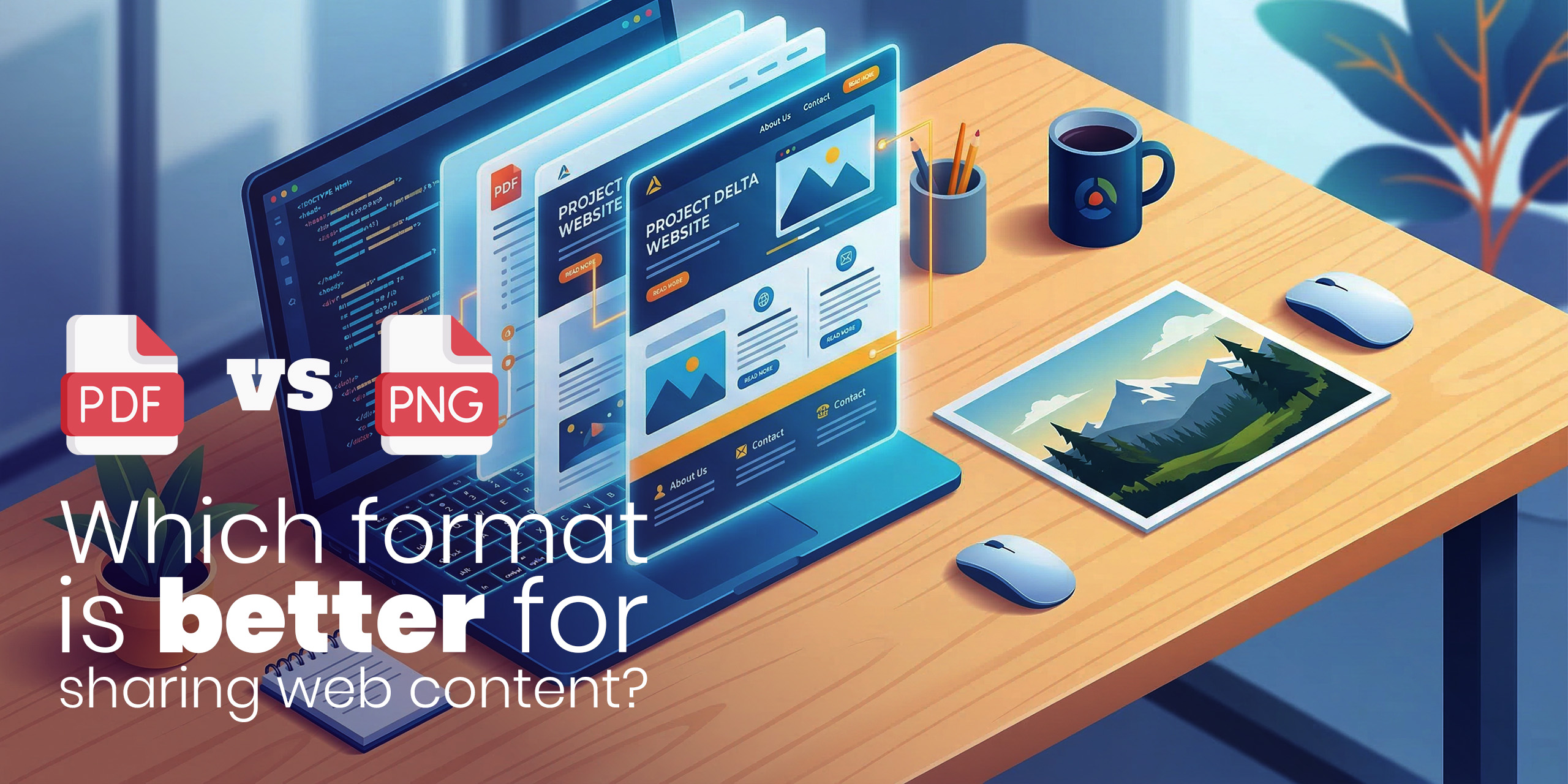
Webpage to PDF vs Screenshot: Which Is Better for Archiving Web Pages in 2026?

Webpage to PDF vs Screenshot

Archiving web content has become essential in today’s digital world. Whether you’re a student, researcher, journalist, developer, or business professional, saving important webpages ensures you have a permanent and reliable copy, even if the original page is changed or deleted.

But the biggest question is: Should you save a webpage as a PDF or take a screenshot?

In this fully updated 2025 guide, we compare Webpage to PDF vs Screenshot, explain which method is better for different use cases, and share best practices to archive webpages with high quality.

Why Archiving Web Pages Matters

Web pages frequently change over time; content updates, layout redesigns, URL removals, paywalls, and even full website shutdowns can make information disappear. Archiving ensures you always have a reliable, permanent copy of important content.

Benefits of Archiving Web Pages

  • Preserve information permanently even if the original webpage is deleted
  • Save research references for academic work, assignments, or citations
  • Keep records for legal, financial, or compliance purposes
  • Maintain visual or design references for UI/UX, development, or documentation
  • Avoid losing dynamic or time-sensitive content such as news, social posts, or evidence

Due to these reasons, selecting the right method of archiving (PDF vs. screenshot) is crucial to ensure long-term accessibility and accuracy.

Common Challenges in Saving Web Content

Saving or archiving a webpage isn’t always straightforward. Many users struggle with technical limitations that affect the final output. The most common challenges include:

Dynamic or Interactive Elements Not Saving Correctly

Videos, sliders, animations, pop-ups, and embedded content often break or disappear during capture.

Long or Infinite-Scrolling Pages

Scrolling pages (blogs, social feeds, product listings) may cut off, load partially, or require manual stitching.

Loss of Original Formatting & Layout

Fonts, spacing, alignment, and CSS styling sometimes change, making the saved version look different from the original webpage.

Poor Image or Text Quality

Low-resolution screenshots or poorly converted PDFs can blur details, especially when zooming.

Large File Sizes

High-quality screenshots or unoptimized PDFs can become heavy and difficult to share or store.

What Is a Webpage to PDF Conversion?

A Webpage to PDF conversion is the process of turning any online page into a PDF document while preserving its original content and layout. A good Webpage to PDF converter accurately saves:

  • Text
  • Images
  • Formatting & styles
  • Clickable links
  • Full-page layout

Key Benefits of PDF Archiving

  • Maintains original structure and styling
  • Perfect for multi-page or long-scroll pages
  • Easy to annotate, highlight, print, or share
  • Supports bookmarks, metadata, and password protection
  • Ideal for long-term archiving and offline access

Common Use Cases

  • Research papers
  • News articles
  • Invoices & financial statements
  • Legal documentation
  • Tutorials & blog posts

What Is a Screenshot?

A screenshot captures only what is visible on your screen. It’s a quick and simple way to save information visually.

Benefits of Screenshots

  • Instant capture
  • Stores the exact visual appearance
  • Great for documenting errors or temporary content
  • Useful for design or UI references

Common Use Cases

  • Saving part of a webpage
  • Capturing social media posts
  • Recording error messages
  • Visual notes for design teams

Webpage to PDF vs Screenshot: Key Differences

Below is a detailed comparison:

1. File Format & Quality

  • PDF: Preserves text clarity, layout, and images. Stays crisp even when zoomed in.
  • Screenshot: Quality depends on screen resolution. Text may blur when zoomed.

2. Page Length Capture

  • PDF: Captures full-page, multi-page, infinite scroll pages.
  • Screenshot: Only visible area, or requires multiple stitched images.

Editability & Annotation

  • PDF: Supports highlights, notes, signatures, bookmarks.
  • Screenshot: Requires third-party editors for annotation.

4. File Size

  • PDF: Compressed and optimized for long documents.
  • Screenshot: PNG/JPG images can be large.

Comparison Table: Webpage to PDF vs Screenshot

Feature Webpage to PDF Screenshot
Full-page capture ✔ Yes ✘ Limited
Text clarity on Zoom ✔ Excellent ✘ Reduces
Dynamic content support ✔ Good ✘ Weak
Edit & annotate ✔ Built-in ✘ Requires tools
File size ✔ Smaller ✘ Larger
Best for Research, legal, multipage Visual reference, quick capture

Advantages of Using Webpage to PDF

  • Perfect formatting
  • Works for long pages
  • Easy to print/share
  • Supports security (passwords)
  • Ideal for professional documentation

Advantages of Using Screenshots

  • Fast & simple
  • Best for visual elements
  • Useful for small sections
  • Great for temporary or short-term archiving

When Should You Use a PDF vs a Screenshot?

Choose PDF if you are:

  • Researcher
  • Student
  • Lawyer
  • Business professional
  • Saving long articles

Choose Screenshot if you are:

  • Designer
  • Developer
  • Social media user
  • Saving part of a webpage

Tips for High-Quality Webpage Archiving

  • Use a full-page capture tool to save the entire webpage without missing hidden sections or scrolling content
  • Avoid zooming in or out before capturing
  • Save screenshots in PNG format for maximum sharpness
  • Compress large PDFs before sharing
  • Preview and test your final output to confirm readability

Common Mistakes to Avoid

  • Missing dynamic content such as videos or sliders
  • Capturing low-resolution images
  • Skipping cloud backups
  • Using unreliable converters

FAQs

1. Which is better for archiving: PDF or a Screenshot?

PDF is better for complete, high-quality, multi-page archives. Screenshots are best for visual references.

2. Do screenshots work for long webpages?

They can, but require multiple stitched captures. PDFs are easier for long pages.

3. Can every webpage be saved as a PDF?

Yes, with reliable tools, including pages with dynamic and interactive elements.

Conclusion

  • Use PDF for complete, accurate, and long-term archiving. For easy conversion, you can use tools like Webs2PDF to save webpages quickly and reliably.
  • Use Screenshot for visual references, quick captures, or small sections of a page.

Both methods have their strengths, but PDFs are generally better for research, professional use, and preserving full content. Using Webs2PDF ensures your archives remain high-quality, secure, and accessible whenever you need them.

  • November 25, 2025

The Future of Document Conversion: Why PDFs Still Matter in 2026

Future of Document Conversion PDF

In an era dominated by cloud storage, AI document assistants, and real-time collaboration tools, one format continues to stand firm: the PDF. Despite countless new technologies, PDFs remain the universal standard for secure, consistent, and portable digital documents.

As we move into 2026, the way we convert, share, and store documents is changing, but the importance of PDFs hasn’t faded. Instead, they’ve evolved. This article explores why PDFs still matter, how document conversion is transforming, and how Webs2PDF helps individuals and businesses stay ahead in this digital shift.

A Brief History of PDFs and Document Conversion

When Adobe introduced the Portable Document Format (PDF) in 1993, its purpose was simple: create a file that looks the same on every device and operating system.

At the time, sharing documents between computers was unpredictable, fonts went missing, layouts broke, and images disappeared. PDF solved all of that.

Fast forward to 2026, and PDFs are not just digital “printouts.” They’ve evolved to include interactive forms, embedded media, digital signatures, and advanced encryption, all while maintaining their core strength: reliability.

This consistency has made PDFs the default format for invoices, contracts, research papers, resumes, and government documents worldwide.

Why PDFs Still Matter in 2026

1. Universal Compatibility

PDFs work everywhere, on desktops, tablets, and smartphones. No matter what platform or software you use, a PDF opens and displays identically.

For businesses and freelancers, this guarantees that every client, partner, or stakeholder sees the same layout and data, with no formatting surprises.

2. Security and Compliance

Modern PDFs go far beyond static text. They support:

  • Password protection
  • 256-bit AES encryption
  • Digital signatures for verification
  • Access control and redaction

In industries like finance, healthcare, and law, where privacy is non-negotiable, PDFs are essential for meeting GDPR, HIPAA, and ISO compliance standards.

3. Offline Accessibility

While most modern work happens online, not everything should depend on an internet connection.

PDFs can be stored locally, accessed offline, and annotated without cloud dependency, crucial for travelers, researchers, and professionals in areas with limited connectivity.

4. Integration with Modern Workflows

From Google Drive and Dropbox to CRM tools and project management systems, PDFs remain the common denominator for document sharing and archiving.

With tools like Webs2PDF, users can instantly convert live web content into downloadable, shareable PDFs, preserving design, links, and metadata in seconds.

Emerging Trends in Document Conversion

AI-Powered Conversion

AI now plays a major role in the evolution of document conversion. Modern converters can:

  • Extract structured data from scanned pages
  • Auto-detect headlines, tables, and charts
  • Create searchable, indexed PDFs

This saves researchers and businesses countless hours in data extraction and knowledge management.

Enhanced Collaboration Features

In 2026, PDFs are no longer static. Tools now allow real-time comments, annotations, and version tracking, turning PDFs into collaborative workspaces. Teams can share PDFs directly through the cloud and edit them securely from anywhere.

Mobile & Responsive PDFs

Mobile-first design has reached PDFs, too. Responsive PDFs automatically adjust layout for smaller screens while maintaining structure, ideal for reading reports or contracts on tablets and phones.

Cloud-Based Conversion and Storage

Web-based tools like Webs2PDF have made conversion effortless and secure. Users can convert, store, and share web content in PDF format directly from the browser, no downloads, no installations.

The future is about simplicity, automation, and accessibility.

PDFs vs Other Document Formats

You might wonder: With HTML, DOCX, and Google Docs, do we still need PDFs?

Yes, and here’s why:

Feature PDF DOCX HTML
Layout consistency ✅ Always identical ❌ Often breaks ❌ Varies by browser
Security & encryption ✅ Strong ⚠️ Limited ❌ Weak
Offline use ✅ Fully functional ✅ Limited ❌ Requires browser
Cross-platform ✅ Universal ⚠️ Requires MS Office ⚠️ Browser-dependent

PDFs remain the only format that balances readability, portability, and compliance, which is why they continue to dominate official workflows even in 2026.

Practical Applications in 2026

For Businesses & Freelancers

Invoices, contracts, proposals, and reports, all best shared as PDFs for authenticity and tracking. Tools like Webs2PDF allow users to capture live dashboards, analytics pages, or online invoices as PDFs with one click.

For Educators & Researchers

Preserving web-based academic articles, online journals, and reference materials is easier with PDF archiving. Researchers can ensure content remains accessible even if the original page changes or disappears.

For Remote Teams

Remote work depends on clear, consistent communication. Teams use PDFs to distribute training materials, guides, and collaborative reports, ensuring everyone works from the same version.

For Newsrooms & Analysts

PDF archiving is vital for referencing historical web content. Journalists and data analysts rely on PDFs to maintain snapshots of articles, ensuring authenticity even after edits.

Future-Proofing Your Document Strategy

The future of document management isn’t about abandoning the PDF; it’s about enhancing it with automation and AI.

To stay ahead, choose tools that support:

  • Batch and automated conversion
  • Custom headers, watermarks, and metadata
  • Cross-platform compatibility and cloud sync

With Webs2PDF, you can convert, store, and share PDFs that are secure, consistent, and future-ready, whether you’re preserving a blog post, generating a client report, or archiving web data.

FAQs

Q1: Will PDFs remain relevant beyond 2026?

Absolutely. With their adaptability and security, PDFs are evolving alongside AI and automation, not being replaced.

Q2: Can PDFs be interactive in 2026?

Yes. PDFs now support embedded links, forms, videos, and even JavaScript interactivity.

Q3: Are PDFs secure for sharing sensitive data?

With proper encryption and password protection, PDFs remain one of the most secure document formats available.

Q4: How does Webs2PDF make document conversion easier?

Webs2PDF allows users to convert any webpage into a downloadable, shareable PDF instantly, preserving the layout, links, and visuals.

Q5: Why should I use PDFs for archiving?

Because PDFs ensure your documents remain readable and intact, even if the source web pages change or get deleted.

Conclusion

As digital transformation accelerates, one thing remains clear: PDFs are here to stay. They’ve evolved from simple printable files to intelligent, interactive, and secure digital assets that power business, education, and research.

With Webs2PDF, converting, protecting, and preserving your digital content has never been easier. Start using it today to future-proof your workflows and ensure your documents remain accessible, consistent, and secure, well into 2026 and beyond.

  • November 18, 2025

Creative Uses of Web to PDF You Haven’t Thought Of

Creative Uses of Web to PDF

Have you ever saved a web page as a bookmark, only to find it deleted, changed, or behind a paywall later?

That’s the digital world for you: temporary, fast-changing, and easy to lose.

Web to PDF tools solve this problem beautifully. They let you capture exact, permanent copies of web pages, preserving layout, text, and visuals in one shareable, offline-friendly format.

But here’s what most people don’t realize: Saving a web page as a PDF isn’t just about archiving articles. It can transform how professionals, students, marketers, and remote teams work and collaborate.

In this guide, we’ll explore 15+ creative, practical, and future-ready ways to use Web to PDF, along with pro tips, workflow ideas, and real-world examples.

Pro Tip: You can even save this article as a PDF with Webs2PDF.com to read offline later!

Quick Wins: 6 Practical Uses You Can Start Today

1. Convert Live Dashboards into Meeting-Ready Reports

Turn your analytics dashboards, marketing data, or website performance pages into clean, shareable PDFs for clients and managers.

Instead of taking screenshots, use Webs2PDF to capture a scrollable page that includes every chart and metric, no layout loss, no extra editing.

Use case: A marketer exports a weekly performance dashboard as a PDF for reporting consistency.

2. Create Client-Ready Portfolios and Proposals

Designers, writers, and freelancers often host their work online. By converting your portfolio or proposal pages into PDFs, you get a polished, offline document perfect for presentations or clients who prefer attachments.

Add your logo and contact details, and you’ve got a ready-to-send portfolio file.

3. Archive News and Social Posts for Research or Evidence

Journalists and researchers rely on references that can vanish any time. Saving an article or post as a timestamped PDF helps preserve facts for citation or legal backup.

Example: A fact-checker archives breaking news articles before they’re edited.

4. Build Offline Training and Course Material Packs

Teachers and corporate trainers can easily convert educational blogs, tutorials, or documentation into portable PDFs for their learners, no internet required.

Combine multiple pages into a single “course pack” using Webs2PDF’s merge option for a professional, printable manual.

5. Standardize Onboarding Documents

Businesses can capture their onboarding guides, internal wikis, or process documentation as PDFs. This ensures new hires always have a consistent version, even if the internal site changes later.

Tip: Add page numbers, version tags, and your company logo for branding consistency.

6. Bundle Multiple Web Pages into a Single Client Deliverable

Have you ever needed to send 10 links to a client? Instead, convert and combine them into one neat, indexed PDF.

It saves time, looks professional, and guarantees the content won’t change after delivery.

Productivity Hacks for Teams & Freelancers

1. Automate Weekly Report Snapshots

Freelancers and small teams often need recurring reports. Tools like Zapier or Make (Integromat) can trigger Webs2PDF’s API weekly to convert your analytics, task dashboards, or social media reports automatically.

No manual clicks, just ready-made PDF reports in your inbox or Google Drive.

2. Snapshot + Annotate Workflows for Async Teams

Remote teams rely on async communication. Instead of waiting for everyone to check the same page live, capture your design feedback, project progress, or documentation in PDF form.

Then add comments and highlights directly within the PDF before sharing with your team.

3. Turn Temporary Threads into Permanent Records

Slack discussions, Jira tickets, or web-based chat logs often disappear with time. Convert key discussions into PDFs for record-keeping or client transparency.

It’s a smart way to maintain project evidence, without cluttering your workspace.

Creative Marketing & Growth Uses

1. Turn Blog Posts into Instant Lead Magnets

Marketers can convert high-performing blog posts into downloadable PDF guides. Offer them as “Free resources” in exchange for email sign-ups, great for lead generation.

Example: Convert “10 Ways to Optimize Landing Pages” into a branded PDF checklist with Webs2PDF.

2. Localized Print Flyers from Landing Pages

Running regional campaigns? Convert your online landing page into a localized flyer for offline promotion. You can print, distribute, or email them, without hiring a designer for every version.

3. Archive Sponsored Content and Collaborations

Keep permanent records of your sponsored articles, influencer posts, and landing pages for internal tracking and ROI audits.

If a page gets updated or removed later, your archived PDF remains intact proof of delivery.

Research, Legal & Archival Uses

1. Preserve Versioned Evidence for Journalists and Legal Teams

When accuracy matters, timestamped PDFs are critical. Journalists, compliance officers, and lawyers can archive web content exactly as it appeared at a given time, crucial during audits or investigations.

Workflow idea: Save with date-based file names like companyname-pressrelease-2025-11-11.pdf.

2. Batch Archiving for Long-Term Research Projects

Researchers dealing with multiple references can use Webs2PDF’s batch conversion to archive hundreds of sources at once.

This ensures consistent formatting, searchable text, and easy citation management.

3. Extract Data from Image-Heavy PDFs

If you frequently save pages with charts or infographics, combine Web to PDF with OCR tools to extract tables, text, and data.

It’s an efficient way to turn visual information into structured research material.

The Future of Web to PDF: What’s Coming Next

PDF conversion is evolving fast. Here’s what’s ahead, and how Webs2PDF is preparing for it.

1. Automated Archiving & Change Tracking

Imagine scheduling daily snapshots of critical web pages, automatically stored as versioned PDFs showing changes over time. Perfect for compliance and monitoring.

2. Blockchain Anchoring for Authenticity

Future versions of Webs2PDF could timestamp and hash each PDF to the blockchain, offering tamper-proof evidence of digital content.

This is a game-changer for legal, media, and enterprise use.

3. AI Summaries and Metadata Tagging

AI-enhanced exports could summarize web content, extract key entities, and auto-generate citations directly inside the PDF. Researchers would save hours of manual work.

4. Integrated E-Signature Workflows

A contract on a web page could be instantly converted to PDF, signed digitally, and archived, streamlining business operations.

5. Accessibility & Smart Layouts

The future of PDFs is inclusive. Expect intelligent exports that retain alt text, logical reading order, and accessibility tags for screen readers, making content more usable for everyone.

Tools, Tips & Quick Checklist Before You Convert

Here’s a mini pre-conversion checklist for best results:

  • Log in to any website before converting (for member-only content)
  • Hide pop-ups, ads, and overlays if possible
  • Choose Single Page Mode for long-scroll content
  • Select High Quality PDF for image-rich pages
  • Add tags or metadata for easy organization
  • Use meaningful filenames like topic_source_date.pdf
  • For private content, use Incognito Mode or Webs2PDF’s “Private Conversion” feature

Real-World Example Workflows

Case Study 1: Freelancer Invoice Automation

Sara, a freelance designer, uses Webs2PDF to convert her online invoices (from Notion and PayPal) into PDFs automatically every month.

She then merges them with project scopes and stores them in Google Drive folders, creating a complete audit trail for her accountant.

Case Study 2: Researcher Citation Archiving

A university researcher uses Webs2PDF’s batch conversion to save 150+ news articles for her thesis. Each file is tagged with author, date, and source, and later imported into Zotero for quick reference.

Result: no lost links, no broken citations, and a perfectly organized digital library.

Beyond Saving: Start Creating with Webs2PDF

Converting a web page to PDF isn’t just about saving; it’s about stabilizing information. Whether you’re managing projects, teaching students, running campaigns, or archiving research, Webs2PDF transforms the web into something permanent, portable, and professional.

Try it now: Paste any URL into Webs2PDF.com and see how easily you can preserve and share your web content.

FAQs

Q1: Can I convert password-protected pages?

Only if you’re logged in. For secure pages, use Webs2PDF’s private conversion mode.

Q2: Are the PDFs searchable?

Yes! If the web content is text-based, the resulting PDF is fully searchable.

Q3: Is my data safe?

Absolutely. Webs2PDF doesn’t store your converted content permanently; your privacy and security are protected.

Q4: Does it work on mobile?

Yes, the tool is optimized for both desktop and mobile browsers.

  • November 11, 2025

Behind the Scenes: How Webs2PDF Protects Your Privacy

How Webs2PDF Protects Your Privacy

In today’s digital world, privacy is more than a preference, it’s a necessity. Whether you’re a researcher archiving articles, a freelancer managing client invoices, or a professional handling sensitive business data, the risk of accidentally exposing information is real.

Webs2PDF understands these concerns. Beyond being a convenient tool to convert web pages into PDFs, it’s designed to protect your data and maintain your privacy every step of the way. In this article, we’ll take you behind the scenes to explore exactly how Webs2PDF safeguards your content, while offering creative workflows that keep your work secure.

Why Privacy Matters in Web to PDF Conversion

When you convert web pages into PDFs, several risks can arise:

  • Sensitive content exposure: Financial reports, private research, or confidential client data may be unintentionally stored online.
  • Data interception: Unsecured tools can allow others to access your conversion data.
  • Loss of control: Sharing a PDF without awareness of embedded metadata or file settings can lead to unintended disclosure.

Webs2PDF tackles these issues by implementing security-first design principles, giving users confidence that their content remains private, secure, and under their control.

How Webs2PDF Protects Your Data

1. No Permanent Storage

When you convert a web page using Webs2PDF, your PDF is temporarily processed and made available for download. The servers do not store your files permanently, ensuring that sensitive content doesn’t linger online. Once the download is complete, the file is deleted from the system.

2. Private Conversion Mode

For confidential pages, Webs2PDF offers a private conversion option. This ensures:

  • The webpage content is never cached.
  • PDFs are generated securely and are only accessible to the user.
  • Ideal for financial statements, client dashboards, or any restricted online content.

How to use:

  1. Paste the URL of the page you want to convert.
  2. Select Private Conversion in the options menu.
  3. Download your PDF directly.

3. Secure Transmission with HTTPS

All web traffic between your browser and Webs2PDF’s servers is encrypted with HTTPS. This means that your data is protected from interception during conversion, making it safe to handle sensitive URLs or confidential information.

4. Minimal Metadata Collection

Webs2PDF only collects essential data needed for processing. There’s no unnecessary tracking or sharing with third parties. This minimalistic approach ensures user privacy while still delivering a reliable PDF conversion experience.

5. Email Notifications with Privacy in Mind

If you choose to receive an email when your PDF is ready, Webs2PDF ensures:

  • Notifications do not contain the content of your PDF.
  • Your email is used solely for sending alerts.
  • This is an optional feature, so you remain in full control.

6. User-Controlled Customization

Webs2PDF allows full control over your PDFs:

  • Add custom watermarks for branding or protection.
  • Enable headers and footers with page numbers, dates, or titles.
  • Decide on color layers or page orientation.

Security Features for Professionals and Teams

  • Batch Conversion: Convert multiple pages or entire sites without compromising privacy.
  • Enterprise Security: Corporate plans allow team-based access with controlled permissions.
  • Encrypted PDFs: Ideal for storing sensitive research, financial reports, or client projects.
  • Compliance Ready: Webs2PDF aligns with general privacy standards to provide confidence in data handling.

Tips for Users to Enhance Privacy

  1. Use Private/Incognito Mode for sensitive pages.
  2. Avoid URLs containing personal query parameters unless necessary.
  3. Enable email notifications only if required.
  4. Regularly clear browser cookies or history to maintain privacy.
  5. Name your files clearly to avoid accidental exposure (e.g., client_invoice_2025.pdf).

Real-World Scenarios

Scenario 1: Freelancer Invoice Management

Sara, a freelance designer, converts client invoices and project reports into PDFs using Webs2PDF’s private conversion mode. She then merges multiple files for easy submission and offline storage, ensuring no sensitive data is stored online.

Scenario 2: Academic Research

A university researcher uses Webs2PDF to archive dozens of articles for a thesis. Each PDF is securely stored offline with consistent metadata, guaranteeing accurate citations without compromising privacy.

Scenario 3: Corporate Documentation

A marketing team converts multiple web dashboards and content pages for internal reporting. Using batch conversion and team permissions, they ensure sensitive data remains accessible only to authorized team members.

Future-Proof Privacy Measures

  • Encryption at Rest: Future enterprise PDFs may include optional encryption to safeguard stored files.
  • Auto-Deletion: Temporary files are automatically deleted after download.
  • Regulatory Compliance: Plans to align fully with GDPR and CCPA regulations.
  • Anonymous API Integration: Corporate teams can perform batch conversions without exposing user data.

FAQs About Privacy

Q1: Is my data stored on Webs2PDF servers?

Guest users (Free plan): Files are temporarily processed and deleted after conversion.

Paid users: Converted PDFs are saved to your account history for convenience.

Q2: Can I convert password-protected pages safely?
Yes, as long as you log in during the conversion process. Use Private Conversion for extra security.

Q3: Are email notifications secure?
Yes, they contain only alerts — not file content.

Q4: Does batch conversion compromise privacy?
No. It follows the same privacy standards as single conversions.

Q5: Can I trust Webs2PDF for sensitive client documents?
Absolutely.

Conclusion

Privacy is a fundamental part of Webs2PDF’s design. Every feature, from one-click conversion to batch processing and private modes, is built with security, confidentiality, and user control in mind.

Whether you’re a freelancer, researcher, or corporate professional, Webs2PDF allows you to convert web pages into PDFs confidently, knowing your data is protected.

Try Webs2PDF today and experience secure, reliable, and private web-to-PDF conversions.

  • October 28, 2025

Why Professionals Save Invoices and Reports as PDFs: A Complete Workflow

Why Professionals Save Invoices and Reports as PDFs

Every professional, whether a freelancer, accountant, manager, or business owner, deals with invoices, reports, and statements daily. These documents are the backbone of business operations, and storing them properly ensures financial accuracy, legal compliance, and smooth collaboration.

That’s why more professionals are switching to PDFs as their standard document format.

In this article, we’ll explain why saving invoices and reports as PDFs is essential, and how tools like Webs2PDF simplify the entire workflow, from creation to archiving.

Why PDFs Are the Preferred Format for Professionals

1. Guaranteed Layout Consistency

Unlike Word, Excel, or HTML pages that can look different across devices, PDFs preserve the exact design, fonts, and structure.

Your invoice or financial report will appear identical, whether opened on a phone, tablet, or desktop.

2. Professional and Tamper-Proof

PDFs are ideal for official or legal documents. Once finalized, they can’t be easily altered, ensuring data authenticity.

Adding password protection or digital signatures further enhances document security.

3. Compact and Easy to Share

A single PDF can contain multiple pages of data, charts, and summaries, all in a small file size that’s easy to email or upload.

No formatting issues. No broken links.

4. Long-Term Archiving

Invoices and reports often need to be stored for years for auditing or compliance. PDFs are perfect for this because they remain readable and intact even after long periods.

The Complete Workflow: From Web to PDF

With online dashboards, accounting software, and reporting tools becoming standard, most invoices and reports today are web-based.

Here’s how professionals use Webs2PDF to streamline the entire process:

Step 1: Access the Online Invoice or Report

Open your invoice generator, analytics dashboard, or financial report in your browser.

Step 2: Copy the Page URL

Simply copy the web address (URL) of your invoice, report, or summary.

Step 3: Go to Webs2PDF.com

Paste the link in the input field and click “Convert to PDF.”

Webs2PDF instantly captures your entire page, visuals, charts, tables, and text, and turns it into a clean, high-quality PDF.

Step 4: Review and Save the File

You can download your PDF immediately. Save it locally, email it to clients, or upload it to your company’s shared folder.

Step 5: Organize and Archive

Create a digital filing system (by client, month, or project) to store all PDFs securely for easy retrieval later.

Common Use Cases Across Industries

Profession How PDFs Help
Freelancers & Consultants Save and send invoices that clients can easily open and print.
Finance Teams Archive monthly and annual reports for auditing.
Project Managers Export progress reports or budgets from dashboards to share with stakeholders.
Marketers Convert analytics dashboards or campaign performance data into PDFs for presentations.
Accountants Keep client records and billing statements organized and secure.

Why Webs2PDF Is the Ideal Solution

  • Pixel-perfect conversion: preserves all tables, charts, and visuals.
  • Single-scroll PDF: no breaks across multiple pages.
  • Custom options: choose page size, layout, or image quality.
  • Fast performance: convert invoices or reports in seconds.
  • Secure downloads: your data is not stored or shared.

Pro Tips for a Smooth Document Workflow

  • Batch Convert Reports: Upgrade to the Professional Plan to save multiple invoices in one go.
  • Use Cloud Storage: Store converted PDFs in Google Drive or Dropbox for easy access.
  • Name Files Clearly: Include the date and client name in file titles for easy organization.
  • Automate Weekly Backups: Regularly download and store reports for record-keeping.
  • Set Passwords: Add basic protection for confidential client data.

The Benefits at a Glance

Feature Benefit
Consistent formatting Professional appearance across all devices
Compact file size Easy to send via email or WhatsApp
Security options Password-protected, read-only PDFs
Long-term access Ideal for tax and audit documentation
Offline viewing Accessible anytime, even without internet

Simplify Your Professional Workflow

Managing invoices and reports shouldn’t be a hassle.

With Webs2PDF.com, you can convert, save, and share any web-based invoice or analytics report in seconds, with guaranteed accuracy.

Start using Webs2PDF today to make your document management faster, smarter, and stress-free.

Try it now — your next invoice is just one click away!

Frequently Asked Questions (FAQs)

Q1. Why should I save invoices as PDFs?
Because PDFs preserve layout, are easy to print or email, and help maintain secure, professional records.

Q2. Can I convert accounting software pages to PDF?
Yes! You can convert pages from QuickBooks, FreshBooks, Google Sheets, and similar tools using Webs2PDF.

Q3. How do I organize my PDFs efficiently?
Create folders by year or client, use consistent naming, and store backups securely.

  • October 21, 2025

Web to PDF for Teams: How Remote Workers Use PDFs for Collaboration

Web to PDF for Teams

Remote work has transformed how teams communicate, share ideas, and manage documents. From project briefs to live reports, everything now happens online. But with so many collaboration tools and browser-based apps, it’s easy for important information to get lost, reformatted, or locked behind logins.

That’s where PDFs bridge the gap. By converting web content into reliable, shareable documents, remote teams can ensure consistency, accessibility, and clarity, no matter where they’re working from.

In this guide, you’ll discover how remote workers use Webs2PDF to streamline collaboration, keep records organized, and maintain team productivity.

Why PDFs Are Essential for Remote Collaboration

1. Consistent Formatting Across Platforms

One of the biggest remote work challenges is ensuring documents look the same for everyone. PDFs solve that.

No matter which device or browser your teammates use, PDFs preserve exact layouts, fonts, and visuals, ensuring everyone sees identical content.

2. Easier Sharing and Offline Access

When working remotely, not everyone is online 24/7. Converting key resources, like reports, guidelines, or dashboards, to PDF format ensures they can be accessed anytime, even offline.

Team members can easily download, annotate, and share PDFs without needing special software.

3. Secure Document Distribution

Confidential data and internal reports require secure sharing. With PDF password protection and restricted editing, you can safely distribute sensitive information across teams.

4. Ideal for Documentation and Record Keeping

From meeting notes to project updates, storing documents as PDFs ensures your records are organized, searchable, and ready for reference, a huge advantage for distributed teams.

Real-World Use Cases for Remote Teams

Here’s how remote professionals and teams are using Webs2PDF in their daily workflows:

  • Marketing Teams: Save live campaign reports or analytics dashboards as PDFs to review in meetings.
  • Developers: Archive documentation, release notes, and product changelogs for reference.
  • Designers: Capture online mockups or client feedback pages into shareable PDFs.
  • Managers: Export project updates or HR policies into single-file summaries for easy sharing.

No matter your role, PDFs unify communication and preserve accuracy across the entire remote workflow.

Step-by-Step: How Remote Teams Use Webs2PDF for Collaboration

Step 1: Copy the URL of Your Web Document

Whether it’s a Notion page, Trello board, or Google Data Studio dashboard, just copy its link.

Step 2: Go to Webs2PDF.com

Open Webs2PDF, the most accurate tool to convert web pages into professional, high-resolution PDFs.

Step 3: Paste the Link and Click “Convert”

Paste the URL into the input field and hit “Convert to PDF.”

Within seconds, your live page is transformed into a single, scrollable PDF, preserving every element.

Step 4: Share the PDF with Your Team

You can now email the file, upload it to Slack, or store it in your team’s shared drive. Everyone gets a consistent, accessible copy, instantly.

Collaboration Benefits of Using PDFs

Feature Benefit for Remote Teams
Universal Format Opens on any device, OS, or browser
Offline Access View reports even without the internet
Security Options Password-protect or lock editing
Archiving Keep long-term versions of live content
Easy Sharing Attach in chats, emails, or project hubs

PDFs eliminate confusion, maintain version control, and make asynchronous work smoother.

Pro Tips for Team Productivity

  • Create Team Templates: Save branded PDFs for reports or proposals.
  • Enable “Single Page” Mode: Perfect for scrollable web dashboards.
  • Combine Reports: Merge multiple PDFs into one summary document.
  • Use Batch Conversion (Pro Plan): Convert several URLs at once for weekly updates.
  • Add Cloud Integrations: Store converted PDFs directly in Google Drive or Dropbox.

Why Webs2PDF Is Perfect for Remote Teams

Webs2PDF isn’t just a converter; it’s a productivity enabler.

It helps remote teams:

  • Standardize document formats
  • Maintain professional design and branding
  • Save time by automating conversions
  • Collaborate securely and efficiently

Whether you’re working across time zones or departments, Webs2PDF ensures your content remains accessible and consistent everywhere.

Start Collaborating Smarter

Empower your team to stay organized and efficient.

Next time you share an important document or live report, convert it to PDF using Webs2PDF.com.

With just one click, your team can access, share, and collaborate without worrying about formats or permissions.

Try Webs2PDF today and simplify your remote document workflow.

Frequently Asked Questions (FAQs)

Q1. How can teams collaborate using PDFs?

Teams can annotate, highlight, and comment on PDFs using tools like Adobe Acrobat or built-in browser readers. PDFs also make it easy to distribute finalized content to all members consistently.

Q2. Can I convert a private workspace or dashboard to PDF?

Yes, if you have access to view it in your browser, Webs2PDF can convert it. Just ensure any required logins are completed before conversion.

Q3. How do teams save multiple web pages to PDF at once?

Webs2PDF’s Professional and Corporate plans support batch conversions, ideal for weekly reports, analytics summaries, or documentation archives.

  • October 14, 2025

Convert and Archive News Articles for Research: A Digital Librarian’s Guide

Convert and Archive News Articles for Research

In a world where online information changes every second, news articles can disappear or update overnight, leaving researchers, journalists, and students without reliable references.

That’s why digital librarians, researchers, and educators are turning to PDF archiving as a trusted method to preserve articles exactly as they appear online.

In this guide, we’ll explore how to convert and archive web articles for research, why PDFs are the gold standard for digital preservation, and how Webs2PDF makes it effortless.

Why Archiving News Articles Matters

Whether you’re documenting a breaking story, tracking historical coverage, or citing references in a paper, online content is ephemeral.

Articles can:

  • Get updated or edited without notice
  • Be moved behind paywalls
  • Disappear entirely due to website updates

By converting these articles into PDFs, researchers ensure access to permanent, verifiable, and citable records that remain unchanged, even years later.

Why PDFs Are the Perfect Format for Research Archiving

1. Permanent and Uneditable

Once saved, PDFs preserve the exact version of an article, including headlines, timestamps, author names, and embedded media. This helps researchers cite credible, verifiable sources.

2. Works Across All Devices

Whether viewed on a phone, tablet, or desktop, PDFs maintain their layout and readability, making them perfect for academic libraries and digital repositories.

3. Searchable and Organized

Modern PDFs support searchable text, allowing librarians and researchers to locate keywords or names instantly, saving hours of manual browsing.

4. Lightweight and Portable

Unlike web archives or screenshots, PDFs are small in size yet high in fidelity, making them easy to store, share, and back up.

How to Convert News Articles to PDF — Step-by-Step

Archiving articles manually can be tedious, but Webs2PDF streamlines it in seconds.

Here’s the simple process researchers use every day:

Step 1: Find the Article You Need

Open the online article you want to preserve, whether it’s a breaking news story, journal feature, or academic report.

Step 2: Copy the Article URL

Highlight and copy the web address (URL) from your browser’s address bar.

Step 3: Go to Webs2PDF.com

Paste the URL in the input box and click “Convert to PDF.”

Step 4: Download and Save

Within moments, Webs2PDF creates a pixel-perfect PDF that captures the entire page layout, images, ads, and all, exactly as seen online.

Step 5: Organize Your Archive

Store your PDFs by topic, publication, or date. You can also back them up in cloud drives like Google Drive, OneDrive, or Dropbox.

How Researchers and Institutions Use PDF Archives

Use Case Description
Academic Researchers Capture online references for dissertations, papers, or literature reviews.
Journalists Preserve evolving stories or deleted pages for investigative work.
Librarians Build digital archives of historical and regional news coverage.
Educators Save relevant articles for class readings or academic resources.
Policy Analysts Document public statements, press releases, and data sources.

Why Use Webs2PDF for Archiving

Webs2PDF isn’t just a converter; it’s a reliable research preservation tool.

  • Authentic Rendering: Captures every element exactly as displayed online.
  • One-Click Conversion: No installation or sign-up needed.
  • Secure Downloads: No content stored on servers.
  • Long-Scroll Option: Archive complete articles without page breaks.
  • Batch Conversion (Pro Plan): Save multiple URLs for larger research projects.

Whether you’re maintaining a personal research library or building institutional archives, Webs2PDF ensures accuracy, permanence, and peace of mind.

Best Practices for Article Archiving

  • Save Source Info: Include the publication name and date in your filename.
  • Use Consistent Folders: Organize by publication or topic for easy retrieval.
  • Add Metadata: Record author names or article tags in a reference file.
  • Back Up Regularly: Store copies on both local and cloud drives.
  • Use Version Control: For ongoing stories, label each PDF with a version date.

Quick Comparison: Archiving Methods

Method Pros Cons
Screenshot Fast and simple Not searchable; limited quality
Web Archive (.html) Interactive elements preserved Can break with time; large file size
PDF via Webs2PDF Replica, searchable, permanent None for research use

Example: Academic Workflow in Action

A university researcher studying climate policy collects 100+ online articles from various news outlets.

Using Webs2PDF’s Professional Plan, they batch-convert all URLs into searchable PDFs, store them in Drive, and reference them later for analysis.

No lost links. No missing data. Just clean, accessible archives.

Preserve Knowledge: Start Archiving Today

Don’t lose valuable research material to disappearing web pages. With Webs2PDF.com, you can convert and archive any online article in seconds, ensuring your research stays reliable, organized, and accessible.

Try Webs2PDF now, and make your research archives future-proof.

Frequently Asked Questions (FAQs)

Q1. Why not just bookmark news articles instead of saving them as PDFs?

Bookmarks don’t preserve article content; if a page changes or is deleted, you lose access. PDFs give you a permanent offline copy.

Q2. Are PDFs searchable for research keywords?

Yes. Webs2PDF creates fully searchable PDFs, allowing you to locate names, phrases, and data instantly.

Q3. Can I archive multiple URLs at once?

Yes. The Professional and Corporate Plans support batch conversion, ideal for researchers managing large archives.

  • October 8, 2025

Webs2PDF vs Other Tools: The Only Converter That Preserves Content & Images Perfectly

Webs2PDF vs Other Tools

When it comes to converting a web page into a high-quality PDF, most tools fall short. Users often face missing images, broken layouts, and incomplete pages. But one issue that’s rarely discussed, and equally frustrating, is page splitting.

Most converters break your web page into multiple chunks or A4-style pages, ruining the flow and design.

That’s where Webs2PDF is different.

Webs2PDF doesn’t just capture every detail perfectly; it also delivers your entire web page as a single, continuous PDF file without unnecessary page breaks, ensuring smooth readability and complete accuracy.

Why Most Web to PDF Tools Fail

While many converters like Web2PDFConvert, PDFMyURL, and iLovePDF claim to be accurate, they struggle with:

  1. Page Breaks: They divide long web pages into multiple pages, cutting off sections mid-way.
  2. Missing Images: Visuals and banners fail to load or appear blank.
  3. Lost Layouts: Dynamic elements, CSS styling, and fonts don’t render correctly.
  4. Incomplete Data: Text-heavy sites often lose sections or truncate paragraphs.
  5. Limited Customization: Most tools offer limited control over format and quality.

These issues make the final PDF look unprofessional and incomplete, especially for users who need perfect documentation.

What Makes Webs2PDF Truly Different

Webs2PDF isn’t just another converter; it’s a precision rendering engine built to capture your website exactly as it appears online.

Every pixel, image, font, and section is replicated with pixel-perfect accuracy, resulting in a single, continuous PDF that mirrors your live web page, without missing anything.

1. Single Continuous PDF No Page Breaks, No Gaps

Unlike most tools that slice your content into A4-style pages, Webs2PDF generates a smooth, scrollable PDF in one continuous flow.

This makes it ideal for:

  • Long-form web pages, landing pages, or blogs
  • Design portfolios or product catalogs
  • Website snapshots and marketing reports

With a single-page layout, your PDF looks cleaner, more professional, and easier to read.

2. Image-Perfect Rendering Every Visual Preserved

From banners and infographics to product images and icons, Webs2PDF ensures no visual is left behind.

All graphics are captured in full resolution, without distortion, compression, or blank placeholders, so your PDF looks exactly like your live site.

3. 100% Layout & Style Accuracy

Your website’s layout, typography, and color scheme are preserved exactly as they appear online.

Whether your site uses modern CSS, animations, or responsive design, Webs2PDF maintains every element for a true-to-design PDF output.

4. Handles Dynamic & JavaScript-Heavy Pages

Many converters struggle with JavaScript-based websites, but not Webs2PDF.

Our engine can process interactive elements, sliders, tabs, and lazy-loaded content, ensuring that even the most complex pages render fully and accurately in PDF form.

5. Fast, Seamless, and Reliable Conversion

Speed meets precision; even large or media-rich pages are converted within seconds.

No freezing, no delays, and no loss of quality, just a smooth, efficient conversion every time.

Comparison: Webs2PDF vs Other Popular Tools

Feature Webs2PDF Web2PDFConvert PDFMyURL iLovePDF
Single Continuous PDF ✅ ❌ ❌ ❌
Complete Content Capture ✅ ⚠️ Partial ⚠️ Partial ❌
Image Preservation ✅ ⚠️ ❌ ⚠️
Page Layout Accuracy ✅ ⚠️ ⚠️ ⚠️
JavaScript Page Support ✅ ❌ ❌ ❌
Conversion Speed ⚡ Fast ⚠️ Moderate ⚠️ Slow ⚠️ Moderate

Result: Only Webs2PDF provides a single-page, fully accurate, image-perfect PDF output.

Real Example: Tarkhan.pk Conversion Test

To test performance, we generated a PDF from Tarkhan.pk using several tools.

  • Competitors’ PDFs missed images, broke the layout into multiple pages, and skipped parts of the content.
  • Webs2PDF, on the other hand, delivered a clean, single-file PDF that preserved every section, image, and style, just like the live site.

The difference is clear: Webs2PDF doesn’t just convert, it replicates.

Why “Single Page” PDFs Matter

A single continuous PDF isn’t just about convenience; it improves usability, readability, and presentation:

  • Ideal for website archives and marketing reports
  • Easy to scroll and review without page cuts
  • Looks more professional and visually cohesive
  • Ensures nothing is lost between page breaks

For teams, clients, and documentation purposes, a single-page full-capture PDF means you always have a perfect digital copy of your website.

Final Verdict

Most web-to-PDF tools give you fragments of your website, but Webs2PDF gives you the whole picture.

  • 100% content and image accuracy
  • Single continuous PDF output
  • Perfect layout preservation
  • Fast and reliable performance

If you want a true representation of your website in PDF format, there’s only one choice: Webs2PDF.com, the most accurate web-to-PDF converter online.

  • September 23, 2025

Step-by-Step Guide: How to Convert a Webpage to PDF on Mobile (Android & iPhone)

How to Convert a Webpage to PDF on Mobile

More than 70% of internet users browse on mobile devices, and often we come across useful articles, invoices, tickets, or research pages that we want to save permanently. The problem? Bookmarks don’t always help, and screenshots can be messy.

The most reliable solution is to convert a webpage into a PDF directly on your mobile. A PDF keeps the full content, formatting, and images intact, and it can be accessed offline anytime.

In this guide, you’ll learn:

  • Why saving webpages as PDFs on mobile is useful
  • Built-in methods for Android and iPhone (iOS)
  • How to use Webs2PDF for the easiest conversion
  • Pro tips to manage and organize PDFs on your phone

Why Save Webpages as PDFs on Mobile?

Whether you’re a student, professional, or casual user, saving webpages on your phone as PDFs has several benefits:

  • Offline Access: Read articles and documents later, even without internet.
  • Permanent Record: Webpages can change or get deleted, but your PDF remains.
  • Easy Sharing: Send PDFs via WhatsApp, email, or cloud storage.
  • Better than Screenshots: Instead of 10+ screenshots, one PDF keeps everything in order.
  • Cross-Device Compatibility: Move PDFs from phone to laptop or tablet easily.

Method 1: Save a Webpage as PDF on Android

Most Android phones (especially with Chrome or built-in browsers) already have a Save as PDF option.

Steps (Using Chrome on Android):

  1. Open Chrome Browser on your Android phone.
  2. Navigate to the webpage you want to save.
  3. Tap the three-dot menu (⋮) at the top-right corner.
  4. Select Share → then choose Print.
  5. From the printer options, select Save as PDF.
  6. Tap the Download/Save button to store the file.

Your webpage is now saved as a PDF in your Downloads folder.

Limitations:

  • Doesn’t always preserve full formatting.
  • No control over page size/quality.
  • Some interactive pages may not save properly.

Method 2: Save a Webpage as PDF on iPhone (iOS)

Apple makes it quite simple to save webpages as PDFs using Safari.

Steps (Using Safari on iPhone):

  1. Open Safari and go to the desired webpage.
  2. Tap the Share button (square with arrow) at the bottom.
  3. Scroll down and select Print.
  4. In the Print Preview, pinch outwards with two fingers (zoom gesture).
  5. Tap the Share icon again.
  6. Choose Save to Files or send via Mail/WhatsApp.

Your webpage is saved as a PDF in your chosen location.

Limitations:

  • Multi-page websites can be difficult to save properly.
  • No advanced settings for layout or orientation.

Method 3: Use Webs2PDF for Easy Mobile Conversion

While built-in methods work, they have limitations (formatting issues, no custom settings, complicated steps).

Webs2PDF makes the process simpler, faster, and more accurate. It works directly from your mobile browser, no apps needed.

Steps to Save Webpage as PDF with Webs2PDF:

  1. Open Webs2PDF.com in your mobile browser.
  2. Copy the link of the webpage you want to save.
  3. Paste the link into the Webs2PDF box.
  4. Select your preferences (Desktop/Mobile view, page size, quality).
  5. Tap Convert → Download your PDF instantly.

The PDF maintains proper formatting, works across devices, and is ready for offline use.

Why Webs2PDF is better for mobile:

  • Works on both Android & iPhone.
  • Preserves original layout & images.
  • Customizable (page size, orientation, quality).
  • Free plan available, no login required.
  • Super fast conversion.

Pro Tips for Managing PDFs on Mobile

Once you’ve saved webpages as PDFs, here’s how to keep them organized:

  • Create Folders: e.g., “Study Notes,” “Invoices,” “Work Articles.”
  • Rename Files Clearly: Instead of document123.pdf, use History_Assignment_Jan2025.pdf.
  • Use PDF Reader Apps: Apps like Adobe Acrobat or Xodo allow highlighting and annotations.
  • Cloud Backup: Store important PDFs in Google Drive, iCloud, or Dropbox for access across devices.
  • Printing Option: Saved PDFs can be printed anytime for physical notes.

Real-Life Use Cases

  • Students: Save online study materials, assignments, and research papers to read offline.
  • Teachers: Save and distribute lesson plans/articles as PDFs to students.
  • Professionals: Save invoices, reports, and business articles directly from mobile.
  • Travelers: Save flight tickets, hotel bookings, and guides as offline PDFs.

Why Choose Webs2PDF for Mobile Users?

Compared to built-in options, Webs2PDF offers:

  • Better formatting accuracy
  • Mobile-friendly interface
  • Advanced options (page size, orientation, quality)
  • Works on any device without installation
  • Free usage + affordable premium options

This makes Webs2PDF the best choice for mobile users who need reliability and simplicity.

Conclusion

Converting webpages to PDFs on mobile is not just convenient, it’s essential for study, work, and daily life. While Android and iPhone have built-in methods, they come with limitations.

For the fastest and most accurate results, Webs2PDF is the go-to solution. It works on any device, maintains proper formatting, and makes offline access easier than ever.

Try it today: Webs2PDF.com

  • September 16, 2025

How Teachers and Students Can Save Online Content for Offline Use

Teachers and Students Can Save Online Content for Offline Use

The way we learn and teach has changed dramatically in recent years. From online lectures to digital classrooms, more and more educational resources are available online. But here’s the challenge: Internet access is not always reliable. Many students struggle with poor connectivity, and teachers often need offline access to lesson materials.

That’s where saving online content as PDFs becomes a game-changer. By converting webpages, articles, or study materials into PDF files, teachers and students can access them anytime, without needing an internet connection.

In this blog, we’ll cover:

  • Why saving online content as PDFs is essential in education
  • Practical use cases for teachers and students
  • Step-by-step guide to saving online content with Webs2PDF
  • Tips for organizing and managing saved PDFs
  • Best practices for teachers and students

Why Save Online Content for Offline Use?

Here are some of the biggest reasons why PDFs are the best way to store online information for teachers and students:

1. Offline Access Anytime, Anywhere

Once a webpage is saved as a PDF, you don’t need internet access to open it. Students can study during commutes, and teachers can prepare lessons even in low-connectivity areas.

2. Preserves the Original Layout

Unlike copy-pasting into Word or Notes, PDFs maintain the webpage’s design, images, and formatting exactly as it was online.

3. Reliable Archiving for Research

Educational content often disappears or gets updated. A saved PDF ensures you always have the original version for reference.

4. Easy Sharing & Printing

Teachers can distribute lesson plans, articles, and assignments as PDFs. Students can share notes with classmates or print them out for offline study.

5. Cross-Platform Compatibility

A PDF can be opened on any device, laptops, tablets, or smartphones, without needing special software.

How Teachers Benefit from Saving Online Content

Teachers today rely on more than just textbooks. From online articles and e-learning platforms to video transcripts, the internet is a goldmine of teaching material. Here’s how teachers can use Webs2PDF:

  • Lesson Planning: Save online articles, blog posts, and academic papers for classroom discussions.
  • Resource Distribution: Convert webpages into PDFs and share with students via Google Classroom, WhatsApp, or email.
  • Backup Materials: Keep an offline archive of teaching aids in case the original website changes or disappears.
  • Printed Handouts: PDFs make it easy to create printable lesson notes.

Example: A science teacher finds an interactive article about climate change. Instead of just sharing the link (which students may not open), they convert it into a PDF with Webs2PDF and share it as part of the weekly reading assignment.

How Students Benefit from Saving Online Content

For students, online research is part of daily life, assignments, projects, and self-study all depend on digital content. But constant internet access isn’t always possible.

Here’s how students can benefit:

  • Offline Study Notes: Convert Wikipedia articles, research papers, and study guides into PDFs for offline access.
  • Organized Research: Save and categorize PDFs by subject or topic.
  • Exam Preparation: Compile notes, solved examples, and reference articles into one PDF folder.
  • Group Projects: Share saved webpages with classmates for collaboration.

Example: A university student working on a history thesis can save dozens of webpages as PDFs. Even if websites go offline later, the student still has all the references safely stored.

Step-by-Step Guide: How to Save Online Content with Webs2PDF

Saving webpages using Webs2PDF is simple and doesn’t require installation or registration.

Step 1: Visit Webs2PDF.com

Open your browser and go to the Webs2PDF homepage.

Step 2: Copy the URL of the Webpage

Find the article, blog post, or online content you want to save. Copy the URL from your browser.

Step 3: Paste the URL

Paste the link into the conversion box on Webs2PDF.

Step 4: Choose Settings (Optional)

  • Select Desktop, Mobile, or Tablet view.
  • Adjust page size, orientation, or quality.

Step 5: Convert & Download

Click Convert and download the PDF to your device.

That’s it, your webpage is now saved for offline use.

Tips for Organizing Saved PDFs (For Students & Teachers)

Saving is just the first step. To make offline PDFs truly useful, they should be well-organized.

  • 📁 Create Subject Folders: e.g., “Math PDFs,” “History PDFs,” “Teaching Resources.”
  • 🗂️ Use Date/Topic Naming: Instead of random file names, rename PDFs like Climate_Change_Lesson_Jan2025.pdf.
  • 📑 Use PDF Tools: Combine multiple webpages into one document for easy revision.
  • 🔍 Highlight & Annotate: Use PDF readers to mark important points.

Classroom & Study Use Cases

  1. Teachers preparing lessons: Collect articles on a topic, save them as PDFs, and create a reading pack.
  2. Students researching assignments: Save multiple sources for a project and cite them later.
  3. Exam revision: Convert practice tests and study guides into offline PDFs.
  4. Remote learning: Share PDF handouts with students in areas with weak internet.

Why Webs2PDF is the Best Tool for Education

Many tools exist for webpage-to-PDF conversion, but Webs2PDF is ideal for teachers and students because:

  • Free plan available (perfect for schools/students on a budget).
  • Works on desktop & mobile (no extra app needed).
  • Maintains high-quality formatting for accurate study material.
  • Advanced options for customization (page size, orientation).
  • Privacy-first: your content is not tracked or misused.

Unlike some tools that restrict free usage, Webs2PDF gives educators and learners a dependable, easy-to-use solution.

Best Practices for Teachers & Students

  • Check Formatting: After conversion, ensure the PDF layout matches the original webpage.
  • Save Early: Don’t wait until the last moment; websites can change or disappear.
  • Organize: Keep your saved PDFs well-labeled and categorized.
  • Share Wisely: Use cloud platforms like Google Drive or OneDrive for easy distribution.
  • Update Regularly: Re-save important materials if they get updated online.

Final Thoughts

Education is moving rapidly into the digital era, but offline access still matters. With tools like Webs2PDF, teachers and students can:

  • Build reliable offline archives,
  • Access learning resources without the internet, and
  • Improve study and teaching efficiency.

Next time you find a useful article or resource, don’t just bookmark it, convert it into a PDF with Webs2PDF and make sure you’ll have access forever.

Recent Posts
Concept image of PDF metadata exposing hidden author data and document history.

PDF Metadata Privacy Risks: Hidden Data in PDFs and How to Remove It

May 19, 2026
Webs2PDF tool interface converting a Notion page into a PDF using a URL input field

How to Save a Notion Page or Database as a PDF

May 12, 2026
How Freelancers Document Client Approvals Using PDF Archives

How Freelancers Document Client Approvals (and Avoid Disputes) Using PDF Archives

May 7, 2026
How to save Notion Power BI and Tableau dashboards as PDF step by step

How to Save Notion, Power BI & Tableau Dashboards as PDF (Step-by-Step 2026)

April 29, 2026
Learn how paralegals use web-to-PDF archiving to preserve online evidence. Replace screenshots with reliable, timestamped PDFs for court-ready cases.

How Paralegals Use Web-to-PDF Archiving to Build Evidence Files

April 22, 2026
Blog Categories
Website to PDF
Subscribe

Stay Updated with Webs2PDF

Join our newsletter and never miss a tip.

Next Up on Webs2pdf Blog

Why Chrome Print to PDF fails on modern websites and how to fix it
Why Chrome “Print to PDF” Fails on Modern Websites (And the Reliable Fix)
  • February 17, 2026
Download PDF from a Link Using Webs2PDF
How to Download PDF from a Link Using Webs2PDF (Complete Guide)
  • February 10, 2026
Why Browser Print to PDF Breaks Layout
Why Browser Print to PDF Breaks Layout (And Better Alternatives)
  • January 27, 2026
Images Missing After Webpage to PDF Conversion
Images Missing After Webpage to PDF Conversion: How to Fix
  • January 20, 2026
Webpage to PDF Blank Page Issue
Webpage to PDF Blank Page Issue: Causes, Fixes, and Solutions
  • January 13, 2026
Save Web Pages as High-Quality PDF
Save Web Pages as High-Quality PDF Without Installing Any App
  • December 30, 2025
Follow Us
Pinterest-p Reddit-alien Github
  • About
  • Benefits
  • Reviews
  • Pricing
  • FAQ
  • Blog
  • Contact

Copyright © 2026 webs2pdf.com All rights reserved.

  • Privacy Policy
  • Cookie Policy
  • Terms of Use
  • Refund Policy
Webs 2 PDF Logo

Transforming Web Content into Portable, Professional Documents

Tick
  • Home
  • Benefits
  • Reviews
  • Pricing
  • FAQs
  • Blog
  • Contact
  • Home
  • Benefits
  • Reviews
  • Pricing
  • FAQs
  • Blog
  • Contact
SIGN IN