
More than 70% of internet users browse on mobile devices, and often we come across useful articles, invoices, tickets, or research pages that we want to save permanently. The problem? Bookmarks don’t always help, and screenshots can be messy.
The most reliable solution is to convert a webpage into a PDF directly on your mobile. A PDF keeps the full content, formatting, and images intact, and it can be accessed offline anytime.
In this guide, you’ll learn:
- Why saving webpages as PDFs on mobile is useful
- Built-in methods for Android and iPhone (iOS)
- How to use Webs2PDF for the easiest conversion
- Pro tips to manage and organize PDFs on your phone
Why Save Webpages as PDFs on Mobile?
Whether you’re a student, professional, or casual user, saving webpages on your phone as PDFs has several benefits:
- Offline Access: Read articles and documents later, even without internet.
- Permanent Record: Webpages can change or get deleted, but your PDF remains.
- Easy Sharing: Send PDFs via WhatsApp, email, or cloud storage.
- Better than Screenshots: Instead of 10+ screenshots, one PDF keeps everything in order.
- Cross-Device Compatibility: Move PDFs from phone to laptop or tablet easily.
Method 1: Save a Webpage as PDF on Android
Most Android phones (especially with Chrome or built-in browsers) already have a Save as PDF option.
Steps (Using Chrome on Android):
- Open Chrome Browser on your Android phone.
- Navigate to the webpage you want to save.
- Tap the three-dot menu (⋮) at the top-right corner.
- Select Share → then choose Print.
- From the printer options, select Save as PDF.
- Tap the Download/Save button to store the file.
Your webpage is now saved as a PDF in your Downloads folder.
Limitations:
- Doesn’t always preserve full formatting.
- No control over page size/quality.
- Some interactive pages may not save properly.
Method 2: Save a Webpage as PDF on iPhone (iOS)
Apple makes it quite simple to save webpages as PDFs using Safari.
Steps (Using Safari on iPhone):
- Open Safari and go to the desired webpage.
- Tap the Share button (square with arrow) at the bottom.
- Scroll down and select Print.
- In the Print Preview, pinch outwards with two fingers (zoom gesture).
- Tap the Share icon again.
- Choose Save to Files or send via Mail/WhatsApp.
Your webpage is saved as a PDF in your chosen location.
Limitations:
- Multi-page websites can be difficult to save properly.
- No advanced settings for layout or orientation.
Method 3: Use Webs2PDF for Easy Mobile Conversion
While built-in methods work, they have limitations (formatting issues, no custom settings, complicated steps).
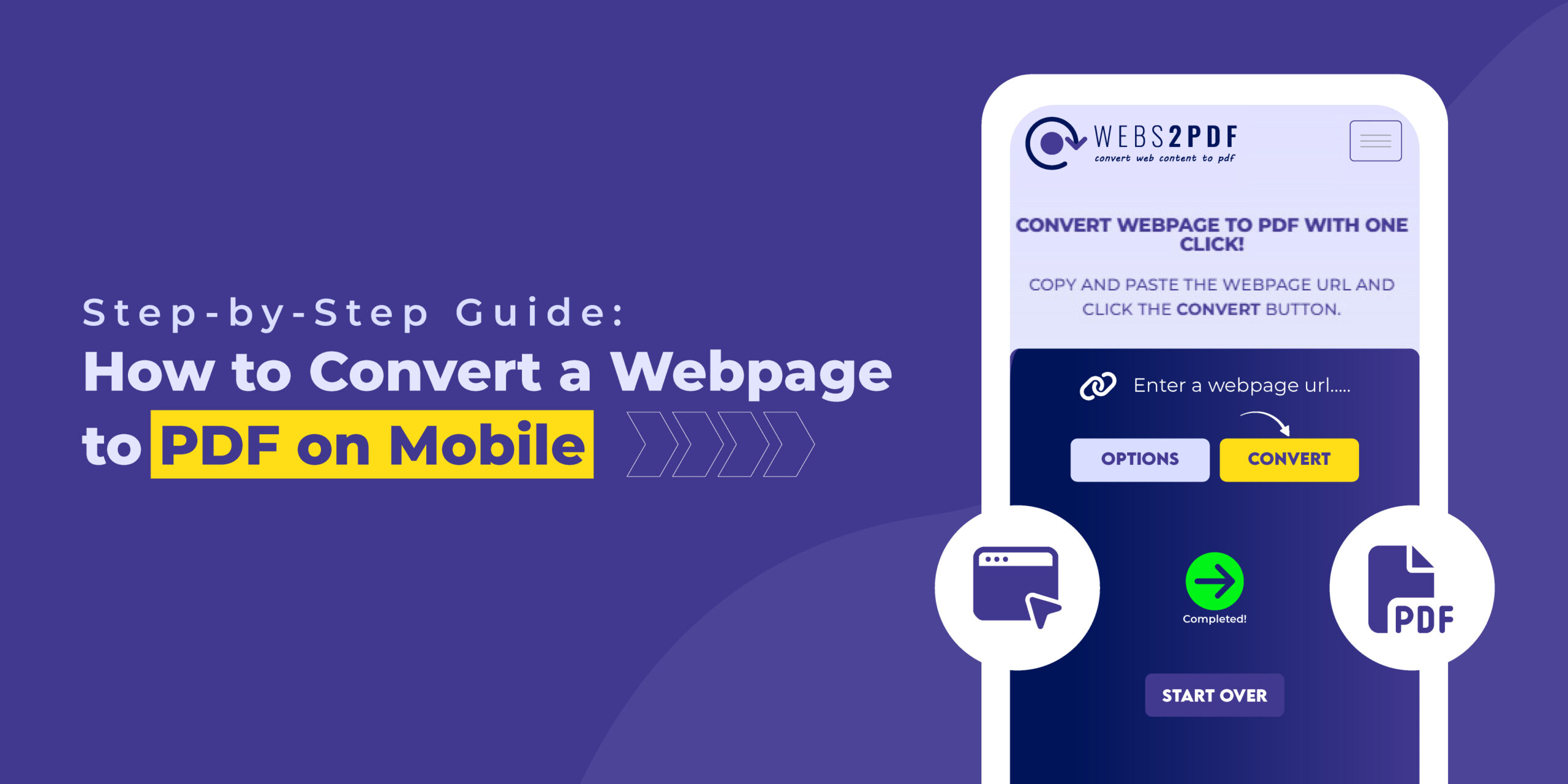
Webs2PDF makes the process simpler, faster, and more accurate. It works directly from your mobile browser, no apps needed.
Steps to Save Webpage as PDF with Webs2PDF:
- Open Webs2PDF.com in your mobile browser.
- Copy the link of the webpage you want to save.
- Paste the link into the Webs2PDF box.
- Select your preferences (Desktop/Mobile view, page size, quality).
- Tap Convert → Download your PDF instantly.
The PDF maintains proper formatting, works across devices, and is ready for offline use.
Why Webs2PDF is better for mobile:
- Works on both Android & iPhone.
- Preserves original layout & images.
- Customizable (page size, orientation, quality).
- Free plan available, no login required.
- Super fast conversion.
Pro Tips for Managing PDFs on Mobile
Once you’ve saved webpages as PDFs, here’s how to keep them organized:
- Create Folders: e.g., “Study Notes,” “Invoices,” “Work Articles.”
- Rename Files Clearly: Instead of document123.pdf, use History_Assignment_Jan2025.pdf.
- Use PDF Reader Apps: Apps like Adobe Acrobat or Xodo allow highlighting and annotations.
- Cloud Backup: Store important PDFs in Google Drive, iCloud, or Dropbox for access across devices.
- Printing Option: Saved PDFs can be printed anytime for physical notes.
Real-Life Use Cases
- Students: Save online study materials, assignments, and research papers to read offline.
- Teachers: Save and distribute lesson plans/articles as PDFs to students.
- Professionals: Save invoices, reports, and business articles directly from mobile.
- Travelers: Save flight tickets, hotel bookings, and guides as offline PDFs.
Why Choose Webs2PDF for Mobile Users?
Compared to built-in options, Webs2PDF offers:
- Better formatting accuracy
- Mobile-friendly interface
- Advanced options (page size, orientation, quality)
- Works on any device without installation
- Free usage + affordable premium options
This makes Webs2PDF the best choice for mobile users who need reliability and simplicity.
Conclusion
Converting webpages to PDFs on mobile is not just convenient, it’s essential for study, work, and daily life. While Android and iPhone have built-in methods, they come with limitations.
For the fastest and most accurate results, Webs2PDF is the go-to solution. It works on any device, maintains proper formatting, and makes offline access easier than ever.
Try it today: Webs2PDF.com

2 Responses