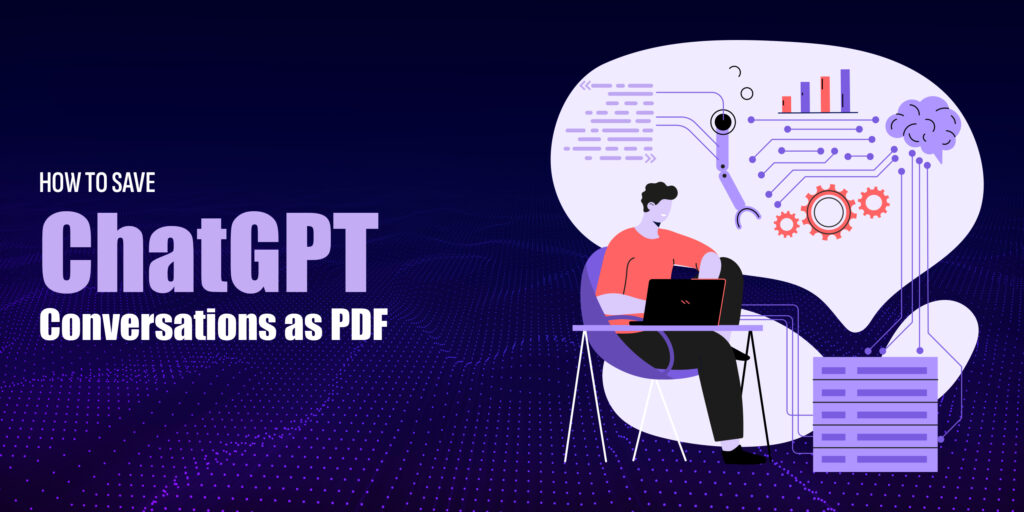
AI-generated content has become part of everyday workflows. From ChatGPT conversations and AI research outputs to Notion pages, dashboards, and modern web apps, much of today’s valuable information is created and viewed inside dynamic, browser-based environments.
However, when it comes to saving this content as a PDF, many users quickly discover a problem: AI-generated web pages don’t convert cleanly using traditional “Print to PDF” methods.
In this guide, we’ll explain why saving AI-generated pages as PDF is difficult, what usually goes wrong, and how to reliably convert ChatGPT pages, Notion documents, and modern web apps into high-quality PDFs without broken layouts or missing content.
What Are AI-Generated Web Pages?
AI-generated web pages are not traditional static webpages. Instead of loading all content at once, they are built using modern JavaScript frameworks and real-time rendering techniques.
Examples include ChatGPT conversation pages, Notion documents, AI dashboards, internal tools, and SaaS web apps. These pages update dynamically, load content on demand, and rely heavily on scripts to display text, tables, charts, and embedded components.
Because of this, they behave very differently from normal blog posts or static HTML pages, especially when you try to export them as a PDF.
Why Saving AI-Generated Pages as PDF Is So Difficult
The biggest challenge with AI-generated pages is that what you see on the screen is not always what the browser can immediately capture.
Content often loads progressively. Some sections appear only after user interaction. Others depend on background API calls that finish seconds after the page initially loads. When you attempt to save these pages using a browser’s print function, the PDF generator may capture the page too early, resulting in missing text, incomplete conversations, or broken formatting.
Additionally, many AI tools use complex layouts that are optimized for screens, not for printing. Sidebars, floating panels, sticky headers, and scroll-based containers rarely translate well into static PDF pages.
Why Browser “Print to PDF” Fails for ChatGPT and Web Apps
Browser print features were designed for simple webpages. They struggle when dealing with modern AI interfaces.
When you print a ChatGPT conversation, for example, the browser often captures only the visible portion of the chat. Long conversations may be cut off, code blocks may overflow, and formatting, such as tables or lists, can break.
In tools like Notion, the issue becomes even more noticeable. Nested content, toggle sections, embedded databases, and interactive elements often disappear or lose structure in the PDF.
This happens because browser printing relies on client-side rendering. It captures the page’s current visual state rather than fully rendering the entire document in a controlled environment.
The Unique Challenges of Saving ChatGPT Pages as PDF
ChatGPT pages are dynamic by nature. Conversations grow over time, messages load asynchronously, and formatting adjusts based on screen size.
When users try to print ChatGPT pages, they often face issues such as incomplete message history, missing code blocks, broken line spacing, or PDFs that contain only part of the conversation.
Scrolling to the bottom helps in some cases, but it’s not reliable. The browser may still fail to include all messages or may distort formatting when forced into a printable layout.
Why Notion Pages Often Break During PDF Export
Notion is designed as an interactive workspace rather than a document generator. Its pages include collapsible sections, inline databases, embedded content, and dynamic formatting.
While Notion offers built-in export options, users frequently find that the exported PDFs don’t match the on-screen layout. Elements may shift, spacing can look inconsistent, and complex pages may lose structure.
When using browser print instead, the results are usually worse, especially for long or database-driven pages.
Modern Web Apps and Dashboards Are Even Harder to Save
AI dashboards, analytics tools, internal admin panels, and SaaS web apps are some of the hardest pages to convert into PDFs.
These applications often load content after authentication, use real-time updates, and rely on JavaScript for nearly everything. Browser print tools frequently produce blank pages, partial exports, or PDFs that contain only headers without data.
For professionals who need to archive reports, share AI outputs with clients, or store records, this unreliability becomes a serious problem.
Why Screenshots Are Not a Real Solution
Many users fall back on screenshots when PDF exports fail. While screenshots may work for quick reference, they are not practical for professional use.
Screenshots are image-based, not searchable, and often require multiple captures for long pages. Text cannot be selected or copied, and file sizes can grow quickly. For documentation, sharing, or archiving, screenshots are simply not an efficient or scalable solution.
The Correct Way to Save AI-Generated Web Pages as PDF
To reliably save AI-generated web pages as PDFs, you need a tool that goes beyond browser printing. The key requirement is full server-side rendering.
A dedicated Web to PDF tool loads the webpage in a controlled environment, allows all scripts and dynamic content to execute fully, and only then converts the rendered page into a PDF. This ensures that what ends up in the PDF accurately reflects what you see on screen.
How Webs2PDF Handles AI-Generated Content
Webs2PDF is designed specifically for modern websites and dynamic web applications. Instead of capturing a momentary screen state, it renders the full webpage before conversion.
For ChatGPT pages, this means complete conversations, preserved formatting, and readable code blocks. For Notion pages, layouts remain structured, text stays selectable, and content is properly spaced. For AI dashboards and web apps, data loads fully before the PDF is generated.
Because the conversion happens online, results are consistent regardless of browser extensions, device limitations, or operating system differences.
Step-by-Step: Saving an AI-Generated Page as PDF with Webs2PDF
Step 1: Open the AI-Generated Page
Open the AI-generated page you want to save, such as a ChatGPT conversation, Notion document, or modern web app.
Make sure all relevant content is fully visible and loaded before moving to the next step.
Step 2: Paste the Page URL into Webs2PDF
Copy the full page URL from your browser.
Visit Webs2PDF and paste the link into the conversion field.
If the page requires a login, ensure you are already authenticated in your browser so the content can be accessed correctly.
Step 3: Download the Generated PDF
Once submitted, Webs2PDF renders the page completely before conversion.
After processing, download the PDF file. The final document preserves layout, text quality, and content structure far better than standard browser print options.
When You Should Use Webs2PDF Instead of Built-In Exports
Built-in export features are useful when they work, but they are often limited or inconsistent. Webs2PDF is a better choice when you need accuracy, consistency, and professional-quality output.
This includes saving long ChatGPT conversations, exporting complex Notion documents, capturing AI-generated reports, or archiving web-based tools for compliance or documentation.
Security and Privacy Considerations
When dealing with AI-generated content, privacy matters. Reputable Web to PDF tools process pages securely and do not permanently store files. Webs2PDF uses secure connections and generates PDFs for immediate download, helping protect sensitive information.
As always, it’s best to avoid unknown converters when working with private or business-critical data.
Final Thoughts
AI-generated web pages are powerful, but they were never designed with traditional printing in mind. Browser “Print to PDF” features struggle with dynamic loading, interactive layouts, and JavaScript-driven content.
If you want clean, accurate PDFs from ChatGPT, Notion, or modern web apps, you need a solution built for today’s web. A dedicated Web to PDF tool provides the reliability that browser printing simply cannot.
For anyone who regularly saves AI-generated content for sharing, archiving, or professional use, Webs2PDF offers a practical and dependable way to convert modern web pages into high-quality PDFs.