Skip to content
Webs 2 PDF Logo
  • Home
  • Benefits
  • Reviews
  • Pricing
  • FAQs
  • Blog
  • Contact
  • Home
  • Benefits
  • Reviews
  • Pricing
  • FAQs
  • Blog
  • Contact
sign in

Category: Website to PDF

  • August 19, 2025

How to Convert Any Web Page to PDF: A Step-by-Step Guide

How to Convert Any Web Page to PDF

Converting web pages to PDF has become an essential task for many. Whether you’re a student saving research articles, a professional creating documentation, or a business owner archiving invoices, the PDF format is the best choice. In this guide, we’ll give you a step-by-step walkthrough of how to convert any web page into a professional PDF. We’ll be using the easiest and most effective online tool, Webs2PDF.

Why Convert a Web Page to PDF?

There are several key benefits to converting web pages to PDF:

  • Offline Access: The PDF format allows you to view content anytime, anywhere, without an internet connection.
  • Easy Sharing: PDFs have a fixed layout, so you can easily share them across any device without losing formatting.
  • Archiving & Documentation: It’s the best way to save important web content for future reference and record-keeping.
  • Print-Ready: Converted PDFs are perfect for professional printing, preserving the design and layout perfectly.

Method 1: Using an Online Converter (Webs2PDF)

Online converters like Webs2PDF are the easiest and fastest way to convert web pages to PDF. You don’t need to download or install any software.

Step 1: Open Webs2PDF

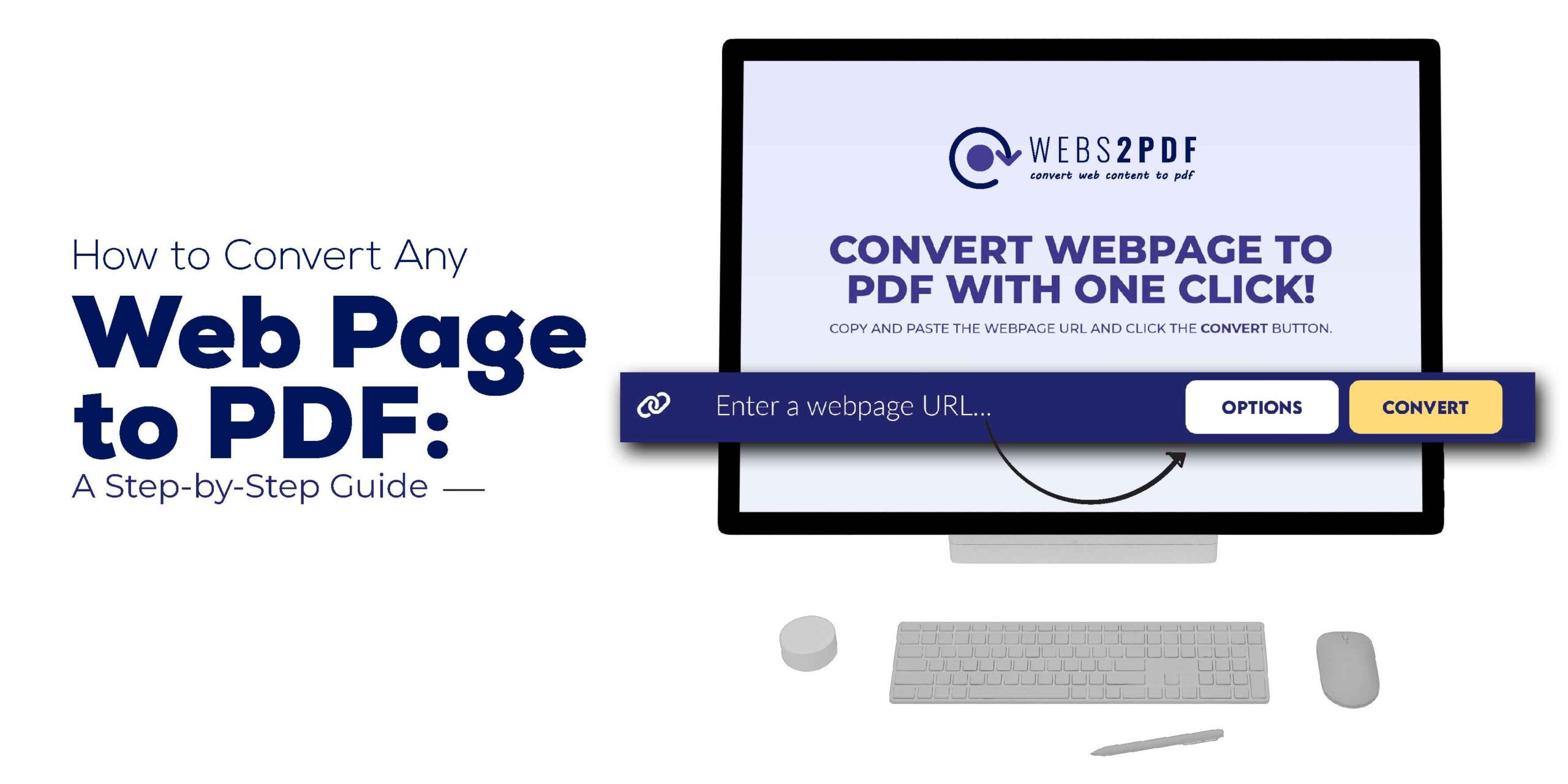
First, open the Webs2PDF website in your browser. You will find a clean, user-friendly interface with an input box for the URL.

Step 2: Enter the Web Page URL

Copy the URL (link) of the web page you want to convert and paste it into the input box on the Webs2PDF homepage.

  • Example: https://www.examplewebsite.com/your-article

Step 3: Customize Your Conversion Settings

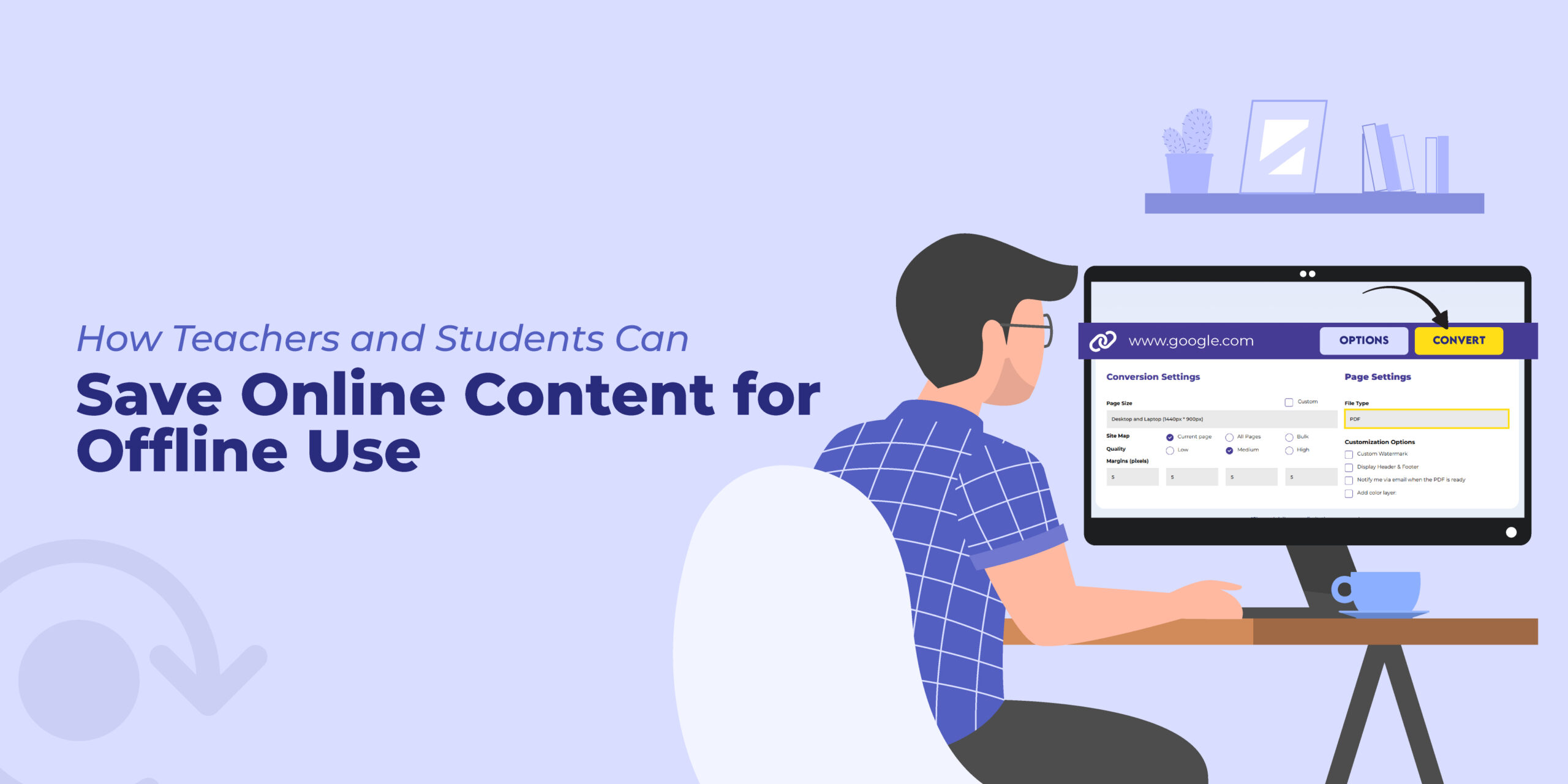
After entering the URL, click the “Options” button to customize your settings based on your needs. According to your image, here are the options available:

  • Page Size: You can select a predefined size like Desktop and Laptop, iPad Portrait, or enter a Custom size.
  • Site Map: Choose whether you want to convert the Current page only, All Pages, or do a Bulk conversion (for multiple pages).
  • Quality: Select from Low, Medium, or High quality. This is useful if you need high-resolution images in your PDF.
  • Margins: You can set the margins in pixels for all four sides of the PDF, just like the 5 pixels set in your image.
  • File Type: Choose between PDF, PNG, or JPEG file types (available in paid plans).
  • Customization Options: In paid plans, you can add a Custom Watermark, Display Header & Footer, and receive an email notification when your PDF is ready.

Step 4: Convert and Download

Once you’ve selected your settings, click the “Convert” button. Webs2PDF will process your web page and generate a PDF file in just a few seconds. After the process is complete, a “Download PDF” button will appear. Click it to download your file.

Method 2: Using Your Browser’s Built-in Function

If you just need a simple, quick PDF and don’t need any customization, you can use your browser’s built-in “Print to PDF” option.

Step 1: Open the Web Page

First, open the web page you want to convert to PDF.

Step 2: Open the Print Dialog Box

  • Windows / Linux: Press Ctrl + P.
  • Mac: Press Cmd + P.

Step 3: Save as PDF

  • In the “Destination” or “Printer” drop-down menu, select the “Save as PDF” option.
  • Click the “Save” button.

Note: This method is simple, but it will often include ads, pop-ups, and other unnecessary elements from the web page. Additionally, it doesn’t give you advanced customization options like those offered by Webs2PDF. For professional and clean results, a dedicated tool is far better.

Why Webs2PDF is the Best Choice

While your browser is fine for basic conversions, a dedicated online tool like Webs2PDF provides a superior experience. It not only gives you a clean, professional PDF with one click but also offers far more control over the final output. For fast, easy, and high-quality conversions, Webs2PDF is the best option available.

  • August 11, 2025

The Best Tools for Converting HTML to PDF

Best HTML to PDF Converters | Webs2PDF Top Choice

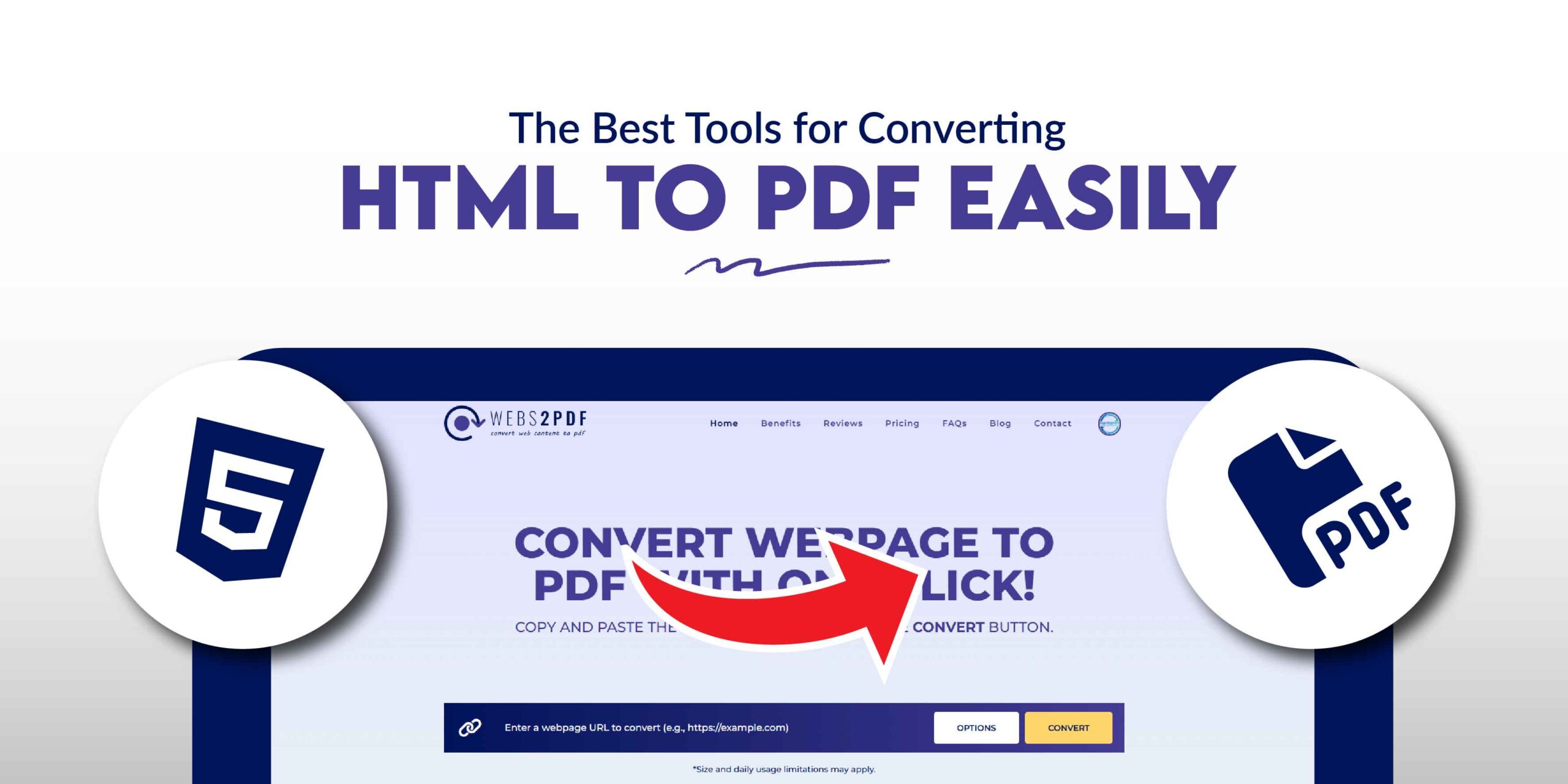
Converting HTML files to PDF is a critical task for developers, designers, and marketers who need to preserve web content for archiving, sharing, or professional documentation. While many tools are available, choosing the right one ensures accuracy and efficiency. This guide will explore the top HTML to PDF converters, with a special focus on why Webs2PDF is the best all-around choice.

Why Is HTML to PDF Conversion So Important?

  • Preserve Layout and Styling: PDFs maintain design integrity, ensuring content looks the same on every device.
  • Universal Accessibility: PDFs are universally accessible on any operating system, making sharing simple.
  • Offline Access: View content anytime, anywhere, without an internet connection.
  • Professional Reporting: Ideal for creating professional invoices, reports, and dashboards.
  • Compliance & Archiving: Store legal and historical records in a universally reliable format.

Webs2PDF: The Easiest & Most Powerful HTML to PDF Converter

Webs2PDF stands out as the best solution for anyone, from non-technical users to developers, who needs a quick, reliable, and secure way to convert HTML to PDF. Unlike complex command-line tools or expensive APIs, Webs2PDF offers a user-friendly online platform with powerful features.

Key Features of Webs2PDF:

  • One-Click Conversion: Instantly convert any live URL or HTML page to a high-quality PDF.
  • Customizable Page Sizes: Convert content to look perfect on desktop, tablet, or mobile screens.
  • No Technical Skills Needed: No installations, code, or command-line interfaces are required.
  • Secure & Private: Your data is not stored, ensuring complete privacy.
  • Advanced Options (in Paid Plans): Get more control with custom headers, footers, watermarks, and more.

Webs2PDF vs. Other Popular HTML to PDF Converters

While other tools have their place, Webs2PDF’s combination of ease of use and professional features makes it the top choice for most users.

Feature Webs2PDF PDFCrowd WeasyPrint wkhtmltopdf
Ease of Use Online, one-click Online/API Developer (Python) Developer (CLI)
Target Audience Everyone Developers/Businesses Developers Developers/Technical
Customization High (Paid Plans) High (API) High (Code) High (CLI)
Layout Support Modern CSS Good Excellent Good
Cost Free Plan Available Freemium/Paid Free (Open-Source) Free (Open-Source)

A Brief Overview of the Competition

  1. PDFCrowd: This tool is a strong contender for developers, offering a robust API for automation. While it also has an online converter, its primary strength lies in its backend integration. It’s best for users who need to automate PDF generation on a large scale.
  2. WeasyPrint: A free, open-source Python library, WeasyPrint is an excellent choice for developers who need to integrate HTML to PDF conversion directly into their Python applications. It provides precise control over the output but requires coding skills.
  3. wkhtmltopdf: A popular open-source command-line tool, wkhtmltopdf is perfect for technical users who need a free, scriptable solution for batch processing. It’s a powerful option for server-side rendering but is not user-friendly for non-technical individuals.
  4. Prince: This is a professional-grade solution used for high-end publishing. It offers exceptional quality for complex layouts but is often too expensive and complex for most everyday users and small businesses.

Use Cases for HTML to PDF Conversion

  • eCommerce Receipts and Invoices
    Automatically generate printable receipts for customer orders.
  • Business Reports and Dashboards
    Convert real-time dashboards into shareable PDF reports.
  • Legal and Compliance Documentation
    Generate contract-ready PDFs from web-based forms.
  • Offline Content Delivery
    Allow users to download web pages or catalogs as PDFs.
  • Website Archiving
    Create PDF snapshots of webpages for compliance or record-keeping.

How to Choose the Right Tool for You

  • For Everyday Users: If you just need a simple, fast, and reliable way to convert an HTML page, Webs2PDF is the best choice. No technical knowledge is required.
  • For Developers: If you’re building an application and need to automate PDF generation, consider an API like PDFCrowd or open-source libraries like WeasyPrint and wkhtmltopdf. However, for a simple and reliable solution that requires minimal setup, even for developers, Webs2PDF is a great option.

Final Verdict

Whether you need a quick online converter for a single task or a scalable solution for a business, Webs2PDF provides the perfect balance of ease, power, and security. Its intuitive interface and reliable performance make it the most efficient choice for converting HTML to PDF without any hassle.

For a dependable, user-friendly, and feature-rich HTML to PDF converter, your search ends here. Choose Webs2PDF.

  • July 22, 2025

Top 5 Free Webpage to PDF Converters Online

Webpage to PDF Converters Online

Need to save online content for offline use, documentation, or easy sharing? This guide covers the top 5 free online tools for converting any webpage into a professional PDF. While we’ll briefly mention the competition, we’ll clearly show you why Webs2PDF is the most powerful and reliable choice for all your conversion needs.

Why You Need to Convert Webpages to PDF

Before we dive into the tools, here’s why people prefer converting webpages to PDFs:

  • Offline Access: Read content anytime, anywhere, without an internet connection.
  • Easy Sharing: PDFs maintain formatting and can be shared across all devices without any layout issues.
  • Archiving: Save webpages for documentation and future reference.
  • Professional Printing: PDFs preserve the design, making them perfect for professional printing.

Research: Compile articles and references into an organized format for academic or professional use.

Webs2PDF: The #1 Choice for Speed, Simplicity, and Features

Webs2PDF is designed for professionals, students, and businesses who need a fast, secure, and feature-rich conversion tool. It stands out by combining the user-friendliness of a one-click converter with powerful, advanced options.

Key Features That Make Webs2PDF the Best:

  • One-Click Conversion: Instantly convert any URL to a high-quality PDF.
  • Customizable Page Sizes: Choose from multiple sizes optimized for desktop, tablet, and mobile devices.
  • Secure & Private: Your data is not stored, ensuring complete privacy.

Advanced Features (in Paid Plans): Gain access to full website conversion, bulk conversions, custom watermarks, and header/footer options.

A Quick Comparison: Webs2PDF vs. Other Tools

While other tools can get the job done, they often lack the features, flexibility, and security that Webs2PDF provides. Here’s how they stack up.

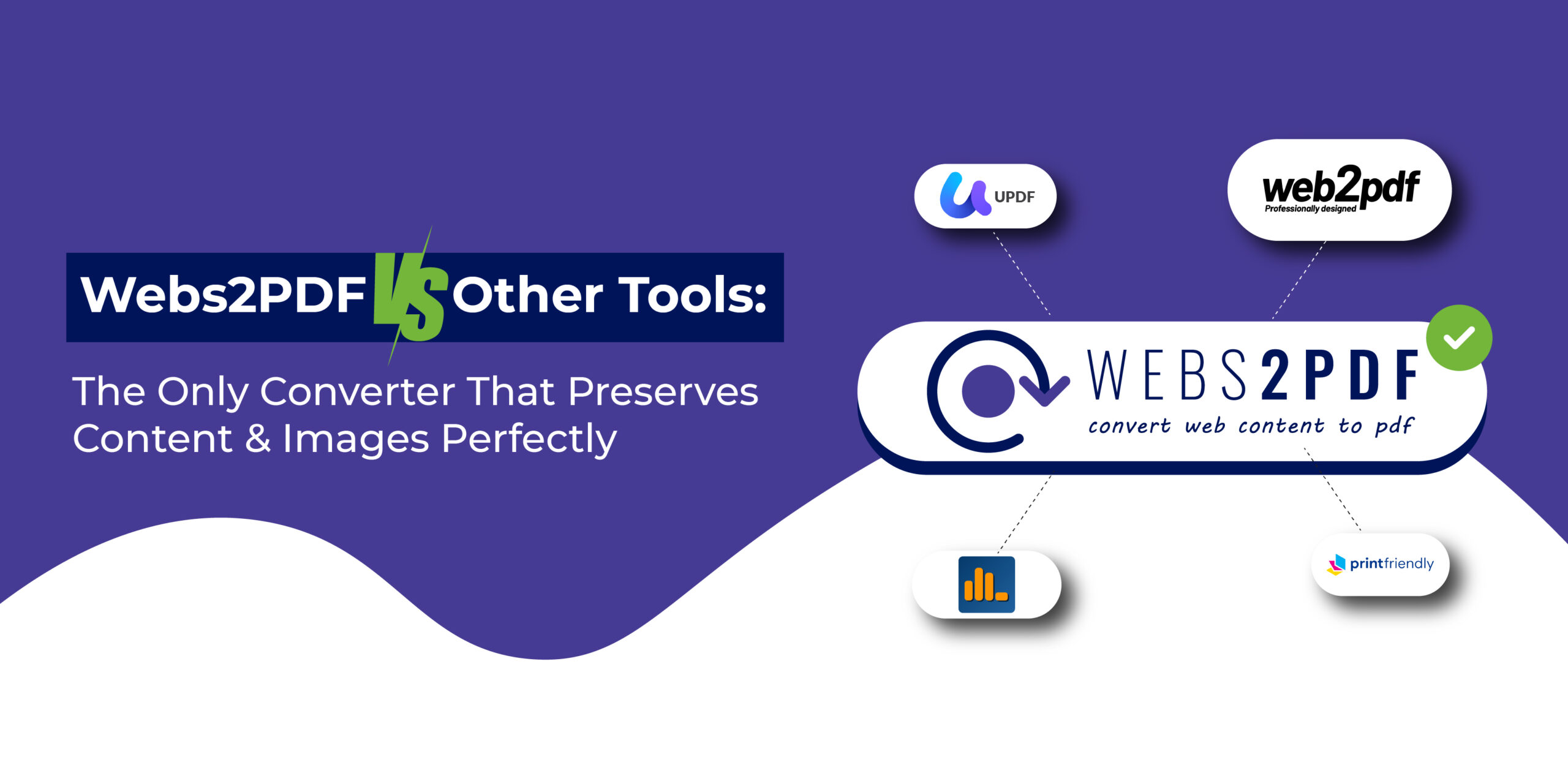
Feature Webs2PDF Print Friendly PDF Crowd UPDF
Simplicity One-click conversion Requires editing Requires some setup One-click conversion
Custom Page Sizes Yes (Multiple options) No No No
Full Website Conversion Yes (Paid Plans) No Yes (Paid) No
Advanced Features Bulk, watermark, header/footer Removes clutter only API integration Basic conversion
Security Private and secure Not specified Not specified Not specified

Brief Look at the Competition

  1. Print Friendly: This tool is great if your main goal is to create a clutter-free PDF by removing ads and pop-ups. It’s best for a clean reading experience, but it lacks advanced features.
  2. PDFCrowd: Ideal for developers and businesses, PDFCrowd’s main strength is its API integration, which allows for automation. It’s a solid choice for technical users but less intuitive for quick, simple conversions.
  3. UPDF: A simple tool for instant URL-to-PDF conversions. It’s a good free option for very basic needs, but it doesn’t offer the customization and advanced functionality found in Webs2PDF.

Final Thoughts: Choose the Best Tool for Your Workflow

When choosing a webpage to PDF converter, you need to consider more than just a free price tag. You need a tool that is fast, reliable, and secure, with the flexibility to grow with your needs.

Webs2PDF provides the perfect solution, whether you’re using the generous free plan for daily conversions or a paid plan for advanced features like full website conversion. It’s the only tool you’ll need to save, archive, and share web content professionally. So, if you’re looking for a dependable webpage to PDF converter, choose the one that offers the best blend of features and simplicity. Choose Webs2PDF.

Recent Posts
Guide showing how to save a Google Maps business listing or location page as a PDF using Webs2PDF for offline access and documentation.

How to Save a Google Maps Business Listing or Location Page as a PDF

July 21, 2026
Save Amazon and e-commerce product listings as a PDF with prices, images, and specifications

How to Save an Amazon or E-Commerce Product Listing as a PDF

July 15, 2026
Convert a webpage to PDF without ads, sidebars, headers, or browser clutter

How to Convert a Webpage to PDF Without Ads and Clutter

July 7, 2026
Guide showing how to save Reddit threads, posts, and comments as PDF files for offline reading and archiving.

How to Save a Reddit Thread or Post as a PDF

June 30, 2026
Convert and save Substack articles as PDF files for offline reading using Webs2PDF

Save Substack Articles as PDF for Offline Reading

June 23, 2026
Blog Categories
Website to PDF
Subscribe

Stay Updated with Webs2PDF

Join our newsletter and never miss a tip.

Next Up on Webs2pdf Blog

Save Web Pages as High-Quality PDF
Save Web Pages as High-Quality PDF Without Installing Any App
  • December 30, 2025
Convert Long Web Pages to PDF Without Cropping
Tips to Convert Long Web Pages to PDF Without Cropping or Losing Content (2026 Guide)
  • December 23, 2025
Convert Dynamic Web Pages to PDF or Image
How to Convert Dynamic Web Pages to PDF or Image (Ultimate 2026 Guide)
  • December 17, 2025
Webpage to PDF vs Screenshot
Webpage to PDF vs Screenshot: Which Is Better for Archiving Web Pages in 2026?
  • December 9, 2025
Future of Document Conversion PDF
The Future of Document Conversion: Why PDFs Still Matter in 2026
  • November 25, 2025
Creative Uses of Web to PDF
Creative Uses of Web to PDF You Haven’t Thought Of
  • November 18, 2025
Follow Us
Pinterest-p Reddit-alien Github
  • About
  • Benefits
  • Reviews
  • Pricing
  • FAQ
  • Blog
  • Contact

Copyright © 2026 webs2pdf.com All rights reserved.

  • Privacy Policy
  • Cookie Policy
  • Terms of Use
  • Refund Policy
Webs 2 PDF Logo

Transforming Web Content into Portable, Professional Documents

Tick
  • Home
  • Benefits
  • Reviews
  • Pricing
  • FAQs
  • Blog
  • Contact
  • Home
  • Benefits
  • Reviews
  • Pricing
  • FAQs
  • Blog
  • Contact
SIGN IN