Skip to content
Webs 2 PDF Logo
  • Home
  • Benefits
  • Reviews
  • Pricing
  • FAQs
  • Blog
  • Contact
  • Home
  • Benefits
  • Reviews
  • Pricing
  • FAQs
  • Blog
  • Contact
sign in

Category: Website to PDF

  • September 9, 2025

Top 10 Free Online Tools to Convert Webpages into PDFs (Compared – 2025 Guide)

Top 10 Free Online Tools to Convert Webpages into PDFs

The internet is full of useful information, but websites change, update, or sometimes disappear. If you want to save a webpage permanently, the most reliable way is to convert it into a PDF. Whether you are a student conducting research, a teacher preparing lesson plans, a professional managing invoices, or simply someone who wants offline access to content, a reliable webpage-to-PDF converter is essential.

But here’s the challenge: there are dozens of free tools out there. Which one should you choose? Some are fast but lack features, some maintain design but are paid-only, and others are complicated to use.

To make your decision easier, we tested and compared the top 10 free tools to convert webpages into PDFs in 2025. This in-depth guide covers their features, pros & cons, and best use cases, so you can pick the one that fits your needs.

What Makes a Good Web to PDF Converter?

Before diving into the list, let’s quickly understand what really matters when choosing a converter:

  1. Ease of Use: Can anyone use it without downloading software or going through multiple steps?
  2. Accuracy: Does the converter maintain the original layout, images, and formatting?
  3. Speed: How quickly can it generate the PDF?
  4. Privacy & Security: Does it ensure your URLs and data remain private?
  5. Advanced Options: Can you customize page size, orientation, or PDF quality?
  6. Free vs Paid Limits: Is the free plan actually usable, or is it just a teaser for the paid version?

Quick Comparison of Top 10 Tools

Tool Free Plan Ease of Use Accuracy Advanced Features Best For
Webs2PDF ✔️ Yes ⭐⭐⭐⭐⭐ ⭐⭐⭐⭐⭐ Page size, quality, format Students & professionals
PDFcrowd ✔️ Limited ⭐⭐⭐ ⭐⭐⭐⭐ API for developers Developers
HTML to PDF ✔️ Yes ⭐⭐⭐⭐ ⭐⭐⭐⭐ Batch/API support Businesses
SmallPDF ✔️ Limited ⭐⭐⭐⭐ ⭐⭐⭐⭐ Edit, merge, compress Casual users
Sejda PDF ✔️ Limited ⭐⭐⭐ ⭐⭐⭐ PDF editing toolkit Advanced users
iLovePDF ✔️ Yes ⭐⭐⭐ ⭐⭐⭐⭐ Multi-file conversion Office users
SodaPDF ✔️ Yes ⭐⭐⭐ ⭐⭐⭐ Online + desktop app Mixed use
PDFMyURL ✔️ Trial ⭐⭐⭐ ⭐⭐⭐⭐ Batch archiving Researchers
PDFConvertFree ✔️ Yes ⭐⭐⭐ ⭐⭐⭐ Basic conversion Quick tasks
PDF24 Tools ✔️ Yes ⭐⭐⭐⭐ ⭐⭐⭐⭐ Extra PDF utilities General users

Best Free Tools to Convert Webpages into PDFs

1. Webs2PDF (Best Overall Choice)

https://webs2pdf.com

When it comes to simplicity, accuracy, and privacy, Webs2PDF is a standout. Unlike many free tools, it doesn’t overload you with ads or push you into buying a premium plan right away.

Features:

  • Convert webpages to PDFs instantly (just paste the link).
  • Choose between desktop, mobile, or tablet views.
  • Control page size, PDF quality, and orientation.
  • Privacy-first: no hidden tracking, no unnecessary redirects.
  • Free plan + affordable paid plans for advanced needs.

Pros:

  • Clean and user-friendly interface.
  • Preserves webpage formatting almost perfectly.
  • Works on any device (desktop & mobile).
  • No sign-up required for free usage.

Cons:

  • Daily limits on free conversions (reasonable for casual use).

Best For: Students, teachers, freelancers, professionals, anyone who wants a reliable everyday tool.

2. PDFcrowd

PDFcrowd is popular among developers because of its API support. You can integrate webpage-to-PDF functionality directly into apps or websites.

Features:

  • Web interface + API.
  • Supports both HTML files and live webpages.
  • Works with advanced integrations (ideal for custom workflows).

Pros:

  • Great for businesses and devs.
  • High accuracy in converting simple webpages.

Cons:

  • The free version is very limited (watermarks on PDFs).
  • Best features are locked behind a paid plan.

Best For: Developers and businesses needing automated PDF workflows.

3. HTML to PDF

Another tool that focuses on batch conversion and business use. Great for teams who regularly save reports or client documents.

Features:

  • Convert webpages in bulk.
  • API available for custom use.
  • Handles complex HTML/CSS well.

Pros:

  • Reliable for enterprise-level needs.
  • Good support for modern layouts.

Cons:

  • Not as user-friendly for casual users.
  • The free plan has restrictions.

Best For: Businesses, agencies, research teams.

Why Webs2PDF is the Best Pick

Out of all the tools, Webs2PDF strikes the right balance between free usability, advanced features, and accuracy. Unlike SmallPDF or Sejda, it doesn’t force heavy restrictions. Unlike PDFConvertFree, it maintains proper formatting. And unlike PDFcrowd, it’s not just for developers.

  • The free plan is actually usable.
  • Privacy-first approach.
  • Supports mobile & desktop perfectly.
  • Great for students, teachers, researchers, and professionals alike.

Final Thoughts

Converting webpages to PDFs is more than just convenience; it’s about preserving knowledge, keeping records, and working smarter offline.

If you’re looking for a one-stop, reliable solution, Webs2PDF is the clear winner. But depending on your needs, you can try other tools too:

  • Researchers → PDFMyURL
  • Businesses/Teams → HTML to PDF
  • Occasional Users → SmallPDF or iLovePDF
  • Everyday Users → Webs2PDF

Start converting today for free: Webs2PDF.com

  • August 28, 2025

How to Save Any Webpage as a PDF in Chrome Browser with Webs2PDF

Save Any Webpage as a PDF in Chrome Browser

Have you ever needed to save a webpage as a PDF in Chrome? Whether for research, documentation, or offline reading, converting a web page to a PDF is a common need. While your browser has a built-in feature, it often produces messy, unprofessional results.

This guide will show you a far superior method using Webs2PDF, the most efficient online tool to convert a webpage to PDF in Chrome. Forget complicated menus and poorly formatted files, Webs2PDF makes the process seamless, fast, and professional.

Why Choose Webs2PDF Over Other Methods?

When you save a webpage as a PDF in Chrome, you want the result to be clean and accurate. Webs2PDF stands out for several reasons:

  • No Clutter: Unlike the native Chrome Print function, Webs2PDF removes ads, navigation menus, and pop-ups, giving you a clean, readable PDF.
  • Superior Quality: Webs2PDF accurately preserves the original layout, formatting, CSS styles, and images. The PDF you get is a perfect replica of the webpage.
  • Full-Page Capture: It captures the entire webpage, even the parts you have to scroll down to see, unlike simple screenshot extensions.
  • Customization: You get full control over the final output, including page size, quality, and margins, options that are not available in a standard Chrome print to PDF function.
  • No Installation Required: As a web-based tool, Webs2PDF requires no webpage to pdf chrome extension installation. It works directly in your Chrome browser on any device.

A Simple Step-by-Step Guide to Using Webs2PDF in Chrome

Follow these easy steps to convert a webpage to PDF in Chrome in a matter of seconds.

Step 1: Go to Webs2PDF

Open a new tab in your Chrome browser and visit the Webs2PDF website. You’ll find a clean, simple interface where you can begin.

Step 2: Copy and Paste the Webpage URL

Navigate to the webpage you want to save. Copy the full URL from the address bar and paste it into the input field on the Webs2PDF site. This is all it takes to start the process to save a chrome page as pdf.

Step 3: Customize Your PDF Settings (Optional)

Before converting, click the “Options” button to adjust your preferences. This step is what separates a basic PDF from a professional one. You can:

  • Adjust Page Size: Select a specific screen size like Desktop or iPad for optimal viewing.
  • Set Quality: Choose High quality for clear images and crisp text.
  • Define Margins: Set your desired margins in pixels to control the layout.

Step 4: Convert and Download Your PDF

Once your settings are ready, click the “Convert” button. Webs2PDF will process the page, and a download link for your high-quality PDF will appear. Click on it to download webpage as pdf chrome.

You have now successfully created a professional PDF from a webpage in your Chrome browser without any clutter or formatting issues.

FAQs about Webs2PDF and Chrome

Is Webs2PDF a chrome extension?

No, Webs2PDF is an online tool. It works directly in your Chrome browser, so you don’t need to install any extensions that might slow down your browser.

How does Webs2PDF compare to Chrome Print to pdf?

Webs2PDF offers superior control over the output, removing ads and giving you customization options for page size, quality, and margins, which the standard Chrome print function cannot do.

Can I use Webs2PDF on my phone or tablet?

Yes. Webs2PDF is a web-based tool, so it works perfectly in the Chrome browser on your iPhone, iPad, or Android device. The process to save webpage as pdf on Mac Chrome is the same as on Windows.

The Best Way to Convert Web Pages in Chrome

While the Chrome browser has a built-in feature to print a web page to pdf, it’s a basic option with limited results. For a professional, clean, and high-quality PDF, Webs2PDF is the clear winner. It’s the only tool you need to confidently convert webpage into PDF chrome without compromising on quality or ease of use.

Stop settling for messy PDFs and start using the smarter, faster way to save your online content with Webs2PDF.

  • August 19, 2025

How to Convert a Webpage to a PDF to Share with Students

Convert a Webpage to a PDF to Share with Students

In the modern digital learning environment, saving online content for offline access, research, or documentation is crucial for both students and educators. The most effective way to preserve an article, a research paper, or any online resource is by converting it to a PDF. This guide will provide a detailed, step-by-step walkthrough on how to turn a webpage into a PDF using the best online tool for the job: Webs2PDF.

Why Use Webs2PDF to Convert a Webpage to PDF?

Webs2PDF is designed to be the most reliable and user-friendly solution for educators and learners. It offers a clean, professional, and customizable output that is perfect for academic use.

Offline Accessibility: Students can download a webpage as a PDF to access critical class material without an internet connection.

Easy Archiving: Educators can save webpage as PDF to create a permanent archive of online resources, ensuring content is always available.

Organized Research: You can create a PDF from a webpage to organize research articles and sources for projects in a single, shareable format.

Professional Output: The PDFs generated are free of ads and clutter, making them perfect for reading and annotation.

A Step-by-Step Guide to Converting a Webpage with Webs2PDF

Using Webs2PDF is straightforward and requires no technical expertise. Simply follow these steps to export a webpage to a PDF with ease.

Step 1: Go to Webs2PDF

Open your browser and navigate to the Webs2PDF website. You’ll immediately see a clean interface where you can begin your conversion without any signup or installation.

Step 2: Paste the Webpage URL

Copy the URL of the article or web page you want to convert. Paste this link into the designated input field on the Webs2PDF homepage. This is the first step to turn a webpage into a PDF.

Step 3: Customize Your Conversion Settings

Click on the “Options” button to tailor the PDF to your exact needs. This is where Webs2PDF provides superior control over the output. You can:

Adjust Page Size: Select from various pre-defined sizes like `Desktop and Laptop` or `iPad Portrait` to ensure the PDF is optimized for your device. This is especially useful for students who save a webpage as a PDF on iPad or other tablets.

Set Site Map: If you are a teacher creating a resource, you can choose to convert just the `Current page only` or all related pages.

Choose Quality: Select `Medium` or `High` quality to ensure images and charts are clear and sharp.

Define Margins: Set custom margins in pixels to ensure the content is perfectly spaced and nothing is cut off.

Add Custom Features (Paid Plans): For professional documentation, you can add a `Custom Watermark` or display `Header & Footer` information.

Step 4: Convert and Download Your PDF

Once your settings are configured, click the “Convert” button. Webs2PDF will quickly process the webpage and generate a high-quality PDF file. After the conversion is complete, click the “Download” button to save the webpage as a PDF directly to your computer or mobile device.

The Webs2PDF Advantage: Why It’s the Best Choice for Students & Educators

When you convert a webpage to a PDF, the final result matters. Unlike other methods that can produce messy, ad-filled PDFs, Webs2PDF delivers a clean, professional, and well-formatted document every time. Its user-friendly interface makes it the go-to tool for anyone who needs to turn a website into a PDF without any hassle.

Whether you’re trying to download an article as a PDF for a school project or an educator creating resources, Webs2PDF is the fastest, easiest, and most reliable way to make a webpage into a PDF.

  • August 19, 2025

How to Convert Any Web Page to PDF: A Step-by-Step Guide

How to Convert Any Web Page to PDF

Converting web pages to PDF has become an essential task for many. Whether you’re a student saving research articles, a professional creating documentation, or a business owner archiving invoices, the PDF format is the best choice. In this guide, we’ll give you a step-by-step walkthrough of how to convert any web page into a professional PDF. We’ll be using the easiest and most effective online tool, Webs2PDF.

Why Convert a Web Page to PDF?

There are several key benefits to converting web pages to PDF:

  • Offline Access: The PDF format allows you to view content anytime, anywhere, without an internet connection.
  • Easy Sharing: PDFs have a fixed layout, so you can easily share them across any device without losing formatting.
  • Archiving & Documentation: It’s the best way to save important web content for future reference and record-keeping.
  • Print-Ready: Converted PDFs are perfect for professional printing, preserving the design and layout perfectly.

Method 1: Using an Online Converter (Webs2PDF)

Online converters like Webs2PDF are the easiest and fastest way to convert web pages to PDF. You don’t need to download or install any software.

Step 1: Open Webs2PDF

First, open the Webs2PDF website in your browser. You will find a clean, user-friendly interface with an input box for the URL.

Step 2: Enter the Web Page URL

Copy the URL (link) of the web page you want to convert and paste it into the input box on the Webs2PDF homepage.

  • Example: https://www.examplewebsite.com/your-article

Step 3: Customize Your Conversion Settings

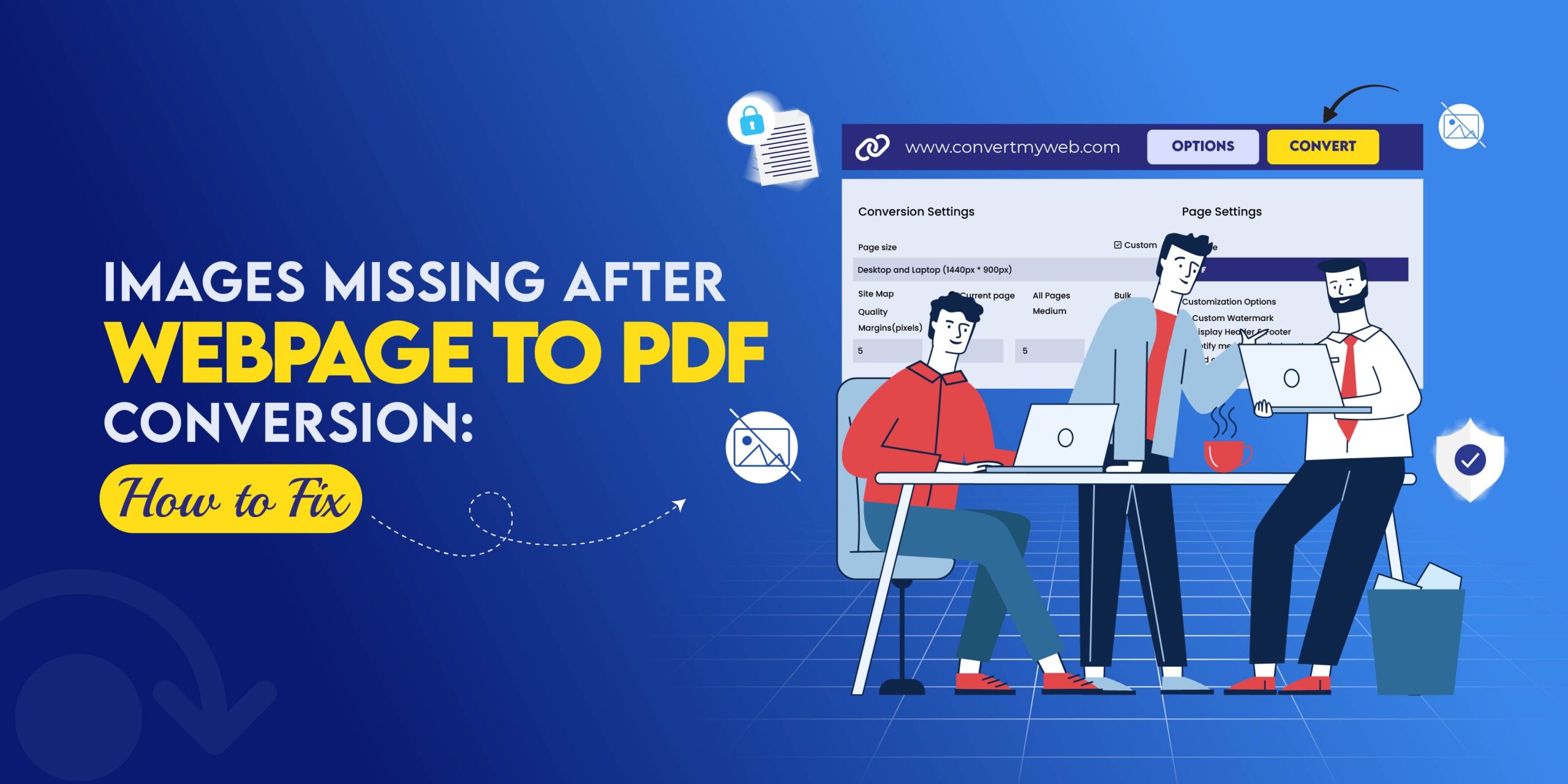
After entering the URL, click the “Options” button to customize your settings based on your needs. According to your image, here are the options available:

  • Page Size: You can select a predefined size like Desktop and Laptop, iPad Portrait, or enter a Custom size.
  • Site Map: Choose whether you want to convert the Current page only, All Pages, or do a Bulk conversion (for multiple pages).
  • Quality: Select from Low, Medium, or High quality. This is useful if you need high-resolution images in your PDF.
  • Margins: You can set the margins in pixels for all four sides of the PDF, just like the 5 pixels set in your image.
  • File Type: Choose between PDF, PNG, or JPEG file types (available in paid plans).
  • Customization Options: In paid plans, you can add a Custom Watermark, Display Header & Footer, and receive an email notification when your PDF is ready.

Step 4: Convert and Download

Once you’ve selected your settings, click the “Convert” button. Webs2PDF will process your web page and generate a PDF file in just a few seconds. After the process is complete, a “Download PDF” button will appear. Click it to download your file.

Method 2: Using Your Browser’s Built-in Function

If you just need a simple, quick PDF and don’t need any customization, you can use your browser’s built-in “Print to PDF” option.

Step 1: Open the Web Page

First, open the web page you want to convert to PDF.

Step 2: Open the Print Dialog Box

  • Windows / Linux: Press Ctrl + P.
  • Mac: Press Cmd + P.

Step 3: Save as PDF

  • In the “Destination” or “Printer” drop-down menu, select the “Save as PDF” option.
  • Click the “Save” button.

Note: This method is simple, but it will often include ads, pop-ups, and other unnecessary elements from the web page. Additionally, it doesn’t give you advanced customization options like those offered by Webs2PDF. For professional and clean results, a dedicated tool is far better.

Why Webs2PDF is the Best Choice

While your browser is fine for basic conversions, a dedicated online tool like Webs2PDF provides a superior experience. It not only gives you a clean, professional PDF with one click but also offers far more control over the final output. For fast, easy, and high-quality conversions, Webs2PDF is the best option available.

  • August 11, 2025

The Best Tools for Converting HTML to PDF

Best HTML to PDF Converters | Webs2PDF Top Choice

Converting HTML files to PDF is a critical task for developers, designers, and marketers who need to preserve web content for archiving, sharing, or professional documentation. While many tools are available, choosing the right one ensures accuracy and efficiency. This guide will explore the top HTML to PDF converters, with a special focus on why Webs2PDF is the best all-around choice.

Why Is HTML to PDF Conversion So Important?

  • Preserve Layout and Styling: PDFs maintain design integrity, ensuring content looks the same on every device.
  • Universal Accessibility: PDFs are universally accessible on any operating system, making sharing simple.
  • Offline Access: View content anytime, anywhere, without an internet connection.
  • Professional Reporting: Ideal for creating professional invoices, reports, and dashboards.
  • Compliance & Archiving: Store legal and historical records in a universally reliable format.

Webs2PDF: The Easiest & Most Powerful HTML to PDF Converter

Webs2PDF stands out as the best solution for anyone, from non-technical users to developers, who needs a quick, reliable, and secure way to convert HTML to PDF. Unlike complex command-line tools or expensive APIs, Webs2PDF offers a user-friendly online platform with powerful features.

Key Features of Webs2PDF:

  • One-Click Conversion: Instantly convert any live URL or HTML page to a high-quality PDF.
  • Customizable Page Sizes: Convert content to look perfect on desktop, tablet, or mobile screens.
  • No Technical Skills Needed: No installations, code, or command-line interfaces are required.
  • Secure & Private: Your data is not stored, ensuring complete privacy.
  • Advanced Options (in Paid Plans): Get more control with custom headers, footers, watermarks, and more.

Webs2PDF vs. Other Popular HTML to PDF Converters

While other tools have their place, Webs2PDF’s combination of ease of use and professional features makes it the top choice for most users.

Feature Webs2PDF PDFCrowd WeasyPrint wkhtmltopdf
Ease of Use Online, one-click Online/API Developer (Python) Developer (CLI)
Target Audience Everyone Developers/Businesses Developers Developers/Technical
Customization High (Paid Plans) High (API) High (Code) High (CLI)
Layout Support Modern CSS Good Excellent Good
Cost Free Plan Available Freemium/Paid Free (Open-Source) Free (Open-Source)

A Brief Overview of the Competition

  1. PDFCrowd: This tool is a strong contender for developers, offering a robust API for automation. While it also has an online converter, its primary strength lies in its backend integration. It’s best for users who need to automate PDF generation on a large scale.
  2. WeasyPrint: A free, open-source Python library, WeasyPrint is an excellent choice for developers who need to integrate HTML to PDF conversion directly into their Python applications. It provides precise control over the output but requires coding skills.
  3. wkhtmltopdf: A popular open-source command-line tool, wkhtmltopdf is perfect for technical users who need a free, scriptable solution for batch processing. It’s a powerful option for server-side rendering but is not user-friendly for non-technical individuals.
  4. Prince: This is a professional-grade solution used for high-end publishing. It offers exceptional quality for complex layouts but is often too expensive and complex for most everyday users and small businesses.

Use Cases for HTML to PDF Conversion

  • eCommerce Receipts and Invoices
    Automatically generate printable receipts for customer orders.
  • Business Reports and Dashboards
    Convert real-time dashboards into shareable PDF reports.
  • Legal and Compliance Documentation
    Generate contract-ready PDFs from web-based forms.
  • Offline Content Delivery
    Allow users to download web pages or catalogs as PDFs.
  • Website Archiving
    Create PDF snapshots of webpages for compliance or record-keeping.

How to Choose the Right Tool for You

  • For Everyday Users: If you just need a simple, fast, and reliable way to convert an HTML page, Webs2PDF is the best choice. No technical knowledge is required.
  • For Developers: If you’re building an application and need to automate PDF generation, consider an API like PDFCrowd or open-source libraries like WeasyPrint and wkhtmltopdf. However, for a simple and reliable solution that requires minimal setup, even for developers, Webs2PDF is a great option.

Final Verdict

Whether you need a quick online converter for a single task or a scalable solution for a business, Webs2PDF provides the perfect balance of ease, power, and security. Its intuitive interface and reliable performance make it the most efficient choice for converting HTML to PDF without any hassle.

For a dependable, user-friendly, and feature-rich HTML to PDF converter, your search ends here. Choose Webs2PDF.

  • July 22, 2025

Top 5 Free Webpage to PDF Converters Online

Webpage to PDF Converters Online

Need to save online content for offline use, documentation, or easy sharing? This guide covers the top 5 free online tools for converting any webpage into a professional PDF. While we’ll briefly mention the competition, we’ll clearly show you why Webs2PDF is the most powerful and reliable choice for all your conversion needs.

Why You Need to Convert Webpages to PDF

Before we dive into the tools, here’s why people prefer converting webpages to PDFs:

  • Offline Access: Read content anytime, anywhere, without an internet connection.
  • Easy Sharing: PDFs maintain formatting and can be shared across all devices without any layout issues.
  • Archiving: Save webpages for documentation and future reference.
  • Professional Printing: PDFs preserve the design, making them perfect for professional printing.

Research: Compile articles and references into an organized format for academic or professional use.

Webs2PDF: The #1 Choice for Speed, Simplicity, and Features

Webs2PDF is designed for professionals, students, and businesses who need a fast, secure, and feature-rich conversion tool. It stands out by combining the user-friendliness of a one-click converter with powerful, advanced options.

Key Features That Make Webs2PDF the Best:

  • One-Click Conversion: Instantly convert any URL to a high-quality PDF.
  • Customizable Page Sizes: Choose from multiple sizes optimized for desktop, tablet, and mobile devices.
  • Secure & Private: Your data is not stored, ensuring complete privacy.

Advanced Features (in Paid Plans): Gain access to full website conversion, bulk conversions, custom watermarks, and header/footer options.

A Quick Comparison: Webs2PDF vs. Other Tools

While other tools can get the job done, they often lack the features, flexibility, and security that Webs2PDF provides. Here’s how they stack up.

Feature Webs2PDF Print Friendly PDF Crowd UPDF
Simplicity One-click conversion Requires editing Requires some setup One-click conversion
Custom Page Sizes Yes (Multiple options) No No No
Full Website Conversion Yes (Paid Plans) No Yes (Paid) No
Advanced Features Bulk, watermark, header/footer Removes clutter only API integration Basic conversion
Security Private and secure Not specified Not specified Not specified

Brief Look at the Competition

  1. Print Friendly: This tool is great if your main goal is to create a clutter-free PDF by removing ads and pop-ups. It’s best for a clean reading experience, but it lacks advanced features.
  2. PDFCrowd: Ideal for developers and businesses, PDFCrowd’s main strength is its API integration, which allows for automation. It’s a solid choice for technical users but less intuitive for quick, simple conversions.
  3. UPDF: A simple tool for instant URL-to-PDF conversions. It’s a good free option for very basic needs, but it doesn’t offer the customization and advanced functionality found in Webs2PDF.

Final Thoughts: Choose the Best Tool for Your Workflow

When choosing a webpage to PDF converter, you need to consider more than just a free price tag. You need a tool that is fast, reliable, and secure, with the flexibility to grow with your needs.

Webs2PDF provides the perfect solution, whether you’re using the generous free plan for daily conversions or a paid plan for advanced features like full website conversion. It’s the only tool you’ll need to save, archive, and share web content professionally. So, if you’re looking for a dependable webpage to PDF converter, choose the one that offers the best blend of features and simplicity. Choose Webs2PDF.

Recent Posts
Concept image of PDF metadata exposing hidden author data and document history.

PDF Metadata Privacy Risks: Hidden Data in PDFs and How to Remove It

May 19, 2026
Webs2PDF tool interface converting a Notion page into a PDF using a URL input field

How to Save a Notion Page or Database as a PDF

May 12, 2026
How Freelancers Document Client Approvals Using PDF Archives

How Freelancers Document Client Approvals (and Avoid Disputes) Using PDF Archives

May 7, 2026
How to save Notion Power BI and Tableau dashboards as PDF step by step

How to Save Notion, Power BI & Tableau Dashboards as PDF (Step-by-Step 2026)

April 29, 2026
Learn how paralegals use web-to-PDF archiving to preserve online evidence. Replace screenshots with reliable, timestamped PDFs for court-ready cases.

How Paralegals Use Web-to-PDF Archiving to Build Evidence Files

April 22, 2026
Blog Categories
Website to PDF
Subscribe

Stay Updated with Webs2PDF

Join our newsletter and never miss a tip.

Next Up on Webs2pdf Blog

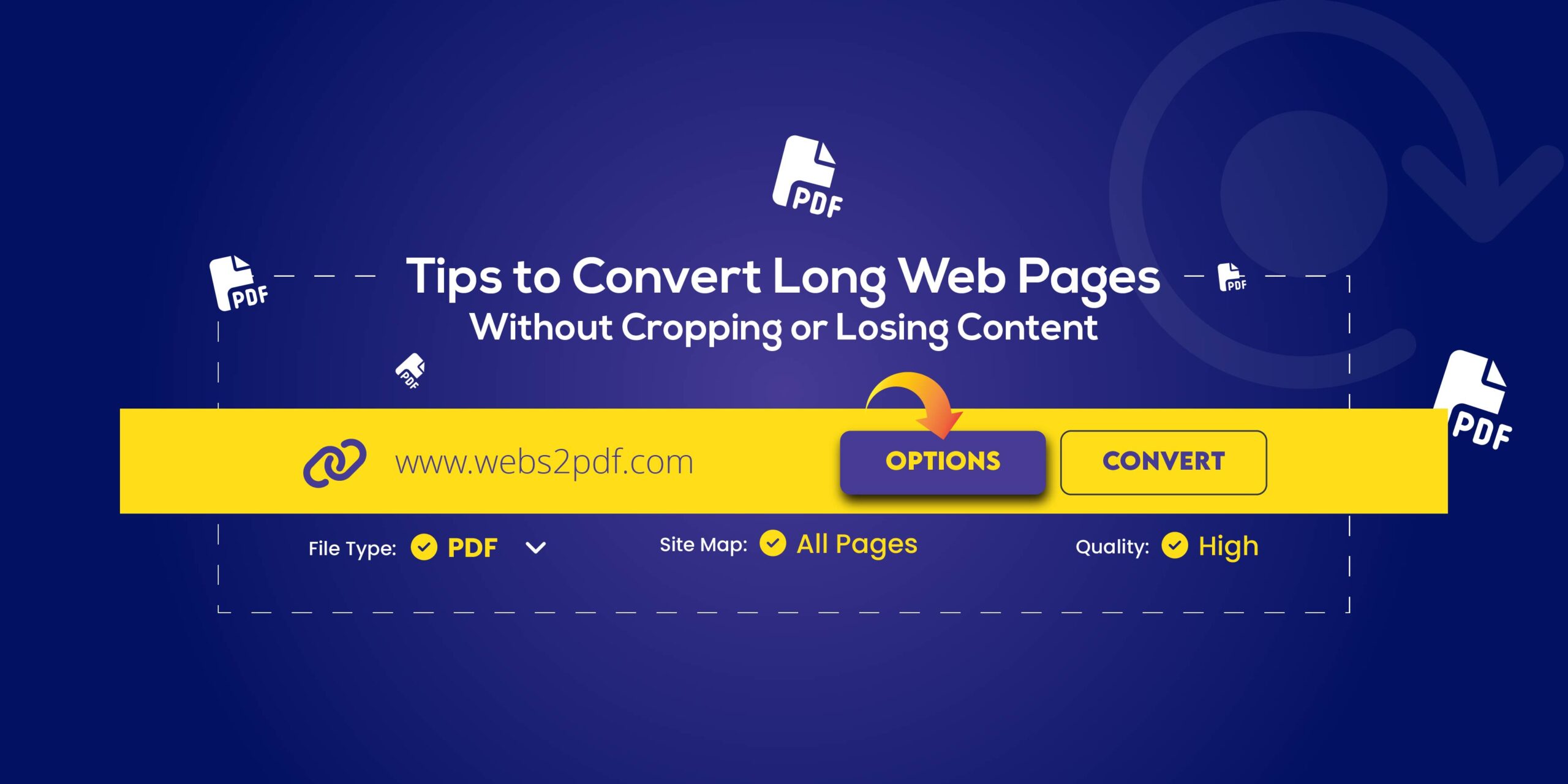
Convert Long Web Pages to PDF Without Cropping
Tips to Convert Long Web Pages to PDF Without Cropping or Losing Content (2026 Guide)
  • December 23, 2025
Convert Dynamic Web Pages to PDF or Image
How to Convert Dynamic Web Pages to PDF or Image (Ultimate 2026 Guide)
  • December 17, 2025
Webpage to PDF vs Screenshot
Webpage to PDF vs Screenshot: Which Is Better for Archiving Web Pages in 2026?
  • December 9, 2025
Future of Document Conversion PDF
The Future of Document Conversion: Why PDFs Still Matter in 2026
  • November 25, 2025
Creative Uses of Web to PDF
Creative Uses of Web to PDF You Haven’t Thought Of
  • November 18, 2025
How Webs2PDF Protects Your Privacy
Behind the Scenes: How Webs2PDF Protects Your Privacy
  • November 11, 2025
Follow Us
Pinterest-p Reddit-alien Github
  • About
  • Benefits
  • Reviews
  • Pricing
  • FAQ
  • Blog
  • Contact

Copyright © 2026 webs2pdf.com All rights reserved.

  • Privacy Policy
  • Cookie Policy
  • Terms of Use
  • Refund Policy
Webs 2 PDF Logo

Transforming Web Content into Portable, Professional Documents

Tick
  • Home
  • Benefits
  • Reviews
  • Pricing
  • FAQs
  • Blog
  • Contact
  • Home
  • Benefits
  • Reviews
  • Pricing
  • FAQs
  • Blog
  • Contact
SIGN IN